
Using StoriiCare Safely: Login, Sessions, and Best Practices
StoriiCare contains sensitive participant and organizational data. Using the system safely and correctly helps protect this information, ensures accurate documentation, and supports compliance with data protection requirements.
This guide outlines best practices for logging in, managing sessions, and avoiding common issues that can lead to data security risks or user confusion.
Logging In Securely
Always log in using your own credentials.
Never share usernames or passwords with others.
If you believe your password has been compromised, reset your password where possible. Otherwise, contact your administrator or support@storii.com immediately.
Each action taken in StoriiCare is associated with the logged-in user, so accurate login is essential for audit trails and accountability.
Logging Out When Not in Use
Staff should actively log out when they move away from a device they have been using to access StoriiCare. This helps to:
Prevent unauthorized access to sensitive data
Avoid another staff member accidentally entering information under the wrong name
Reduce the risk of data breaches on shared or unattended devices
The Logout option is located in the top-right corner of the StoriiCare screen.
Session Timeouts and Automatic Logout
To reduce security risks, StoriiCare automatically logs users out after a period of inactivity.
The default session timeout is 30 minutes. This protects data if a device is left unattended
Super Users may adjust session timeout settings in Business Settings, depending on your organization’s configuration.
See: Session Time & Logging Out
Managing Browser Tabs and Sessions
Opening multiple StoriiCare tabs or running multiple sessions at the same time can lead to unexpected logouts, data entry issues, or user confusion.
Staff should be aware that:
Having several StoriiCare tabs open in the same browser can cause session conflicts
Opening StoriiCare in multiple browsers or on multiple devices at the same time may trigger automatic sign-outs
Best Practice
Minimize the use of multiple StoriiCare tabs where possible
Before logging in, check whether StoriiCare is already open on the device or workstation
Avoid running duplicate sessions at the same time
This helps maintain a stable session and reduces the likelihood of losing work.
Assigning Staff to Participants (Access Control)
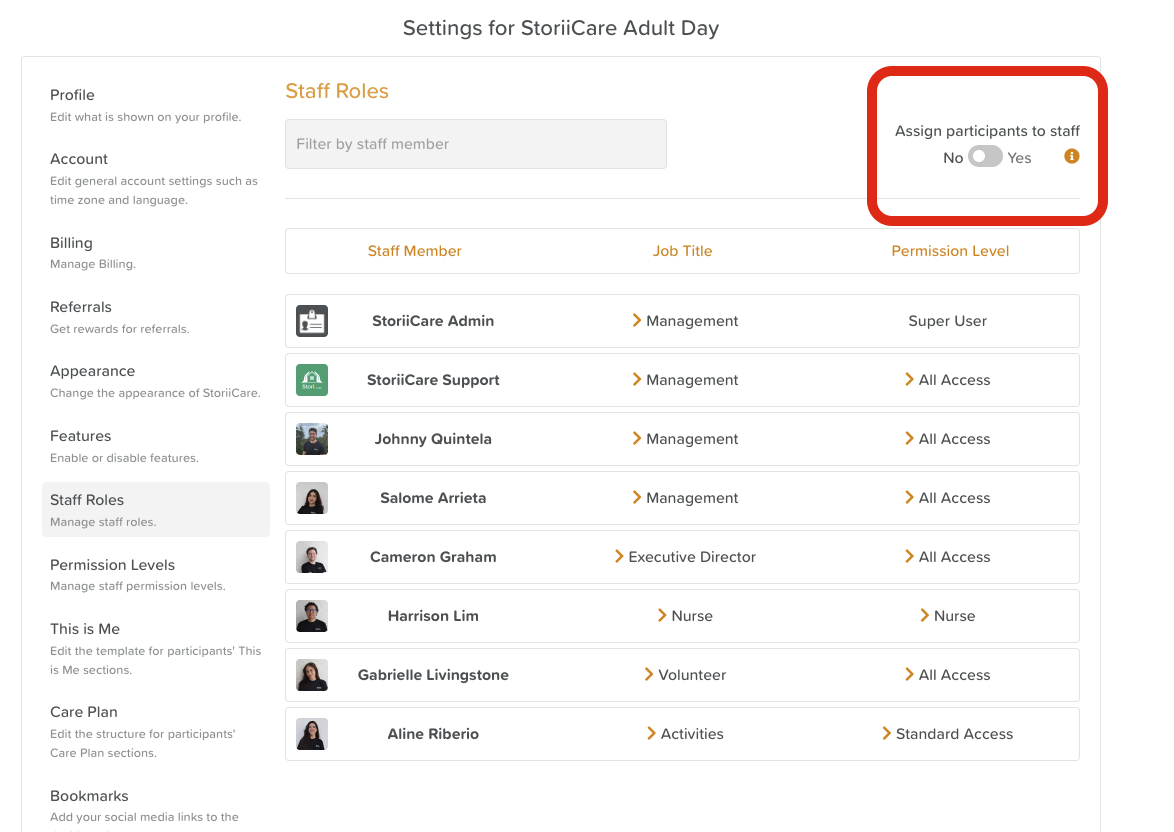
StoriiCare supports an additional layer of data protection through staff-to-participant assignment controls.
When enabled in Business Settings, this feature allows administrators to assign specific participants to specific staff members. Once activated:
Staff can only view the profiles of participants they are responsible for
All information relating to other participants is hidden and inaccessible
This reduces unnecessary exposure to sensitive data and supports the principle of least privilege
This setting is particularly well-suited to:
Home care
Case management
Key-worker or primary-carer models
While it may not be appropriate for every care setting, organizations should be aware of this option and use it where it best supports privacy, security, and regulatory compliance.
See: How to Assign Participants to Staff
Protecting Sensitive Information on the Face Sheet
Some information stored in participant profiles is highly sensitive and could compromise safety if accidentally viewed on a shared screen.
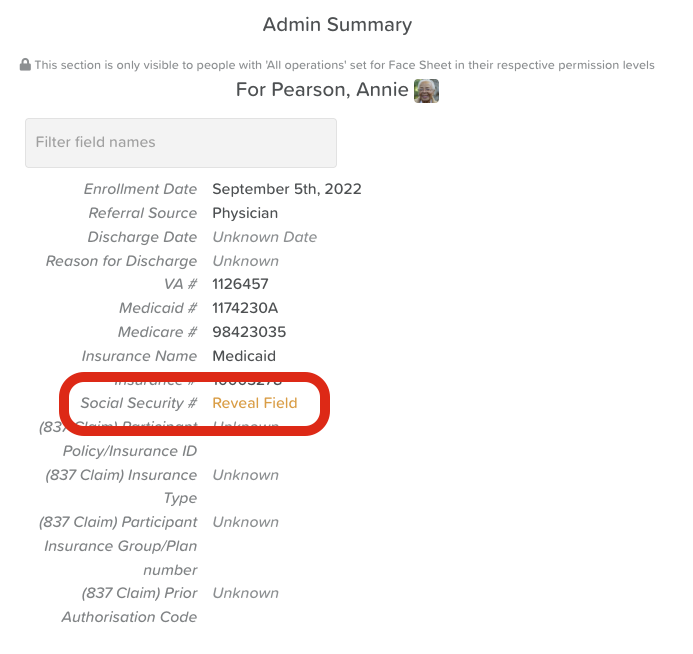
StoriiCare provides a “Click to Reveal” option within the Face Sheet template for this purpose.
When enabled:
Sensitive data is hidden by default
Users must actively click to reveal the information
Reduces the risk of accidental disclosure during screen sharing or use on shared devices
Recommended Use Cases
The “Click to Reveal” setting should be applied to fields such as:
Social Security numbers or national identifiers
Financial or insurance identifiers
High-sensitivity clinical markers
Any data that should only be viewed when explicitly required
See: How to Edit the Face Sheet Template
General Best Practices for Safe Use
Log out whenever you step away from a device
Be mindful of session timeouts during long periods of inactivity
Avoid unnecessary multiple logins or browser tabs
Report unusual behavior or access issues promptly
Utilize StoriiCare's security measures for sensitive information
Following these practices helps ensure StoriiCare remains secure, reliable, and compliant.
Need More Help?
If you need further assistance, you can reach out to our support team by emailing support@storii.com. Our support team is ready to help you with any questions or issues you may have.