
Session Time & Logging Out
Protecting sensitive information is a shared responsibility. Staff using StoriiCare are trained to actively log out of the system when stepping away from a device to reduce the risk of unauthorized access and accidental data entry under the wrong user account.
This guide explains how logging out works, how automatic timeouts protect your data, and how Super Users can adjust session settings.
Why Logging Out Matters
Staff should always log out when leaving a device they’ve used to access StoriiCare. This helps to:
Prevent exposure of sensitive participant or staff data
Reduce the risk of another person entering information under the wrong name
Support data protection, audit accuracy, and compliance requirements
Logging out is especially important when using shared or public devices.
How to Log Out of StoriiCare
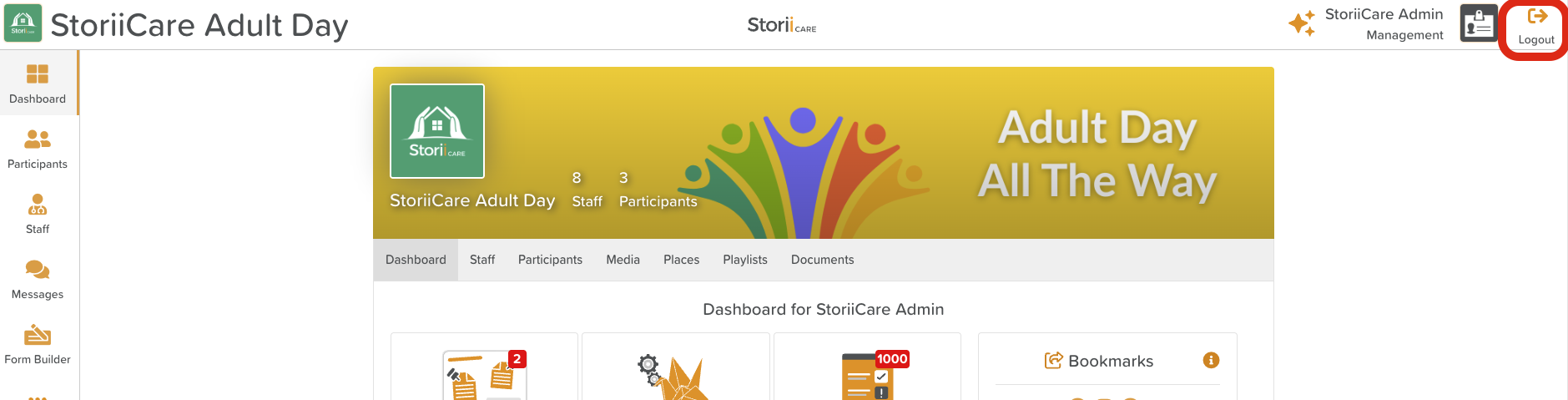
The Logout button is located in the top-right corner of the StoriiCare screen.
To log out:
Click your profile or menu in the top-right corner.
Select Logout.
Once logged out, you will need to sign in again to continue using the system.
Automatic Session Timeout
To reduce the risk of data breaches, StoriiCare includes an automatic logout feature.
By default, users are automatically logged out after 30 minutes of inactivity
This helps protect data if a device is left unattended
Customizing Session Time (Super Users)
Only Super Users can adjust session timeout settings for staff members.
Where to Find Session Settings
Go to Business Settings in StoriiCare
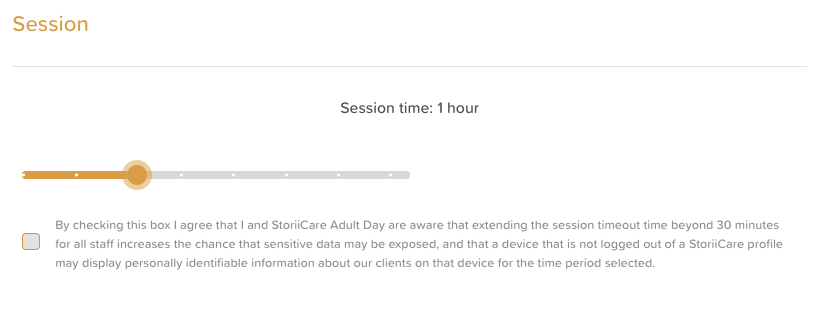
Navigate to the Session Time section
Available Timeout Options
15 minutes (increased security)
30 minutes (default)
Extended sessions, up to a full day
These settings can be tailored to your organization’s workflows and security policies.
If extending beyond 30 minutes, users will be required to check a box acknowledging that this increases the chance that sensitive data may be exposed.
When to Consider Extending Session Time
If staff:
Experience frequent auto-logout during active work
Work in secure environments with dedicated devices
You may wish to extend the session time to improve usability while maintaining appropriate safeguards.
Best Practices
Always log out when leaving a device
Use shorter session times on shared devices
Extend session time thoughtfully based on role and environment
Balance convenience with security and compliance needs
Need More Help?
If you need further assistance, you can reach out to our support team by emailing support@storii.com. Our support team is ready to help you with any questions or issues you may have.