
How to Change the Color on the Schedule
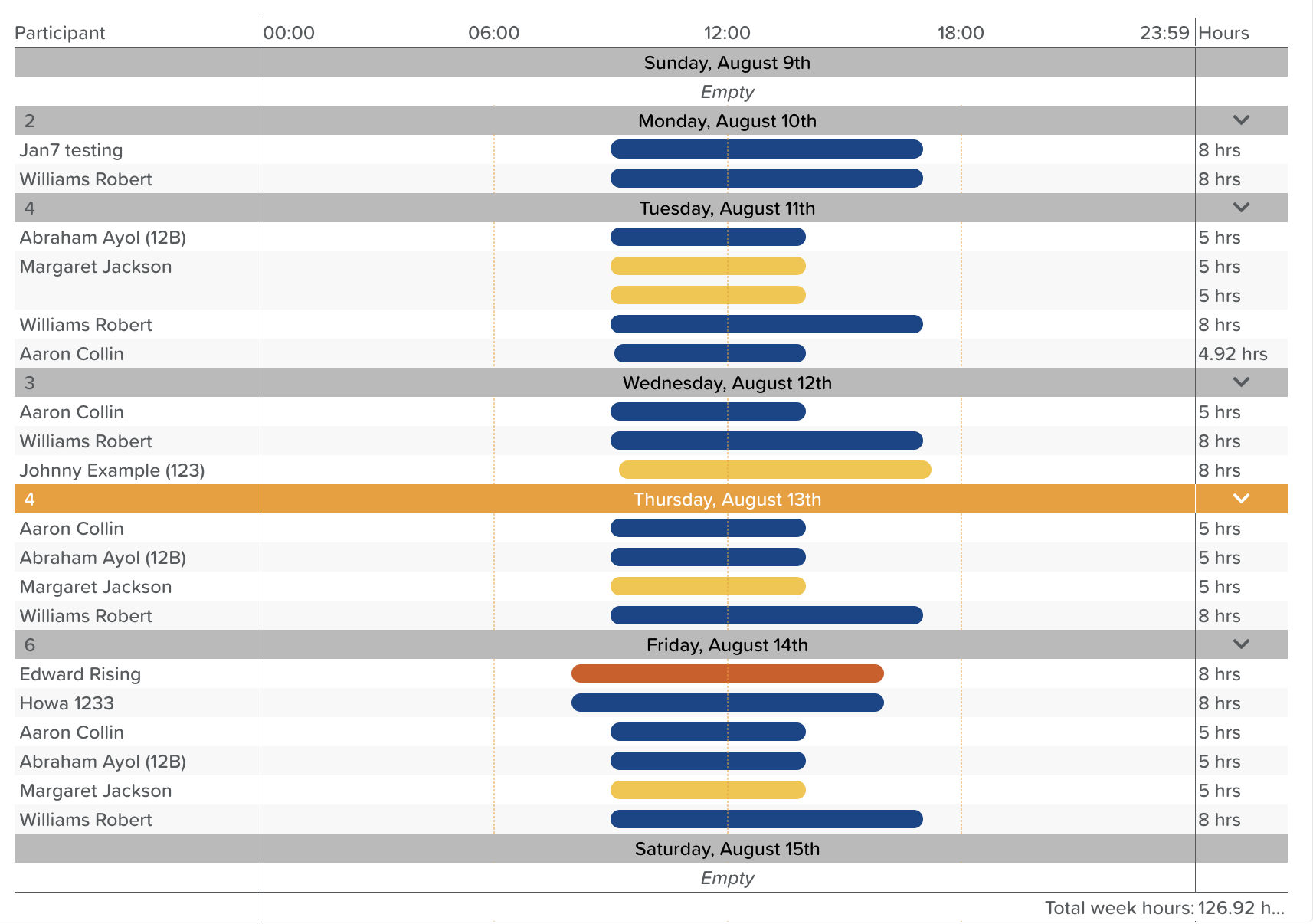
The Schedule entry bar is dark blue by default, but entries now inherit color directly from the tags applied to them. This gives care providers a fast, visual way to organize and identify Schedule entries at a glance.
How Schedule Bar Coloring Works
When a tag is added to a Schedule entry, the entry bar automatically takes on that tag's color.
If multiple tags are selected on a single entry, the Schedule bar will display the color of the first tag chosen.
Using Tags for Visual Organization
Because Schedule bars inherit tag colors, tags can be used to create quick visual distinctions across a Schedule without needing to apply a filter.
For example, on a Transport schedule, tags could be used to indicate which driver is picking up a participant. With colored tags in place, staff can immediately see who is picking up a participant just by glancing at the Schedule, without filtering by tag.
How to Manage Schedule Tags
Click on the Settings wheel icon at the top of the Schedule page
Any tags added to the Schedule Tags section will be accessible from all Schedule Tabs (Attendance, Transport, Staff Rota, Home Care)
Alternatively, schedule-specific tags can created
Click on the + button to add a new tag
Use the color picker to select the tag color
Give the tag a Name
Optional: Give the tag a Short Name (2-3 letter label) - used for exports
Tags are applied when adding a new schedule. They can also be applied by editing an existing schedule.
Need More Help?
Please contact us at support@storii.com