How to Add a New Profile
StoriiCare allows authorized users to create Participant and Staff profiles directly from the Dashboard.
This guide explains how to add each type of profile.
How to Add a New Participant Profile
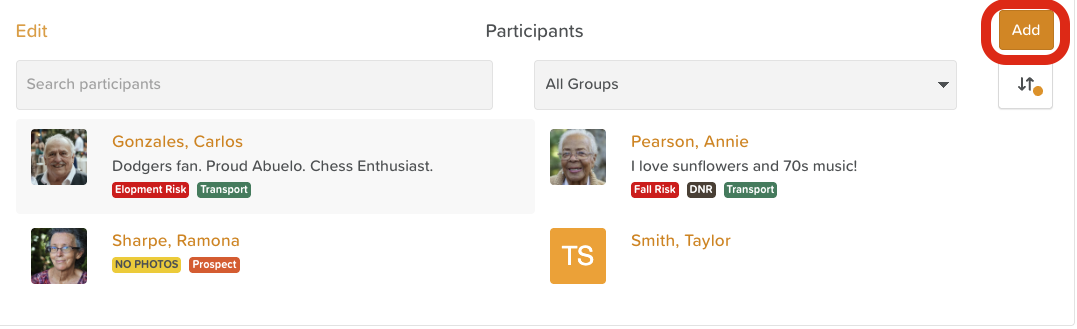
From the StoriiCare Dashboard, click the Participants tab
(this may be labeled differently depending on your account’s terminology).
Click the Add button in the top-right corner.
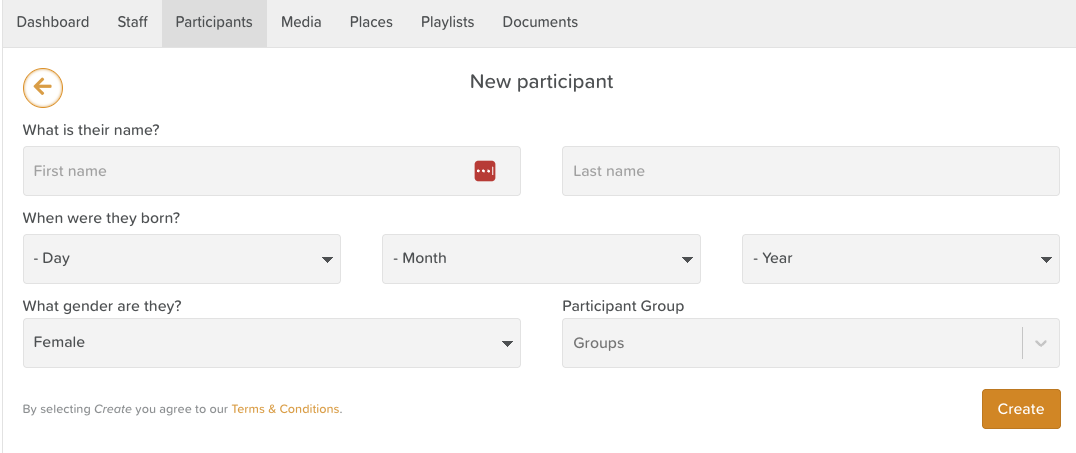
Enter the required participant details:
First Name
Last Name
Date of Birth
Gender
Select any Groups the participant belongs to (optional).
Groups can also be added later if needed.
Click Create.
Once saved, you will be taken directly to the new participant’s profile, where you can continue adding information such as care plans, medical info, notes, and forms.
How to Add a New Staff Profile
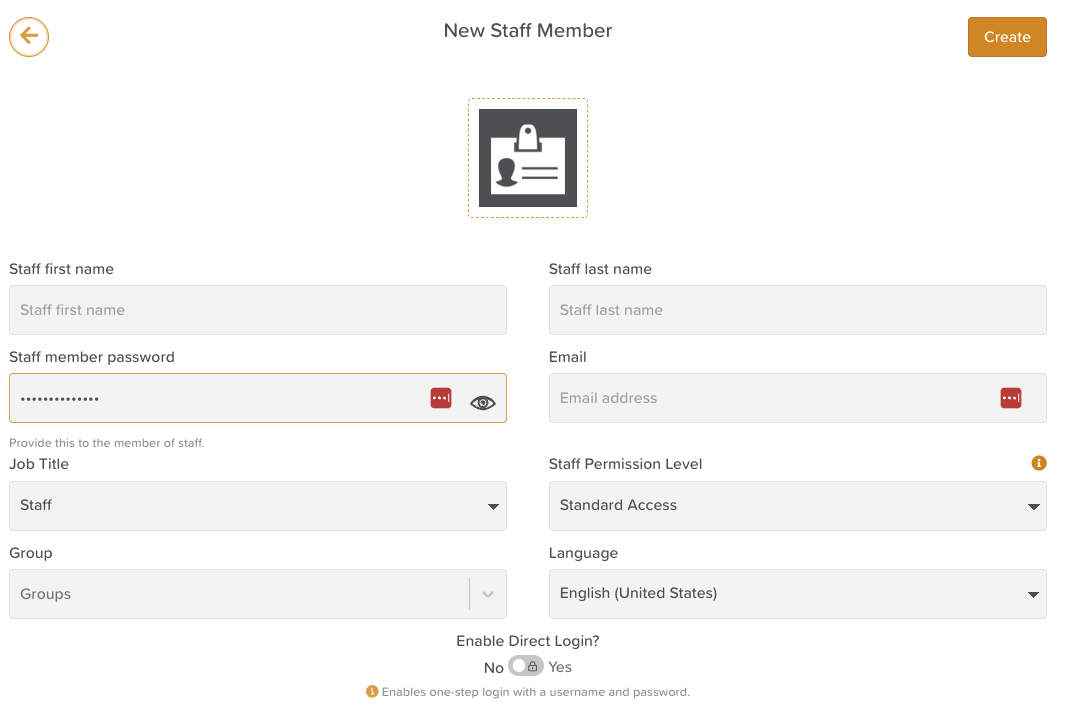
From the StoriiCare Dashboard, click the Staff tab.
Click the Add button in the top-right corner.
Enter the staff member’s details, such as:
First Name
Last Name
Password
Email
Assign:
Profile Photo
Job Title (custom Job Titles can be created from Business Settings > Staff Roles)
Permission level (custom Permission Levels can be created from Business Settings > Permission Levels)
Groups (if applicable)
Language
Direct login access (if required for your organization)
Click Create.
The new staff profile will be available immediately across the platform.