
How to Use Care Plan Templates
Care Plan Templates help standardize documentation and save staff time by pre-filling sections of a Care Plan with commonly used text. Templates are especially useful when:
Many participants share the same diagnosis (e.g., Dementia in a Memory Care setting)
A state or governing body requires a specific Care Plan format
The same wording is repeated across multiple participant Care Plans
Care Plan Templates reduce repetitive typing, lower the risk of errors, and promote consistency across your organization.
⚠️ Important:
Care Plan Templates are separate from the overall Care Plan Structure, which is configured in Care Plan Settings.Templates are category-specific and only apply within the Care Plan category they are created in.
Where Care Plan Templates Live
Templates are created and accessed within a participant’s profile
Each Care Plan Category (e.g. Mobility, Nutrition, Personal Care) has its own set of templates
Templates pre-fill text-based sections only
How to Create a Care Plan Template
Open a participant profile.
Click on the Care Plan feature.
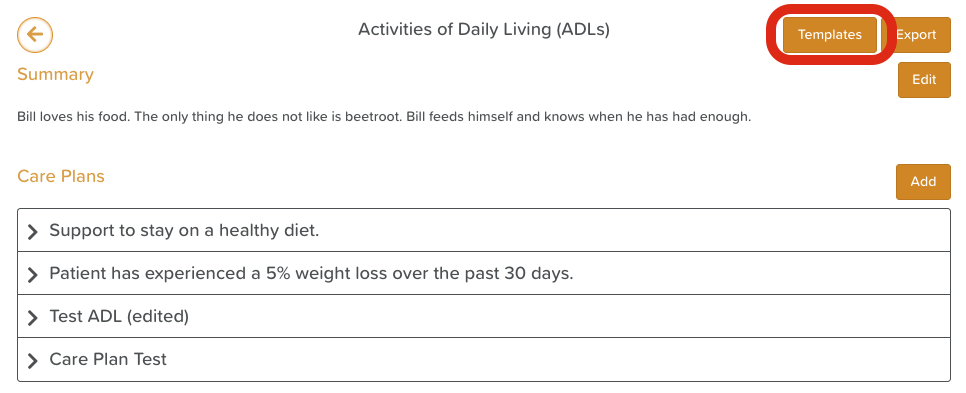
Click into the relevant Care Plan Category.
In the top-right corner, click Templates.
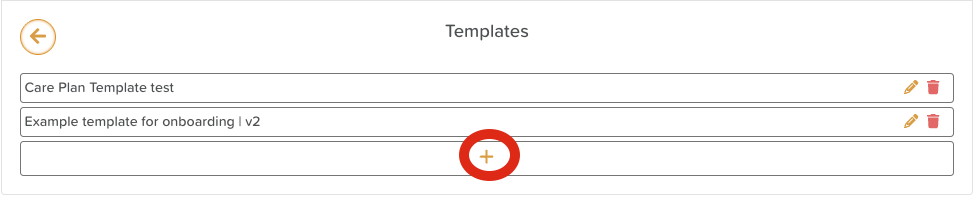
Click the + button to create a new template.
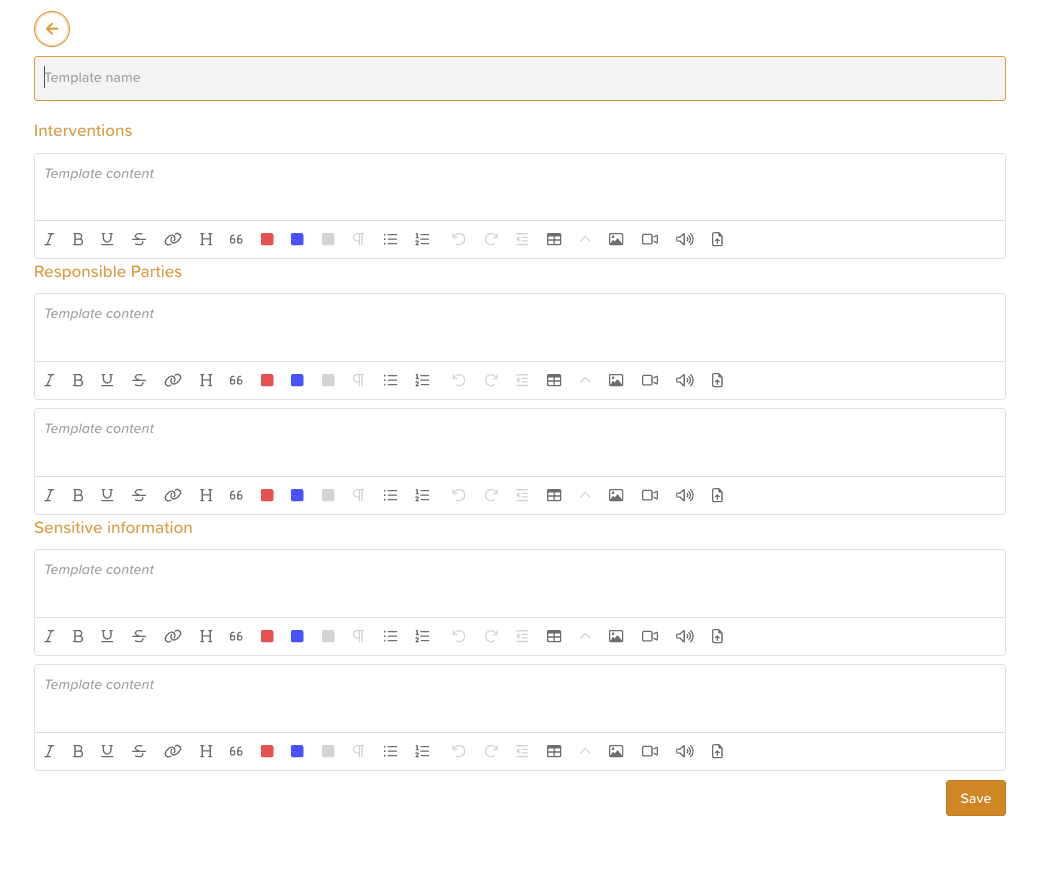
Give the template a clear, recognizable name that staff will easily understand.
You will see all existing Care Plan sections for that category.
Enter the desired text into each section as needed.
Note: Date fields and dropdown menus do not appear in templates and cannot be pre-selected at this time.
Click Save when finished.
Once saved, the template will be available for staff to use when adding a new Care Plan in that category.
How to Use a Care Plan Template
Open a participant profile.
Click on the Care Plan feature.
Select the appropriate Care Plan Category.
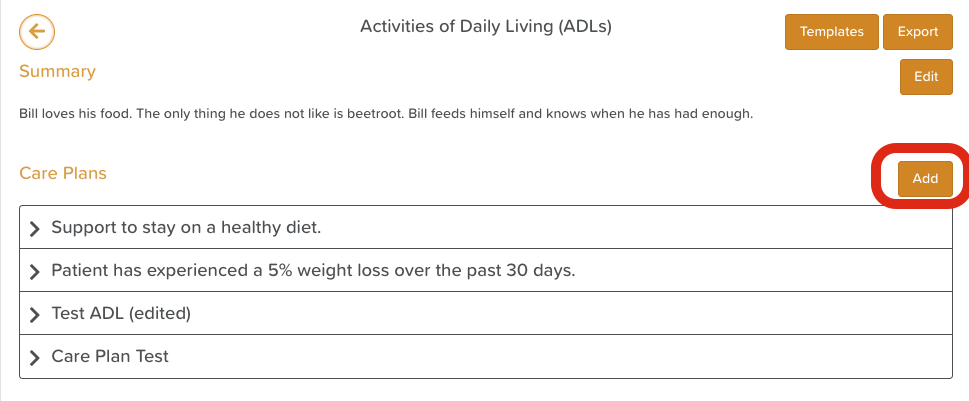
Click Add.
Choose a template from the Templates dropdown menu at the top.
Review and complete the Care Plan, adding or adjusting details as needed.
Click Save.
💡 Tip: The text loaded from a template can be edited for an individual participant. Editing the Care Plan does not change the original template for future use.
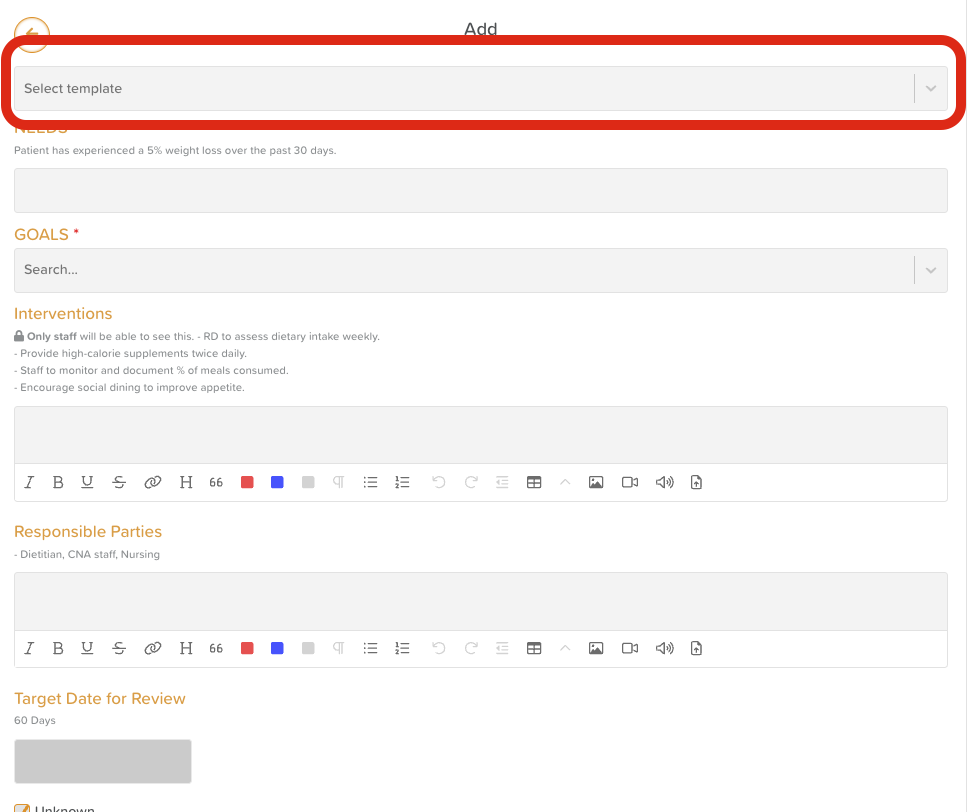
⚠️ Important Notes About Applying Templates to Existing Care Plans
When working with Care Plan Templates, it’s important to understand how they interact with existing Care Plan content.
Loading a Template on an Existing Care Plan
Applying a Care Plan Template to an existing Care Plan will override any current text in that Care Plan.
No data is permanently changed unless you click Save.
If you load a template by mistake, you can exit without saving, and the original Care Plan will remain unchanged.
This gives staff the flexibility to preview a template before committing to it.
Guidance for Legacy StoriiCare Clients
For organizations that already have Care Plans in place and are now introducing templates, we recommend the following approach:
Archive or mark the existing Care Plan as historical (terminology may vary based on your settings).
Create a new Care Plan within the same category.
Load the Care Plan Template when creating the new plan.
Copy and paste any relevant information from the historical Care Plan into the new one as needed.
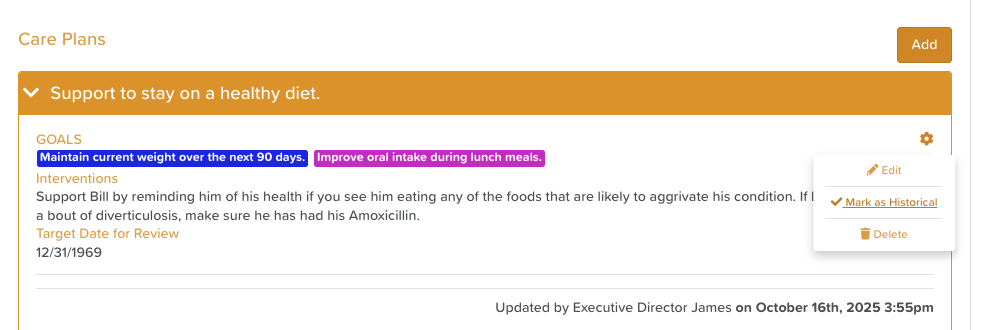
This approach helps preserve historical records while allowing you to adopt standardized templates moving forward—without risking the loss of existing data.
How to Edit an Existing Care Plan Template
(Access depends on your permission level.)
Open a participant profile.
Click on the Care Plan feature.
Select the relevant Care Plan Category.
Click Templates in the top-right corner.
Click the pencil icon next to the template you want to edit.
Make your changes.
Click Save.
Changes will apply to the template for future uses only.

How to Delete a Care Plan Template
(Access depends on your permission level.)
Open a participant profile.
Click on the Care Plan feature.
Select the relevant Care Plan Category.
Click Templates in the top-right corner.
Click the trash can icon next to the template you want to remove.
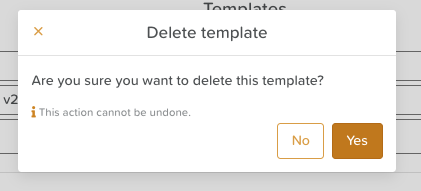
Confirm your intention to delete the template.
⚠️ Deleting a template does not affect Care Plans that have already been created using it.

Best Practices
Use templates for diagnoses, service models, or regulatory language that applies to many participants
Name templates clearly so staff can quickly select the right one
Review templates periodically to ensure they remain current and compliant
Combine templates with individual customization to keep Care Plans person-centered
Need More Help?
If you need further assistance, you can reach out to our support team by emailing support@storii.com. Our support team is ready to help you with any questions or issues you may have.