
Progress Notes Settings Overview
The Progress Notes Settings area allows your organization to customize how progress notes behave, what information staff must record, what tags and templates are available, and whether notes can be shared with Connections.
Only users with the correct permission level will see the wheel/cog icon at the top of the Progress Notes page. Clicking this icon opens the full configuration panel.
This guide provides an overview of every setting and what it controls.
How to Access Progress Notes Settings
Go to Progress Notes from your StoriiCare dashboard.
Look for the wheel/cog icon at the top of the page.
Click the icon to open Progress Notes Settings.
Only users with permissions will see this icon.
Progress Notes Options — What Each Setting Does
Participant Tagging
Enables the ability to tag one or multiple participants when adding a progress note.
Essential for documenting notes related to specific individuals.
Require Participant Tagging
Forces staff to tag at least one participant before saving a note.
Encourages complete documentation and prevents orphaned notes.
Staff Tagging
Disabled by default. When enabled, users can tag relevant staff in Notes. Tagging doesn't send a notification, but notes can be filtered by staff member.
Note Flagging
Allows staff to “flag” notes for importance or follow-up.
Note Tagging
Enables the use of custom tags (e.g., Behavior, Family Communication, Night Shift).
Supports filtering, reporting, and organization of notes.
Share with Connections
Allows staff to share selected notes with participant connections (family/friends).
When enabled, staff will see a Share button when writing a note.
Notes are not shared automatically — sharing is always a manual choice.
‘Read by’ Staff
Enables staff to 'Mark notes as read'. Shows how many staff members have “read” each progress note.
Helps track team communication and note visibility.
Allow AI Translation
Enables staff to translate notes into different languages using AI tools.
Useful for multicultural teams and multilingual families.
Time Started
Adds a “time started” field to notes.
Time Ended
Adds a “time ended” field, allowing notes to track a full time range.
Require Times
Staff must enter time fields before saving the note.
Often used by clinical teams or services needing precise documentation.
Prefill Date and Time
Automatically fills today’s date and current time when creating a note.
Saves time during busy shifts.
Allow Future Dates and Times
Permits staff to create notes with future timestamps.
Useful when preparing notes for scheduled events or appointments.
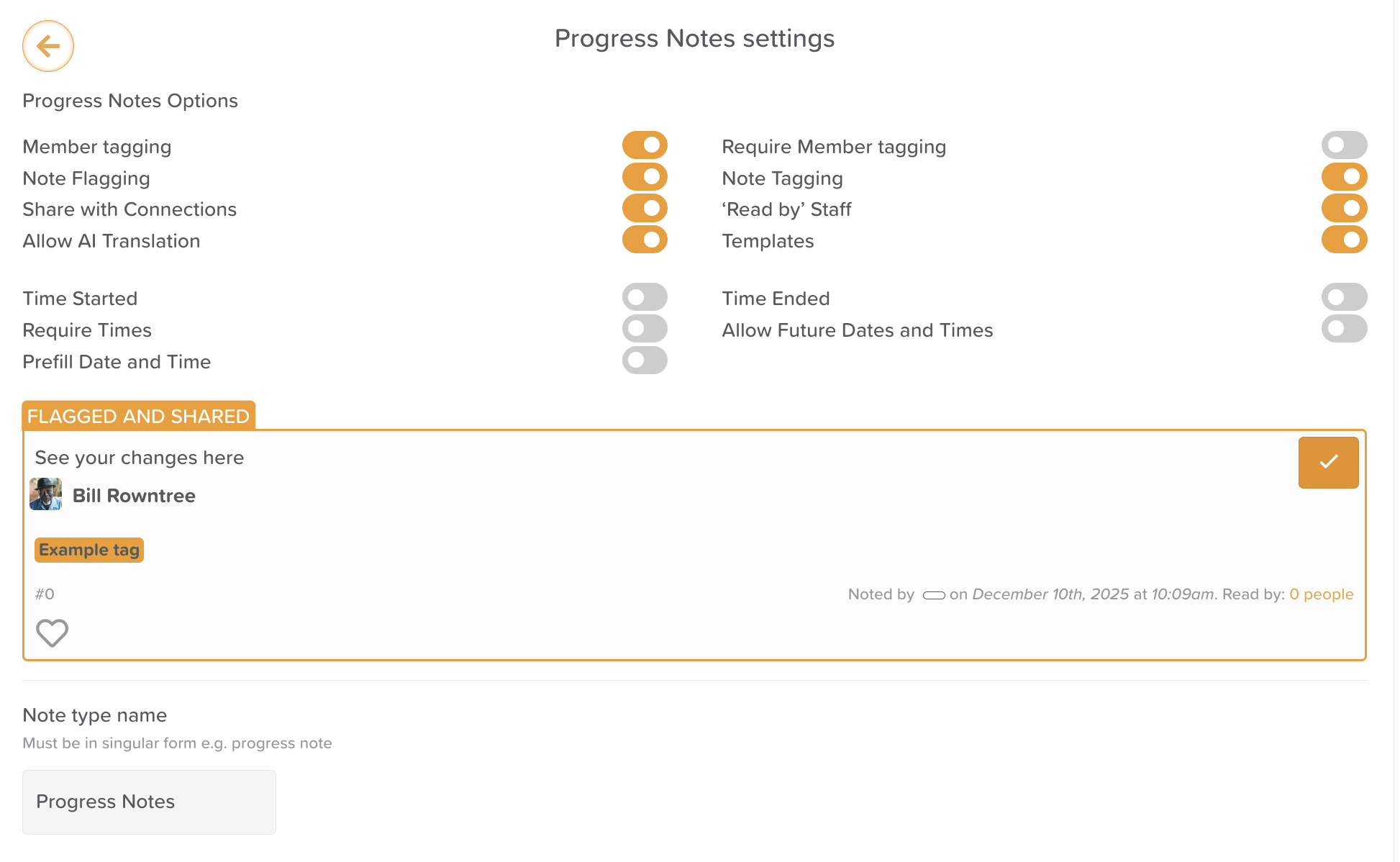
Note Type Name
This field lets you rename “Progress Notes” to something else (e.g., “Daily Notes,” “Care Notes”).
Must be written in singular form (e.g., “Progress Note”).
Useful for organizations with custom terminology.
Note Type Tags
Customize the tags staff can apply to notes.
Examples might include:
Handover
Family Communication
PT Notes
OT Notes
Nurse Notes
Behavior
Transport
AM Shift
PM Shift
You can:
Edit tag names
Change colors
Delete tags
Add new tags using the + button
Tags improve filtering and reporting. See: How to Use Tags with Progress Notes.
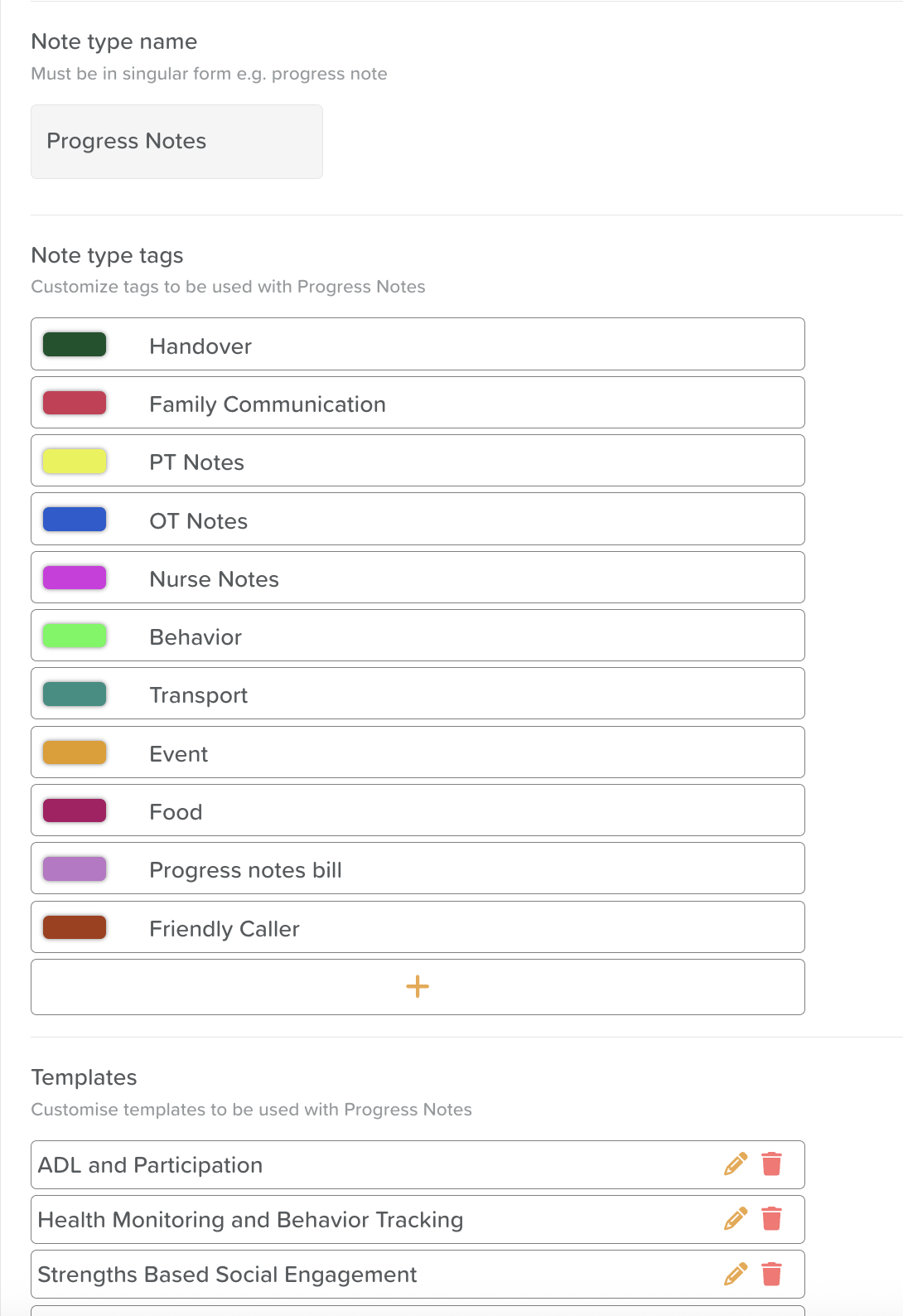
Templates
Progress Note templates help standardize documentation across the team.
See: How to Use Progress Notes Templates
Administrators can:
Create templates
Edit existing templates
Delete templates
Templates may include structured questions, prompts, or formatting.
Examples include:
ADL and Participation
SOAP Notes
Handover Notes
BIRP Notes
Templates save time and improve consistency.
Need More Help?
If you need further assistance, you can reach out to our support team by emailing support@storii.com. Our support team is ready to help you with any questions or issues you may have.