
How to Use Progress Note Templates
Progress Note templates help streamline documentation, improve consistency across staff, and save time when writing commonly repeated notes. Templates can include structured fields, prompts, headings, or pre-formatted content using StoriiCare’s rich text editor.
This guide explains how to enable templates, create them, and use them when writing Progress Notes.
Step 1: Make Sure Templates Are Enabled
Before using templates, you must ensure that the Templates option is switched on in Progress Notes settings.
How to check:
Go to Progress Notes (accessible from the StoriiCare Dashboard or a Participant Profile).
Click on the settings wheel/cog icon to open Progress Notes Settings (only visible to users with permissions).
Toggle on the Templates setting.
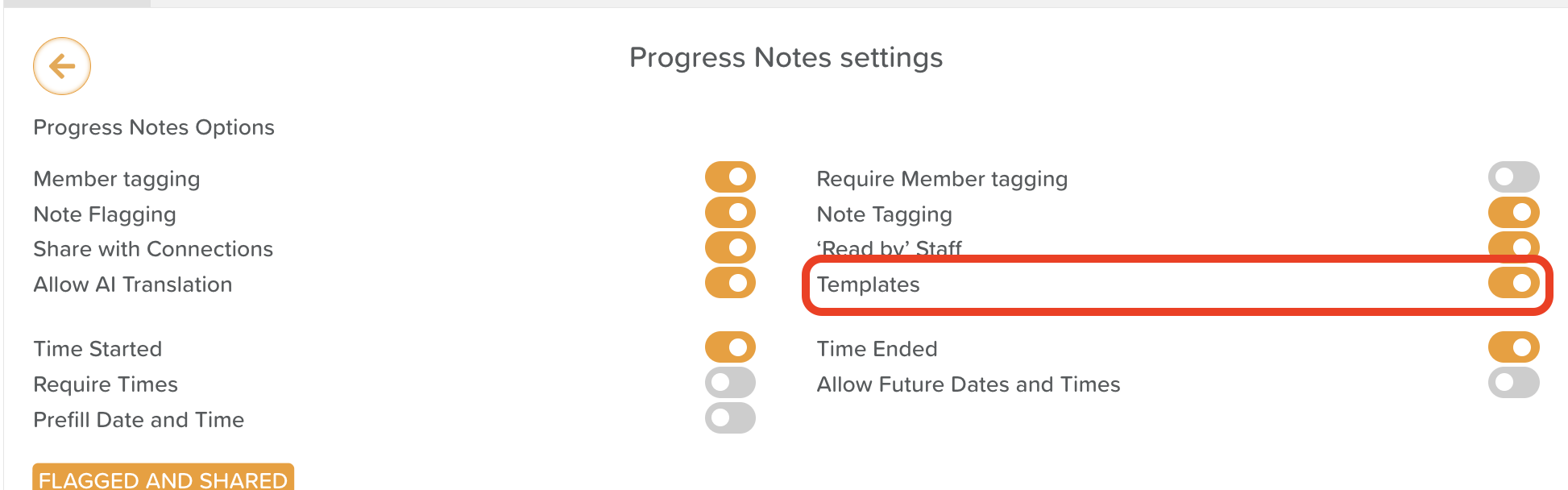
If this setting is off, you will not see the template icon when writing notes.
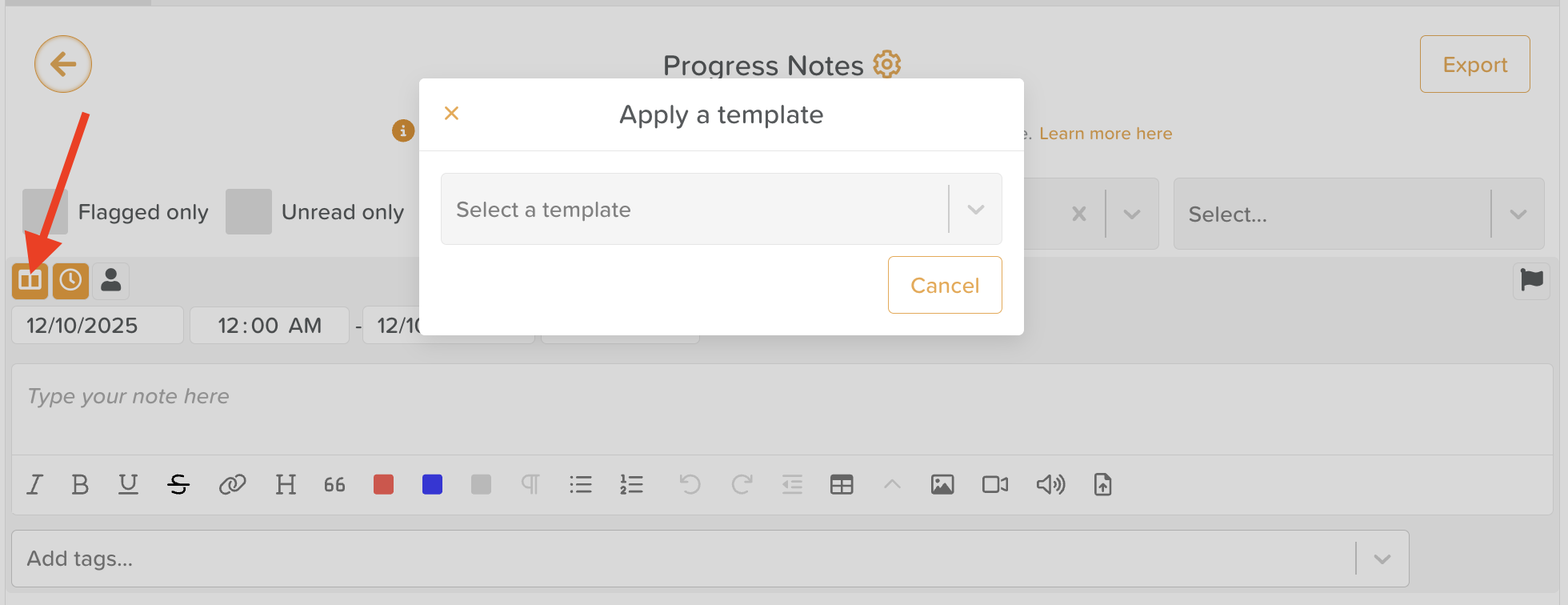
Step 2: Create or Edit a Template
To use templates, at least one must be created. Administrators or permitted users can set up templates from the same settings menu.
How to create a new template:
Open Progress Notes Settings.
Scroll to the Templates section.
Click + Add Template.
Enter a title (e.g., ADL Note, BIRP, Nurse Handover).
(Optional) Add a description to help staff understand when to use it.
Use the rich text editor to build your template structure.
You can include:
Prompts or questions
Headings
Lists
Color-coded sections
Embedded images, links, or files
When finished, click Save.
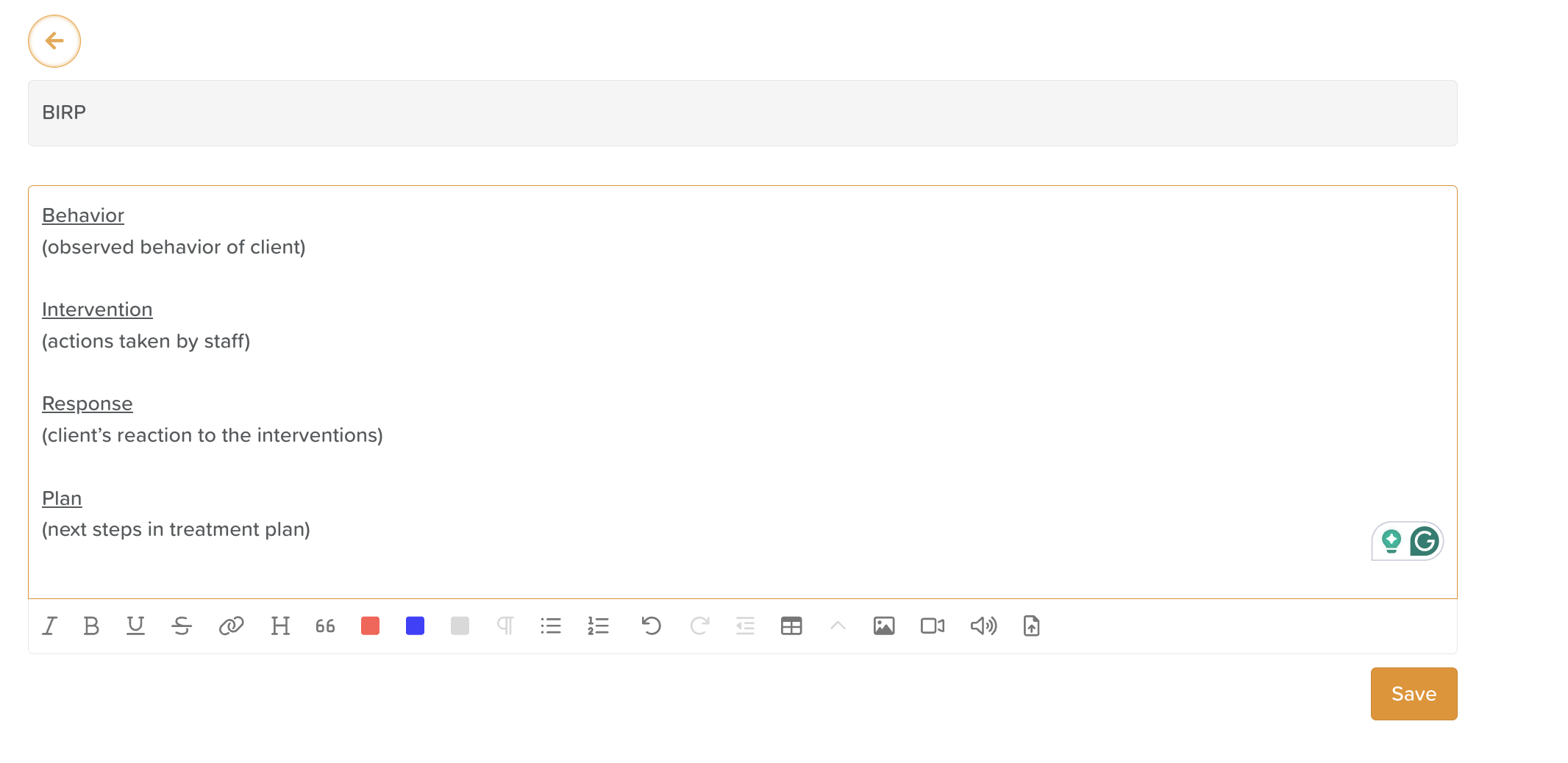
Your template will now be available for staff to select when composing new notes.
Step 3: Load a Template When Writing a Note
Templates do not appear automatically when you start writing a Progress Note. Staff must manually choose to load one.
How to load a template:
Go to Progress Notes.
Look for the template icon (located next to the participant-tagging profile icon).
Click the icon to open the list of available templates.
Select the template you want to use.
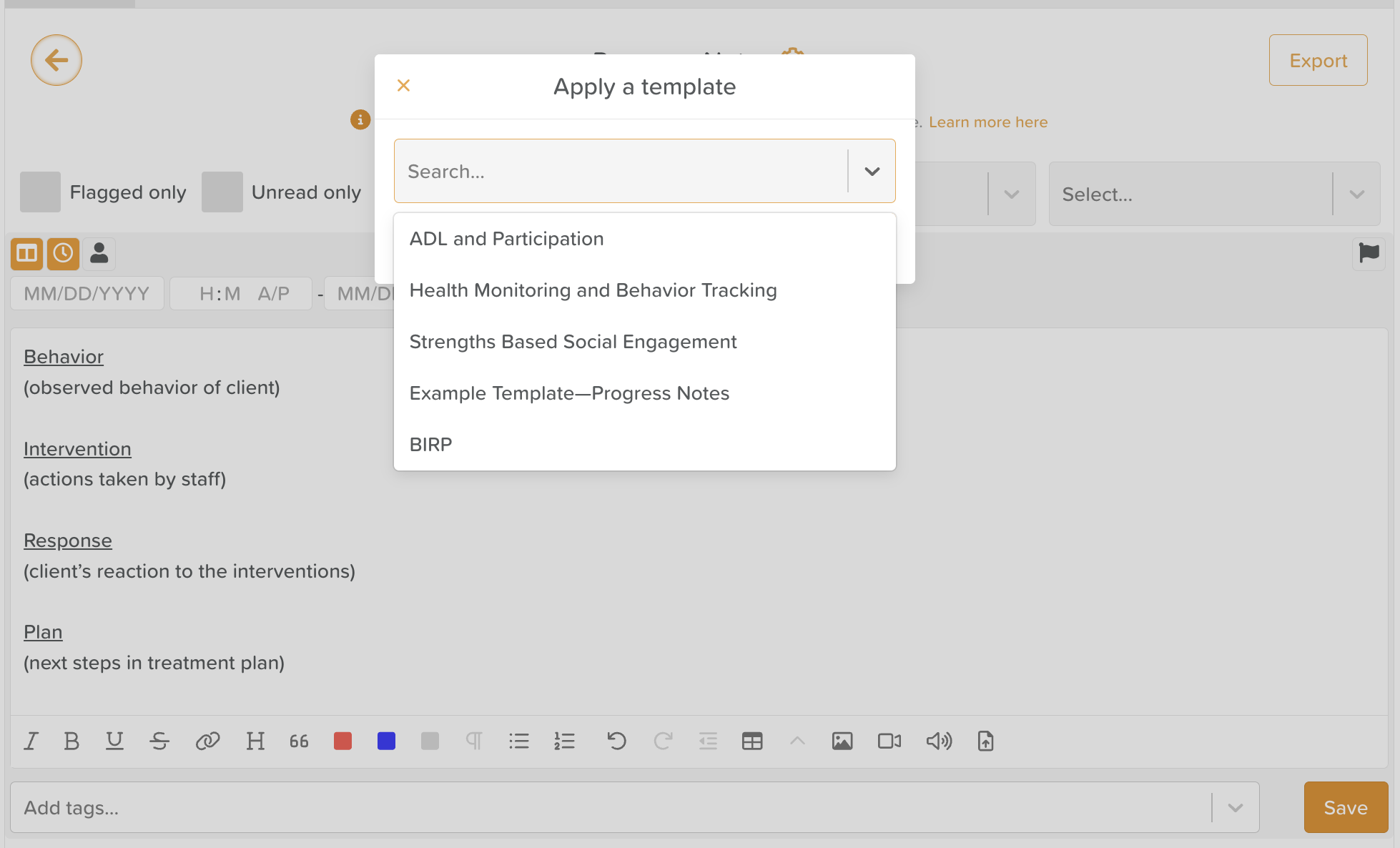
The template will appear in the note editor, ready for you to complete or expand upon.
Step 4: Complete and Save the Note
Once the template has loaded:
Fill in the necessary information.
Tag the relevant participant(s).
Add files, images, or formatting as needed.
(Optional) Share with Connections if appropriate and enabled.
Click Save.
Your completed Progress Note will now be saved to the participant’s record.
Best Practices for Using Templates
Create templates for commonly documented scenarios (ADLs, incidents, behaviors, PT/OT updates, handovers).
Keep templates clear and concise—prompts should support staff, not overwhelm them.
Update templates periodically to reflect new policies or documentation standards.
Encourage staff to use templates consistently for accuracy and efficiency.
Train new staff on how to load and use templates to ensure uniform documentation across the team.
Need More Help?
If you need further assistance, you can reach out to our support team by emailing support@storii.com. Our support team is ready to help you with any questions or issues you may have.