
How to Pull Attendance & Schedule Data into Forms
StoriiCare’s Form Builder can pull a participant’s attendance and schedule information straight into a form using the Linked Property component. Staff no longer need to retype sign-in times, attended hours, or scheduled days into daily notes, progress notes, or state forms.
This data comes from the Register and the participant’s schedule, so it’s always consistent with what’s recorded elsewhere in StoriiCare.
📝 Attendance and schedule fields must be added to your Face Sheet before they can be used in forms. Once they’re on the Face Sheet, staff can also see them on each participant’s profile.
Adding Attendance or Schedule Data to a Form
Part 1: Add the Fields to Your Face Sheet
Forms can only link to fields that are already on your Face Sheet, so start there.
Open any participant Face Sheet and click on the settings wheel icon at the top (visible relative to your permission level).
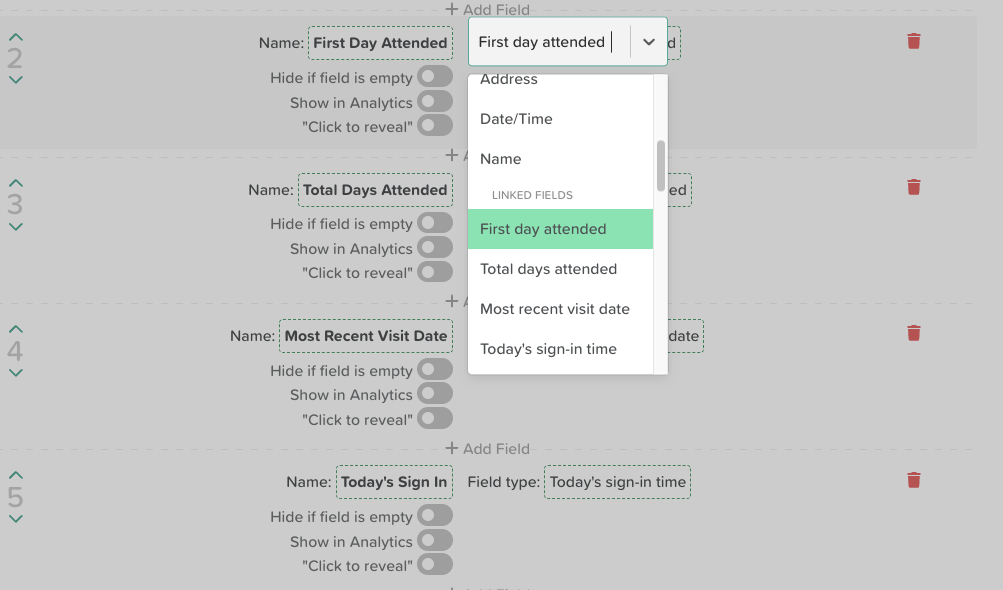
Add a new field and use the Field Type dropdown menu to select the relevant Linked field type.
Choose the field you want, for example Today’s sign-in time.
Repeat for each field you’d like to use in forms.
Click the disc icon next o each field to Save.
For full instructions, see How to Edit the Face Sheet Template.
💡 On the Face Sheet, these fields are live. They always show the latest data, including changes to this week’s schedule. On forms, the values are saved when the form is submitted (see How the Data Behaves below).
Part 2: Link the Fields in Your Form
Step 1: Open the Form Template
Go to Form Builder from your StoriiCare dashboard.
Create a new form template or open an existing one.
⚠️ Linked Properties require the Participant Selector. If you see “Enable Participant selector in form settings to use Linked Property,” click the form template’s settings wheel at the top of the page and check Enable Participant Selector.
Step 2: Add a Linked Property Component
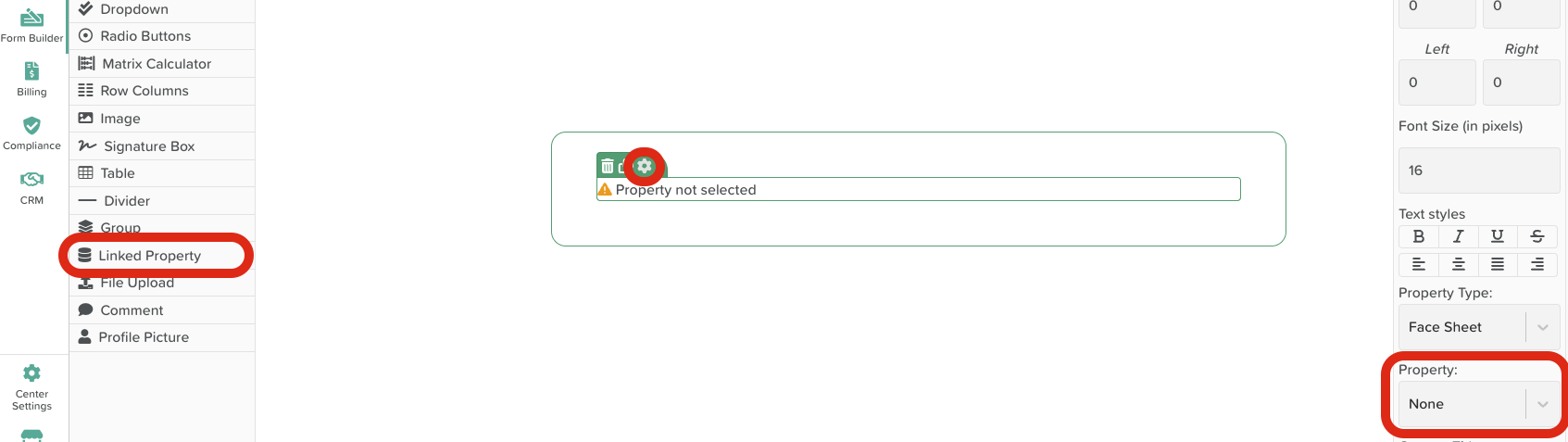
Drag the Linked Property component from the sidebar onto your form. It will say “No property selected.”
Select the component and click its settings wheel.
Step 3: Choose the Field
In the settings panel on the right, set the Property Type to [Face Sheet].
Use the Property dropdown to choose the attendance or schedule field you added in Part 1.
Repeat for each field you’d like to include.
💡 Don’t see the field you need? It hasn’t been added to your Face Sheet yet. Go back to Part 1.
Step 4: Save the Template
Click Save. Staff will see the fields filled in automatically when they complete the form for a participant.
How the Data Behaves
Values are saved when the form is submitted
When a form entry is submitted, StoriiCare saves the attendance and schedule values on that entry. The form won’t change later, even if the Register or schedule is edited afterward. This keeps your signed documentation accurate for audits and reviews.
These fields are read-only
Unlike other Linked Properties, attendance and schedule fields can’t be edited from a form, and changes don’t sync back to the Register or schedule. This protects your billing data, which is based on the Register. To correct a time or scheduled day, edit it directly in the Register or schedule.
Blank fields
If there’s no Register entry yet for today, or the participant hasn’t signed out, the related fields stay blank rather than showing zero or “absent.” A short hint explains why, such as “No register entry today” or “Not signed out yet.”
Time format
Times use your organization’s time zone and 12- or 24-hour format from Business Settings.
PDF exports
Attendance and schedule values appear in form PDF exports and printouts.
Best Practice: Complete Daily Forms on the Same Day
Because “today” is always the day the form is completed, timing matters:
A form completed before the participant signs out won’t include a sign-out time or total hours.
A form completed the next morning will show the next day’s attendance, not the day you’re documenting.
For daily notes and similar forms, complete them on the same day, after the participant has signed out.
Example Uses
Daily notes: Today’s sign-in time, sign-out time, and total attended hours
Monthly or quarterly progress notes: Total days attended and Most recent visit date
Care plan reviews and discharge paperwork: First day attended and Total days attended
Transportation or home care check-ins: Transport or Home Care Scheduled (Current Week)
Need More Help?
If you need further assistance, email our support team at support@storii.com.