
How to Use Claim Templates
Claim Templates let you save more than one 837 claim configuration and choose which one each rate uses. This is useful if you bill different payers or programs that need different claim details, such as a separate provider name, NPI, or taxonomy for your home care services. You don’t need to change your settings each time.
Each template stores its own:
Center specific values: your agency details, such as Tax ID, NPI, billing address, and taxonomy code
Participant specific mappings: which participant fields fill each part of the claim, such as Insurance ID and diagnosis code
'Center' and 'Participant' terminology may differ depending on your account settings.
📝 Your Stedi Configuration is global. It applies to every template and isn’t changed by anything you do in Claim Templates.
Your Starting Templates
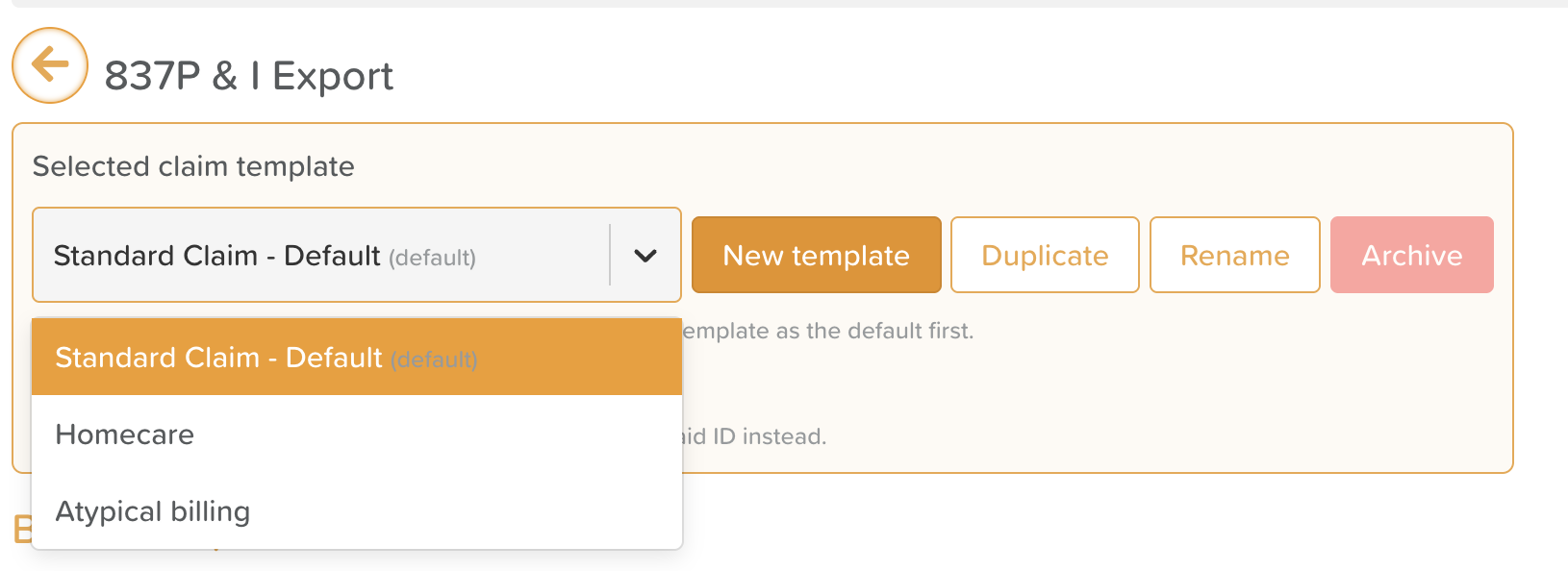
Every account includes three templates:
Template | What’s in it |
|---|---|
Standard Claim – Default | If you were already set up for 837 claims, your existing settings were copied here automatically. This is your default template. |
Homecare | Set it up if your home care services require different claim details. |
Atypical | For providers without an NPI: claims send the Legacy Medicaid ID instead. |
💡 If you only need one claim configuration, you don’t need to do anything. All your rates use Standard Claim – Default, and claims work exactly as before.
Managing Claim Templates
Go to: Billing > Settings > Exports > Claim Templates
Use the [Selected claim template] dropdown to choose which template you’re viewing or editing. Selecting a template here doesn’t change which template is your default or which rates use it.
Create a New Template
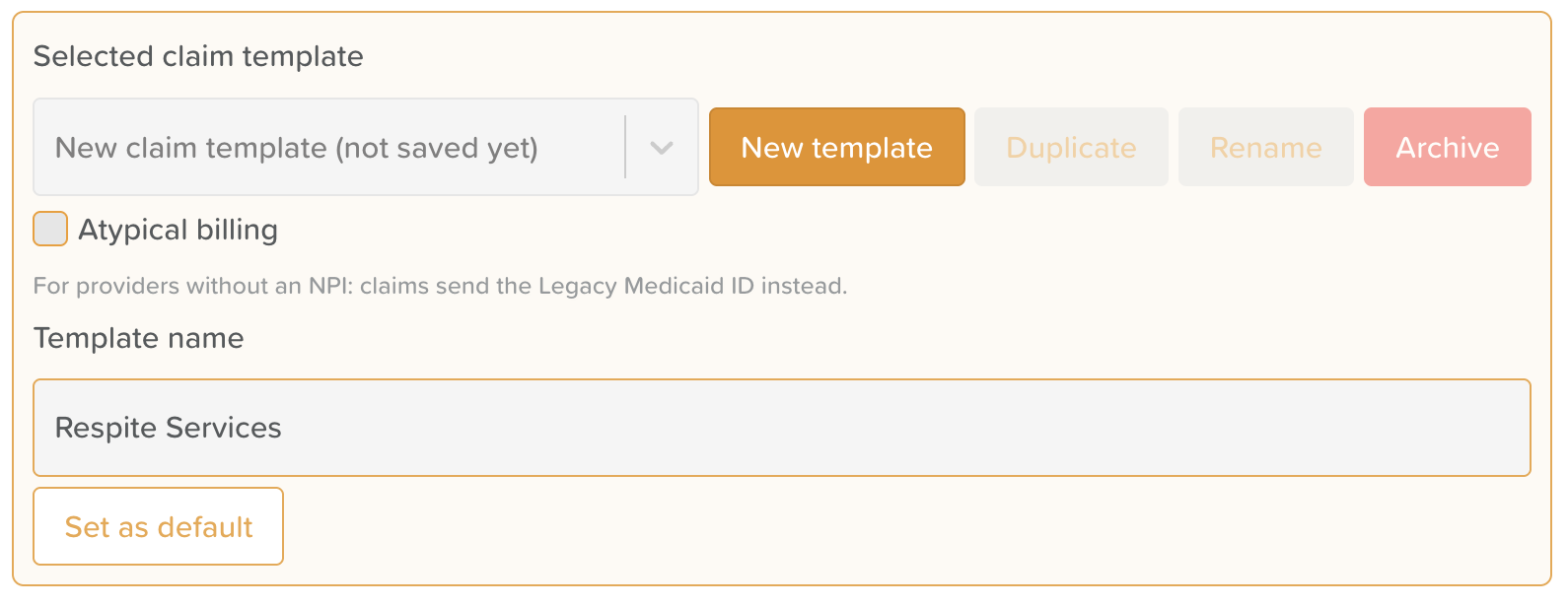
Click [Create template].
Enter a name. Each name must be unique.
Fill in the Center specific values and Participant specific mappings. See How to Set Up the 837 Export in StoriiCare for what each field means.
Click Save.
Duplicate a Template
Duplicating is the quickest way to create a template that differs from an existing one in only a few fields.
Select the template you want to copy.
Click [Duplicate].
Give the copy a name, update the fields that should be different, and click Save.
The copy is completely independent. Changing one template never affects the other.
Edit or Rename a Template
Select the template.
Update its name or any of its values and mappings.
Click Save at the bottom. Click Cancel to discard your changes.
⚠️ If you try to switch templates or leave the page with unsaved changes, StoriiCare will ask whether to Save, Discard, or Keep editing.
Set the Default Template
The default template is used by every rate that doesn’t have its own template assigned.
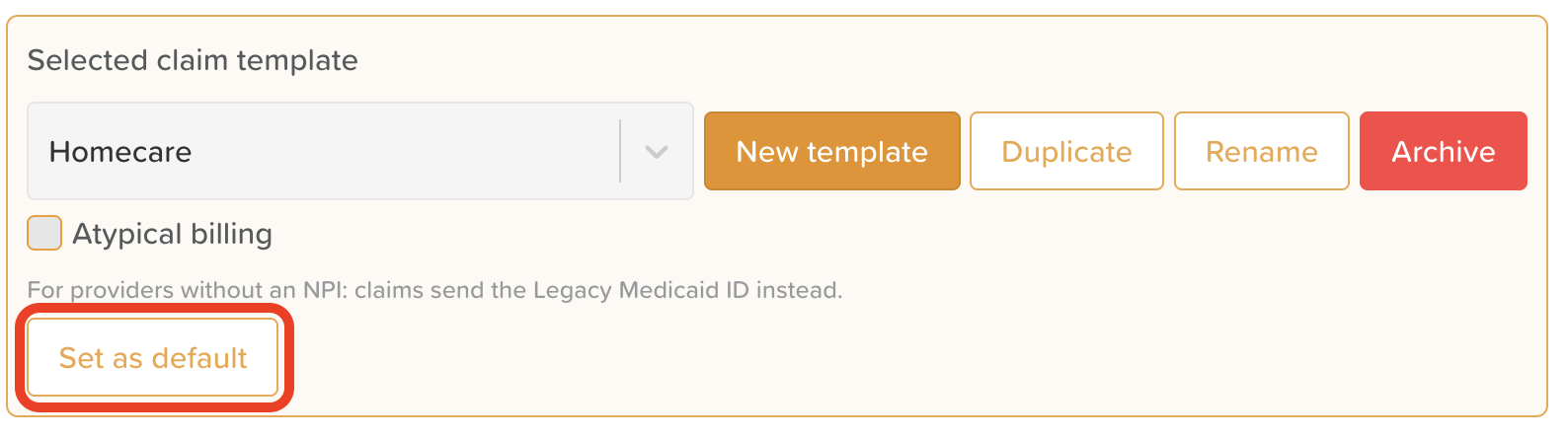
Select the template.
Click [Set as default].
Click Save.
All rates that follow the default switch to the new default template. Rates with their own template assigned keep it.
Archive a Template
Select the template.
Click Archive and confirm.
Deleted templates no longer appear in the template list or as a choice for rates.
📝 Good to know:
You can’t archive your default template. Set another template as the default first.
If a rate was using a template you delete, it keeps using that template until you change it. The rate shows the template name followed by (archived).
Assigning a Template to a Rate
Go to: Billing > Rates
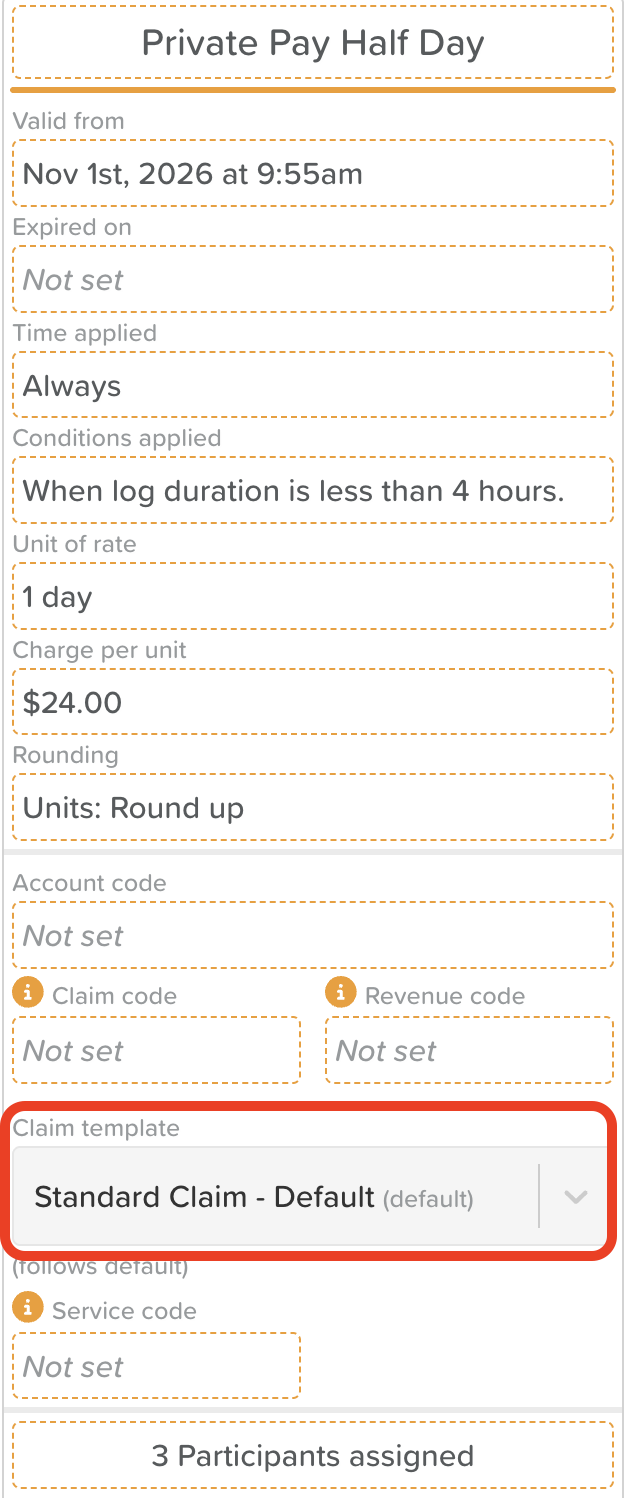
Each rate shows which claim template it uses, and whether it follows the default or has its own template assigned.
To change a rate’s template:
Click the Edit (pencil) icon on the rate.
Choose a template from the Claim template dropdown.
Click Save.
💡 To make a rate follow the default again, select your default template in the dropdown and save. The rate will then automatically switch whenever you change your default.
Good to Know
Claims you’ve already generated don’t change. Editing, deleting, or reassigning a template only affects claims you generate afterward. Retries and re-exports of an existing claim use the settings it was originally created with.
Payer taxonomy overrides take priority. If a payer has its own taxonomy code set in its Claim Settings, that code is used instead of the template’s.
Templates don’t decide between 837P and 837I. You still choose the claim type when you generate or submit claims.
Need More Help?
If you need further assistance, email our support team at support@storii.com.