
Co-signing (Beta): Request and Track Signatures
Overview
Co-signing lets you send a record to one or more people for review and signature, then track every request from a single page. It is currently in Beta and works on three kinds of records:
Progress notes
Form entries
Care plan entries (sent together as a Care Plan Summary or via individual sections)
Signers can be your own staff, a participant's verified Storii Family connections, or anyone you invite by email. While a request is open, the record is locked so nobody can change it before sign-off, and every view and signature is logged in a tamper-evident audit trail.
Requesting a co-signature
Each record type has its own starting point. All three open the same Request co-signature window.
Record | Where to start | What gets sent |
|---|---|---|
Progress note | Open Progress Notes (Dashboard or the participant's Care page). At the bottom right of the note, click Request co-signature, next to Edit. | The single note |
Form entry | Open Forms, then Show all entries. Click the ... menu on the entry's row and choose Request co-signature. | The single form entry |
Care plan | Open the participant's Care Plan, click View Summary, then Submit for co-signing. Alternatively, individual Care Plans can be submitted for co-signing at the category level. | All care plan entries shown in the summary, sent as one Care Plan Summary request. Alternatively, individual Care Plans can be submitted for co-signing at the category level. |
To send a request:
Click the request option for your record (see the table above).
Choose your signers and options (see the next section).
Click Send request.
The record locks right away and the request appears under Sent requests on the Co-signing page.
Request options
The Request co-signature window has the following options. Only signers are required.
Option | What it does |
|---|---|
Required signers (internal) | Pick one or more staff members at your center. |
Required signers (external) | Pick from the participant's verified Storii Family connections that have an email address. They open the request with their existing account. If the participant has none, this list is greyed out. |
Add a signer by email | Type any email address and click Add. Before the record is shown, the signer must enter their name and verify the participant's date of birth. |
Signer list | Shows everyone added, numbered in signing order, with an Internal or External tag. Use the up and down arrows to reorder, or the bin icon to remove someone. |
Signing order | Sequential (default): each signer can sign only after the previous one has. Any order: every signer can review and sign straight away. |
Allow queued signers to preview | With Sequential order, lets signers who are still waiting see the record before their turn. When off, they see a message that the record will be available when it is their turn. |
Request message | An optional note to your signers. |
Due date | An optional deadline, shown in your center's time zone. Requests past their due date count toward Waiting on me (Overdue). |
Record locking
Once a request is sent, the record cannot be edited or deleted while it awaits sign-off. Fully signed records stay locked, so the signed version is preserved. This guarantees signers approve exactly what was written.
Progress notes: a lock icon appears next to the author line, and the Edit and Request co-signature links disappear. Hover the lock to see that the note is locked while co-signing is pending.
Form entries: a lock icon appears next to the file name in All entries. The ... menu only offers Duplicate.
Care plan entries: a lock icon appears on the entry. Its settings menu only offers Duplicate and Mark as Archived.
If you need to change a record that is still awaiting signatures, withdraw the request first, make your changes, then send a new request.
The Co-signing page
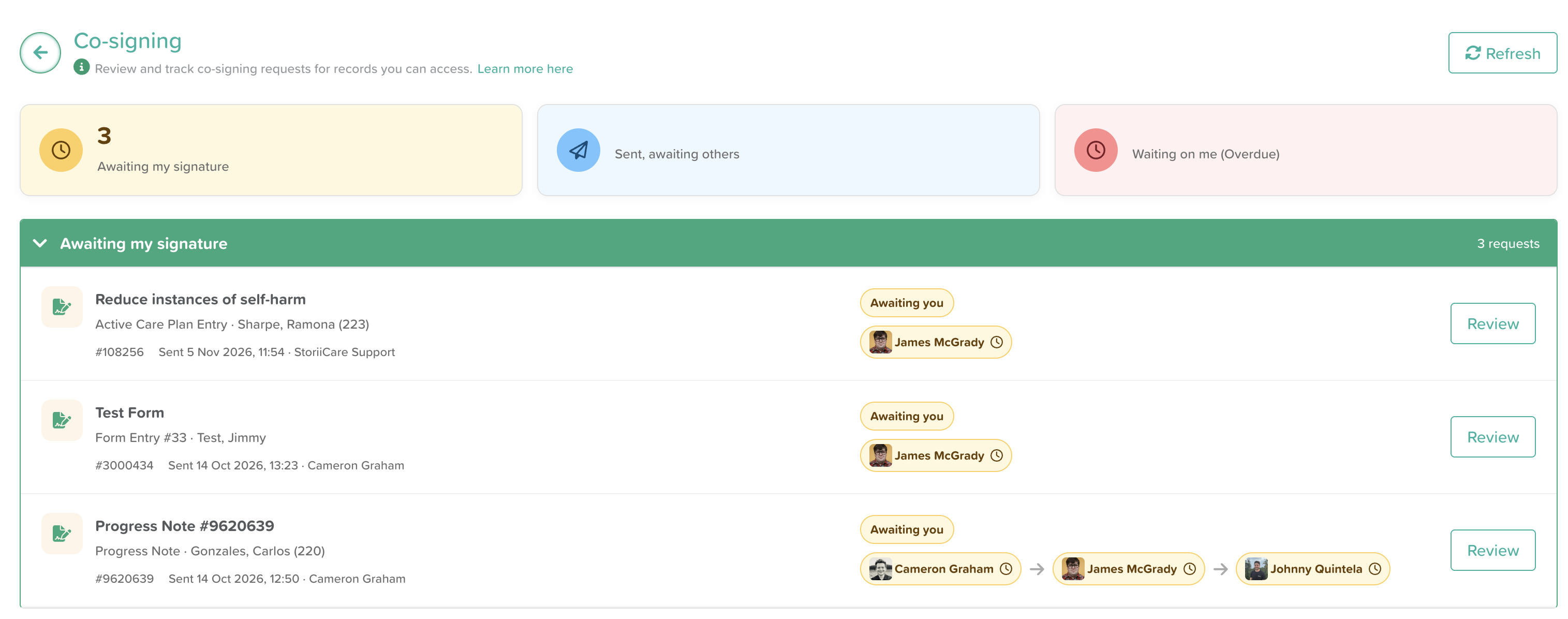
The Co-signing page is your inbox for every request on records you can access. Find it by typing co-sign in the Dashboard's Search features box and clicking the Co-signing tile. Click Refresh at the top right to load the latest activity.
Three summary tiles sit at the top:
Awaiting my signature: requests where it is your turn to sign.
Sent, awaiting others: requests you sent that others still need to sign.
Waiting on me (Overdue): requests waiting on you that are past their due date.
Below them are three sections you can expand or collapse:
Awaiting my signature lists everything that needs your review now. Click Review to open it.
Completed by me lists requests you have already signed, including ones others still need to finish.
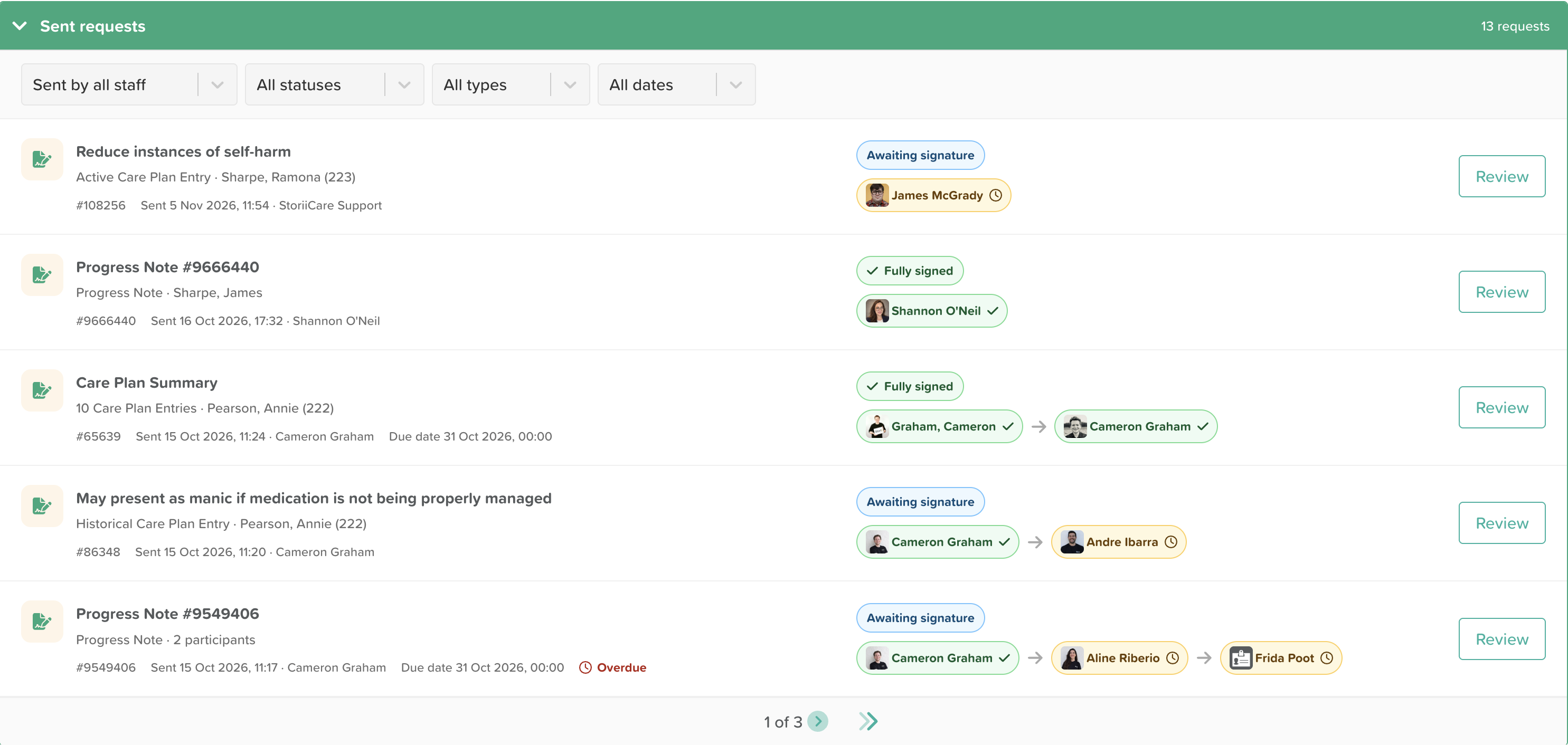
Sent requests lists requests you or other staff have sent.
Each row shows the record name, the participant, the record number, who sent it and when, any due date, the overall status, and each signer with their progress. Arrows between signers show a sequential order. A green tick means signed; a clock means still waiting.
Filtering sent requests. Narrow the Sent requests list with four filters:
Filter | Options |
|---|---|
Sender | All staff, or a specific person |
Status | Completed, Pending, Rejected, Withdrawn |
Type | Form Entries, Progress Notes, Care Plan Entries |
Date | Last 7 days, Last 30 days, Last 90 days, Custom range |
Reviewing, editing and withdrawing a request
Click Review on any request to open its detail page. It shows who requested it, how many signers are required, when it was sent, any due date, and a Signing progress bar with each signer in order.
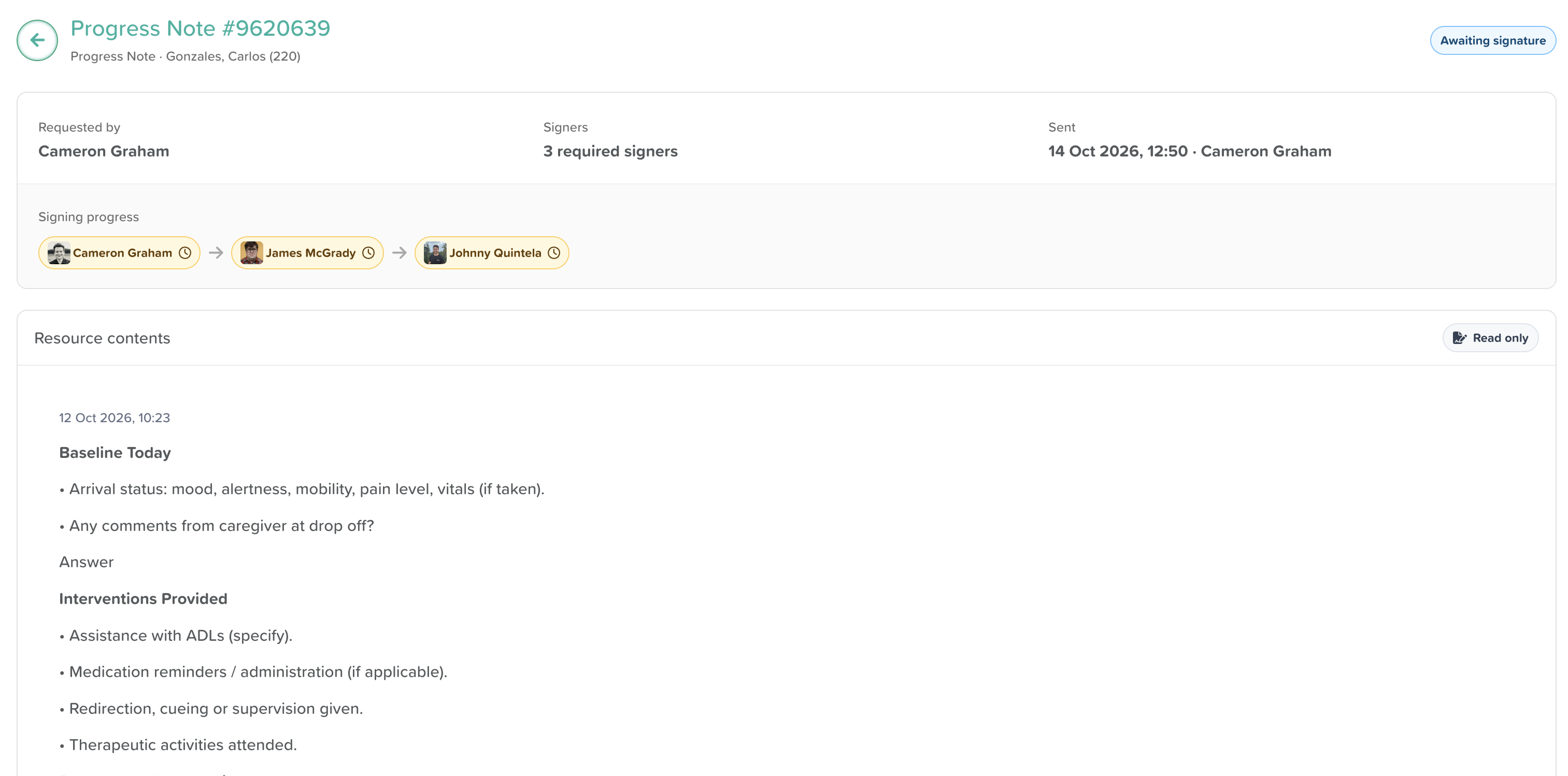
The Resource contents panel shows the record itself in read-only form. For a signer in a sequential request whose turn has not come, it says the record will be available when it is their turn, unless the sender allowed queued signers to preview.
Statuses you will see:
Status | Meaning |
|---|---|
Queued | Sent, but no signer has acted yet. |
Awaiting signature | At least one signer still needs to sign. |
Fully signed | Every required signer has signed. |
Rejected | A signer declined to sign. |
Withdrawn | The sender cancelled the request. |
Editing a request. While a request is still open, the sender can click Edit request to add or remove signers, change the order, switch between Sequential and Any order, toggle preview, or update the message and due date. Click Save changes when done.
Withdrawing a request. Click Withdraw request to cancel it. Use this when the record needs correcting or the request went to the wrong people.
Signature certificate and audit trail
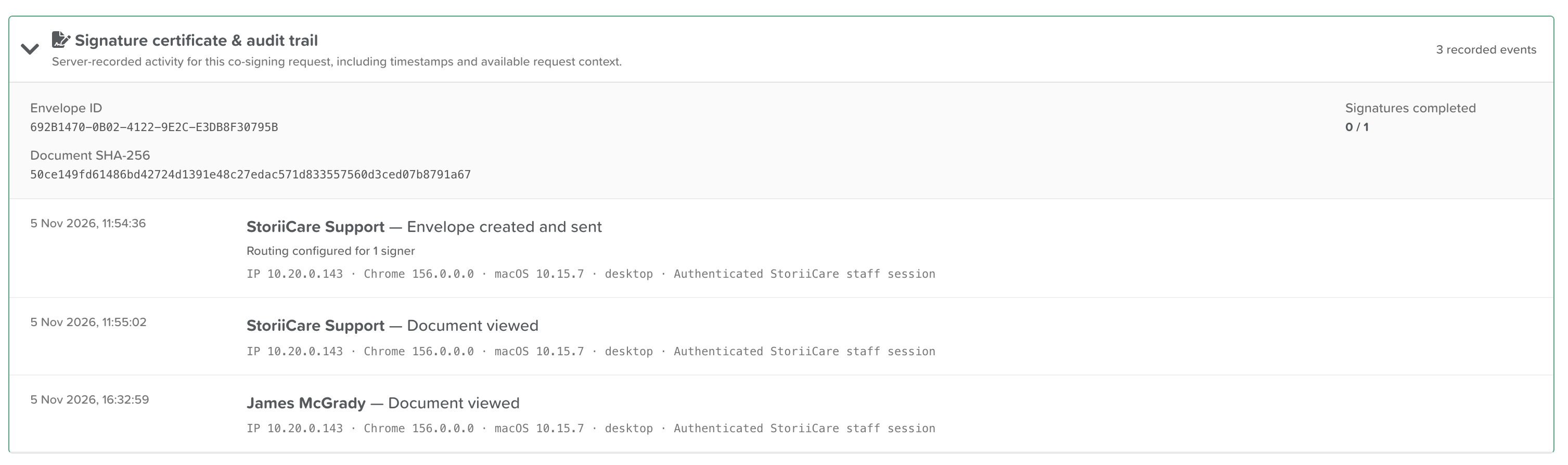
Every request carries a server-recorded audit trail. Expand Signature certificate & audit trail at the bottom of the request page to see it. It is ready for surveyors, auditors and payers.
The certificate shows:
Envelope ID: a unique ID for the request.
Document SHA-256: a fingerprint of the record's contents at the time it was sent, proving it has not changed.
Signatures completed: for example, 2 / 3.
Below that, each event is listed with a timestamp to the second, the person, and their IP address, browser, operating system, device type and session type. Events include:
Envelope created and sent (with the number of signers routed)
Document viewed
Signed
Co-signing completed
Your Sign-Off
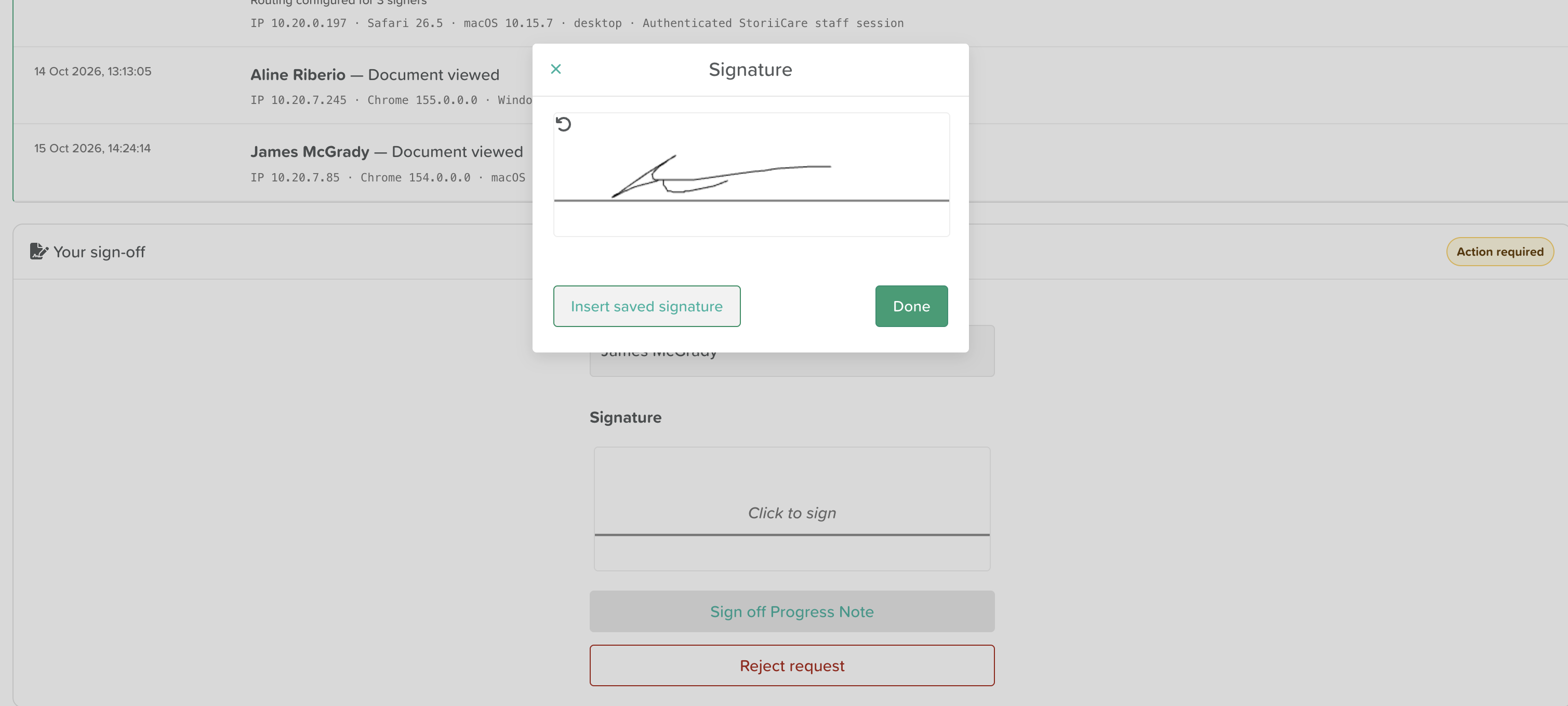
If your sign-off is requested, you'll see an Action required badge and the option to add your signature. You can choose whether to Sign off or Reject request.
If you enter your signature, you have the option to insert a saved signature. To set this up, see: How to Save Your E-Signature to Your StoriiCare Profile.
FAQ and tips
Can I request my own signature? Yes. You can add yourself as a signer, for example to sign off a form you completed alongside a supervisor.
When should I use Sequential order? Use it when sign-off has a chain, such as author, then nurse, then director. Use Any order when signatures are independent and speed matters.
Why is the external signers list greyed out? The participant has no verified Storii Family connections with an email address. Use Add a signer by email instead.
What does a family member or outside signer need? Storii Family connections sign in with their existing account. Email signers enter their name and verify the participant's date of birth before they can see the record.
Does a fully signed form count as completed? Yes. When co-signing finishes on a form entry, the entry's Completed by and Completed on columns are filled in.
Tip: set a due date on time-sensitive records such as care plans and assessments so late signatures show up in the Overdue tile.
Feedback: co-signing is in Beta. Tell our support team what works and what you would like to see next.