
How to Schedule Virtual Activities
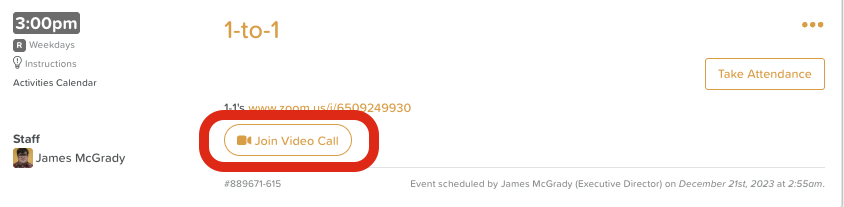
StoriiCare supports virtual activities by automatically generating a Join Video Call button when a video conferencing link is added to an activity. This button appears on the Calendar Day View in both StoriiCare and the Storii Family App, making it easy for staff and participants to join from wherever they are.
Setting Up a Virtual Activity
Schedule an activity as normal from the Calendar
In the Description field, paste a Google Meet or Zoom link
Save the activity
A Join Video Call button will automatically appear on the Calendar Day View once the link has been detected.
How Participants Join Remotely
Participants who have access to the Storii Family App can join virtual activities from home:
Sign in to the Storii Family App
Navigate to the Calendar tab
Find the virtual activity
Click Join Video Call
If a participant RSVPs for an activity, they will receive a confirmation email and a reminder email on the day!
Need More Help?
If you need further assistance, you can reach out to our support team by emailing support@storii.com. Our support team is ready to help you with any questions or issues you may have.