
How to Edit Activity Attendance
Once attendance has been recorded for an activity, it can be reviewed and updated at any time from the Calendar or the Completed Activities feature. This is useful for correcting attendance records, updating activity details, or making any adjustments after the fact.
How to Edit Attendance from the Calendar
Open the Calendar from the Dashboard and navigate to the relevant day
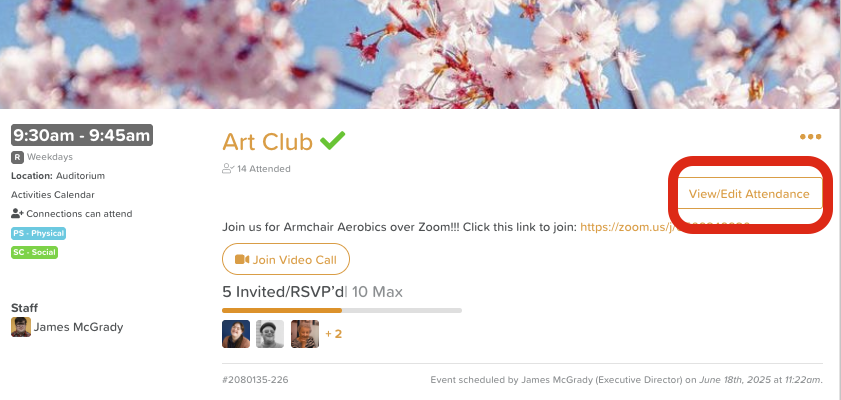
Click the View/Edit Attendance button on the Day View
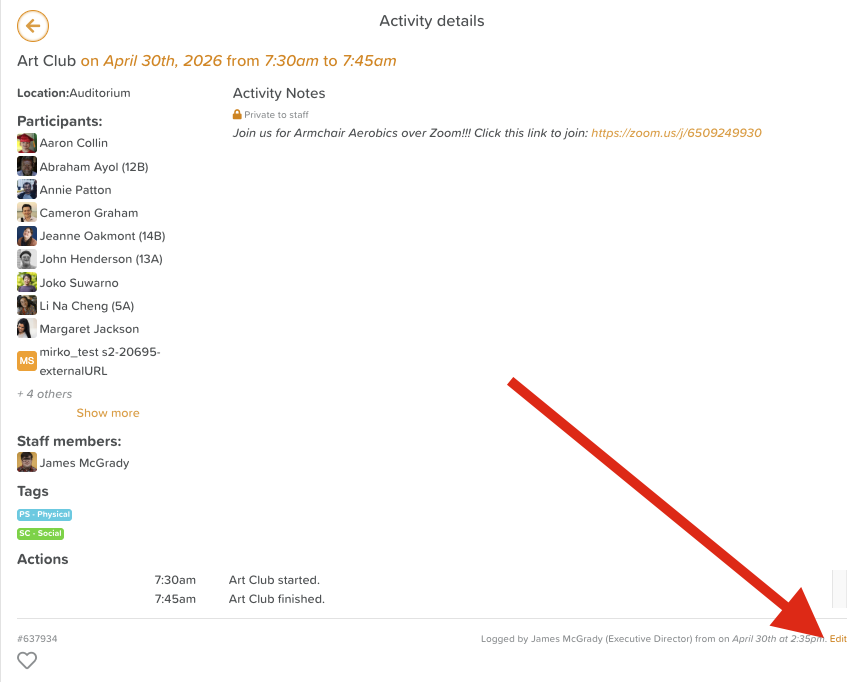
Click Edit in the bottom right-hand corner
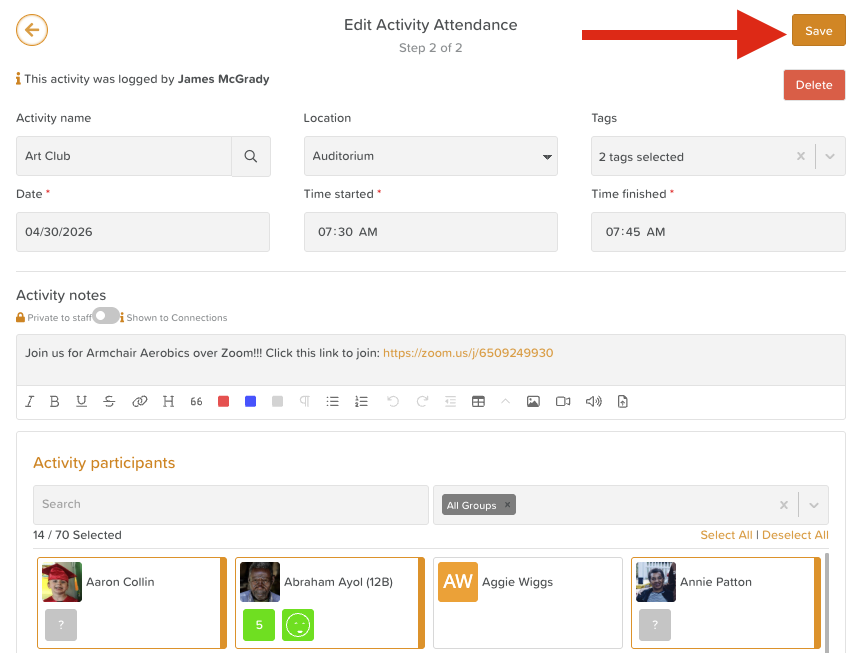
Make any necessary changes to the attendees list, activity details, or other relevant fields
Scroll to the top of the screen and click Save
How to Edit Attendance from Completed Activities
Ad Hoc Activities do not appear on the Calendar. Users who need to update attendance details for an Ad Hoc Activity may do so from the Completed Activities feature on the Dashboard.
Open Completed Activities on the Dashboard
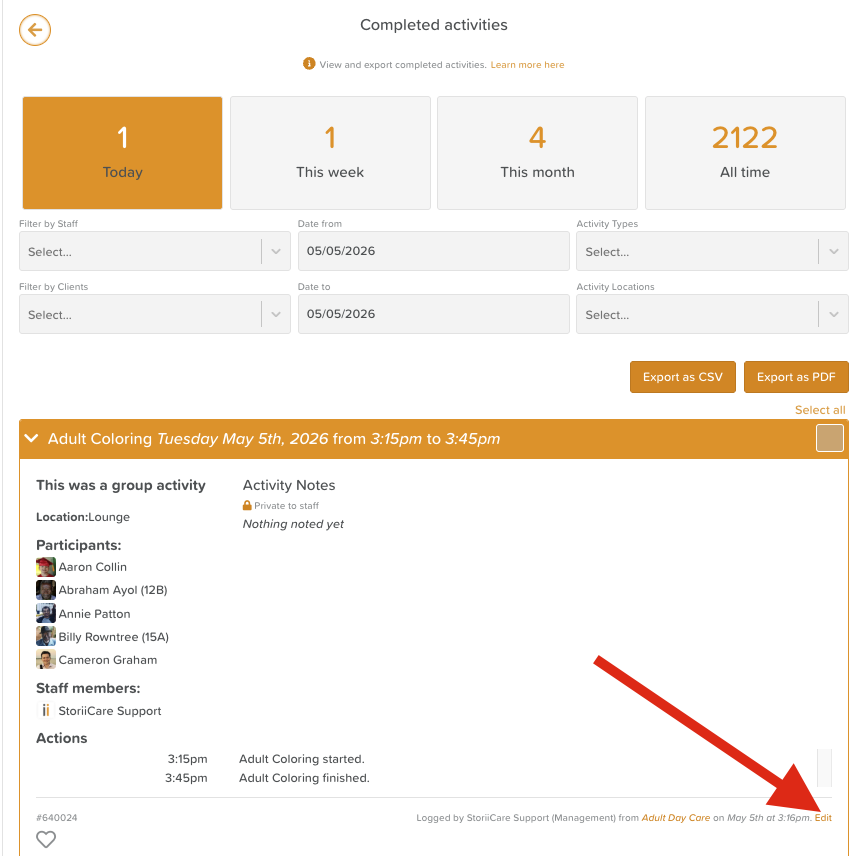
Use the filters and/or search bar to locate the activity you need to edit attendance details for
Click the Edit text in the bottom, left corner
Make changes
Click Save at the top to confirm your changes
Audit trails in the participant Timeline, Handover, and attendance details will show the date and time stamp of any edits made, and by which staff member.

Need More Help?
If you need further assistance, you can reach out to our support team by emailing support@storii.com. Our support team is ready to help you with any questions or issues you may have.