
How to Add a Custom Cover Photo to a Calendar Activity or Event
Cover photos can be added to activities and events in the StoriiCare Calendar to make them more visually engaging and easier to identify at a glance. You can upload a custom image to any activity or event, which will display in the Calendar feature and on the Storii Family App where applicable.
Adding a Cover Photo When Creating an Activity/Event
Open the Calendar feature
Click Add
Select the Calendar(s) you want to schedule to
Select the activity/event type
Complete the activity or event details as needed
Scroll to the Add a cover picture toggle

Click the + below Custom cover pictures to select an image from your device
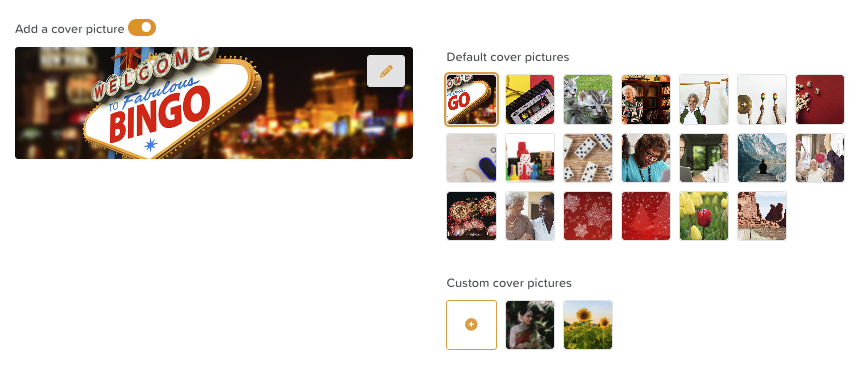
Once uploaded, the image will preview in the panel
Scroll up and click Save to confirm
Adding or Changing a Cover Photo on an Existing Activity/Event
Open the Calendar feature
Locate the activity or event you wish to update and click on it
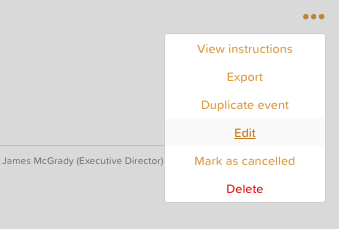
Click the three dots on the right side and select Edit
Select a default cover picture or click the + below Custom cover pictures to select an image from your device
Scroll up and click Save to confirm your changes
Removing a Cover Photo from an Activity/Event
Open the Calendar feature
Locate the activity or event you wish to update and click on it
Click the three dots on the right side and select Edit
Scroll to the Add a cover picture toggle and toggle it off
Scroll up and click Save to confirm your changes
Need More Help?
If you need further assistance, you can reach out to our support team by emailing support@storii.com. Our support team is ready to help you with any questions or issues you may have.