
How to Manage Tags in the Calendar
Tags allow care teams to categorize activities and events in the Calendar. They can be used to filter the calendar view, organize programming, and track activity trends over time — for example, viewing a breakdown of cognitive, physical, or social activities in the Analytics section.
StoriiCare includes a default set of Tags that cannot be deleted, but custom tags can be added to suit your organization's needs.
Where Calendar Tags are Displayed
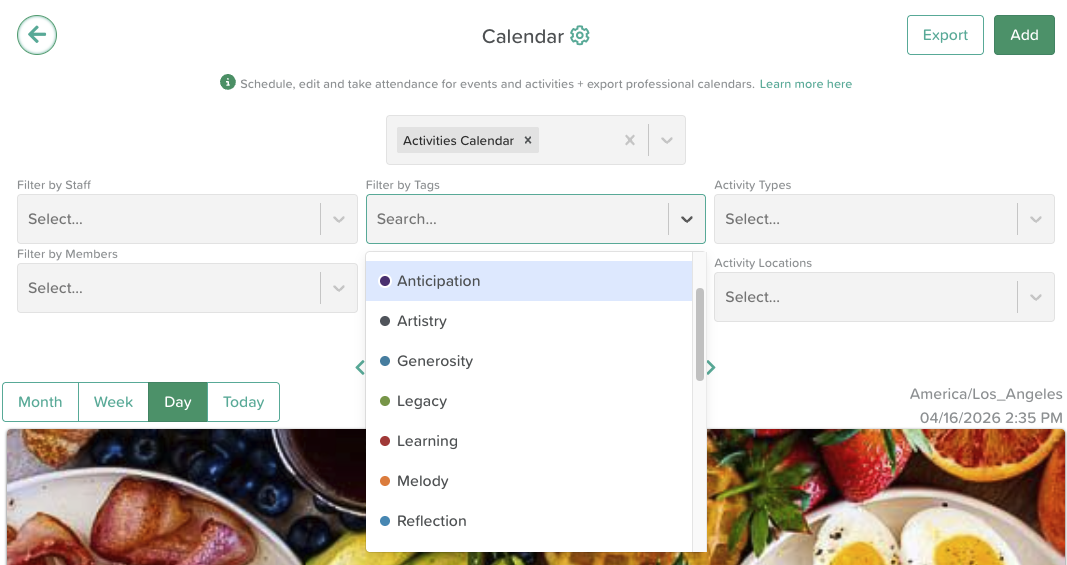
Filter Calendars by Tag (i.e., View all "Health" related activities scheduled for next month)
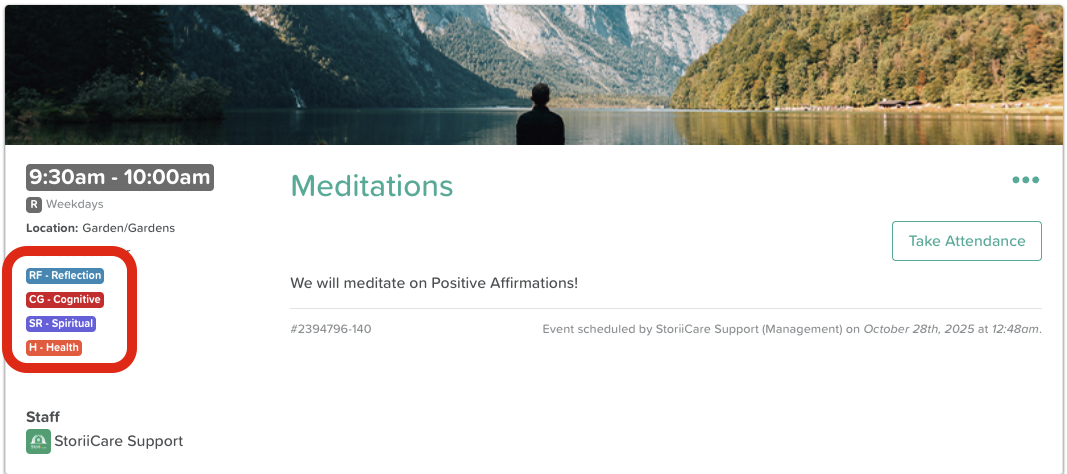
See Tags on the Daily Calendar view
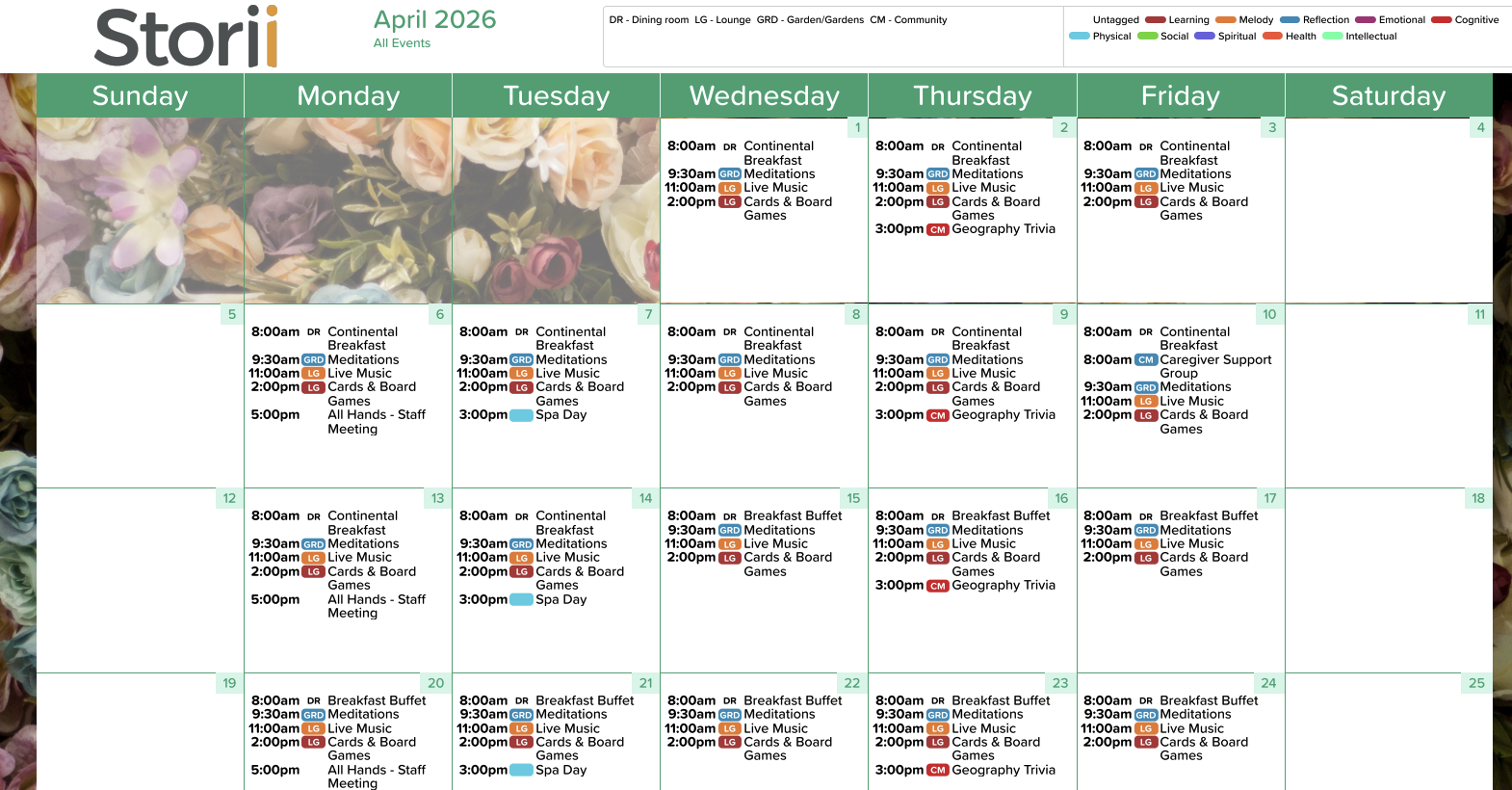
See Tags on the Printed Calendars
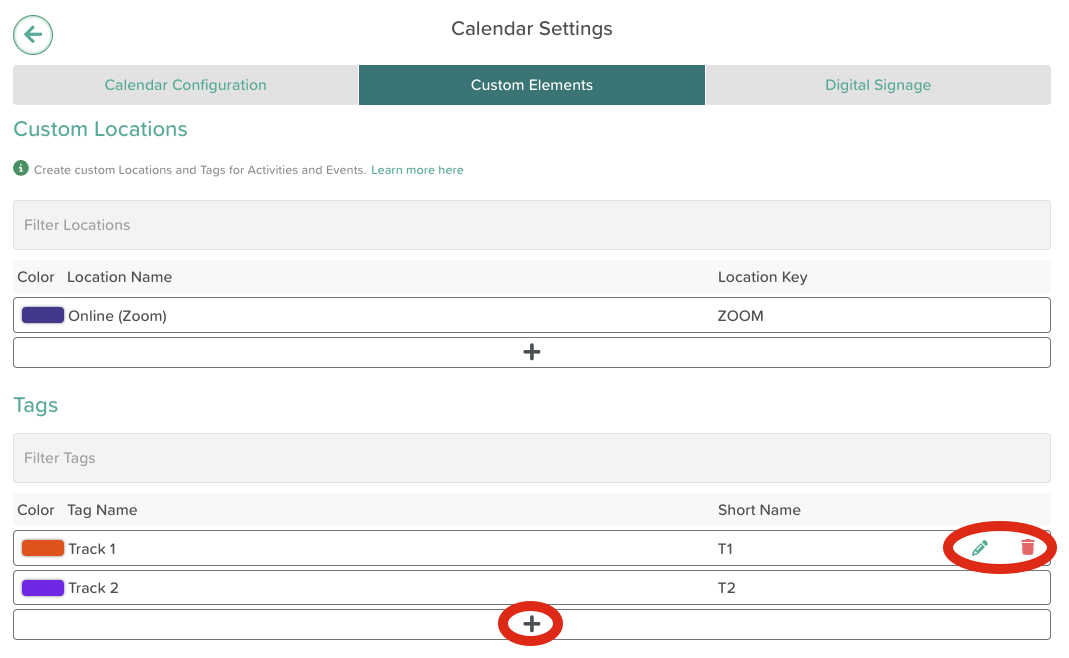
How to Add a New Tag
Open the Calendar feature
Click the settings wheel icon to access Calendar Settings
Select the Custom Elements tab
Scroll to the Tags section
Click the + button to add a new tag
Enter a Tag Name
Enter a Short Name — an abbreviation that represents the tag on Calendar exports (e.g. T1 for Track 1)
Click the color box to assign a colour to the tag
How to Edit or Remove a Tag
Open the Calendar feature
Click the settings wheel icon to access Calendar Settings
Select the Custom Elements tab
Scroll to the Tags section
Click on an existing tag to edit its Tag Name, Short Name, or colour
To remove a custom tag, click the trash can icon next to it
Viewing Tag Analytics
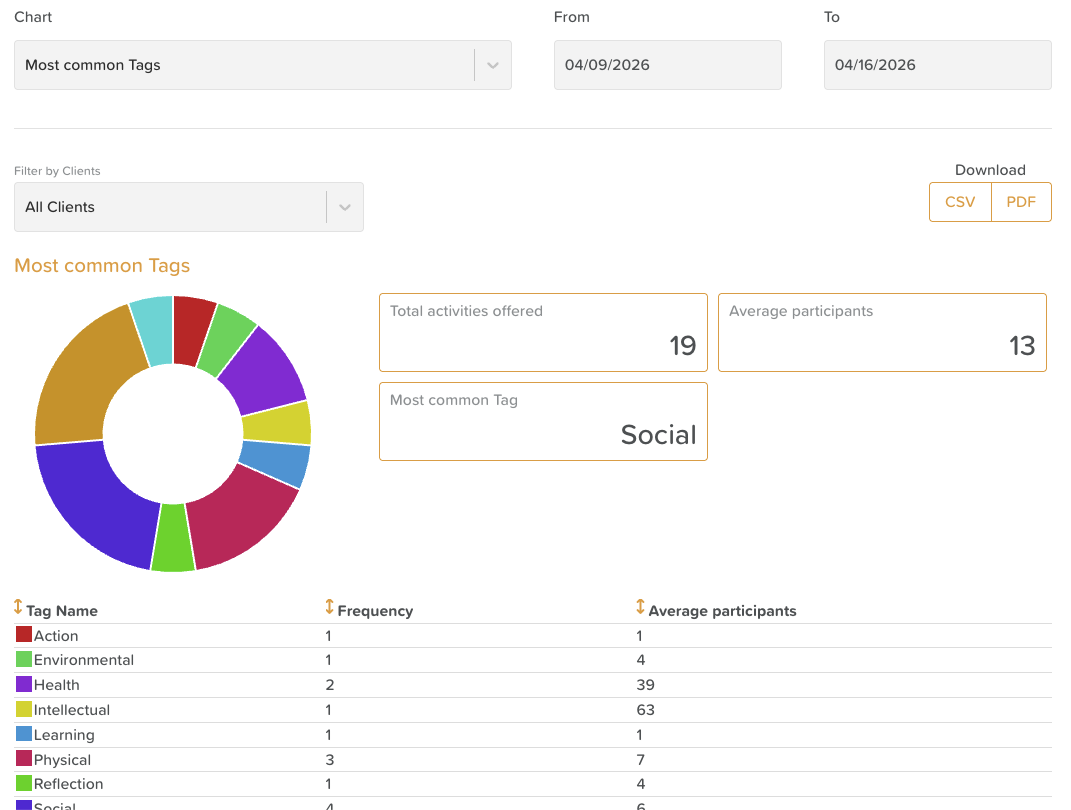
Tag usage can be reported on from the Analytics section of StoriiCare. Use the Most Common Tags chart to view a breakdown of how frequently each tag was used over a selected date range. This is useful for tracking the balance of activity types facilitated across your organisation.
These reports can be exported in a CSV or PDF format.
Need More Help?
If you need further assistance, you can reach out to our support team by emailing support@storii.com. Our support team is ready to help you with any questions or issues you may have.