
How to Add a New Activity Type
StoriiCare comes equipped with a large database of activity types so that care teams can get started scheduling and taking attendance right away. The platform also supports the creation of custom activity types to reflect your organisation's unique programming.
How to Add a New Activity or Event Type
Note that any activity or event added to the Calendar must first exist as an Activity Type — it is not possible to select an existing type and rename it at the point of scheduling. If you need a new activity or event that isn't in the database, you will need to create it as a new Activity Type before it can be scheduled.
Open the Calendar feature
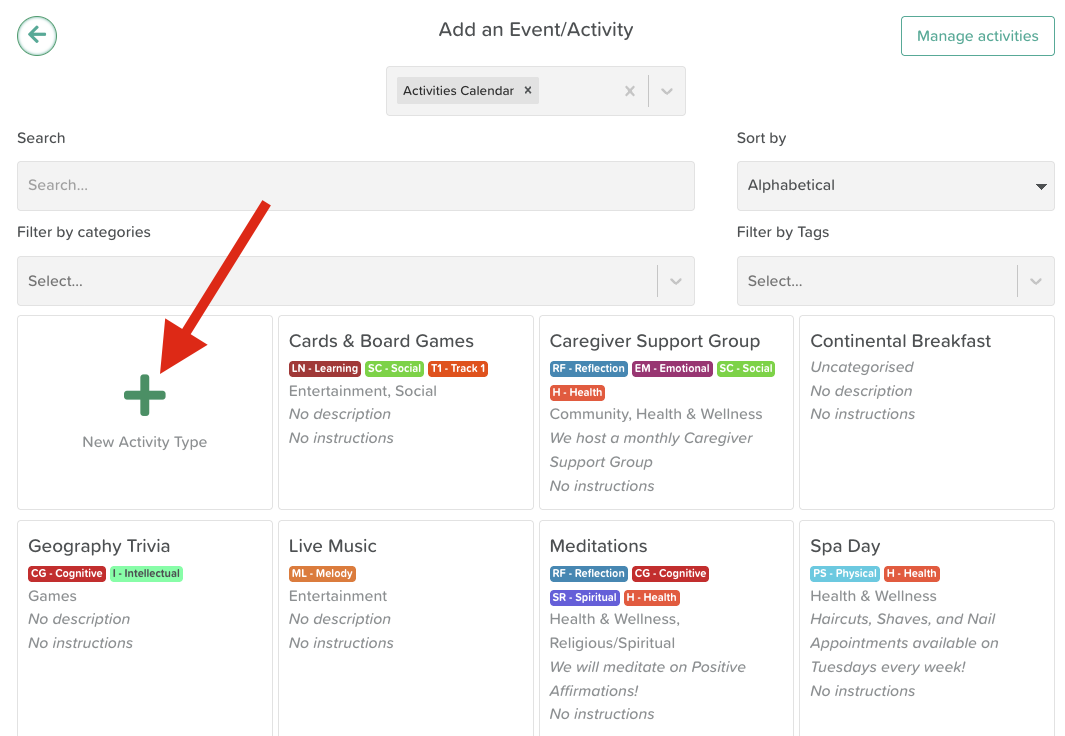
Click the Add button

Select a Calendar from the dropdown menu
Click +New Activity Type
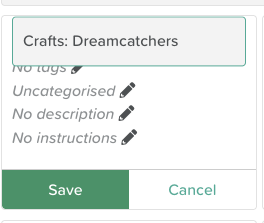
Click the pencil icon next to each field to fill in the relevant details:
Activity Name — The name of your custom activity
Tags (Optional) — Assign one or more tags to help categorise and organise your activity types
Description — This will automatically populate the description field when the activity is scheduled
Instructions — Attach instructions from the Activity Instructions feature. These will appear on the Day and Today views of the Calendar
Click Save
Your new activity type is now saved to the database and ready to use. Repeat this process as many times as needed to build out your activity library.
Once saved, you can click on the new activity type to begin scheduling it.
Need More Help?
If you need further assistance, you can reach out to our support team by emailing support@storii.com. Our support team is ready to help you with any questions or issues you may have.