
How to Record Vitals
Use the Vital Signs feature to log health data for your participants. Follow the steps below to record a vital sign entry.
How to Record a Vital Sign
Open the Vital Signs feature (terminology may differ on your account)
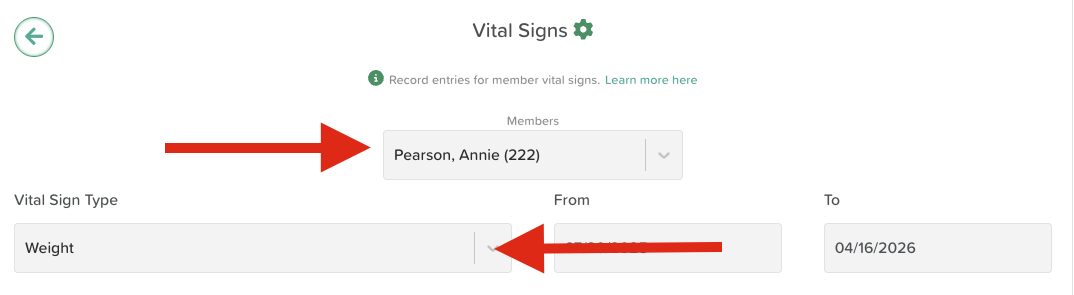
Select a participant from the dropdown menu at the top of the page
Select your desired Vital Sign from the Vital Sign Type dropdown menu
Scroll down and click Add entry
Click on the box to enter your data
Click Save


Repeat this process for as many entries as you need.
Adding Notes to Vital Signs Entries
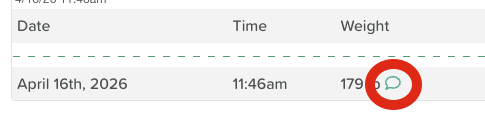
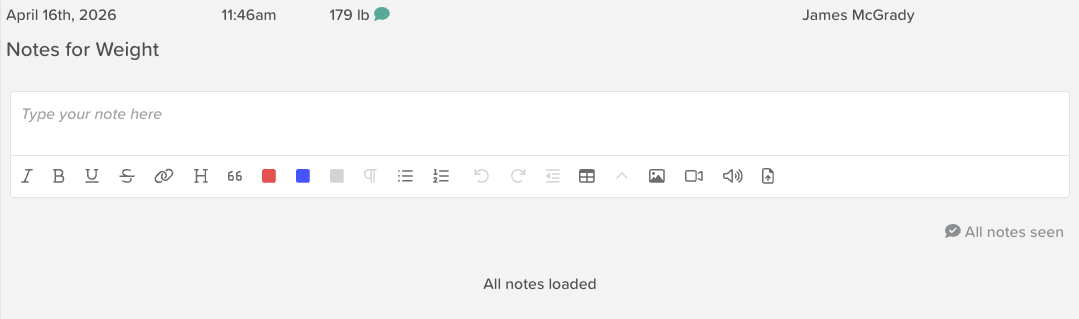
Once a Vital Sign entry is added, users can click on the message bubble icon to enter a note. This is ideal for explaining an outlier, indicating if a caregiver was notified of a concerning reading, etc.
Switching Between Participants
Use the Participant dropdown at the top of the page to switch between participants without leaving the feature. This allows you to quickly record vitals for multiple participants in a single session.
Recording Multiple Vitals at Once
If you need to record several different Vital Signs for a participant at the same time, you can use a Vital Signs Group instead of entering each one individually. See our guide: How to Record Multiple Vital Signs at Once.
Need More Help?
If you need further assistance, you can reach out to our support team by emailing support@storii.com. Our support team is ready to help you with any questions or issues you may have.