
How to Sort by Room Number
Residential care settings can display room numbers next to resident names. The Resident page can also be sorted by room number, either ascending or descending.
This makes it much easier to organise your view around the physical layout of your facility — particularly useful when conducting medication rounds, care checks, or any workflow that follows a floor-by-floor or room-by-room sequence.
Applying Room Numbers to Profiles
Room numbers are managed within each resident’s profile. If you haven't yet assigned room numbers to your residents, you can do so by editing their Face Sheet details.
IMPORTANT: The room number field type must be "Resident's Room Number" for the integration to work properly.
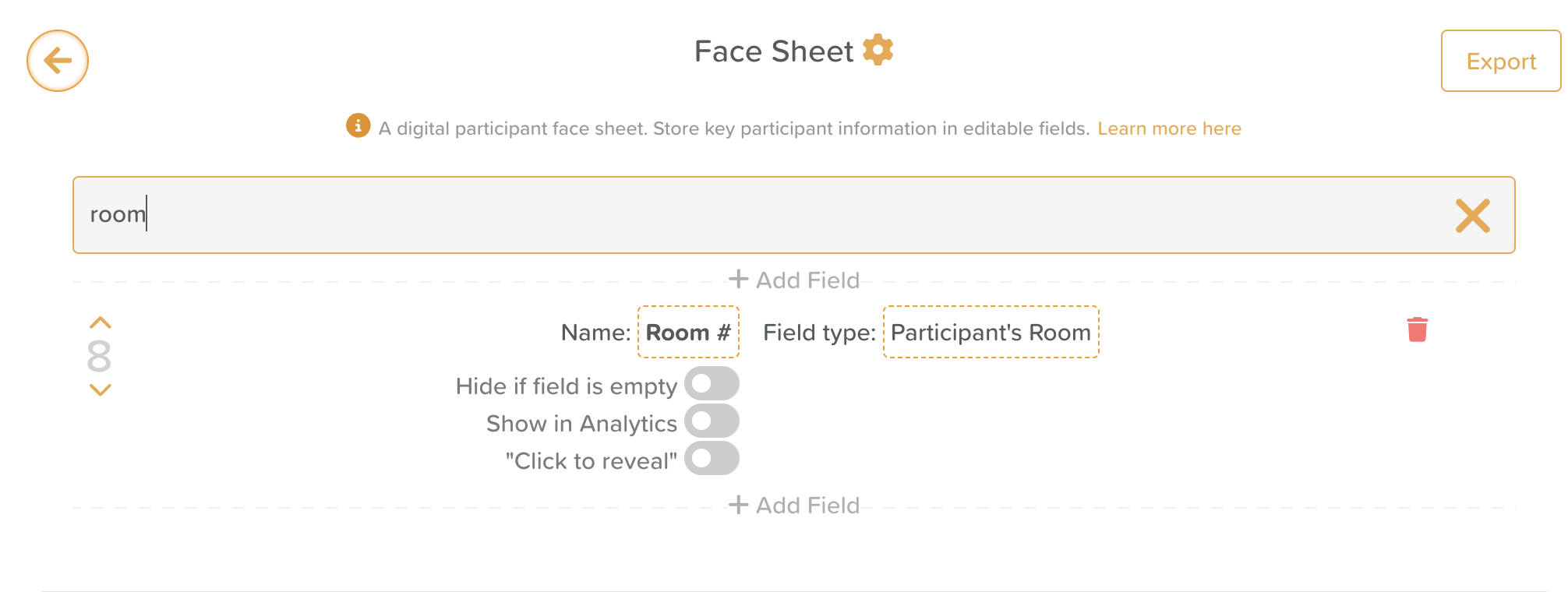
Ensuring Room Numbers Appear Next to Names
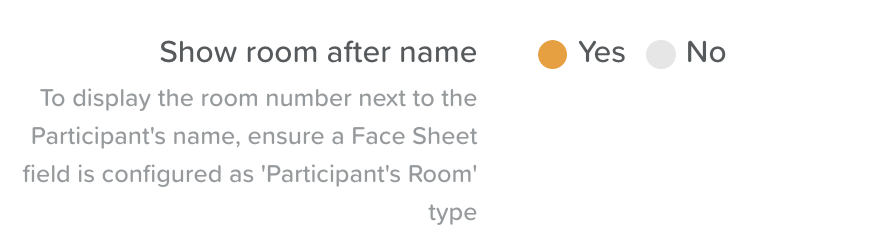
From the Business Settings area (terminology may be different on your account, depending on the setup), navigate to the Account tab.
Scroll down until you see "Show room after name".
Ensure that Yes is selected.
Save.
Sort Residents by Room Number
From the Resident tab, click on the sorting button (just below Add).
Using the dropdown menu, select sort By room number, ascending or descending.
Users will see their page update to reflect the applied sorting option in real time.
Need More Help?
If you need further assistance, you can reach out to our support team by emailing support@storii.com. Our support team is ready to help you with any questions or issues you may have.