
How to Print MAR Charts
Medication Administration Record (MAR) charts can be printed from StoriiCare to support medication management and documentation within your organization. These charts provide a clear record of medications, administration times, and space for staff initials.
Follow the steps below to generate and print MAR charts.
How to Print MAR Charts
From the Dashboard, go to Exports.
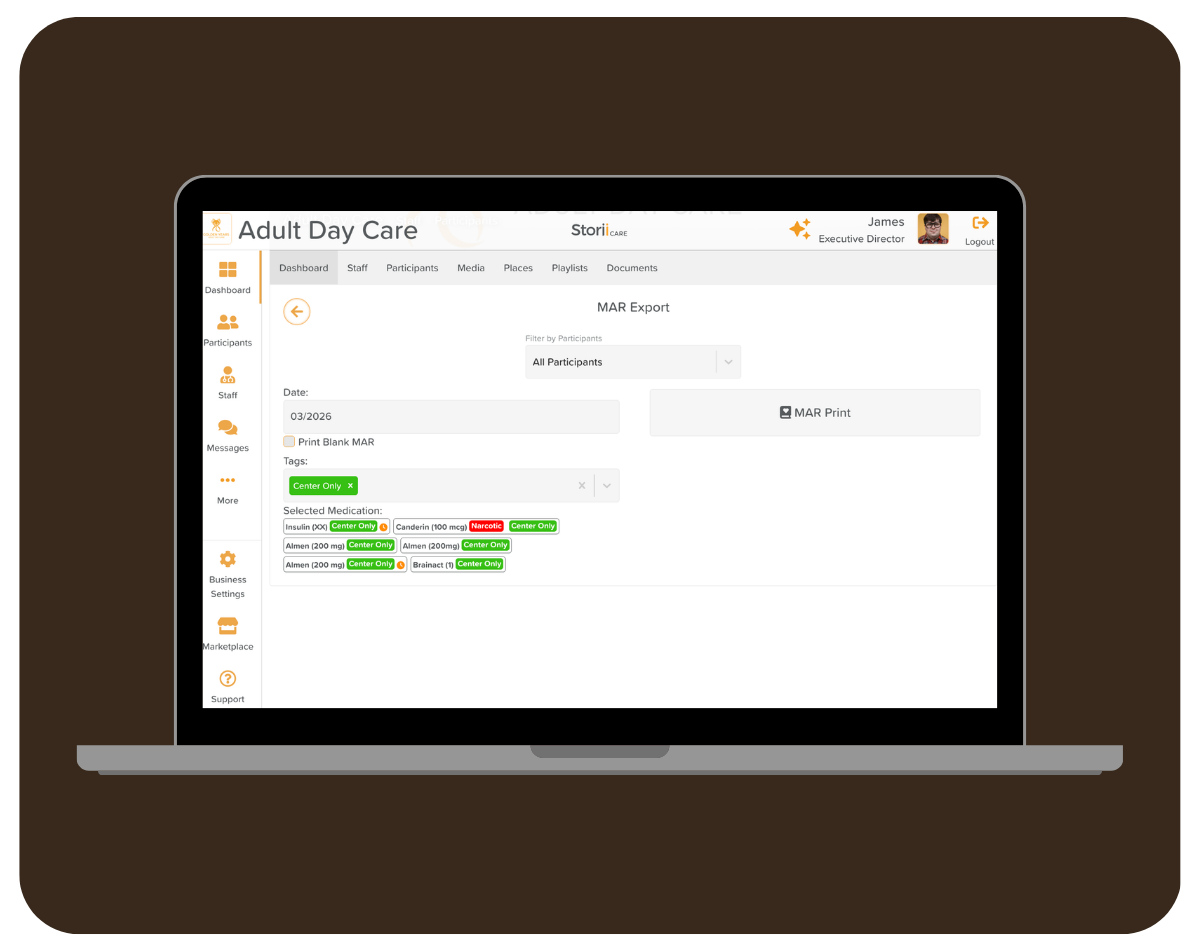
Click MAR Export.
Use the Members filter to choose who to include in the report:
Individual participants
Specific groups
All participants
Select the Date to choose which month you want to download the MAR charts for.
If needed, check Print Blank MAR to download blank MAR charts that can be completed manually by staff.
(Optional) Use Tags to filter which medications appear on the MAR charts.
Click MAR Print when you are ready to generate the report.
Using Tags to Filter MAR Charts
Tags allow you to generate MAR charts that only include certain medications.
For example:
Some care centers use a “Center Only” tag to identify medications administered while the participant is onsite. By selecting this tag during export, the printed MAR will only include those medications.
This can help staff focus on the medications relevant to their setting.
Tags can be created and managed from the Medical Info section on any participant profile. Tags added from any profile will appear for all participants.
Downloading Your MAR Charts
If you print a single MAR, it will download as a PDF.
If you print multiple MAR charts, they will download as a ZIP file containing all MAR PDFs.
You may need to extract the ZIP file before opening or printing the individual MAR charts.
Need More Help?
If you need further assistance, you can reach out to our support team by emailing support@storii.com. Our support team is ready to help you with any questions or issues you may have.