
How to Add Medications
The Medications feature in StoriiCare allows clinical staff to record, manage, and print accurate medication records for participants, including MAR (Medication Administration Record) sheets.
This guide explains how to add medications correctly and highlights important clinical and compliance considerations to ensure safe and accurate medication management.
Important Medication Safety & Compliance Guidance
When adding medications to the system, users are trained to:
Carefully review how the medication displays back in the system after saving, ensuring the description is accurate and unambiguous
Always include dosage and frequency of administration
Only add an end date when a prescriber has specified a time-limited course (e.g. antibiotics), where no clinical review is required before stopping
Print a new MAR sheet whenever a medication is added, changed, or stopped
Ensure PRN medications are clearly identified and documented correctly
These practices help maintain safe, compliant medication records.
How to Add New Medications
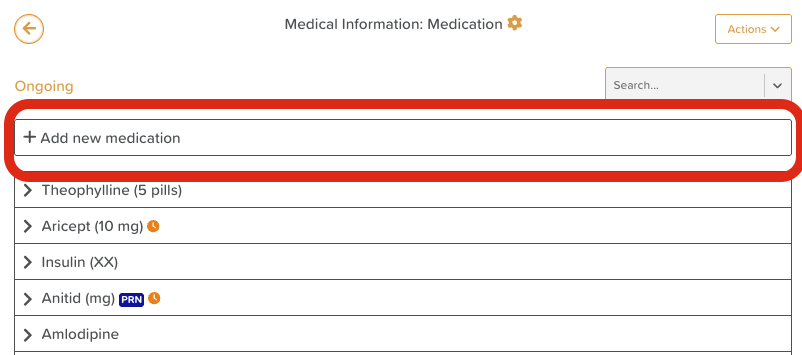
From the Medication view, click Add new medication.
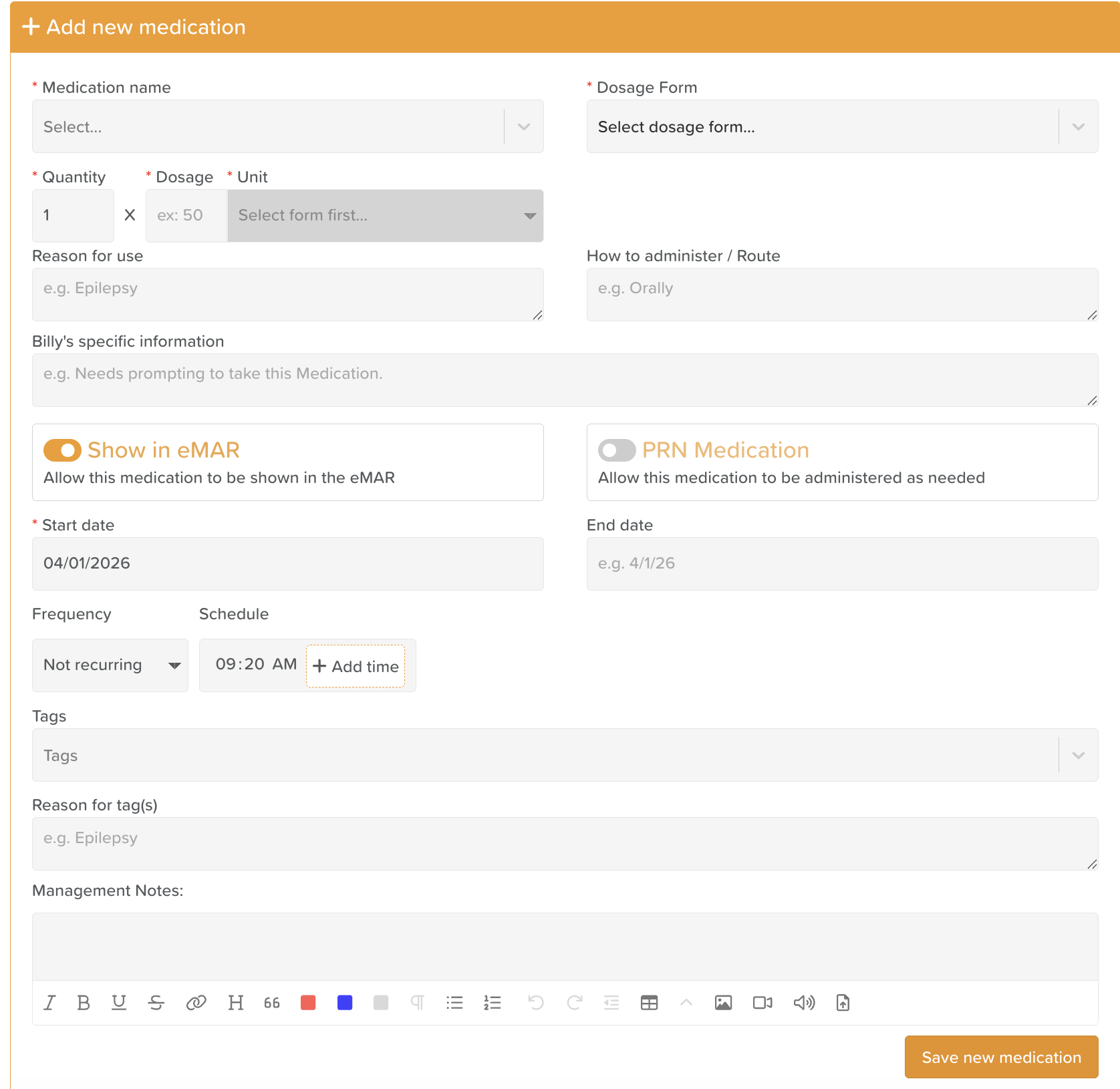
Complete the medication details:
Required fields:
Name — If it is not listed, scroll up > Click Add Custom. It will be saved for future use.
Dosage Form (Capsule, Injection, Chewable Tablet, etc.)
Quantity and Unit (mg, mcg, ml, etc.)
Administration Start Date
Optional fields:
Time to Administer (if eMAR is disabled)
Enter the time the medication is administered
If medication is needed multiple times per day, enter the times in the following format to ensure each time has its own row in the MAR Chart:
8 am
12 pm
Reason for use — Document the clinical indication or purpose)
How to administer (e.g. Topically - left elbow, Orally, IV, etc.)
Participant-specific information — Add any instructions unique to the participant.
End Date — Only add an end date if the prescriber has specified a fixed treatment duration, like a course of antibiotics. Do not add an end date if ongoing clinical review is required.
Frequency
Schedule — Enter a time and click + Add time. Repeat as needed for all required administration times.
Tag(s) and Reasons for tag(s)
Management Notes — Use Management Notes to capture additional oversight information, monitoring instructions, etc.
eMAR toggles:
Show in eMAR will be toggled on by default.
PRN Medication can be turned on if this is an as-needed medication
Click Save new medication.
After saving, users should:
Review how the medication displays
Confirm all information is correct and clearly presented
⚠️ Important: After saving, a medication cannot be fully edited. Only the End Date and Management Notes can be updated. Please review all fields carefully before saving.
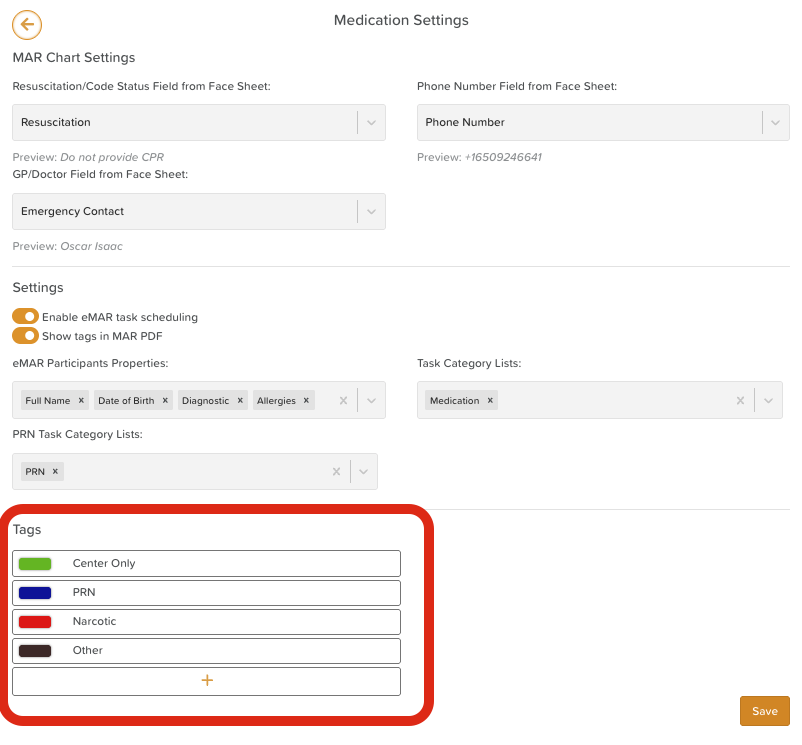
How to Use Medication Tags
Tags can be enabled in Medication Settings and are used to:
Highlight important medical distinctions
Filter MAR sheet printing
Common tag examples include:
PRN
Narcotics
At Center
Using PRN Tags & Filtering MARs by Tags
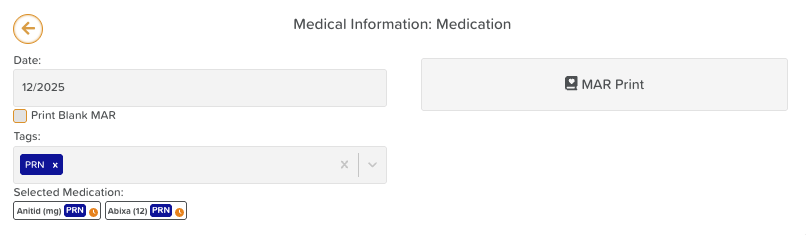
Always apply a PRN tag to PRN medications
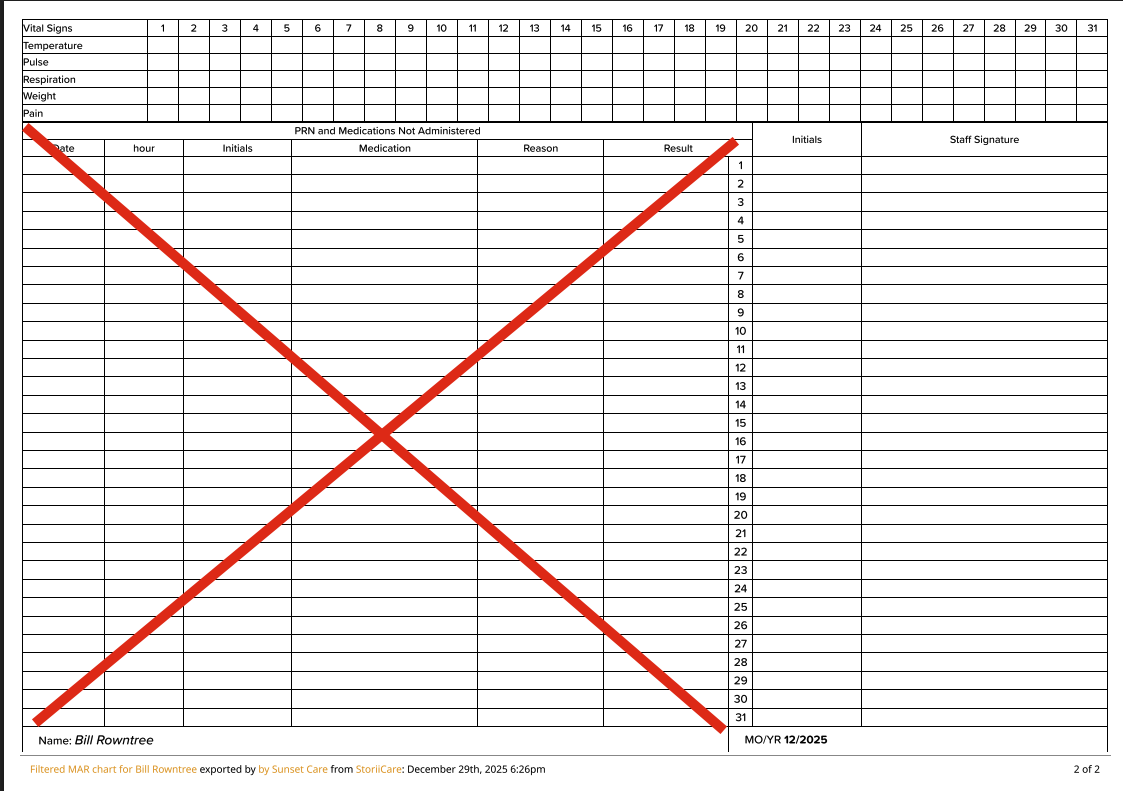
PRN medications will appear in the main medication list, not in the table below.

Best Practices
Always review the medication display before and after saving.
Don't just include required fields. Instead, aim to provide as much clinical information as possible to reduce risk and error.
Use tags consistently.
Structure administration times to align with MAR rows.
Reprint MAR sheets after any medication change.
Avoid unnecessary end dates.
Need More Help?
If you need further assistance, you can reach out to our support team by emailing support@storii.com. Our support team is ready to help you with any questions or issues you may have.