
How to Delete a Staff Notice
There may be occasions when a Staff Notice needs to be removed—such as duplicate entries or accidental submissions. StoriiCare allows authorized users to delete Staff Notices, but this action should be performed carefully, as deleted notices cannot be recovered from the front end.
Follow the steps below to delete a Staff Notice safely.
Step 1: Open the Staff Noticeboard Feature
From your StoriiCare Dashboard click on Staff Noticeboard.
Use filters (optional) to locate the note you want to delete.
Step 2: Select the Notice
Scroll through the list of notices to find the correct entry.
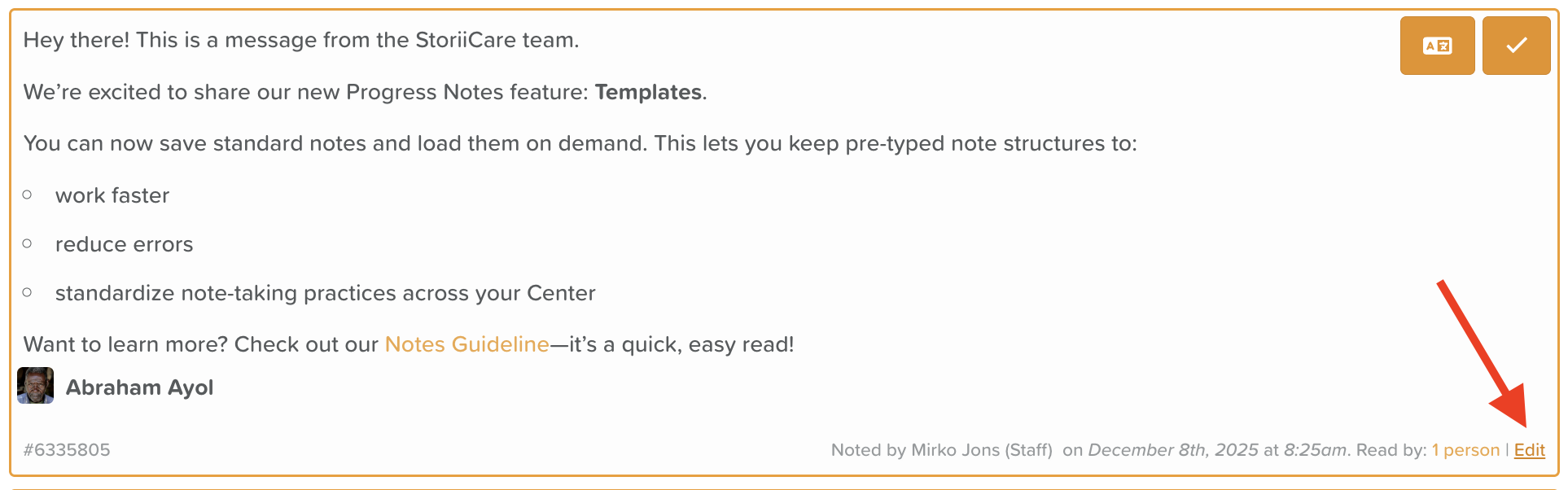
Click Edit (bottom-right corner).
⚠️ If you do not see the Edit option, speak to a manager or administrator to update your Permissions.
Step 3: Delete the Notice
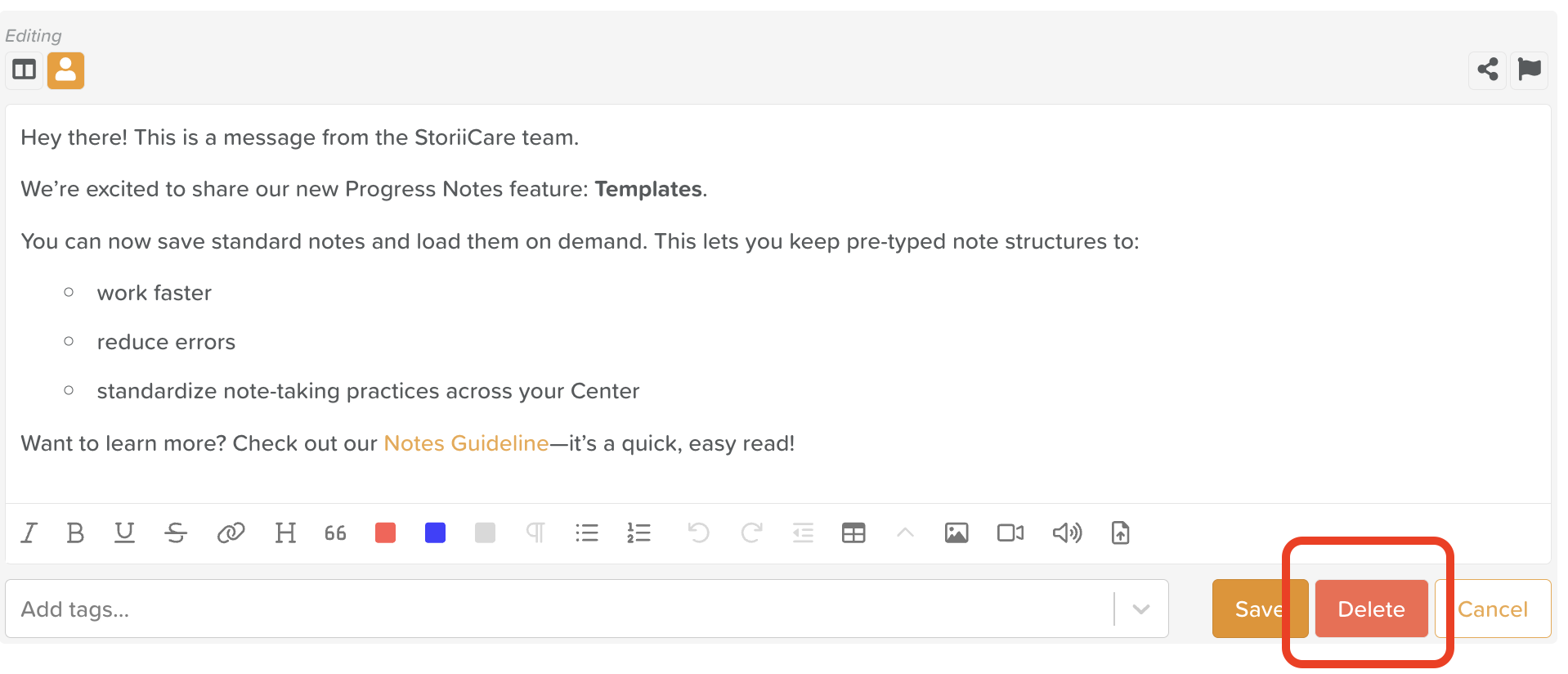
Look for the Delete option at the bottom right corner of the note.
Click Delete.
A confirmation message will appear asking you to verify the deletion.
✔ Confirm Your Action
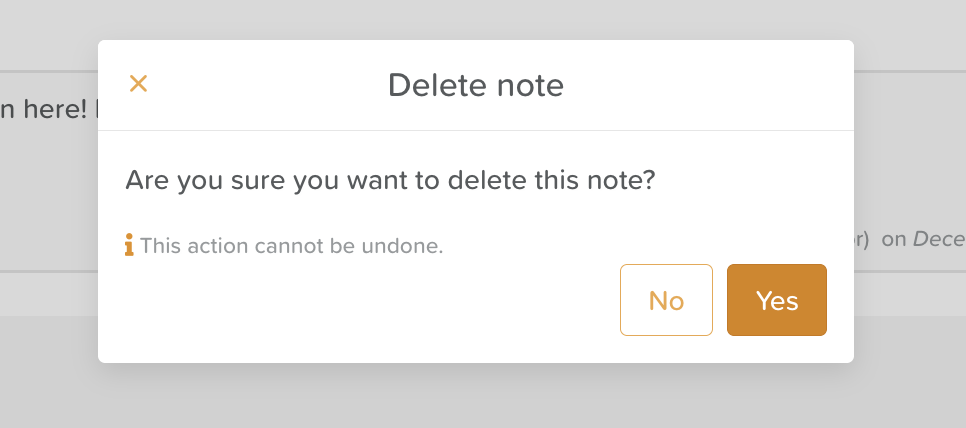
Click Yes.
⚠️ Warning:
Once deleted, the notice is permanently removed from StoriiCare and cannot be recovered. Only delete a notice when you are certain it is no longer needed.
Best Practices for Deleting Staff Notices
Only delete notices that were created in error—otherwise, edit the notice instead.
Consider exporting or copying the notices content if it may contain relevant information before deletion.
Use deletion sparingly to preserve documentation integrity.
Need More Help?
If you need further assistance, you can reach out to our support team by emailing support@storii.com. Our support team is ready to help you with any questions or issues you may have