
A Guide to Using the Compliance Feature
The Compliance feature in StoriiCare helps organizations proactively monitor data completeness and care requirements across their entire service. Instead of reacting to issues during audits or reviews, Compliance allows you to set up your own system checks so you can stay confident, consistent, and audit-ready at all times.
With customizable compliance modules and thresholds, this powerful tool adapts to your internal policies, clinical standards, and regulatory requirements.
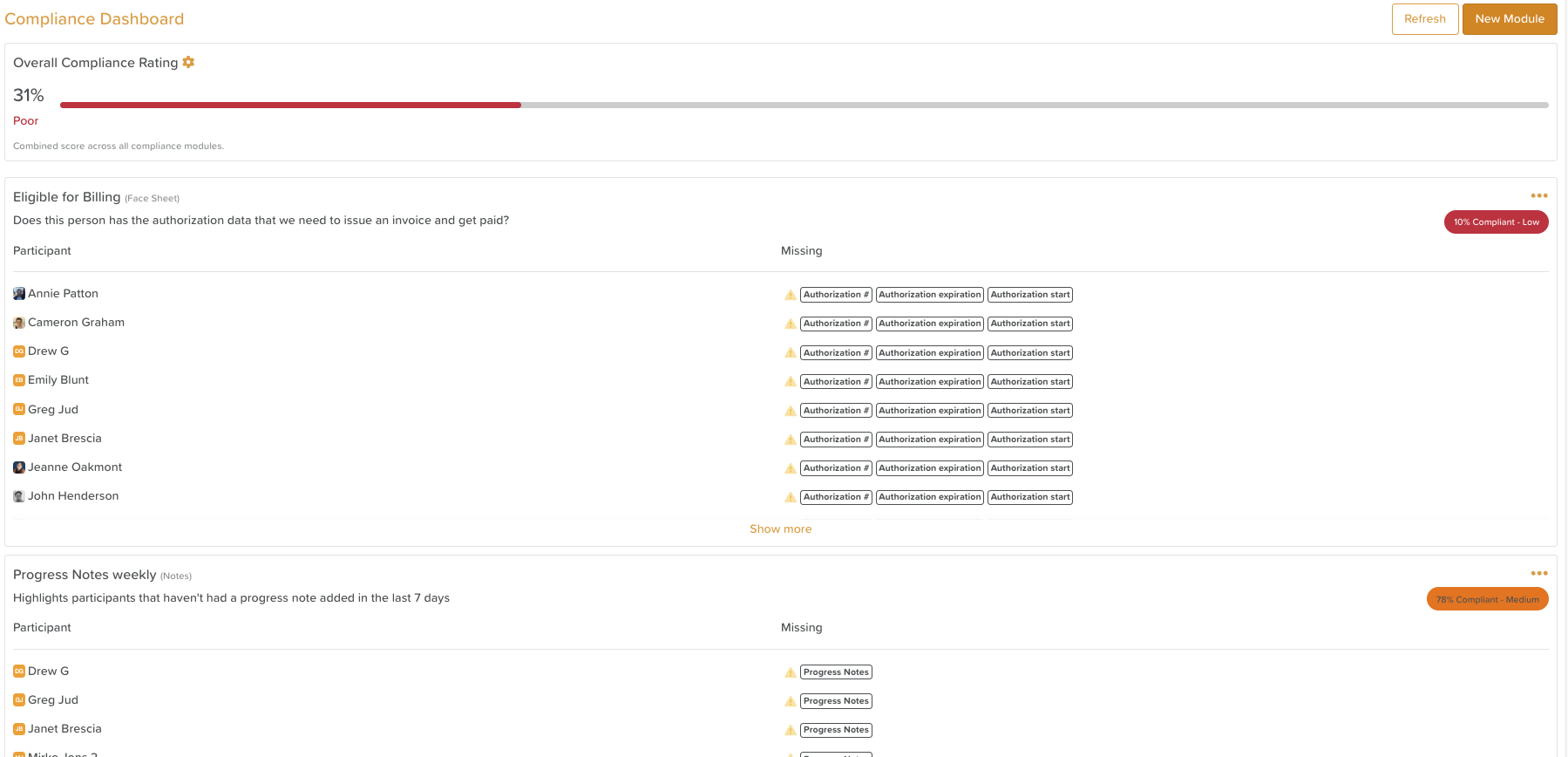
What the Compliance Feature Can Do
Compliance checks can currently be configured for:
Vital Signs
Notes (Progress Notes, Visit Notes, or Care Plan Notes)
Face Sheet
Forms
Care Plans
Common Use Cases
Ensure monthly vitals are completed every 30 days
Confirm critical Face Sheet fields (e.g. Allergies) are populated for every participant
Monitor whether required notes are being completed within expected timeframes
Track whether required forms (e.g. intake assessments, consent forms) have been completed for each participant
Track whether Care Plans have been completed and/or updated for participants within expected timeframes (e.g., checks if the Care Plan was submitted, edited, or marked historical/completed within X number of days)
Understanding the Overall Compliance Rating
The Overall Compliance Rating provides a high-level view of how compliant your organization is based on all configured compliance modules.
It is a combined score across every active compliance check
It gives leadership a quick snapshot of overall performance
Colors and labels clearly indicate compliance levels at a glance
Overall Compliance Rating Settings
Administrators can fully customize how compliance ratings are calculated and displayed.
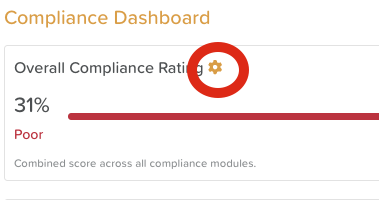
To adjust compliance thresholds:
Click the wheel/cog icon near the Overall Compliance Rating.
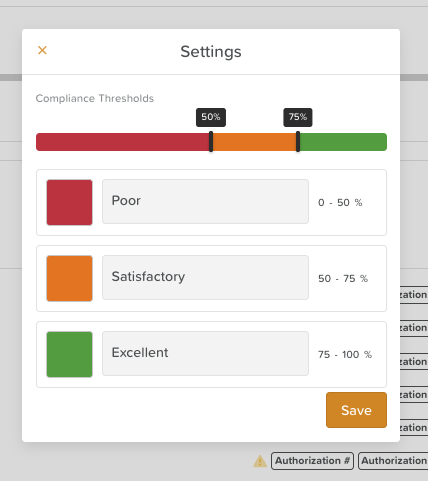
Update:
Threshold percentages for each compliance level
Titles (e.g. Compliant, Needs Attention, At Risk)
Colors for each level
Drag the bars to adjust percentage ranges.
Click Save to apply your changes.
These settings allow you to align the Compliance dashboard with your organization’s standards and risk tolerance.
Viewing Individual Compliance Modules
Below the Overall Compliance Rating, you’ll see each Compliance Module that has been created.
Each module displays:
A title
A description
A list of participants who are missing required data
A module-specific compliance score (top-right corner)
Click Show More at the bottom of the page to load additional modules.
How to Add a Compliance Check
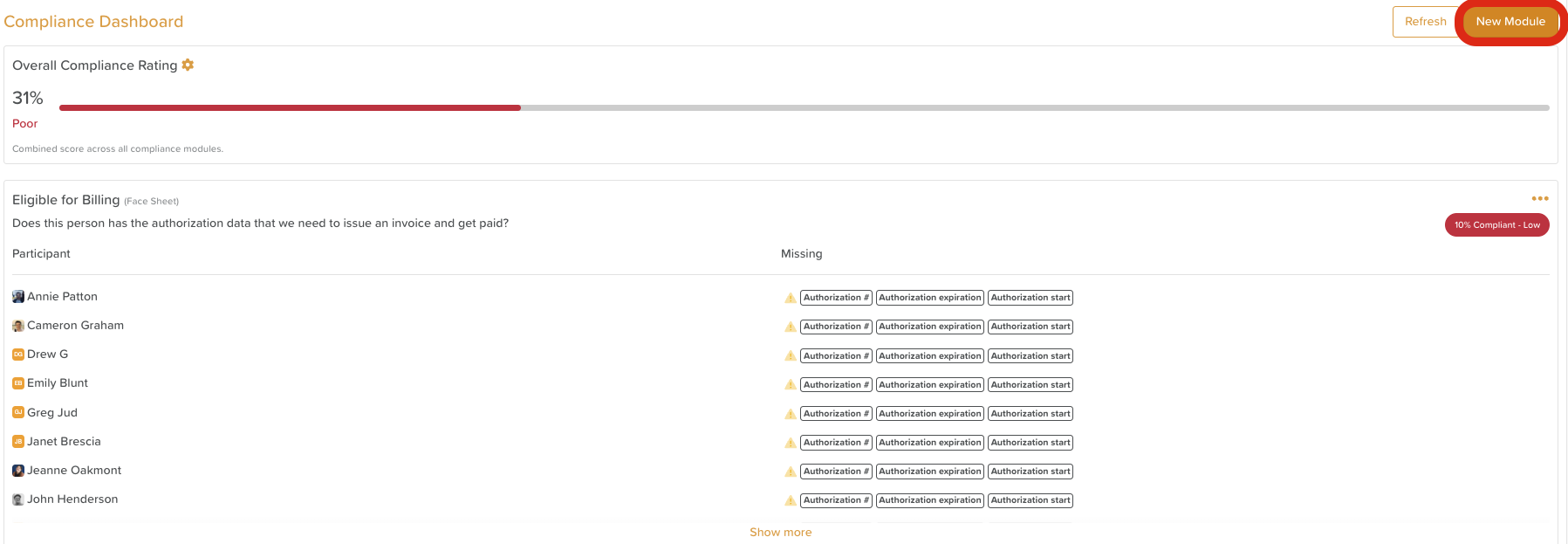
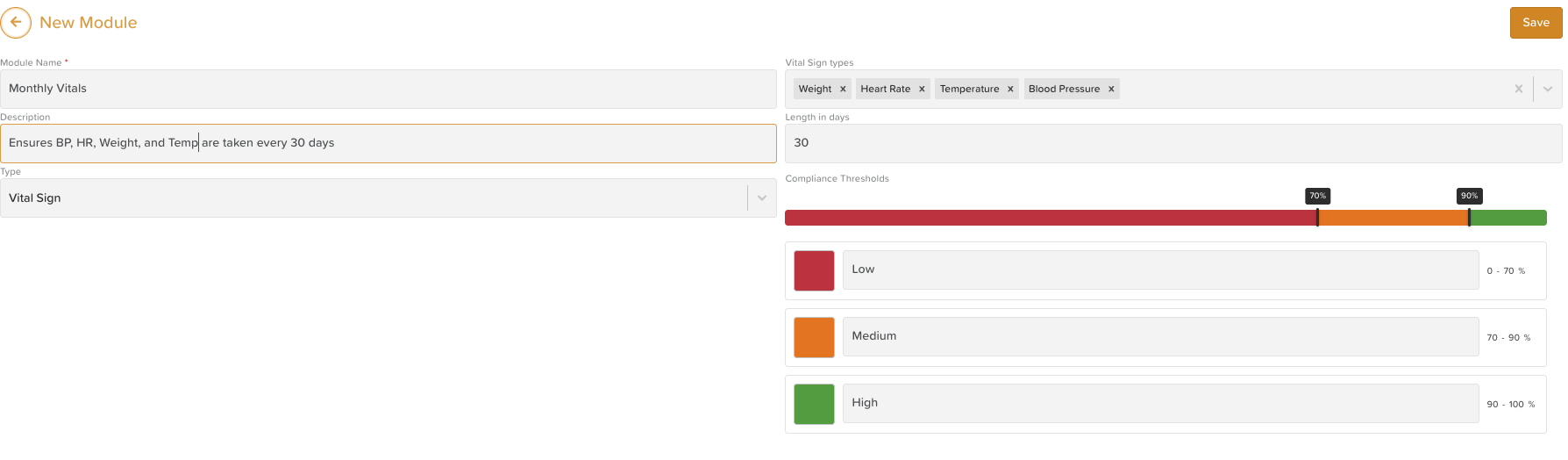
Open the Compliance feature.
Click New Module in the top-right corner.
Enter a Module Name.
Add a Description explaining what the check monitors.
Select the Participants or group of participants the compliance check applies to.
Choose a Type:
Notes (Progress Notes, Visit Notes, or Care Plan Notes) - confirms whether a note has been added within a specified number of days
Face Sheet - verifies whether selected fields contain data or are empty
Vital Signs - confirms whether an observation has been recorded within a specified number of days
Forms - confirms whether selected forms have been submitted within a given timeframe (or at all)
Care Plans - confirms whether selected categories (or all) have been updated or completed within a given time frame (or at all)
Set the compliance thresholds (or keep the default values).
Click Save.
Your new compliance module will immediately begin evaluating participant data.
How to Edit a Compliance Check
(Access depends on your permission level.)
Open the Compliance feature.
Locate the module you want to update.
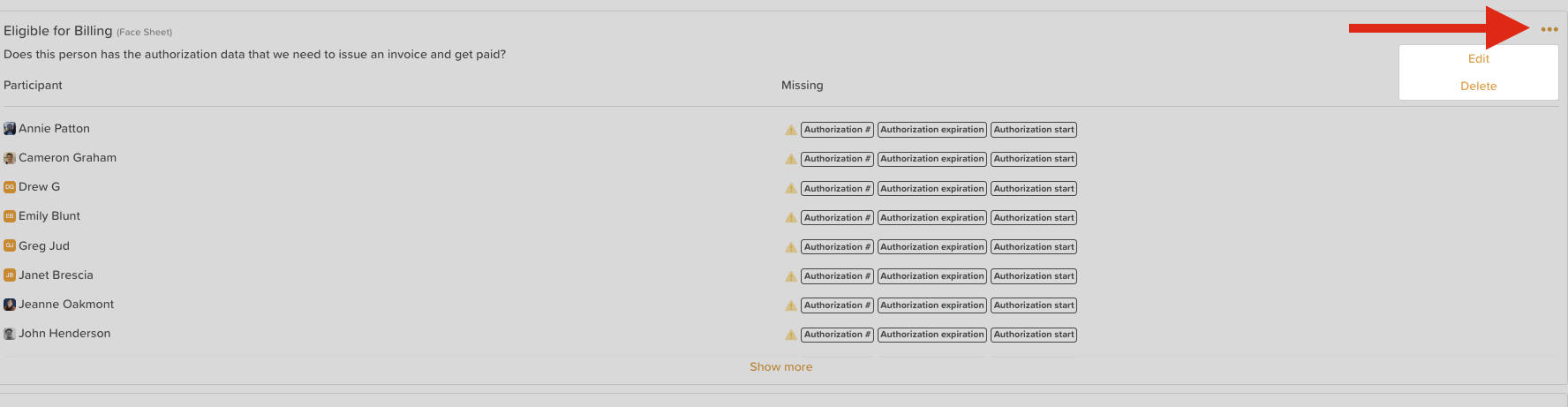
Click the three dots in the top-left corner of the module.
Select Edit.
Make your changes.
Click Save.
How to Delete a Compliance Check
(Access depends on your permission level.)
Open the Compliance feature.
Locate the module you want to remove.
Click the three dots in the top-left corner.
Select Delete.
Confirm your decision.
⚠️ Deleting a compliance module immediately removes it from your Compliance dashboard.
Refreshing Compliance Data
To ensure the information you’re viewing is up to date:
Click the Refresh button in the top-left corner of the Compliance page
While the data refreshes when you leave and re-enter the page, there is no automatic live refresh, so using the Refresh button is recommended—especially during reviews or audits.

Best Practices
Start with a small number of high-impact compliance checks and expand gradually
Align compliance thresholds with internal policies and regulatory standards
Review participant-level gaps regularly to prevent issues from accumulating
Use Compliance alongside Exports and Reports for audit preparation
Refresh data before presenting compliance results to leadership or inspectors
Need More Help?
If you need further assistance, you can reach out to our support team by emailing support@storii.com. Our support team is ready to help you with any questions or issues you may have.