
How to Translate a Visit Note
StoriiCare’s Visit Notes feature includes an AI Translation tool that allows staff to quickly translate notes into different languages. This is especially useful for multilingual teams, diverse participant populations, and family members who speak languages other than English.
This guide explains how to turn on translation and how to translate an individual Visit Note.
Step 1: Ensure AI Translation Is Enabled
Before translation can be used, the Allow AI Translation toggle must be turned on in Visit Notes Settings.
How to check:
Go to Visit Notes on any participant's profile.
Click the settings wheel/cog icon (visible only to users with permissions).
Locate Allow AI Translation in the settings list.
Ensure the toggle is turned ON.
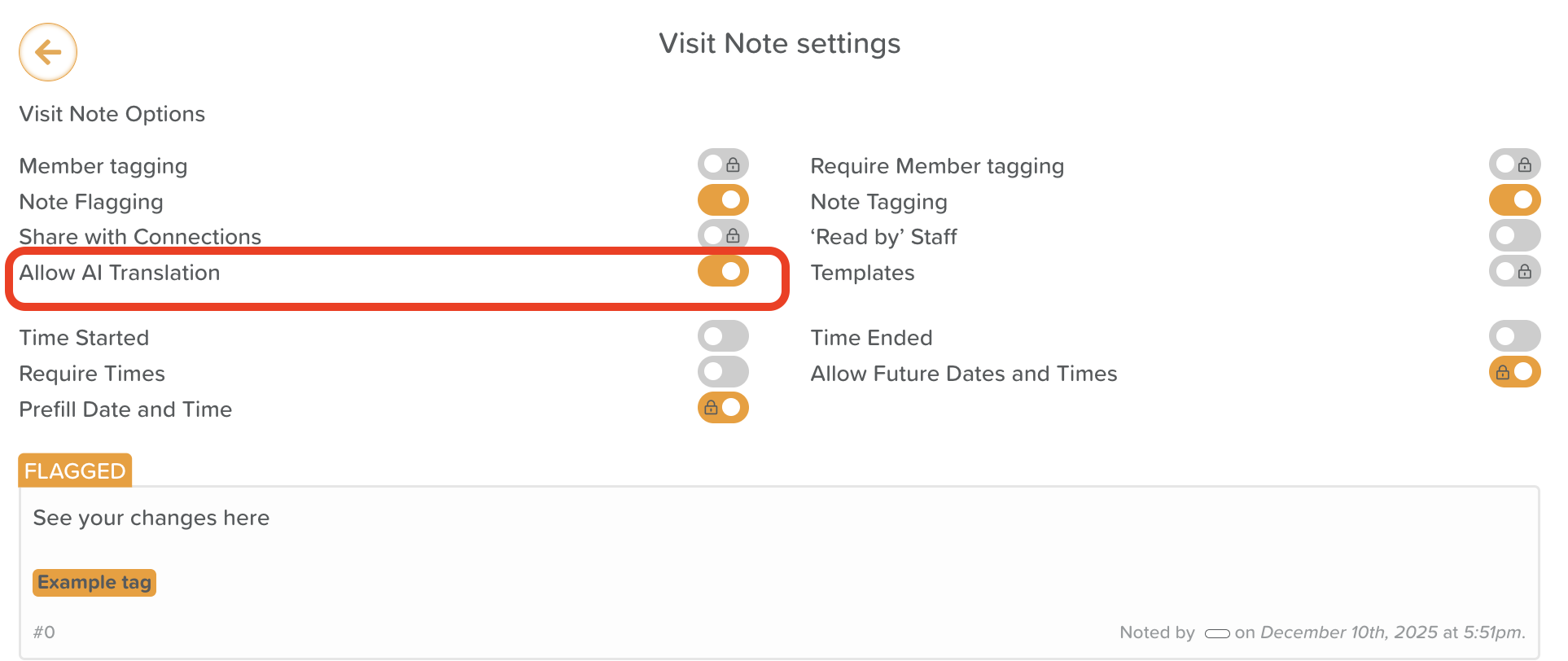
If this setting is off, the translation button will not appear on notes.
Step 2: Locate the Translate Button
Once AI Translation is enabled:
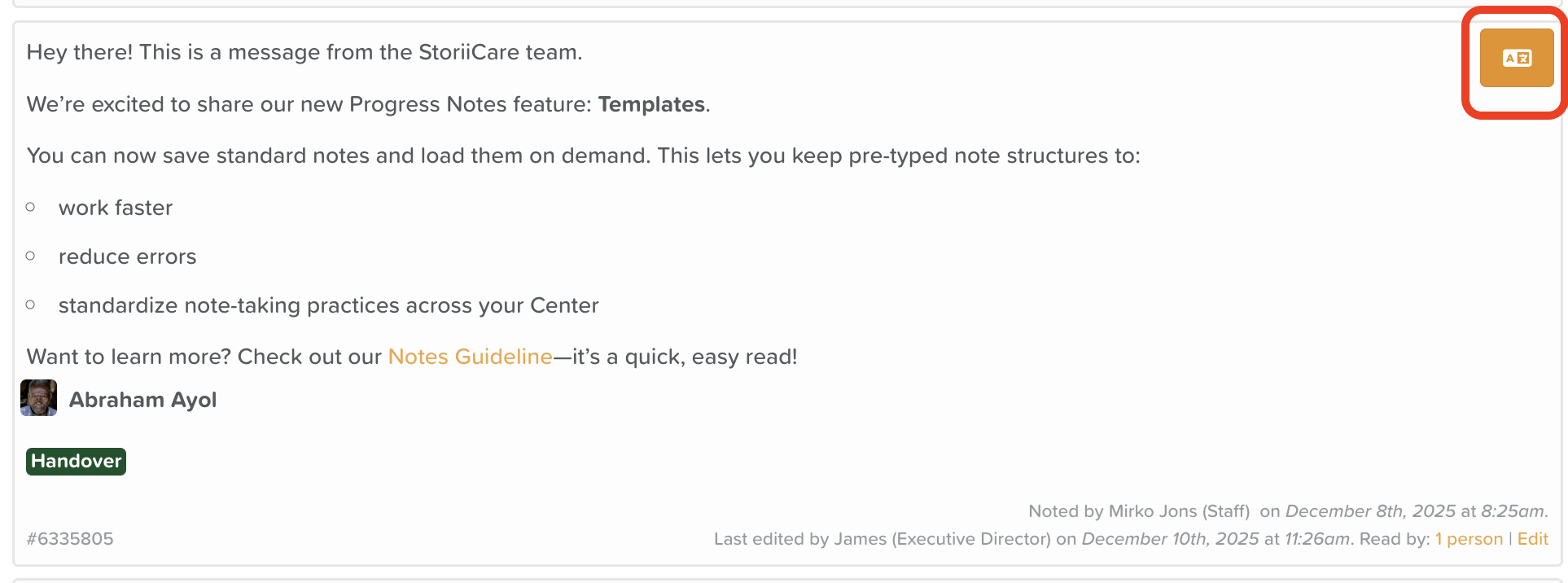
A Translate button will appear in the top-right corner of every posted Visit Note.
This button will only appear after the note has been posted—drafts cannot be translated.
Step 3: Choose a Language
Click the Translate button.
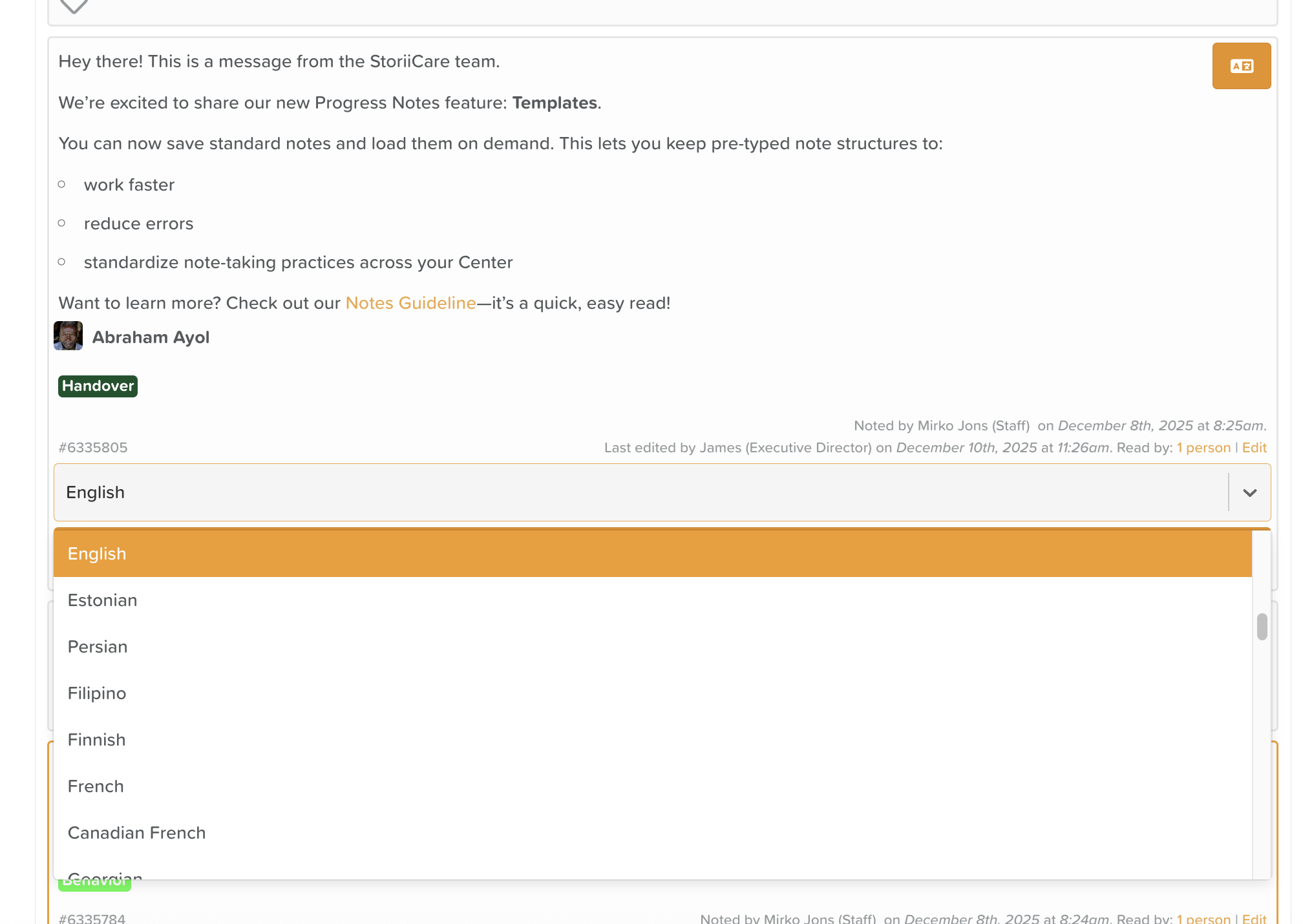
A language dropdown menu will appear.
Select the language you want the note translated into.
StoriiCare supports a wide range of commonly spoken languages.
Step 4: Translate the Note
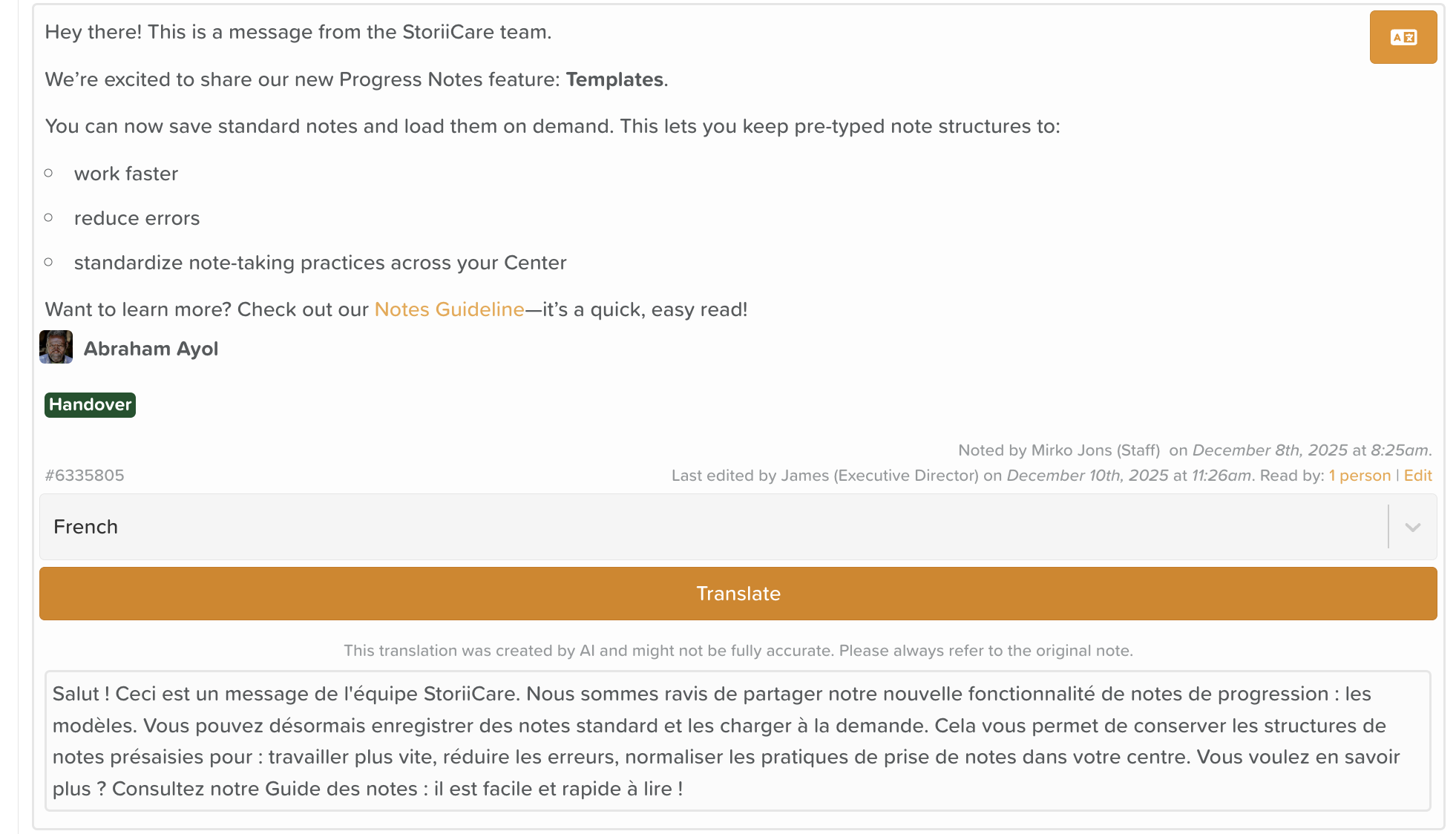
After selecting a language, click Translate.
The translated version of the Progress Note will appear on your screen.
This allows staff to understand the note in their preferred language when necessary.
Important Notes
Translation affects the displayed text only—the original note is not replaced or modified.
Translation is for convenience and communication support. Always refer to the original note for official documentation.
Only posted notes (not drafts) can be translated.
If translation is not appearing, double-check the Visit Notes settings.
Need More Help?
If you need further assistance, you can reach out to our support team by emailing support@storii.com. Our support team is ready to help you with any questions or issues you may have.