
How to Use Tags with Visit Notes
Tags are a powerful tool within StoriiCare’s Visit Notes feature. They help staff categorize notes, improve filtering and reporting, and ensure important information is easy to find. Tags support consistent documentation and make reviewing notes faster and more efficient.
This guide explains how tags work, how to apply them, and how administrators can customize tag options.
The title “Visit Notes” may appear differently depending on your organization’s custom terminology. Common alternatives include:
Third Party Professional Notes
Medical Notes
Clinical Notes
External Provider Notes
Regardless of the name used, the functionality remains the same.
What Are Tags?
Tags are labels that describe the type or category of a Visit Note.
Common examples include:
Lab Results
Follow-Up Required
Consultation
Initial Assessment
Risk Management
Cognitive Status
Nutritional Concerns
Pain Management
Education Provided
State Compliance
Tags allow staff to quickly filter notes and identify patterns or themes in documentation.
How to Apply Tags When Creating a Visit Note
Go to Visit Notes on the Participant Profile.
Select the desired Category.
Begin composing your note.
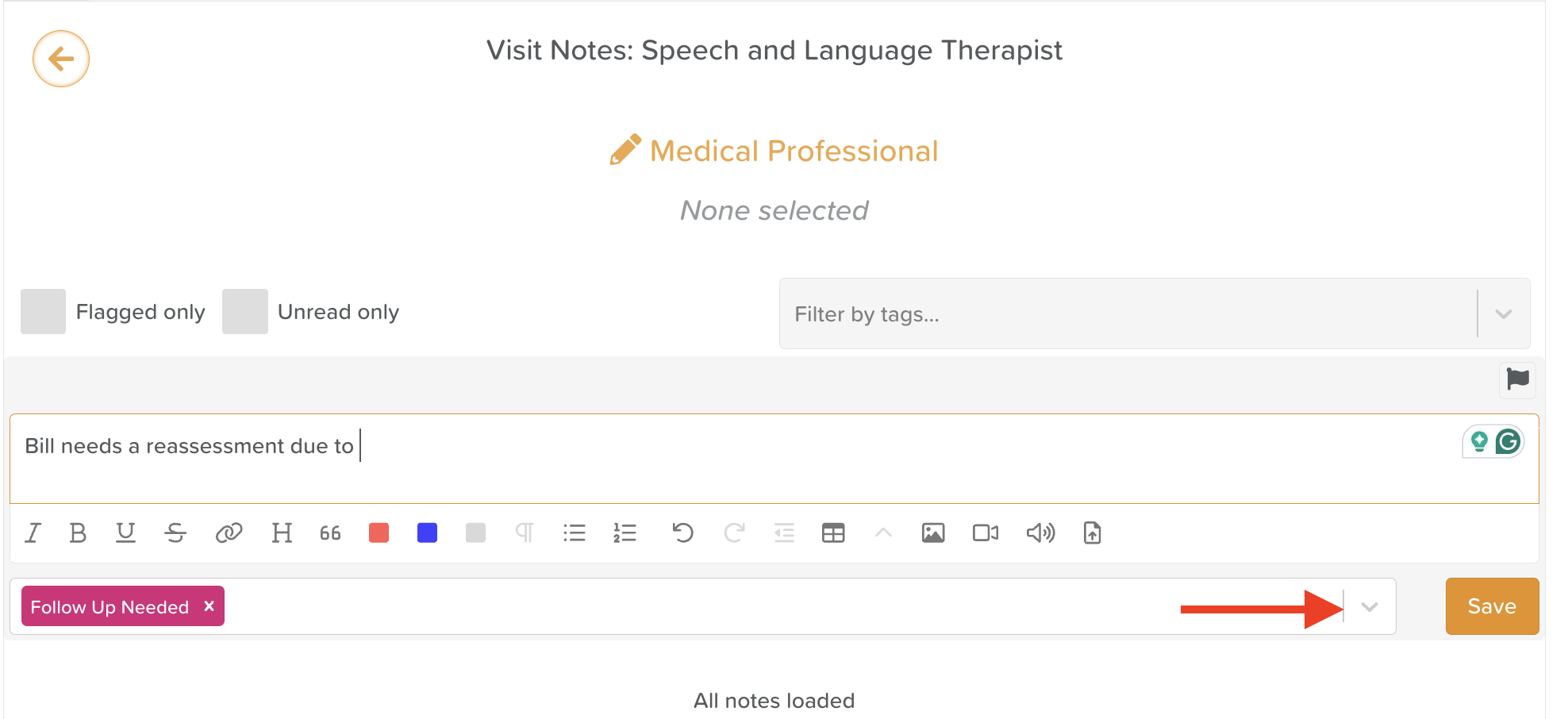
In the tagging dropdown below the text box, select one or more tags from the list.
You can apply multiple tags to a single note if appropriate.
Complete the rest of your note and click Save.
Your tagged note will now appear in the category with the associated labels visible.
How to Filter Notes by Tag
Tags make it easy to sort through large volumes of notes.
Open Visit Notes.
Choose a specific Category or All Medical Notes.
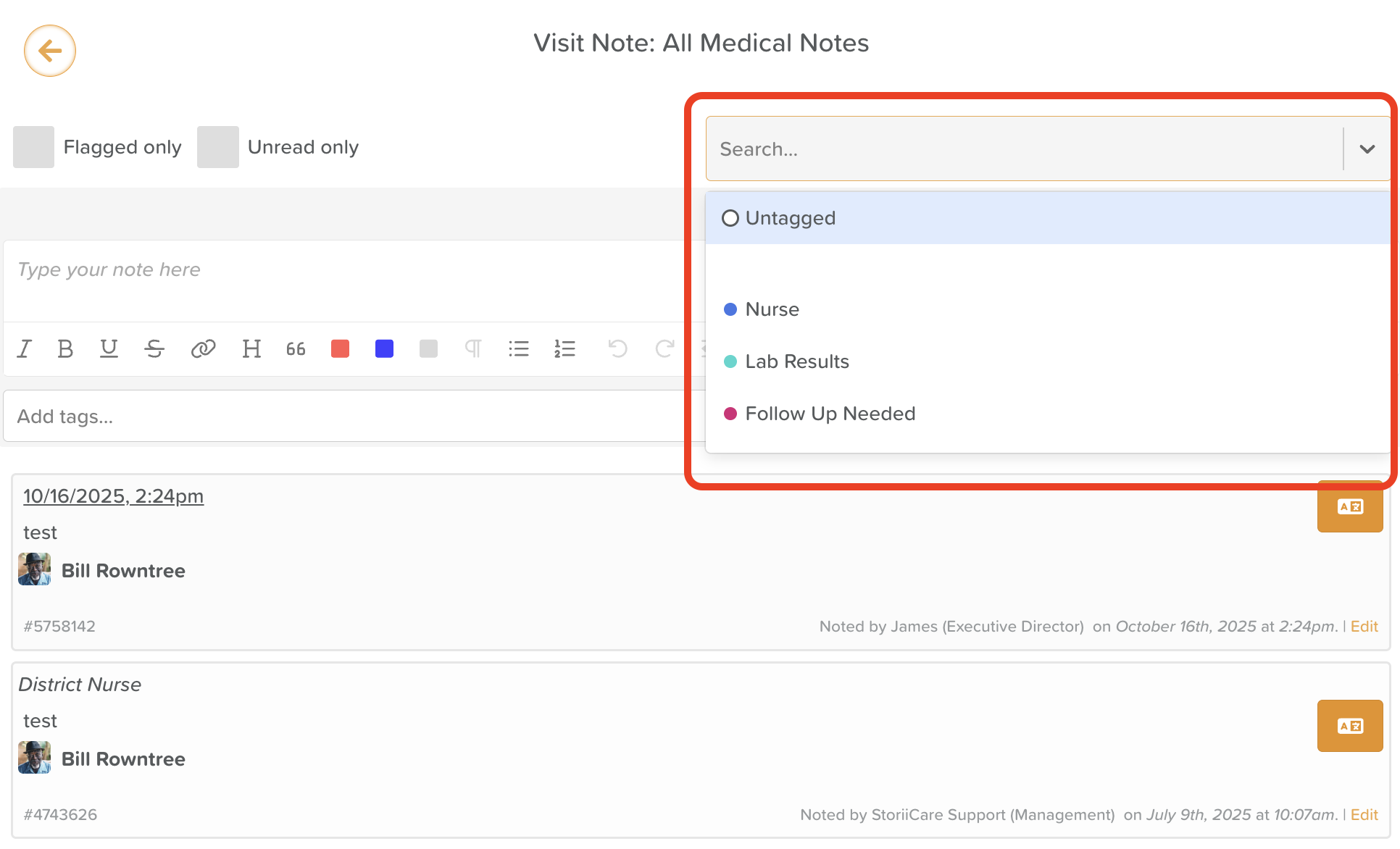
Locate the Tags filter at the top of the page.
Select the tag(s) you want to filter by.
The list will update to show only notes with those tags.
For a quick quality assessment review, select the Untagged option on the tag filter to see notes without any tags.
This is especially useful during audits, handovers, care plan reviews, and clinical meetings.
How to Edit Tags on an Existing Note
If you need to modify the tags on a saved note:
Find the note you want to edit.
Select Edit in the bottom-right corner.
Add or remove tags as needed.
Click Save.
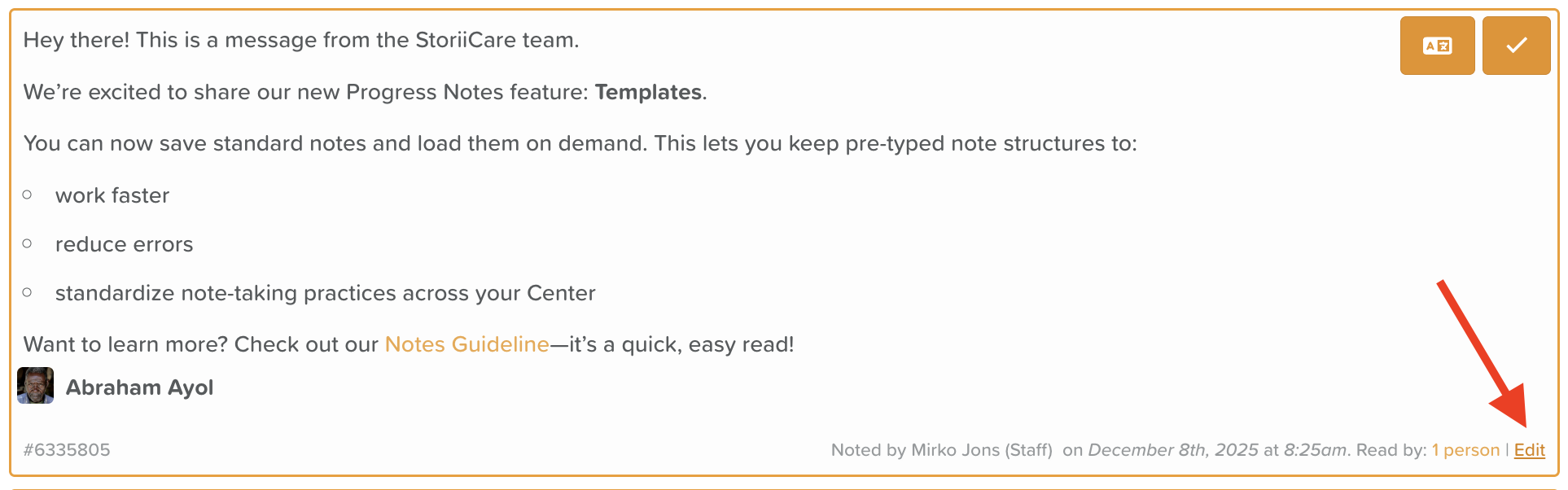
⚠️ If you do not see the Edit option, speak to a Manager or Administrator about updating your permissions settings.
How to Customize Available Tags (Admin Only)
Administrators can customize the tag list for their organization:
Go to Visit Notes.
Click the Settings (cog/wheel icon).
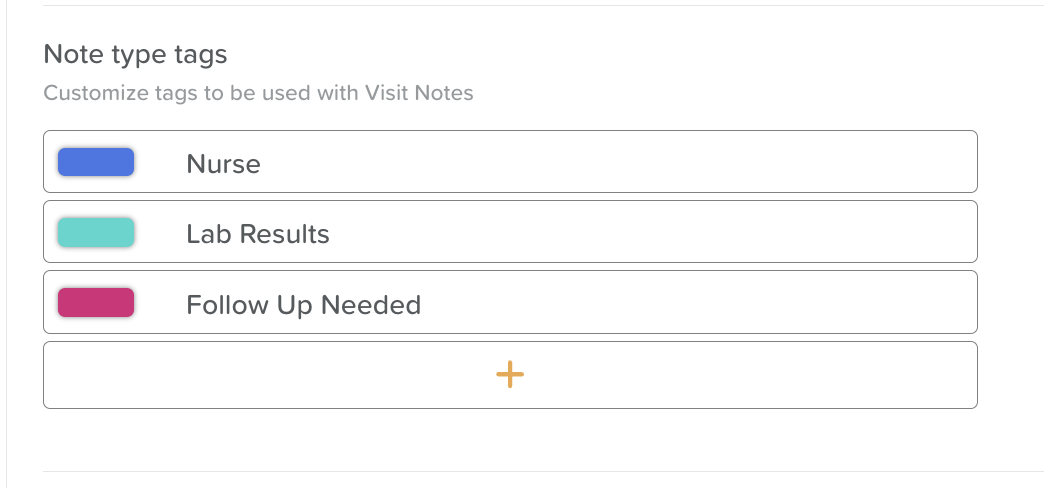
Scroll to the Note Type Tags section.
Here you can:
Add new tags (+)
Rename existing tags (pencil icon)
Change tag colors
Delete tags (trash bin icon)
Customizing tags helps ensure consistency and aligns tagging options with your organization’s documentation standards.
How to Export Notes by Tag
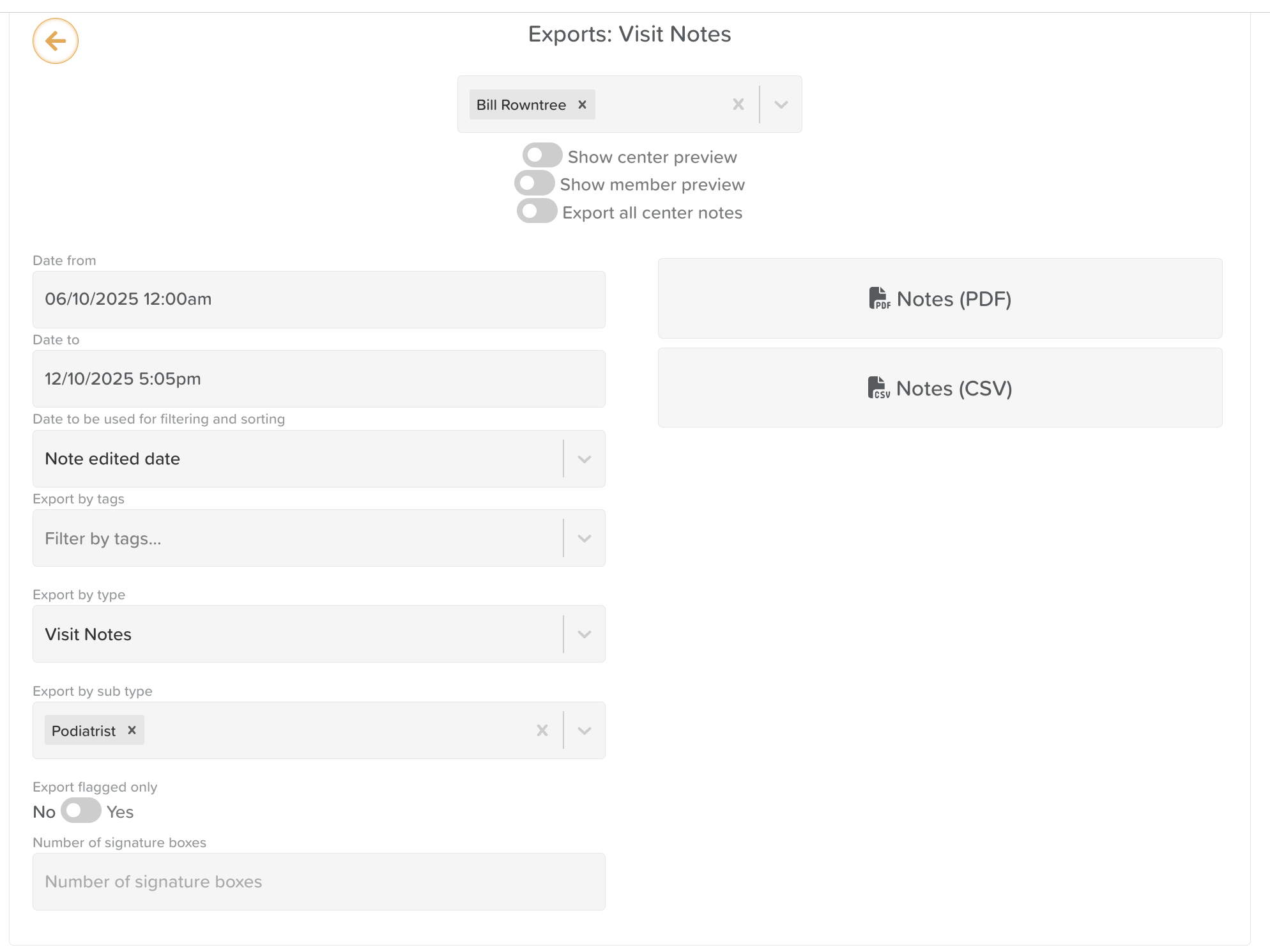
StoriiCare allows users to download a Notes report by tag. For example, if you wanted to see all the Podiatrist's notes over the last 6 months for Mr. Smith, you can do just that!
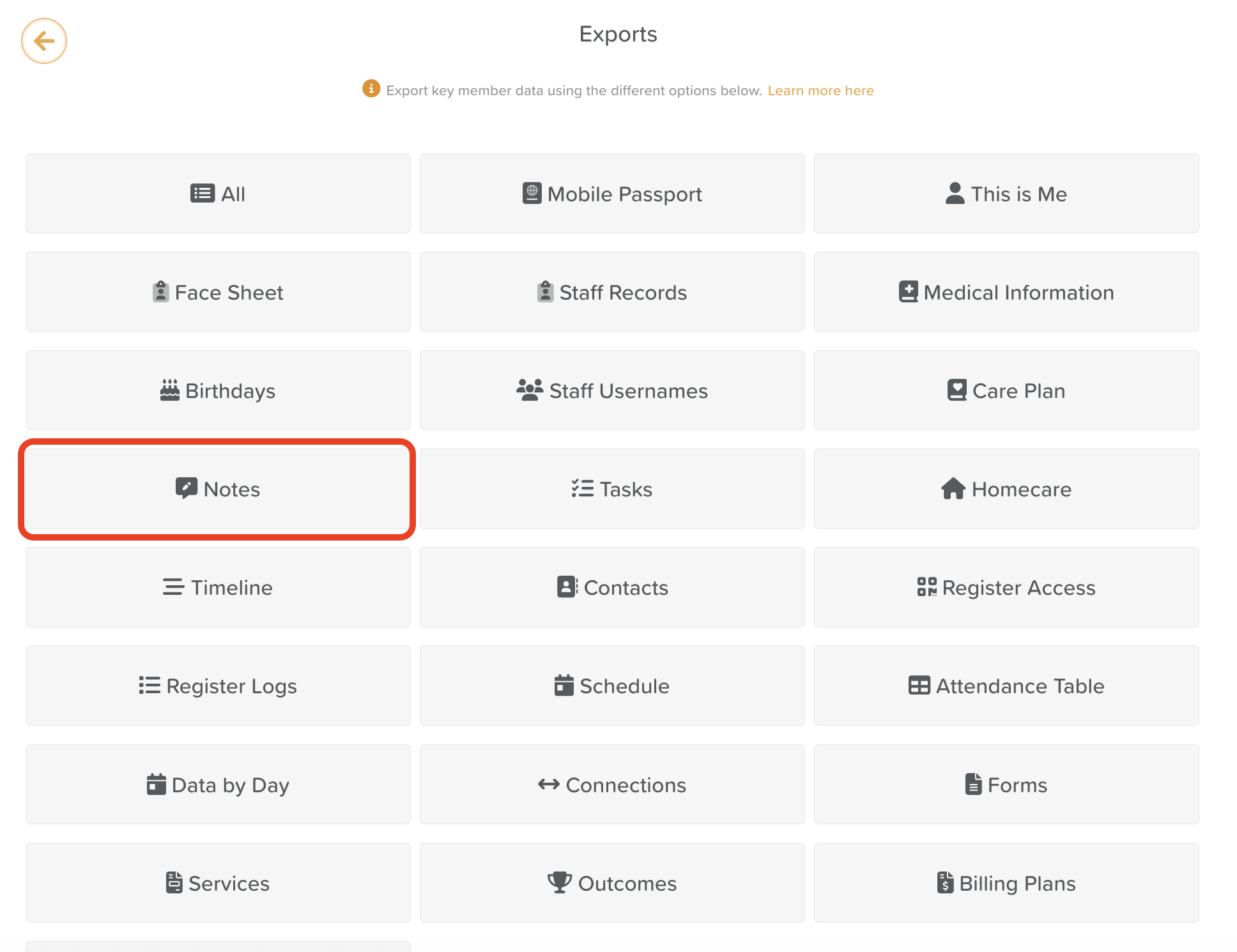
Click Exports from the StoriiCare Dashboard.
Select Notes.
Use the filters to configure the report to your preference.
From the Note type tag dropdown menu, select the relevant tag(s) for your report.
From the Export by type dropdown, select Visit Notes (or whatever it is called on your system).
From the Export by subtype dropdown, select the category or categories you want to include in the report.
Best Practices for Using Tags
Use tags consistently to improve filtering and reporting accuracy.
Apply multiple tags when a note spans more than one category (e.g., “Nutritional Concerns” AND “Follow Up Needed”).
Review and clean up unused tags periodically to keep your list organized.
Train staff on when and why to apply certain tags to maintain uniform documentation.
Need More Help?
If you need further assistance, you can reach out to our support team by emailing support@storii.com. Our support team is ready to help you with any questions or issues you may have.