
How to Export Progress Notes
The Export Progress Notes feature allows you to download documentation for auditing, reporting, compliance reviews, or sharing with external professionals. StoriiCare offers flexible filters so you can export exactly the notes you need in either PDF or CSV format.
This guide walks through each export option and how to use them effectively.
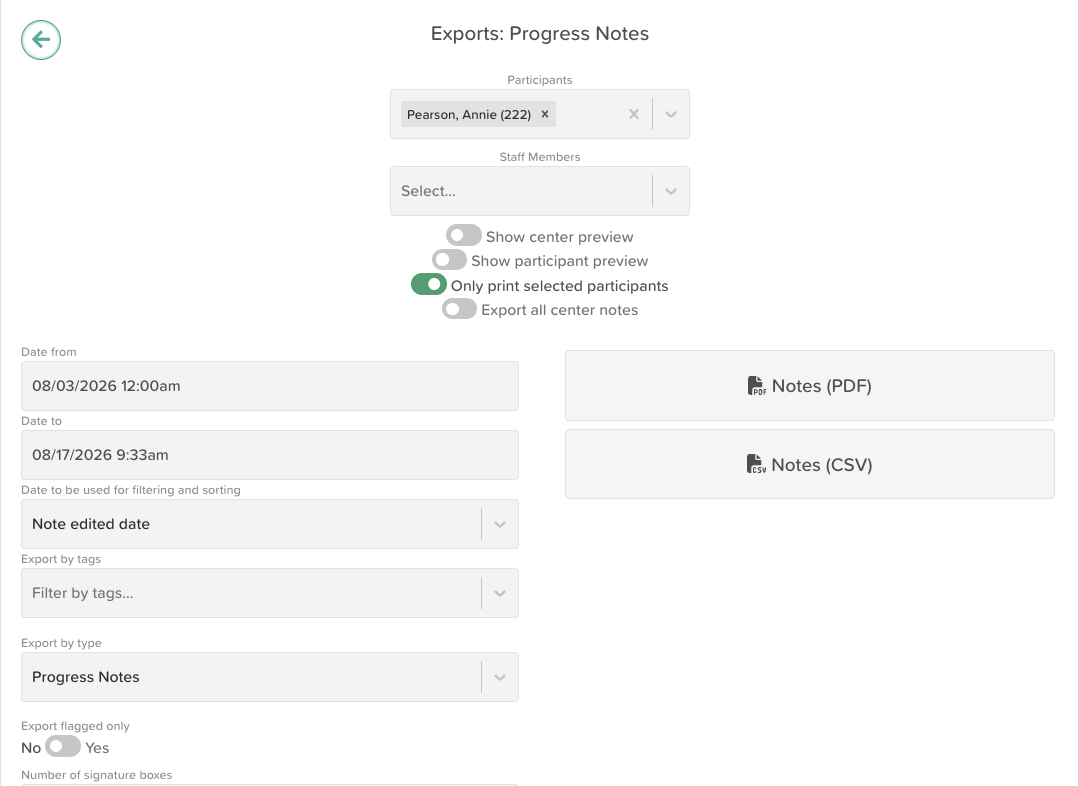
Step 1: Open the Progress Notes Export Page
From your StoriiCare Dashboard, navigate to Progress Notes.
Click the Export button (top right).
This will open the Exports: Notes screen
Step 2: Use Export Filters to Customize Your Download
The export page gives you full control over which notes are included. Below is an overview of each filter option based on the screenshot you provided.
Select…
Allows you to choose specific participants whose notes you want to export.
If left blank, the system will include all notes (unless other filters narrow it down).
Show center preview / Show participant preview
These toggles add optional preview headers to the PDF export.
Show center preview: Displays your organization’s name, logo, address, and phone number at the top of the export.
Show participant preview: Displays the participant’s profile information (photo, basic details).
Both toggles are optional and affect the layout of the PDF only.
Export all center notes
When enabled, this includes all notes matching your filters across your entire center.
Turn this off if you want to export only notes for selected participants.
Only print selected participants
When exporting the Progress Notes PDF from a participant profile, if other participants are tagged in the note, their names will appear by default. Having this toggle turned on ensures that only name(s) the participant(s) selected appear in the export.
Date From / Date To
Set the time range for the notes you want to export.
Use this to pull notes for a month, quarter, year, or any custom range.
Date to be used for filtering and sorting
Choose which date type should control the filtering:
Note edited date – Exports notes based on when they were last edited.
Note created date – Exports notes based on their original creation date.
This is important if your team edits notes regularly or revises documentation later.
Export by Tags
Allows you to filter notes by specific tag(s). Tag filtering is ideal for audits or category-specific reviews.
Export by Type
Choose which note type you want to export.
Default is Progress Notes, but organizations may have other note types if terminology or features are customized.
Export Flagged Only
When set to Yes, exports only Progress Notes that have been flagged for follow-up.
Useful for clinical reviews, supervisor checks, or risk-related audits.
Number of Signature Boxes
Enter how many signature lines should appear at the bottom of the Notes PDF export.
Commonly used for care reviews, internal audits, or records that require staff or manager sign-off.
Step 3: Choose Your Export Format
After setting your filters, choose one of the export types:
Notes (PDF)
Ideal for printing or sharing with families, professionals, or inspectors.
Includes signatures if selected.
Supports center/participant previews if toggled on.
Notes (CSV)
Best for data analysis, digital archiving, or importing into other systems.
Includes raw text and metadata in spreadsheet format.
Best Practices
Use tags to refine exports when reviewing specific areas of care.
Always check whether you are filtering by created date or edited date to avoid missing records.
For multi-person audits, use Export all center notes alongside date and tag filters.
Use the signature boxes feature when exporting for compliance or review purposes.
Need More Help?
If you need further assistance, you can reach out to our support team by emailing support@storii.com. Our support team is ready to help you with any questions or issues you may have.