
How to Edit a Progress Note
Progress Notes help document day-to-day observations, care interactions, and important updates about participants. Sometimes a note may need to be corrected, clarified, or updated after it’s been saved. StoriiCare allows authorized staff to edit existing Progress Notes at any time.
Follow the steps below to edit a note safely and accurately.
Step 1: Open the Progress Notes Feature
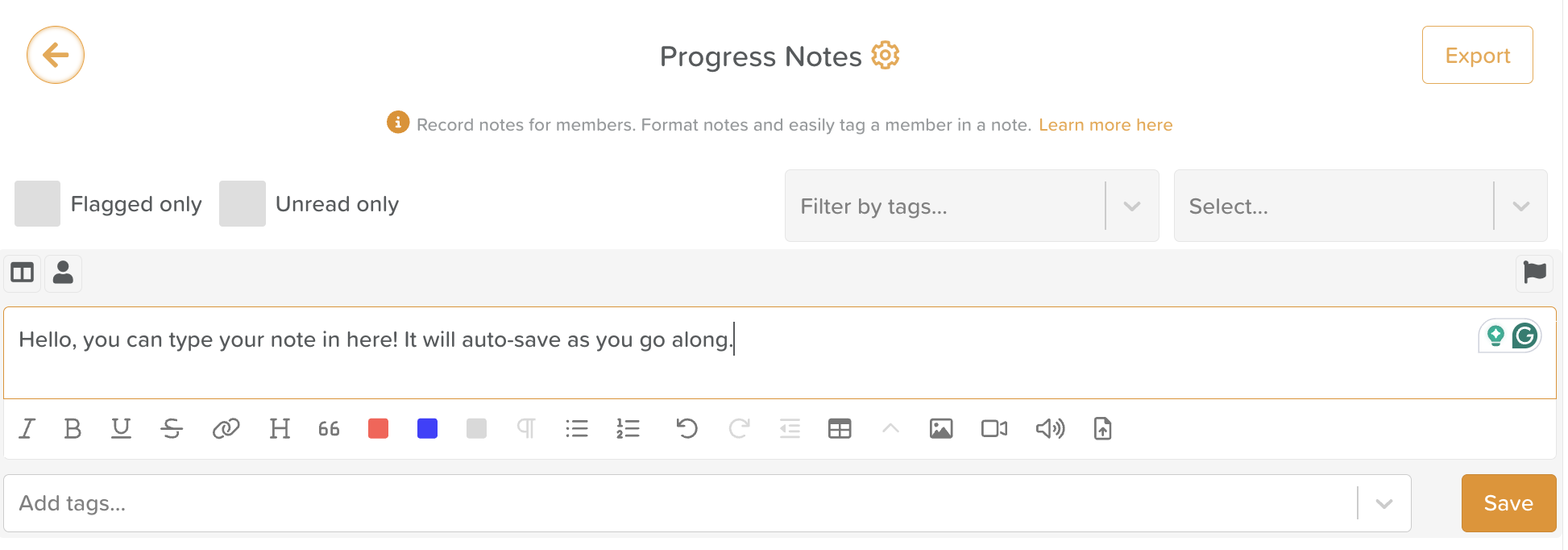
From your StoriiCare Dashboard, click on Progress Notes.
You may also access Progress Notes directly from a participant’s profile.
Use filters (optional) to quickly locate the note you want to update:
By Participant
By Tag
By Flagged notes
By Unread notes
Step 2: Select the Note You Want to Edit
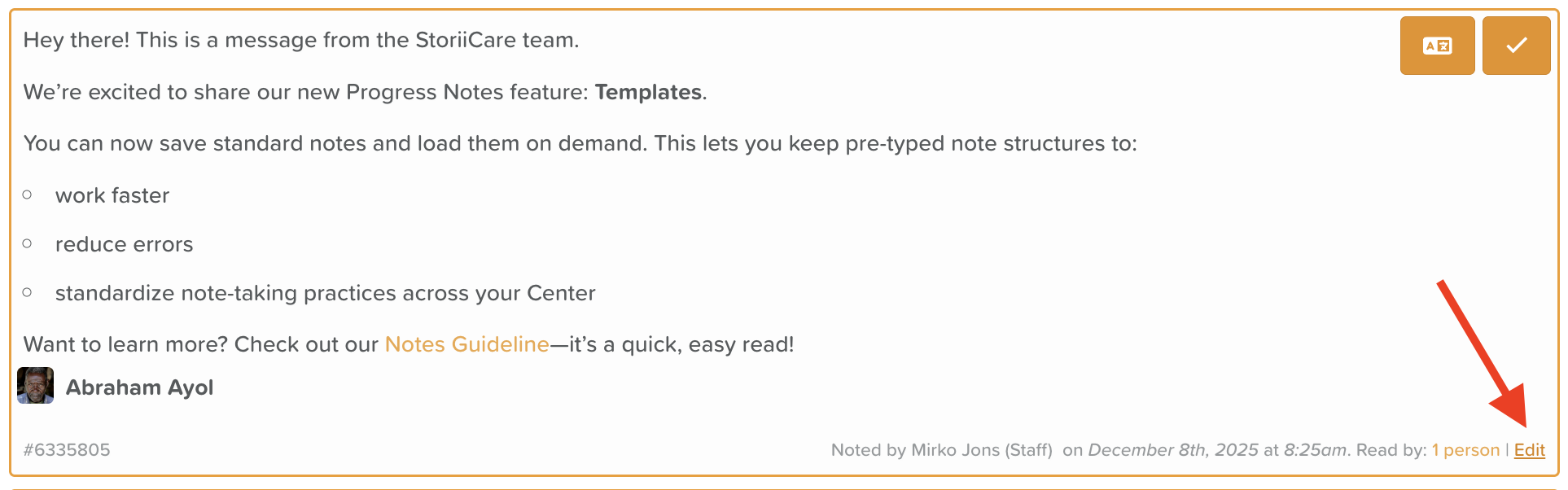
Find the Progress Note entry in the list.
Look for the Edit text located in the bottom right-hand corner of the note.
⚠️ If you do not see the Edit option, you may not have permission to edit notes. Speak with your administrator or supervisor to adjust your permission level.
Step 3: Make Your Edits
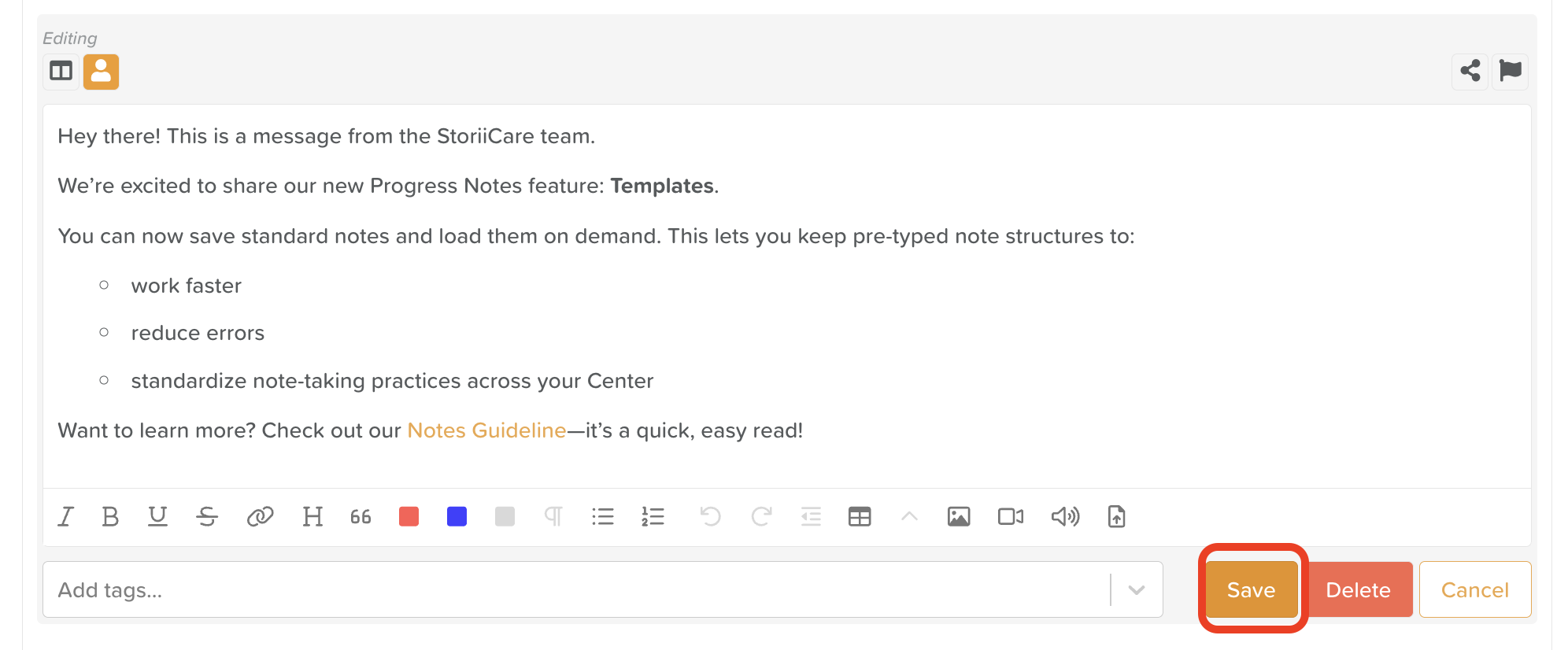
Once in edit mode, you can:
Update or correct the written content
Add additional details
Modify or add tags
Attach or delete files or media (images, videos, documents)
Adjust formatting using the rich text editor
Add or remove participant tags
Share or unshare the note with Connections (if enabled)
Rich text tools allow you to:
Change text color
Create bullet or numbered lists
Add hyperlinks
Insert files or media for enhanced documentation
Step 4: Save Your Changes
After making your updates, click Save.
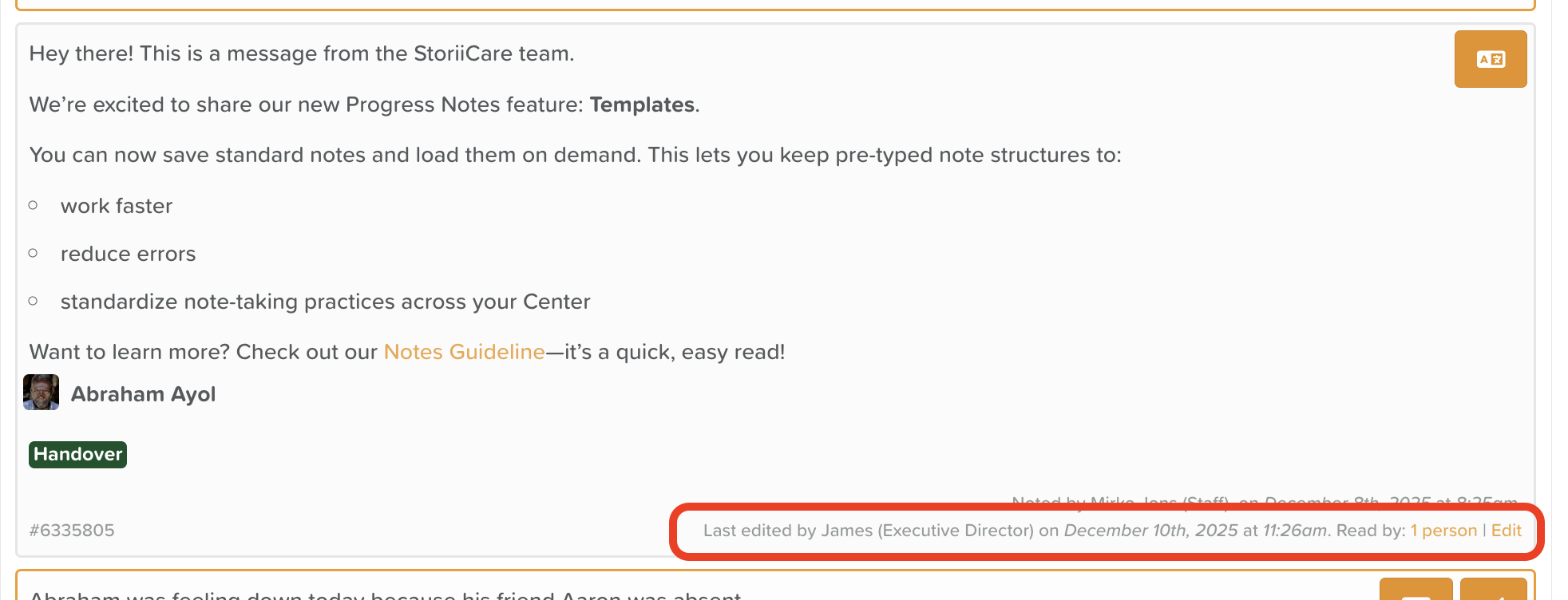
Your changes will now appear in the Progress Notes list and in the participant’s profile.
The note will display an edit log in the bottom right corner.
Best Practices When Editing Notes
Keep edits factual and consistent with organizational documentation standards.
Add clarifying details rather than completely rewriting entries when possible.
If you corrected an error or added important new information, consider adding a line such as “Updated on [date] to reflect…”
Need More Help?
If you need further assistance, you can reach out to our support team by emailing support@storii.com. Our support team is ready to help you with any questions or issues you may have.