
How to Link Goals to Activity Participation
Many care providers offer a variety of activities, programs, and health-related services throughout the week. Participation in these activities often directly supports a participant’s Goals (also known as Outcomes, Objectives, KPIs, Responses, or Actions).
For example:
Participating in water aerobics or physical therapy may contribute toward a goal such as “Improve hip mobility.”
Attending book club or arts & crafts may support goals related to reducing isolation or building confidence.
Linking activities to Goals helps you clearly document and evidence how your center is supporting each participant’s wellness outcomes—and StoriiCare makes this process simple.
Linking Goals During Activity Attendance
Step 1: Open the Calendar
From the StoriiCare Dashboard, click on the Calendar feature.
Navigate to the activity session for which you want to record attendance.
Step 2: Begin Taking Attendance
Click the Take Attendance button within the activity.
A list of participants will appear.
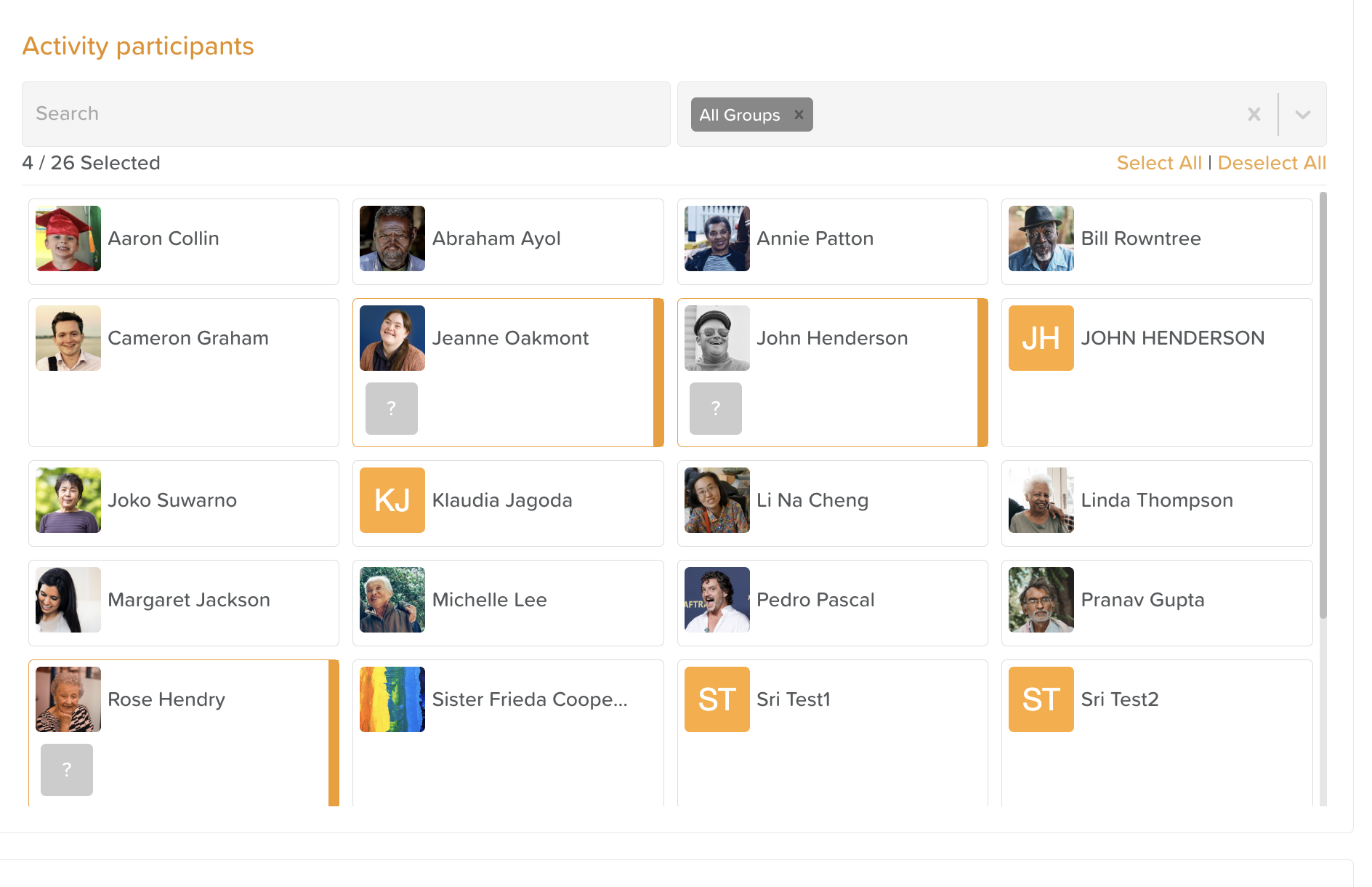
Step 3: Select Attendees
Click the names of the participants who attended the activity.
Once selected, a gray question mark box will appear under each participant’s name.
Step 4: Link Goals
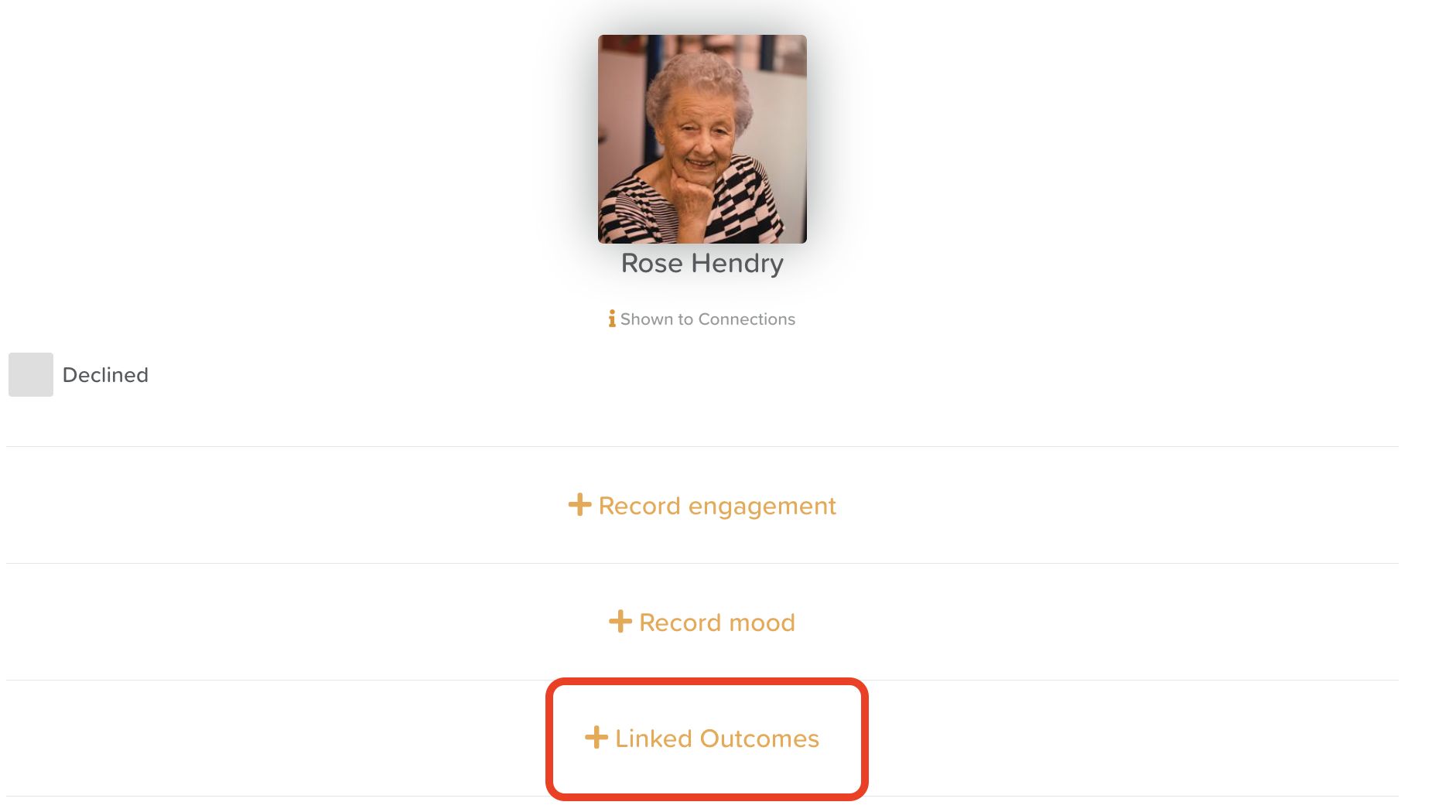
Click the gray question mark box under a participant’s name.
When the menu opens, click + Goals.
From the dropdown list, select the relevant goal(s) that this activity contributes to.
✔ Multi-select is supported — choose as many applicable goals as needed.
Click Submit to confirm the link.
Repeat this process for any other participants whose attendance should be linked to their Goals.
Don't see the goal you're looking for?
New goals can be added directly from the Activity Participant page!
Click on the settings wheel/cog icon. This will bring up the participant's Goals page, where you can add and save a new goal to select from the dropdown menu.

Viewing Linked Activity Participation Inside a Goal
After linking attendance:
Navigate to the Goals section within a participant’s profile.
Open the relevant Goal.
Scroll to the Goal view to see a list of all activity attendance sessions that have been linked to that Goal.
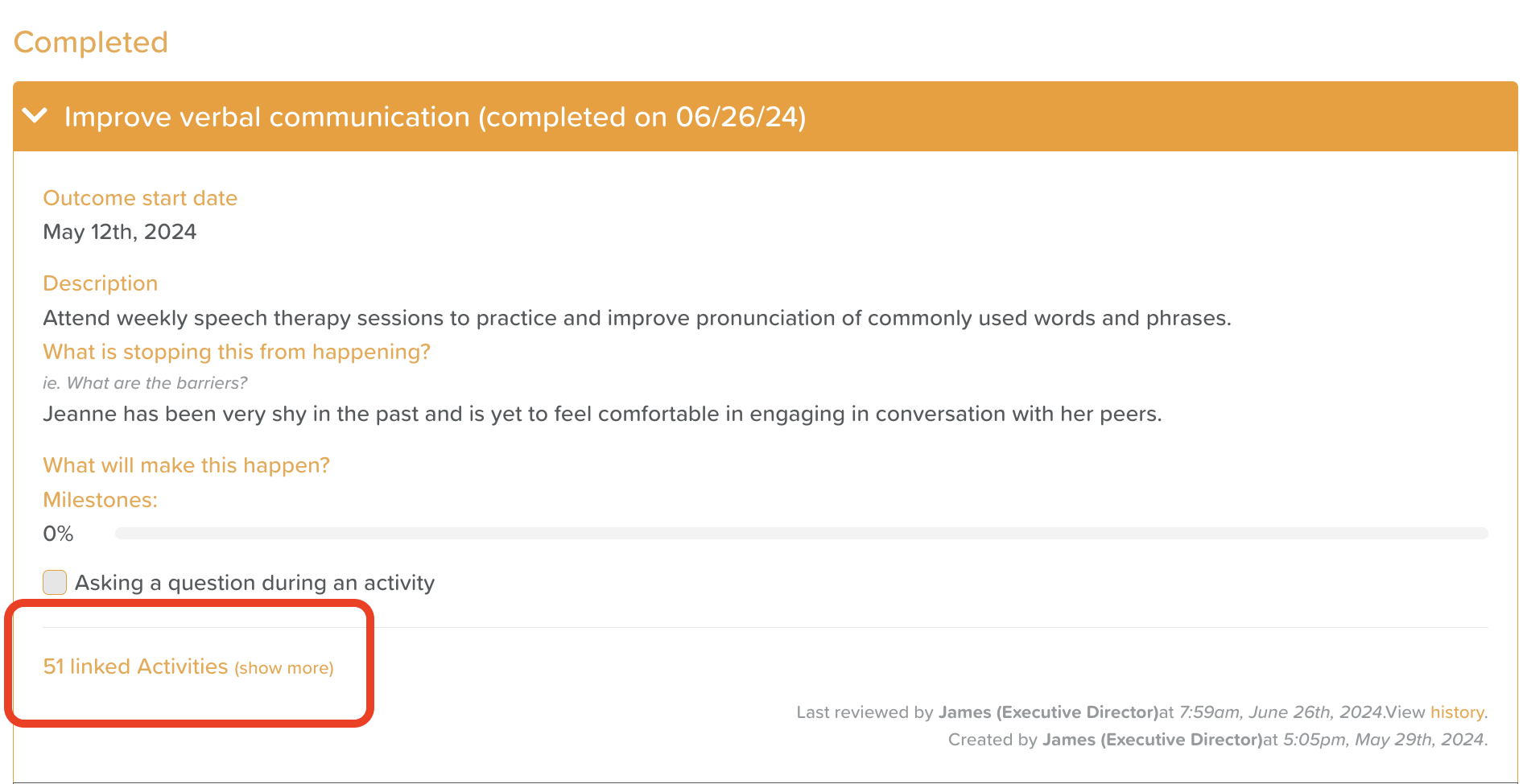
This gives you a clear picture of how programming and services support progress over time, making reviews and outcomes reporting more meaningful and data-driven.
Need More Help?
If you need further assistance, you can reach out to our support team by emailing support@storii.com. Our support team is ready to help you with any questions or issues you may have.