
How to Review a Goal
Reviewing a goal (also known as an Outcome, Objective, KPI, Response, or Action, depending on your organization’s terminology) is an essential part of supporting participant progress. Goal reviews help track achievements, document changes, and ensure care plans remain accurate and person-centered.
This guide walks you through how to complete a Goal Review in StoriiCare. These would be the same steps you'd follow to update or edit an existing goal.
Step 1: Open the Participant’s Profile
From your StoriiCare Dashboard, click on the Participants tab.
Select the participant whose goal you want to review.
Click on the Goals feature.
Your system may label this as Outcomes, Objectives, KPIs, Responses, or Actions.
Step 2: Open the Goal You Want to Review
Locate the goal you wish to review from the list.
Click the arrow next to the goal to expand it.
At the bottom of this expanded view, click Review
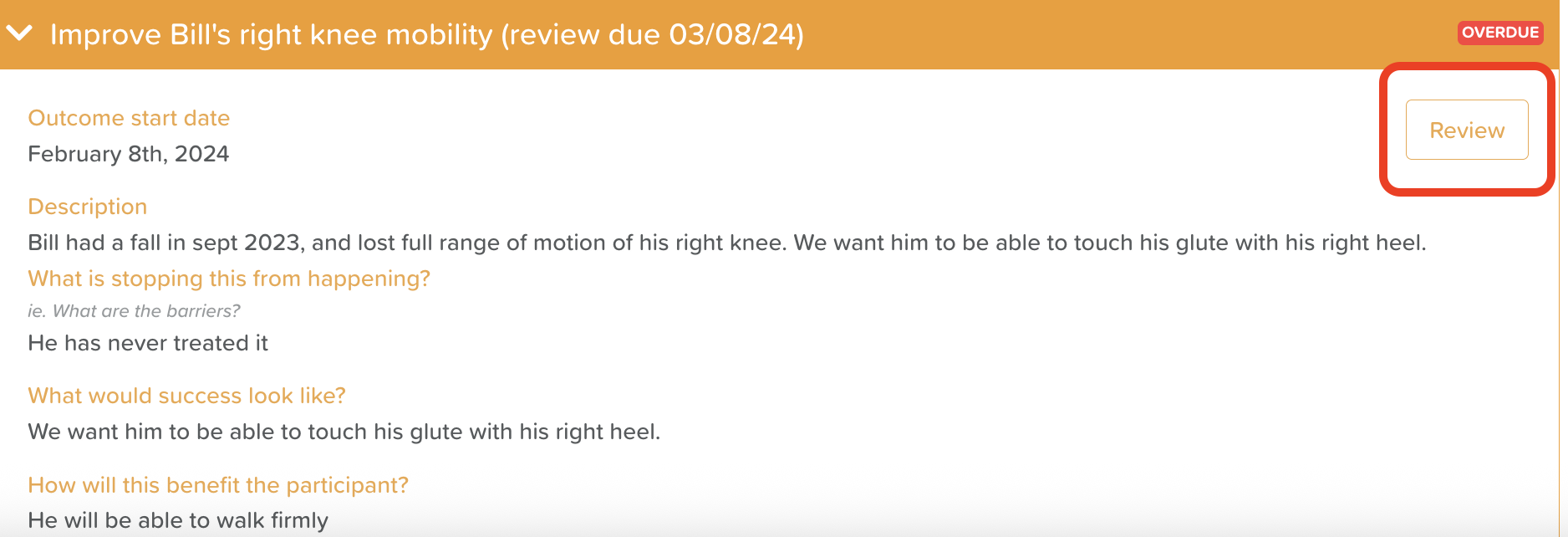
⚠️ If you do not see the Review button, you do not have permission to Review this Goal. Please see a manager or system administrator.
Step 3: Complete the Review Fields
A goal review typically includes several fields that help document participant progress. These may include:
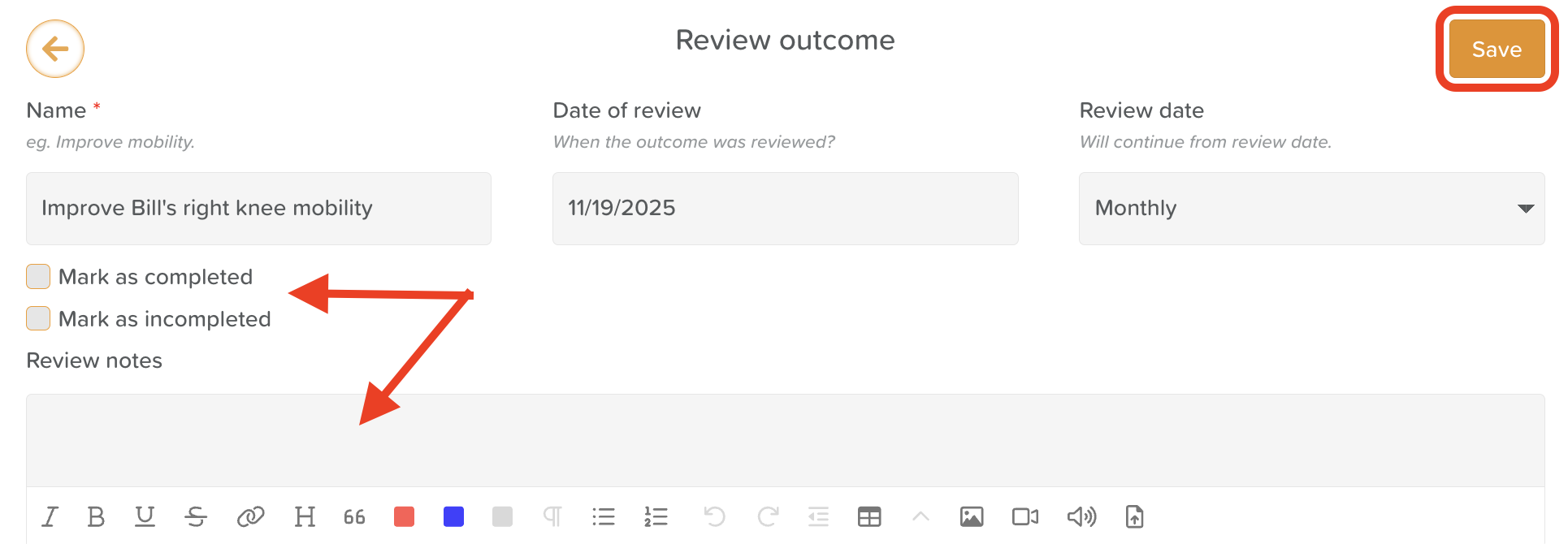
Review notes
Describe the participant’s progress toward the goal.
Document achievements, strengths, and improvements.
Note any challenges preventing further progress.
Editing or adding to parts of the Goal form (adding videos, photos, attachments)
Marking off milestones
Make your updates and click Save. This will keep the goal review recurring at the set frequency.
Alternatively, you can Mark as complete or Mark as incomplete if the goal is finished.
Doing this will move the goal from the Ongoing category to Completed or Incompleted.
⚠️ The Goals template cannot be customized at this time. If you require specific headings, prompts, or signatures for Goal tracking, we'd recommend using the Form Builder to create your desired Form.
Step 4: Save the Review
When you have completed all necessary fields:
Scroll to the top of the review form.
Click Save.
Your review will now appear in the goal’s timeline and remain accessible for reporting and auditing purposes.
Best Practices
Complete reviews before the goal’s scheduled review date to stay compliant.
Keep reviews person-centered—include the participant’s voice where possible.
Attach supporting documents (photos, files, assessments) for richer documentation.
Update milestones regularly to keep progress bars accurate.
Need More Help?
If you need further assistance, you can reach out to our support team by emailing support@storii.com. Our support team is ready to help you with any questions or issues you may have.