
How to Add a New Goal
Goals (also referred to as Outcomes, Objectives, Key Performance Indicators, Responses, or Actions, depending on your organization’s terminology) help track a participant’s progress toward meaningful achievements. StoriiCare makes it easy to create, monitor, and review these goals over time.
Follow the steps below to add a new Goal to a participant’s profile.
Step 1: Open the Participant’s Profile
From your StoriiCare Dashboard, click on the Participants tab.
Locate and open the participant’s profile.
Click on the Goals feature.
Depending on your system’s terminology, this may be labeled Outcomes, Objectives, KPIs, Responses, or Actions.
Step 2: Add a New Goal
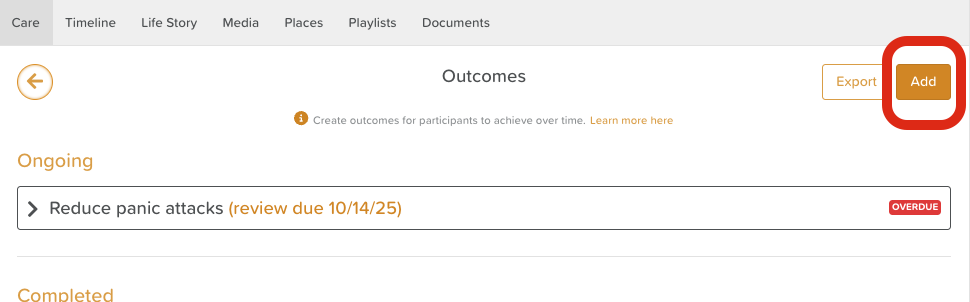
Click the Add button in the top-right corner of the screen.
A new Goal creation form will appear.
Step 3: Complete the Goal Details
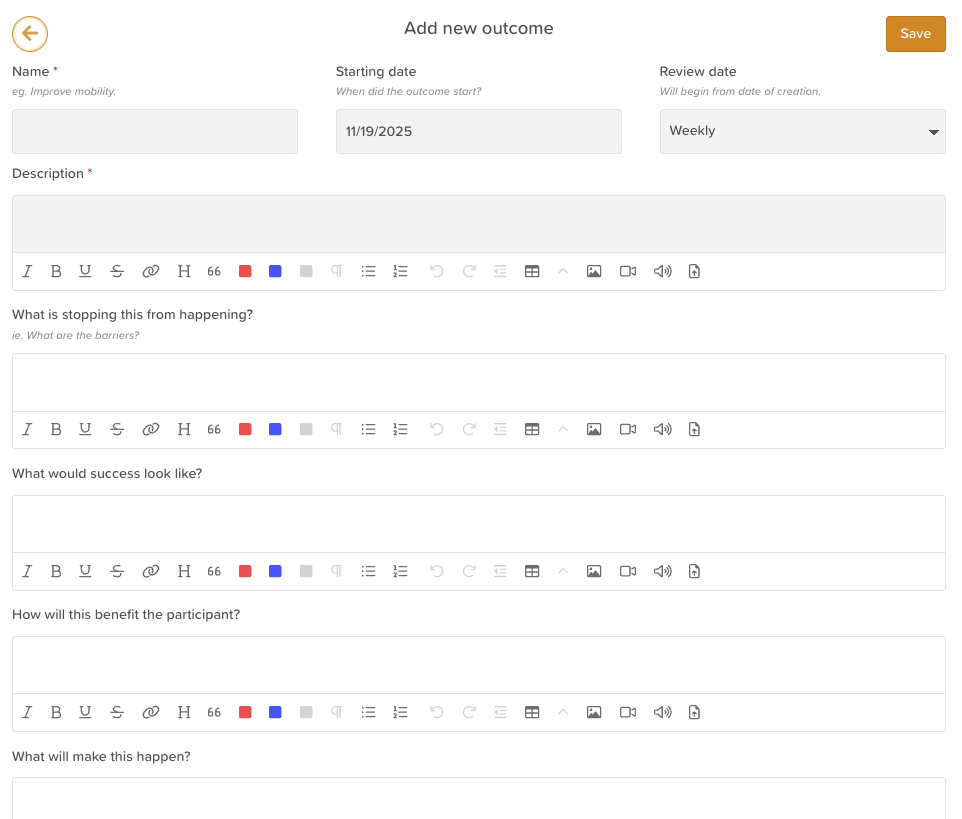
Fill out the following sections to create a clear and meaningful goal:
Goal Name / Title
Provide a concise title such as:
Find a new job
Improve hip mobility
Increase community participation
Start Date
Select the date the goal begins.
Review Frequency
Choose how often the goal should be reviewed:
Weekly
Every 2 weeks
Monthly
Every 3 months
Every 6 months
Description
Explain the purpose and scope of the goal.
⚠️ The Goals template cannot be customized at this time. If you require specific headings, prompts, or signatures for Goal tracking, we'd recommend using the Form Builder to create your desired Form.
Step 4: Answer Optional Reflective Questions
These questions help develop a complete picture of the goal and support person-centered planning. All questions are optional:
What is stopping this from happening?
What would success look like?
How will this benefit the participant?
What will make this happen?
Who else needs to be involved?
Rich Text Editing
These fields are rich text boxes, allowing you to:
Add images, videos, and files
Create lists
Highlight important text in red or blue
Format content for clarity and emphasis
Step 5: Add Milestones (Optional)
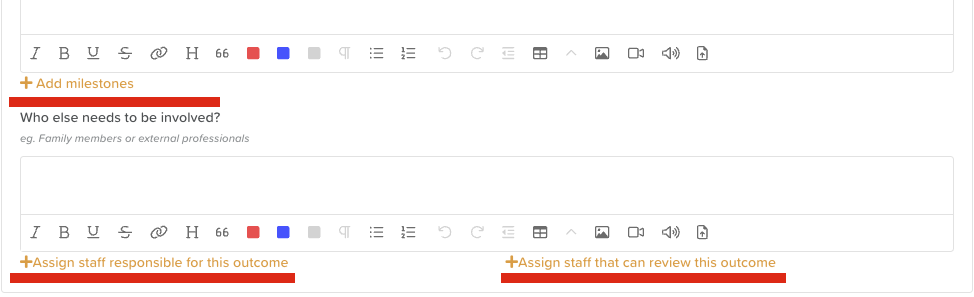
Click + Add milestones to create progressive steps that lead toward the goal.
Each milestone can be ticked off as the participant progresses.
The progress bar will automatically update as milestones are completed.
Step 6: Assign Staff
You can assign staff in two ways:
+ Assign staff responsible for this outcome
These staff members are responsible for supporting progress toward the goal.
+ Assign staff that can review this outcome
These staff members can update or formally review the goal.
⚠️ Important:
Staff members not assigned as reviewers will not be able to complete reviews or updates for this goal.
Step 7: Save the Goal
Once all information is completed:
Scroll to the top of the page.
Click Save to finalize the Goal.
Your new Goal will now appear in the participant’s profile and can be updated, reviewed, or linked to Care Plans as needed.

Need More Help?
If you need further assistance, you can reach out to our support team by emailing support@storii.com. Our support team is ready to help you with any questions or issues you may have.