
How to Bulk Import Activity Types in Group Portal
If your organization operates multiple StoriiCare locations, the Group Portal allows you to quickly import and distribute activity types across all relevant accounts. This is especially helpful when setting up a new site or standardizing your Calendar feature across multiple branches.
Bulk importing through Group Portal ensures consistent activity naming, categorization, and reporting system-wide.
1. Log In to Group Portal
Visit https://group.storiicare.com and sign in using your Group Portal credentials.
2. Select the Location
On the main Group Portal page, find the account where you want to import activity types.
Click the document import icon next to the relevant location.

3. Download the Import Template
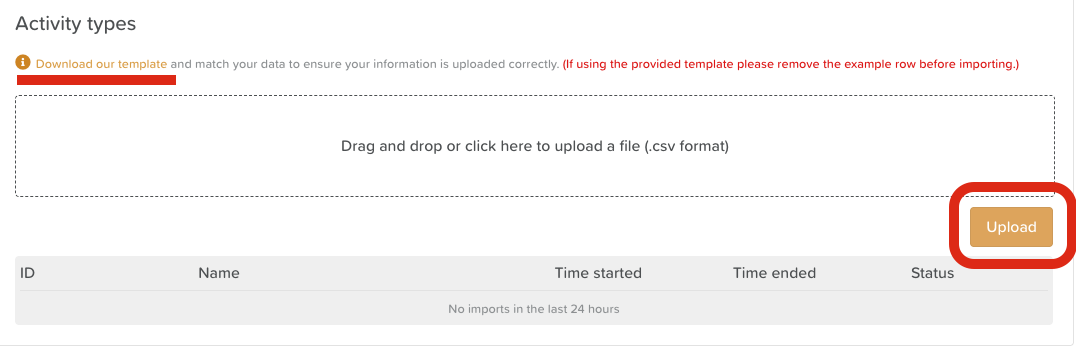
Click “Download our template” to obtain the correct file format.
⚠️ Important:
The import will only work if the columns remain in the exact order provided in the template.
You may complete only the fields you need — not all columns are required.
4. Complete the Template File
Fill in your activity types, including (where relevant):
Activity names
Activity categories
Tags
Descriptions
Location details
Be sure to keep:
Column order unchanged
Formatting consistent
5. Upload Your File
Drag and drop your completed spreadsheet into the upload window, or click to browse and upload manually. Confirm the upload to import your activity types into the selected location.
Once uploaded, the activities will be available within that location’s Calendar and Activities features.
6. Verify Your Upload
To confirm successful import:
Click the house icon (🏠) next to the location
Sign in
Navigate to Activities → Activity Types
Your newly imported activity types should appear in the list.
Need More Help?
If you need further assistance, you can reach out to our support team by emailing support@storii.com. Our support team is ready to help you with any questions or issues you may have.