
How to Duplicate a Task
Duplicating a task is a quick way to create a new task with the same details as an existing one. This saves time when assigning similar tasks to different staff or participants!
Steps to Duplicate a Task
Go to the Tasks Feature
From your Dashboard, click Tasks.
Locate the Task to Duplicate
Use filters or the search bar to find the task you want to copy.
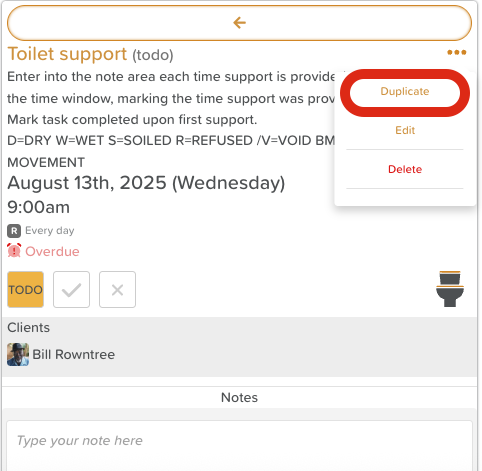
Open Task Options
Click the Three-Dot Menu (⋮) next to the task.
Select “Duplicate”
A new task window will open, pre-filled with the original task’s:
Title
Description
Due Date/Time
Assigned Participant(s) or Staff (be sure to click deselect all before making your new selection!)
Recurrence
Services
Subtasks
Update Details (Optional)
Change the date, assignee, or any other details as needed.
Save the New Task
Click Save to create the duplicated task.
Use Cases for Duplicating Tasks
Assigning the same task to multiple participants or staff without re-entering details.
Creating recurring but non-scheduled tasks quickly.
Duplicating a standard service task for a different day or time.
Need More Help?
If you need further assistance, you can reach out to our support team by emailing support@storii.com. Our support team is ready to help you with any questions or issues you may have.