
How to Generate a Monthly Attendance / Absence Report
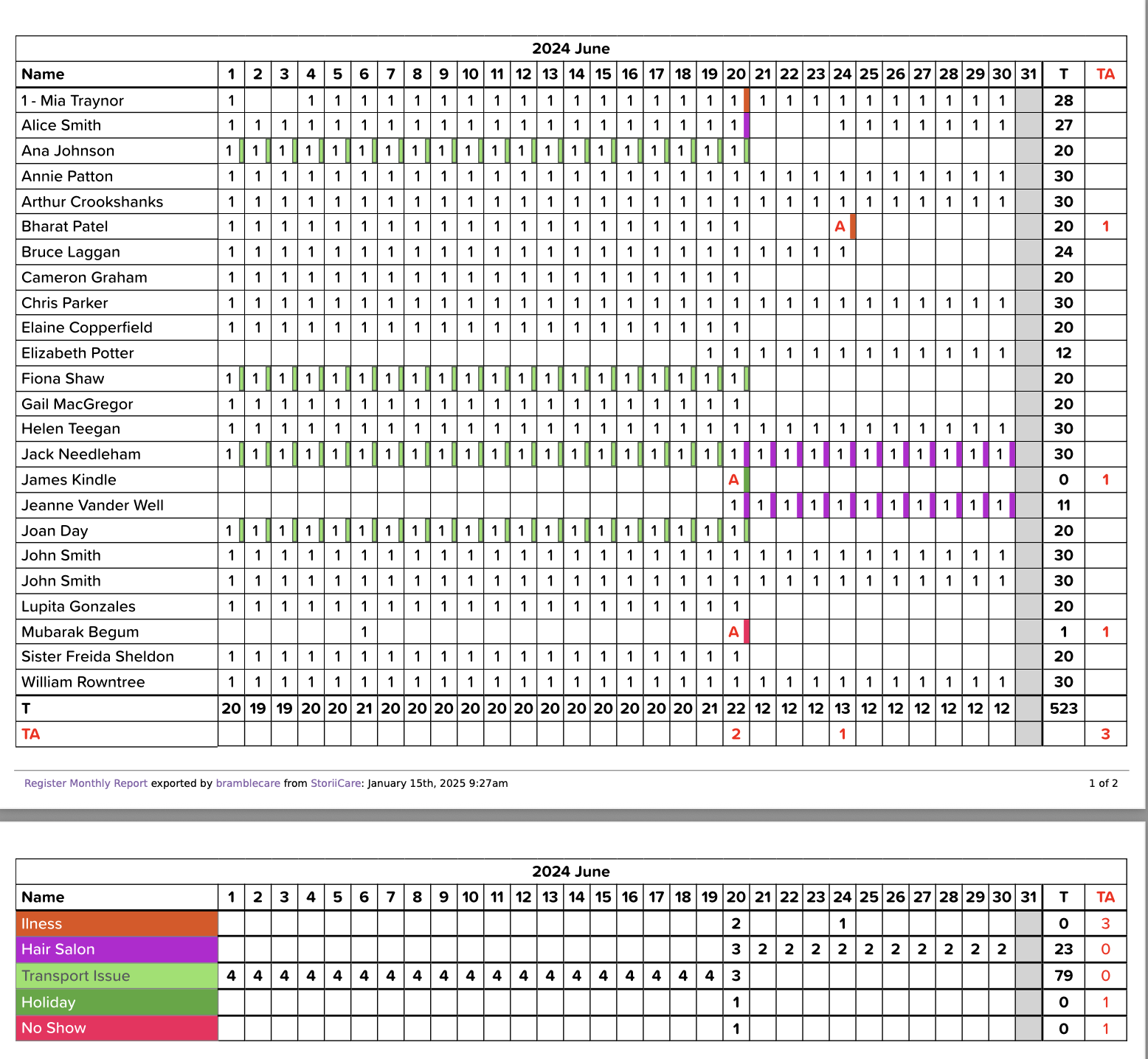
StoriiCare’s Monthly Attendance/Absence Report provides a clear, calendar-style overview of each service user’s attendance throughout a given month. This report is especially useful for tracking attendance patterns, compliance, and care billing.
Steps to Generate the Report
Go to the Register:
From your Dashboard, click Register.
Click ‘View Logs’:
Located in the top right corner of the Register screen.
Click ‘Register Logs’:
On the left-hand side of the Register Logs screen.
Set Report Parameters:
Select the Group (if applicable) you're generating the report for, date range, and whether or not you want to include tags for attendances and absences.
Select Export Type:
Choose Monthly Attendance / Absence (PDF) from the available export formats.
Download the Report:
Click Download to generate a PDF. Each day in the month will show:
A ‘1’ if the service user was present.
A red ‘A’ if they were marked absent.
Need More Help?
If you need further assistance, you can reach out to our support team by emailing support@storii.com. Our support team is ready to help you with any questions or issues you may have.