
How to Duplicate Rates and Billing Plans
StoriiCare lets you duplicate an existing rate or billing plan, so you don’t have to re-enter the same setup each time. This is useful when you need a similar rate with a different charge, or a billing plan for a new group of participants that follows the same rules.
Each duplicate is a separate copy. Changes you make to the copy will not affect the original.
Before You Start
Who can duplicate depends on your permission level:
To duplicate, you need permission to add rates or billing plans
To edit, you need permission to edit rates or billing plans
Users with read-only access will not see these options
If you don’t see the Duplicate option, speak to a manager or administrator.
How to Duplicate a Rate
Open Rates from your dashboard
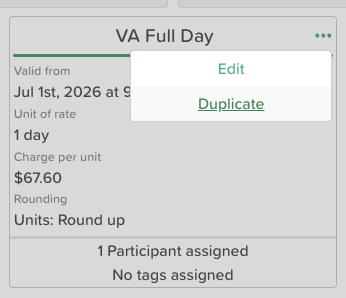
Hover over the rate you want to copy, then click the ellipsis (...) icon
Select Duplicate
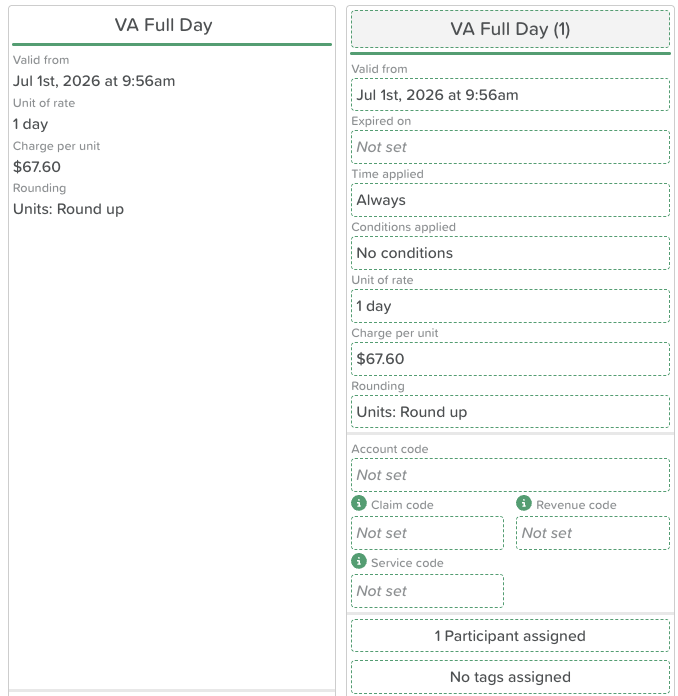
The copy opens as an unsaved draft directly to the right of the original
Update the name and any settings that need to change
Click the save icon to save the new rate
What Gets Copied
The duplicate includes all of the original rate’s settings, such as:
Valid from and to dates
Time applied and conditions
Unit of rate and charge per unit
Rounding
Assigned participants and staff, including any participant-specific settings (for example, specific days or validity dates)
Schedule and Register tags
⚠️ Important: Check the validity dates and assigned participants on your copy before saving. If they are left unchanged, the new rate may overlap with the original and cause participants to be charged twice.
How to Duplicate a Billing Plan
Go to Billing and select the Billing Plans tab
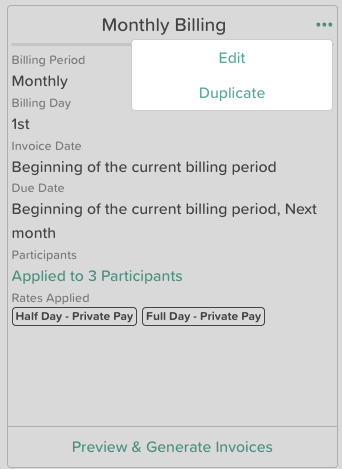
Hover over the billing plan you want to copy, then click the ellipsis (...) icon
Select Duplicate
The copy opens as an unsaved draft directly to the right of the original
Update the name and any settings that need to change
Click the save icon to save the new billing plan
What Gets Copied
The duplicate includes all of the original billing plan’s settings, such as:
Billing period and billing day
Participants and their invoice splitting rules
Rates applied and data sources
Fixed fees and fixed discounts, including discounts attached to them
⚠️ Important: Check the participants on your copy before saving. A participant included in two billing plans that apply the same rates may receive duplicate invoices.
How Duplicates Are Named
StoriiCare adds a number in brackets to the end of each copy’s name. It uses the next available number, so duplicating “Day Care” creates Day Care (1), and duplicating it again creates Day Care (2).
You can rename the copy before or after saving.
Working With More Than One Draft
You can duplicate several rates or billing plans at the same time. Each copy appears to the right of its original.
You can still use Add New while a duplicate is open. The two drafts are separate.
Clicking Cancel on a draft removes only that draft.
Open drafts stay in place if the list refreshes or you change filters.
⚠️ Important: A duplicate isn’t saved until you click the save icon. Unsaved copies will not be included in invoices or exports.
Need More Help?
Please contact us at support@storii.com