
A Guide to Flow Sheets
Flow Sheets are a monthly participation grid for recording each participant's services. You can set up templates, record statuses day by day, lock the month, and collect staff signatures for close out.
Flow Sheets were built primarily with California CBAS centers in mind, but any StoriiCare client can use them. We will keep improving them over time based on your feedback.
What you can do
Build your own face sheet layouts as multiple templates
Customize statuses, attendance rules and export details
Export everything to PDF (with signatures), Word or Excel
Lock a month and have multiple staff members sign for close out
Open a Flow Sheet
Go to Flow Sheets.
Choose a Participant, a Template and a Date (month).
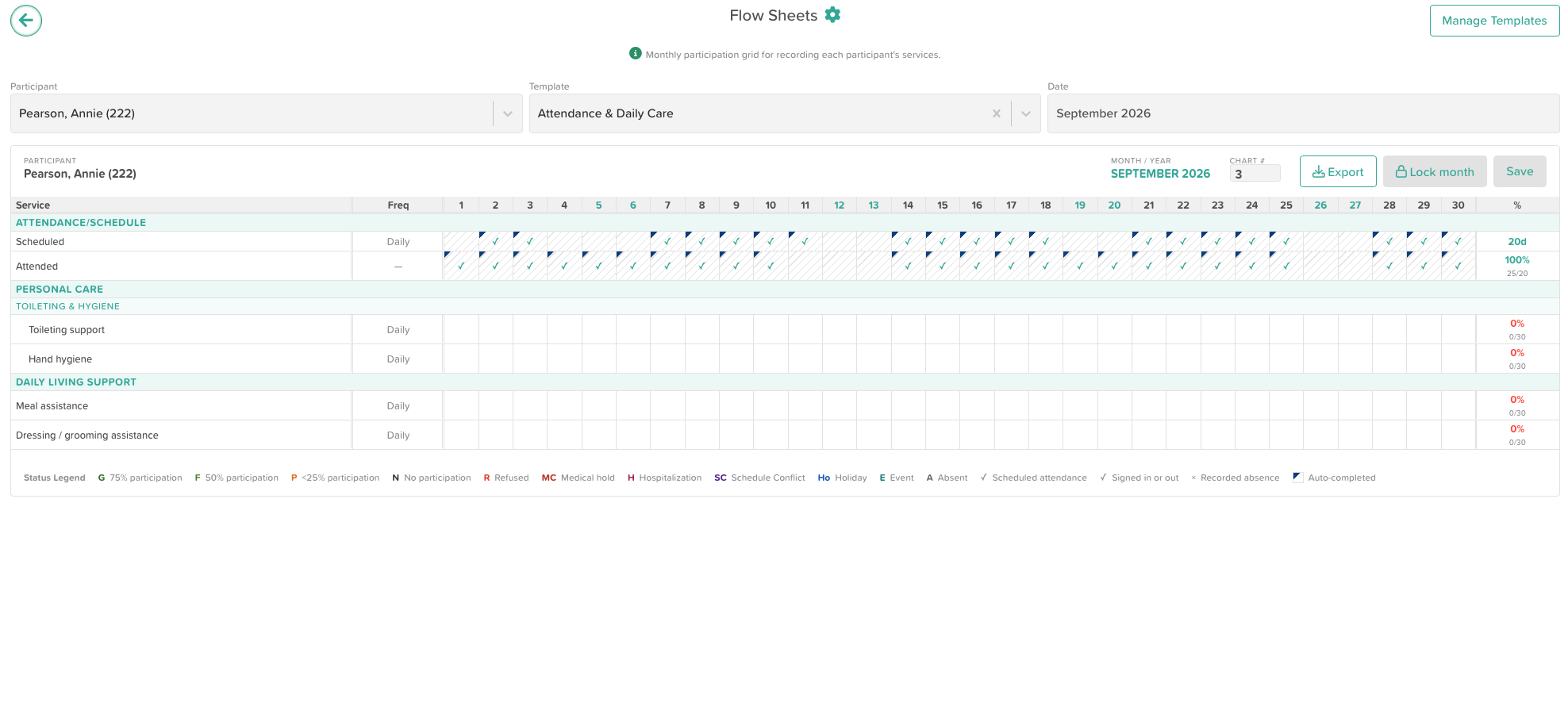
The grid loads for that participant and month. The chart number appears at the top.
Read the grid
Each row is a service and each column is a day of the month. The right-hand column shows the percentage and totals for that row.
Attendance/Schedule rows fill in automatically:
Scheduled shows the days the participant is expected, based on the scheduled days in Flow Sheet Settings.
Attended shows the days the participant signed in or out.
A blue corner marks a cell that was auto-completed.
A check mark means scheduled attendance or a sign in or out. An x means a recorded absence.
Other rows, such as Toileting support or Meal assistance, are filled in by staff.
Record a status
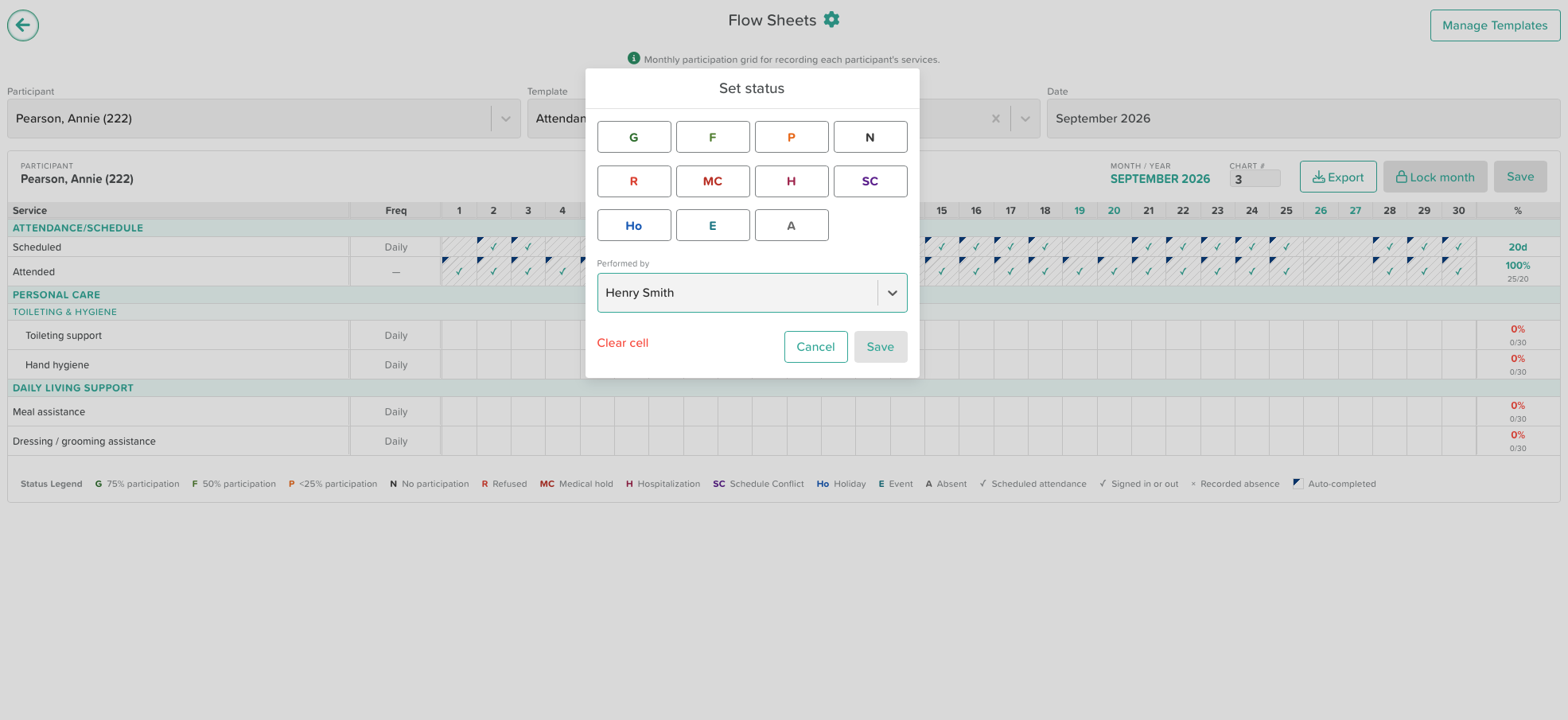
Click a cell in the grid.
In the Set status window, choose a status.
Under Performed by, select the staff member who delivered the service.
Click Save in the window. To remove an entry, click Clear cell.
Click Save at the top of the page to save your changes to the sheet.
The staff member's initials appear under the status in the cell.
Default statuses
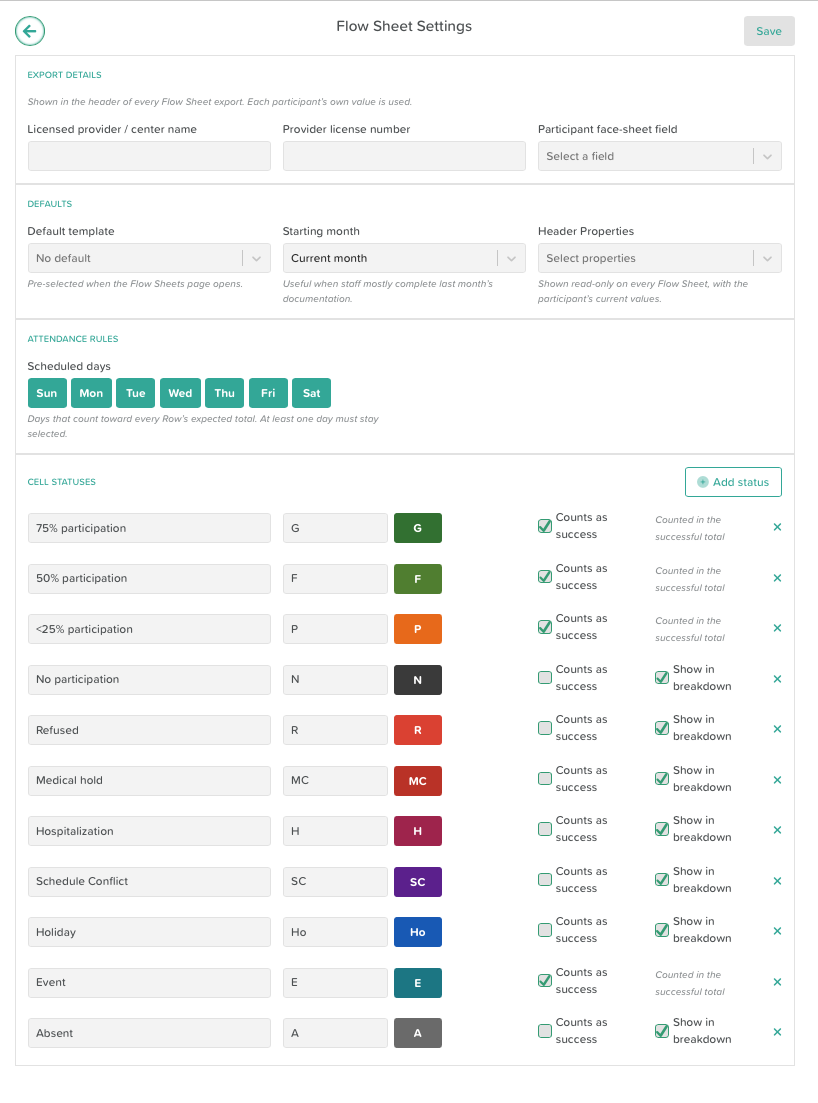
These statuses are available out of the box. You can rename them, change their colors or add your own in Flow Sheet Settings.
G: 75% participation (counts as success)
F: 50% participation (counts as success)
P: Less than 25% participation (counts as success)
N: No participation
R: Refused
MC: Medical hold
H: Hospitalization
SC: Schedule Conflict
Ho: Holiday
E: Event (counts as success)
A: Absent
Statuses that count as success are included in the row percentage. Statuses that do not count are listed in the breakdown under the percentage, for example "0/30, 1 Refused".
Lock a month and sign for close out
When a month is complete, lock it so entries cannot be changed.
Click Lock month. The sheet becomes read only and a banner shows when it was locked.
Click Add verification signature.
Review the attestation text, then click Sign & verify.
The signed verification, including the signer's name, title, attestation and timestamp, appears under Month Verification. Staff who recorded entries appear under Sign / Initial. Multiple staff members can sign the same month.
To make a change after locking, click Unlock, make your edits, then lock and sign again.
Export
Click Export and choose a format:
PDF (signatures) includes the signatures
Word (.doc)
Excel (.xlsx)
Each export includes the header details you set in Flow Sheet Settings, such as your center name and license number.
Customize templates
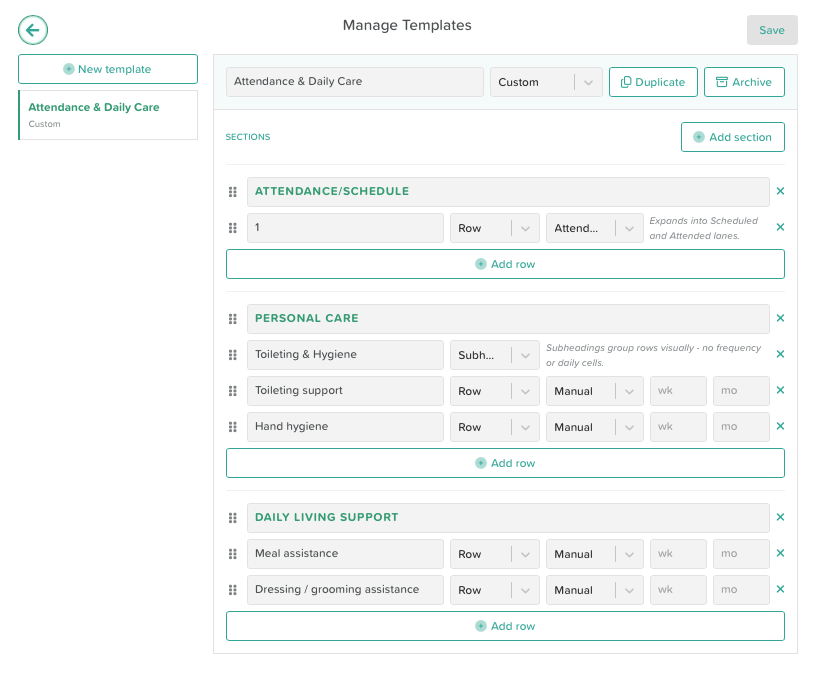
Click Manage Templates to create and edit templates. You can have as many templates as you need.
New template starts a blank template. Duplicate copies an existing one. Archive retires one you no longer use.
Sections group related rows, for example Personal Care. Use Add section, rename them, and drag to reorder.
Rows are the services you record. Use Add row.
Attendance rows expand into the Scheduled and Attended lanes automatically.
Manual rows are filled in by staff. Frequency is Daily by default. Use the wk or mo fields to change it to a number of times per week or per month instead.
Subheadings group rows visually and have no frequency or daily cells.
Remember to click Save when you finish.
Flow Sheet Settings
Click the gear icon next to the Flow Sheets title to open settings.
Export details: your licensed provider or center name and provider license number, shown in the header of every export, plus a participant face sheet field that uses each participant's own value.
Defaults: a default template that is pre-selected when the page opens, a starting month (useful when staff mostly complete last month's documentation), and header properties shown read only on every Flow Sheet with the participant's current values.
Attendance rules: choose which days of the week count as scheduled days toward each row's expected total. At least one day must stay selected.
Cell statuses: rename statuses, change their codes and colors, choose whether each counts as success, and choose whether it shows in the breakdown. Use Add status to create your own.
Remember to click Save after changing settings.
Feedback
Flow Sheets are new and will keep improving. If something is missing for your center, tell us through support or your Customer Success manager.