
A Guide to Using Community Announcements
Community Announcements are designed to help care providers share updates, news, and important information with Connections—family members or friends who are linked to a participant’s profile via the Storii Family App.
Community Announcements are ideal for sharing center-wide updates such as upcoming events, holiday schedules, menu highlights, policy updates, newsletters, or general good news.
Who Receives Community Announcements?
Community Announcements are shared with Connections in two ways:
Storii Family App – Announcements appear directly in the app
Email – Announcements are also emailed to Connections if their email address was used to invite them to Storii Family.
This ensures messages reach Connections even if they are not actively checking the app.
How Connections Can Interact with Announcements
Connections can engage with Community Announcements by liking them:
Click the heart icon in the bottom-left corner of the announcement
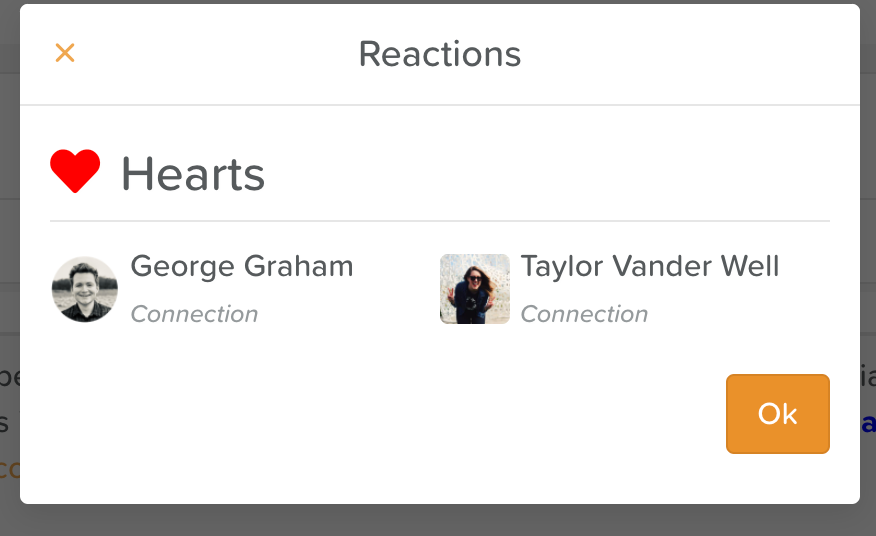
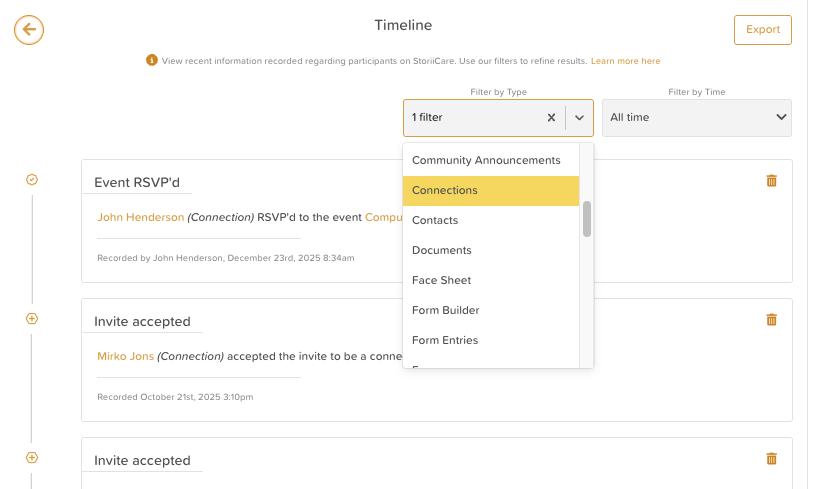
Care providers can view this engagement in two places:
Directly on the Community Announcement itself
In Recent Actions / Timeline, by filtering for Connections
This provides visibility into which updates are being seen and acknowledged by families.
How to Post a Community Announcement
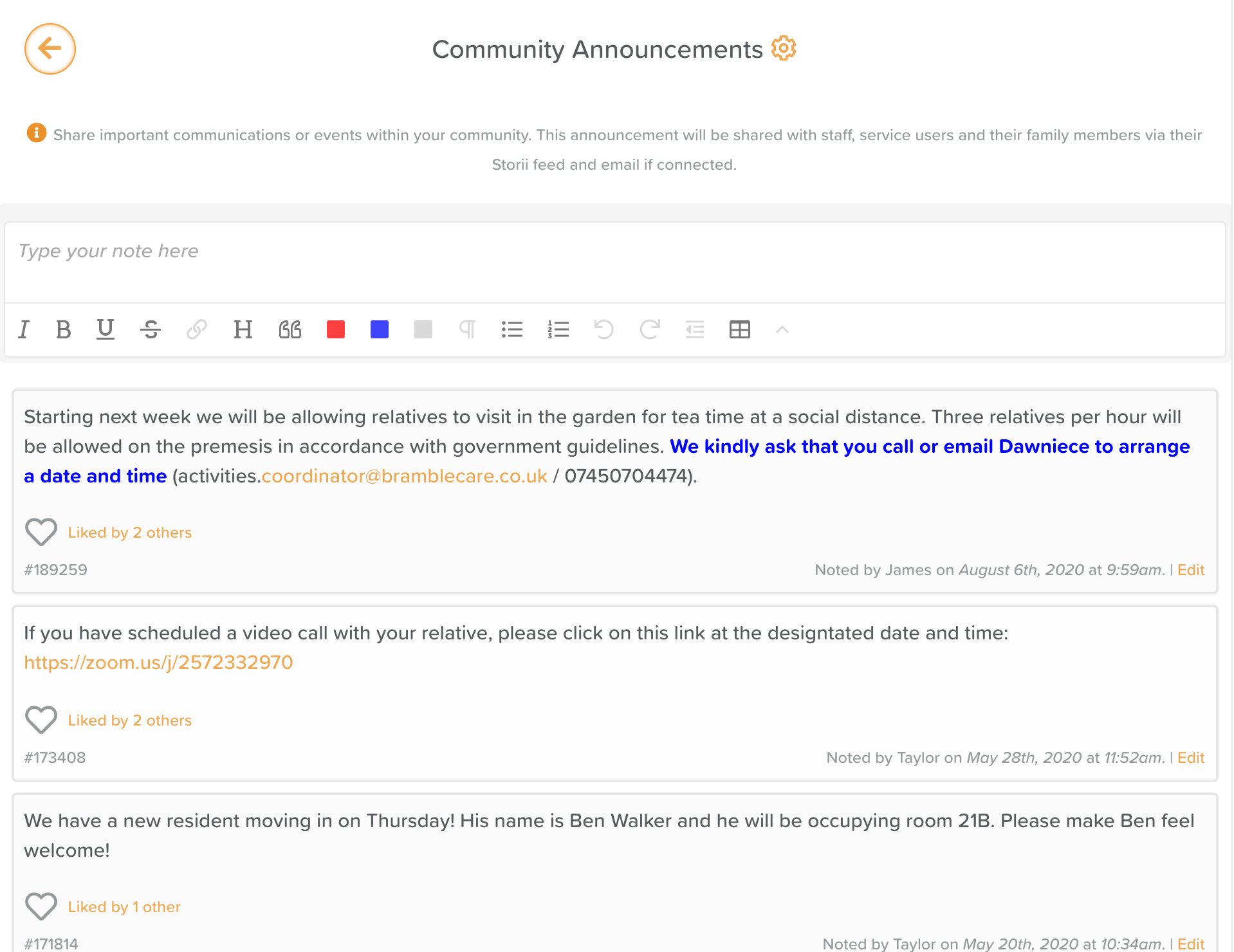
From the StoriiCare Dashboard, click Community Announcements.
Type in the note box area.
You can format text, create lists, add links, and attach files if needed.
Review your content. It's important to double-check your work before posting!
Click Save to publish the announcement.
Once posted, the announcement will immediately appear in the Storii Family App and be emailed to Connections.
How to Edit a Community Announcement
(Access depends on your permission level.)
Open the Community Announcements feature.
Identify the announcement you wish to edit.
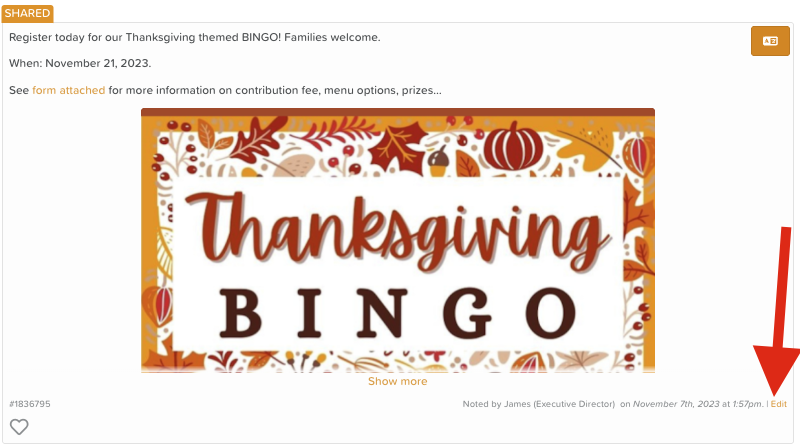
Select Edit (text in the bottom right corner).
Make your changes.
Click Save.
💡 Editing an announcement updates it for all Connections. Changes are reflected both in the app and in future views of the announcement.
How to Delete a Community Announcement
(Access depends on your permission level.)
Open the Community Announcements feature.
Click on the announcement you wish to remove.
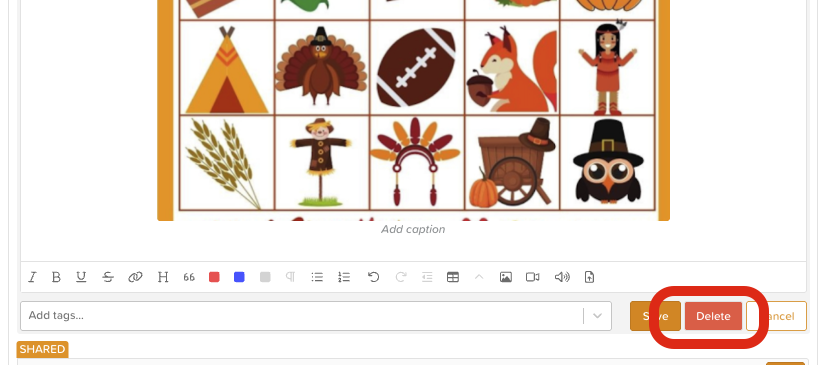
Click the Edit text in the bottom right corner.
Select Delete.
Confirm your action.
⚠️ Once deleted, the announcement is permanently removed and will no longer be visible in the Storii Family App.
Community Announcement Settings
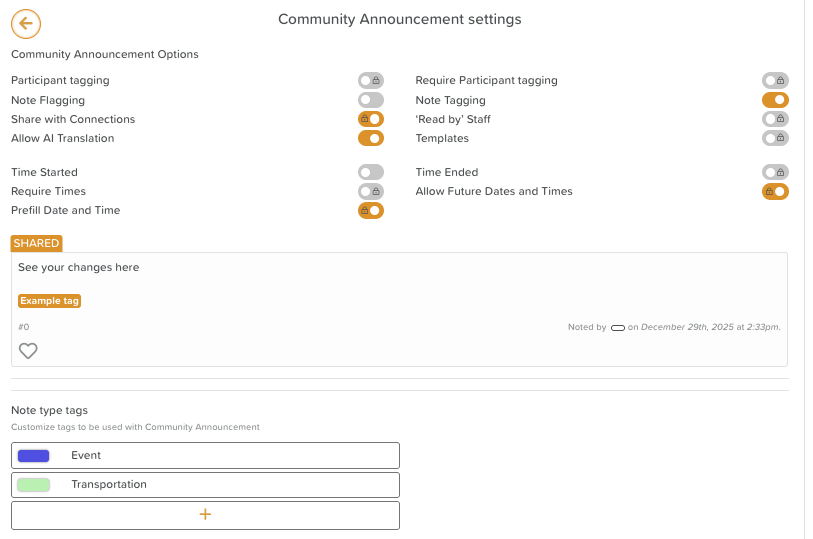
Community Announcement behavior can be configured via Settings (where permissions allow).
Users may wish to enable:
Note tagging (if you want to organize and categorize Community Announcements by a certain topic)
Note flagging (if you want to be able to flag a note of importance and filter by flagged notes on the Community Announcements feed)
How to View Community Announcements
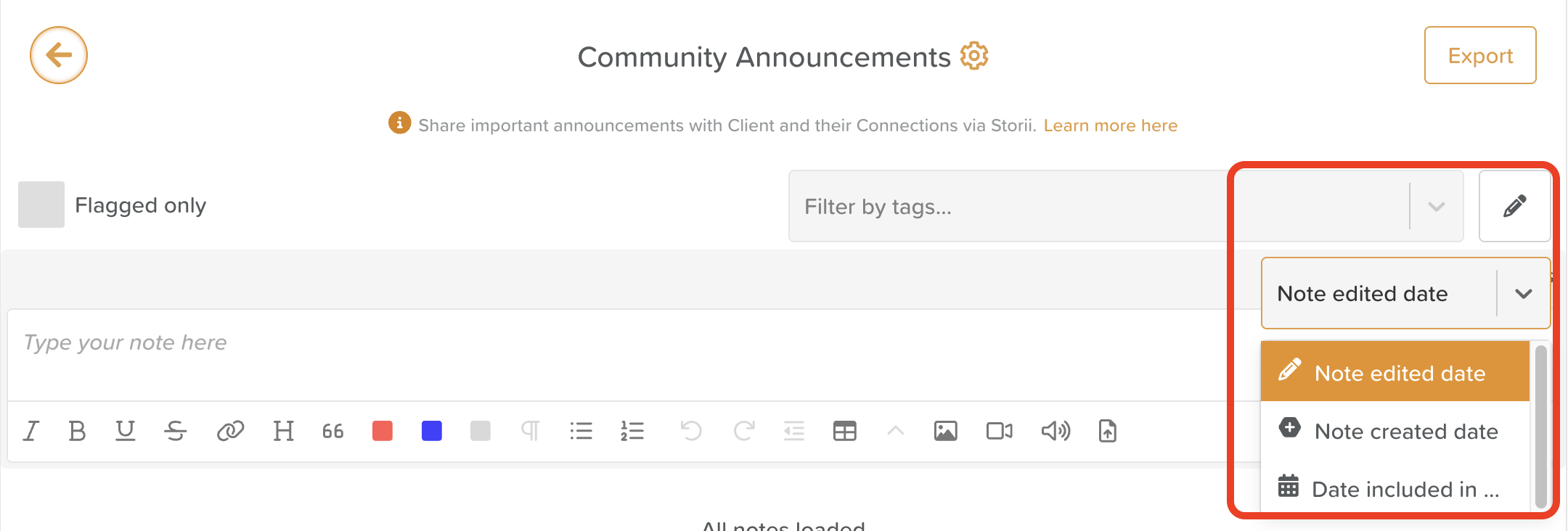
Staff can scroll through all published Community Announcements or use built-in tools to manage visibility:
Flagged only (if enabled on your account) helps staff quickly locate any urgent notices.
Filter by tags (if enabled on your account) allows staff to find updates that pertain to a specific category (e.g., Events, Policy Changes).
Filter by note creation date — the date a note was written, regardless of the selected date
Filter by note edited date — the date a note was written, regardless of the selected date
Filter by date included in note — orders notes by the date entered/selected, regardless of the date the note was actually created
Attached files open directly from the notice for fast access.
All posts remain visible until edited or deleted by an authorized user.
Best Practices
Use Community Announcements for general updates, not individual-specific information
Keep messages clear, friendly, and concise
Use formatting (headings, bullet points) to improve readability
Monitor likes and engagement to understand what resonates with families
For urgent or sensitive matters, communicate directly via phone or secure channels
Need More Help?
If you need further assistance, you can reach out to our support team by emailing support@storii.com. Our support team is ready to help you with any questions or issues you may have.