
A Guide to Calendar Exporting
StoriiCare provides several ways to export and share your Calendar, making it easy to distribute printed or digital schedules to staff, participants, and families. Exports can be customised with branding, filters, and layout options to suit a variety of purposes.
How to Export a Calendar
Open the Calendar from the Dashboard
Click the Export button in the top right-hand corner
Use the dropdown menu at the top of the page to select which Calendar you wish to export
Configure your preferred settings, including filters, file type, time mode, and export mode. Details are provided below.
Click the Export button at the bottom of the page — the file will either open in a new browser window or download directly to your device, depending on the file type selected
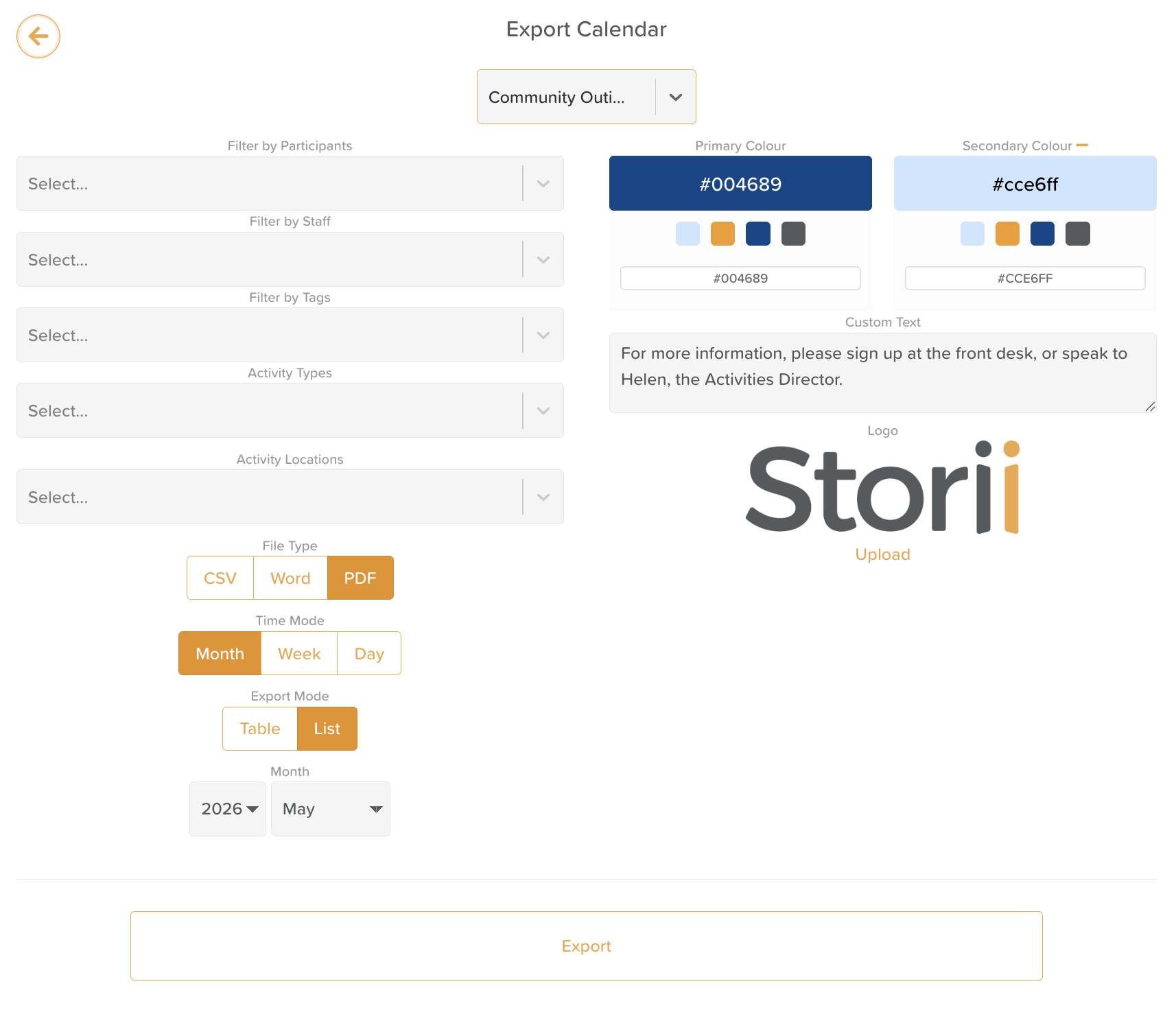
Export Options by Calendar View
Monthly & Weekly Calendar
File Types: PDF, CSV, Word Document
Export Modes: Table (most common), List
Additional 'Table' customizations:
Choose which day the week starts on
Enter the maximum number of events to display in a day (included for formatting reasons - if your center runs a lot of activities the text can get very small on the PDF Calendar)
Select which days of the week to include (i.e. deselect Sat & Sun if your center is only open weekdays)
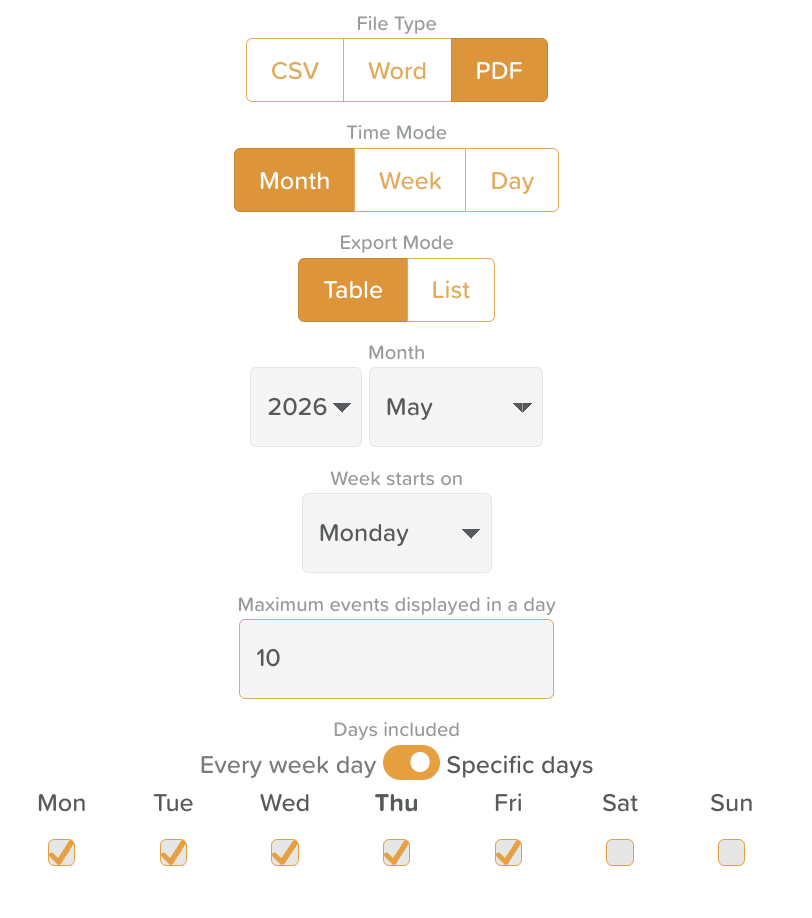
Monthly PDF Table View:
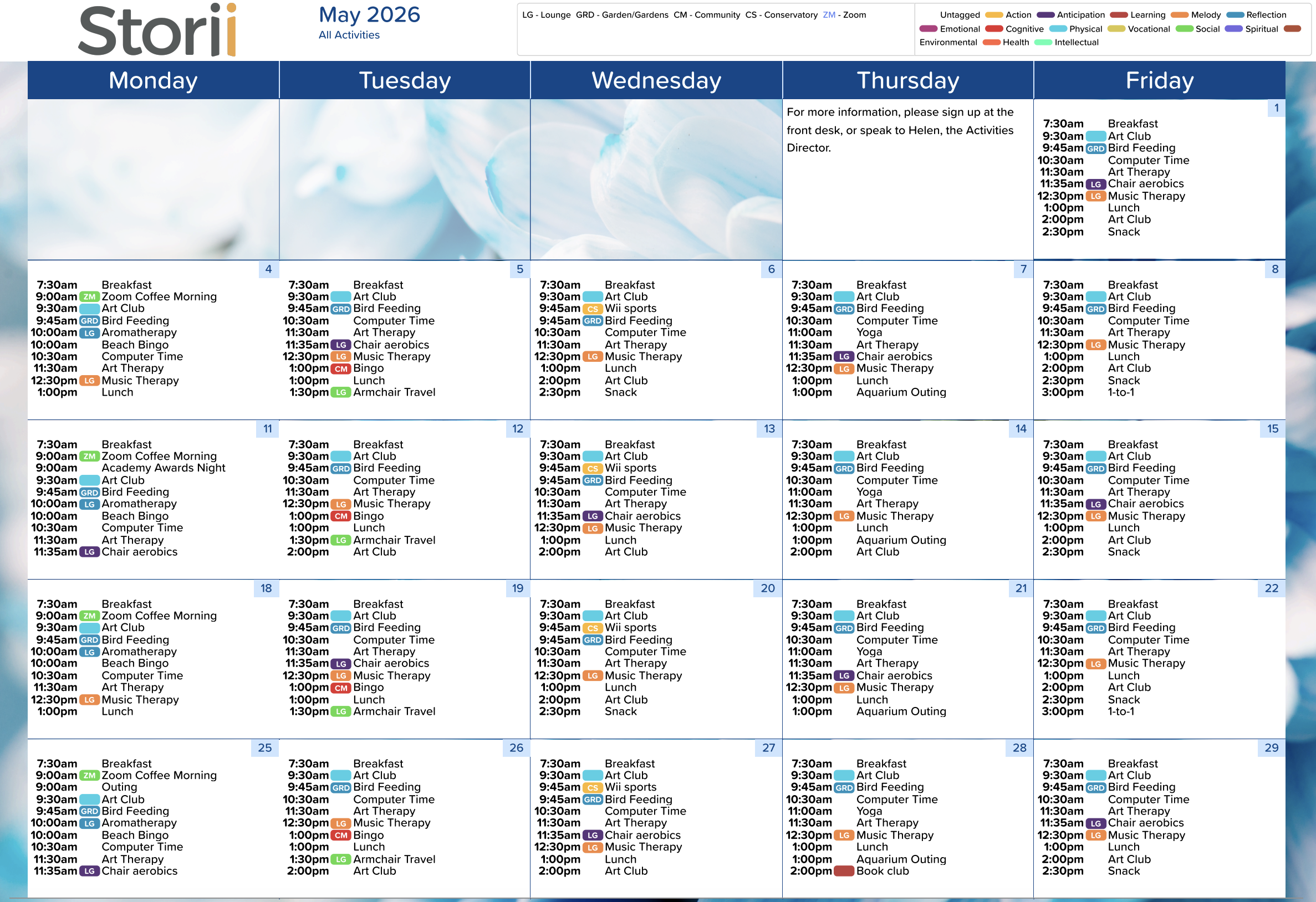
Day Calendar
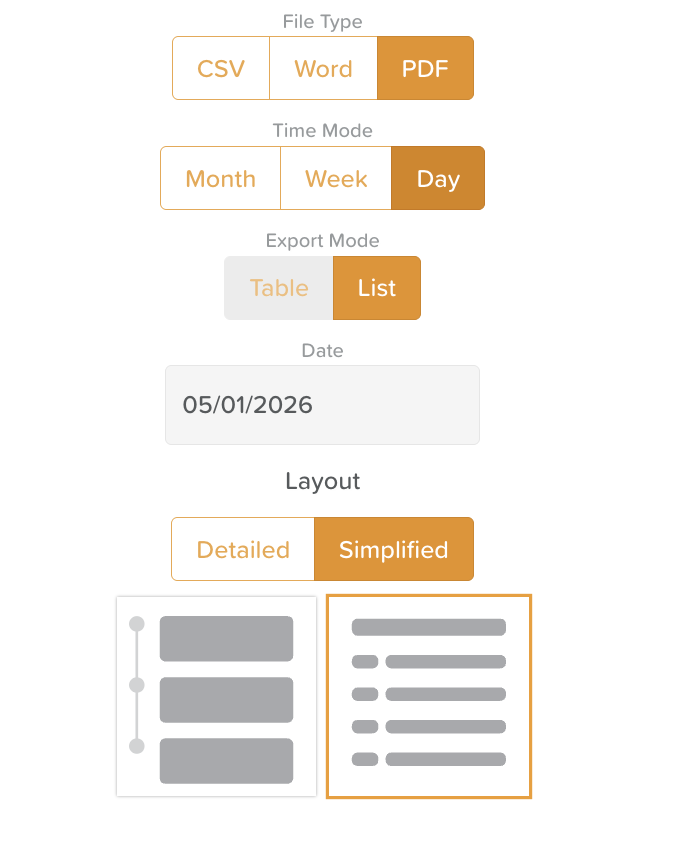
File Types:
PDF
Simplified Layout — displays activity title and time only
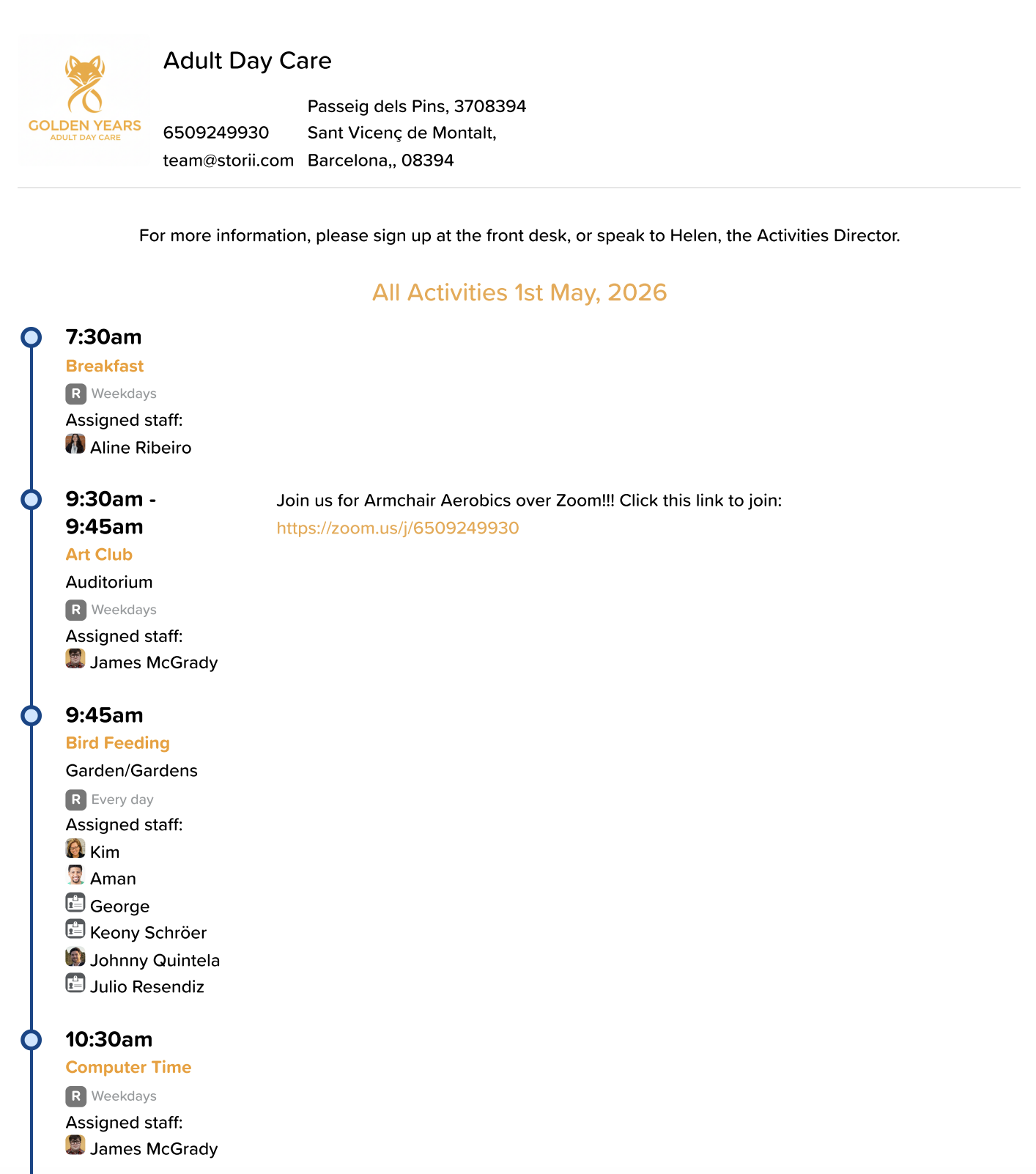
Detailed Layout — displays title, time, recurrence, description, tags, location, and additional details
Simplified Layout:
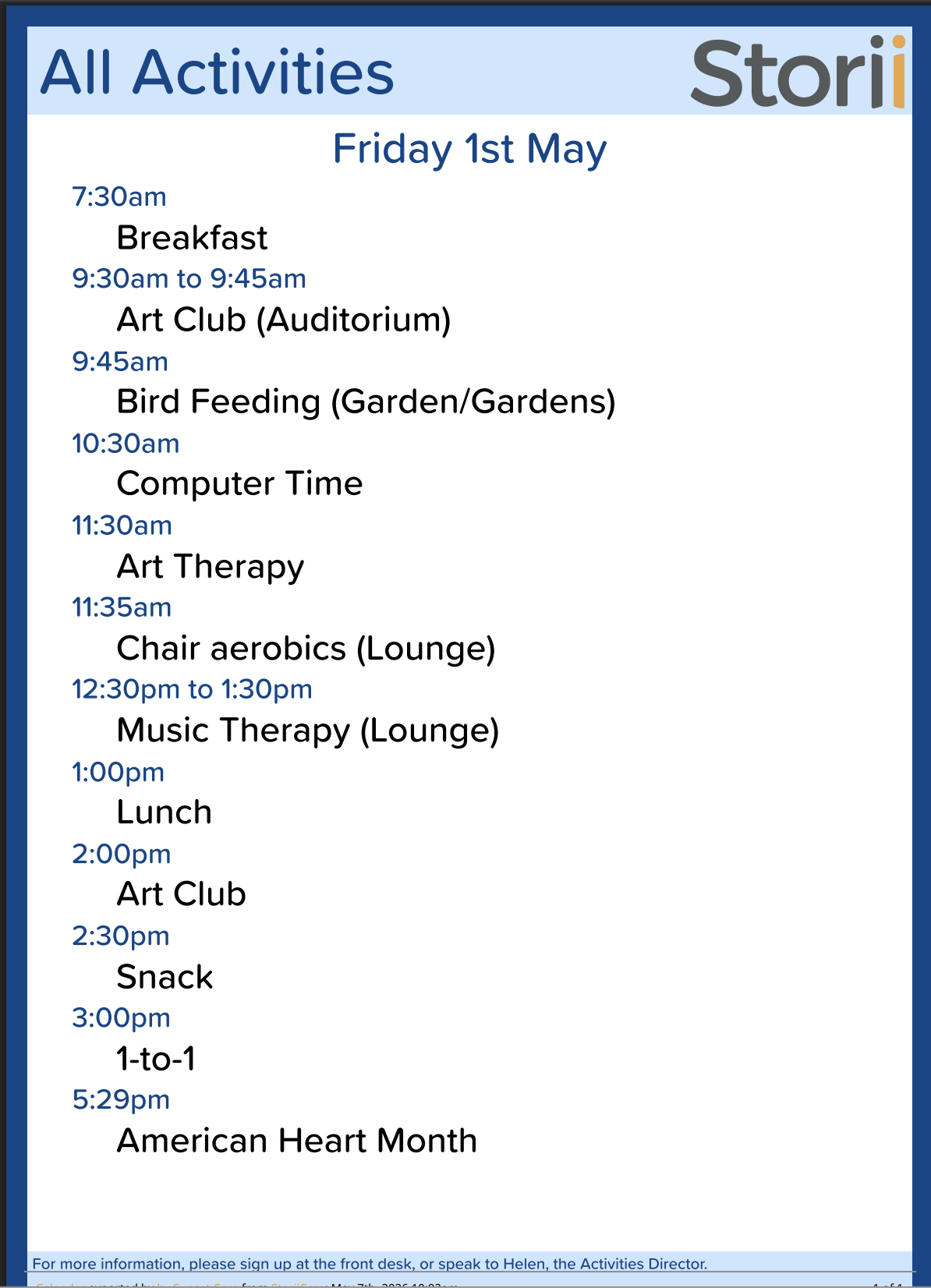
Detailed Layout:
CSV
Word Document
Export Modes: Table, List
Filters
Filters allow you to narrow down what appears on an exported calendar, making it easy to produce purpose-specific schedules.
Participant — ideal for generating personal appointment calendars for individual participants
Staff — displays only the activities a specific staff member is facilitating, useful for producing individual staff schedules
Tags — displays only activities associated with a specific tag
Activity Types — displays only selected activity types, allowing you to produce themed calendars such as a Fitness Calendar, Arts & Crafts Calendar, or Meals schedule
Activity Locations — displays only activities taking place in a specified location, ideal for centers with rooms or spaces dedicated to particular groups or programs
Need More Help?
If you need further assistance, you can reach out to our support team by emailing support@storii.com. Our support team is ready to help you with any questions or issues you may have.