
A Guide to Billing
StoriiCare Billing lets you invoice private payers and insurers, submit claims, collect and record payments, and keep your finances in one place. This guide gives an overview of each tab in Billing and links to detailed articles for each one.
To open Billing, select Billing from the main menu. Billing can be used on desktop and mobile, including the StoriiCare iOS and Android apps.
Summary
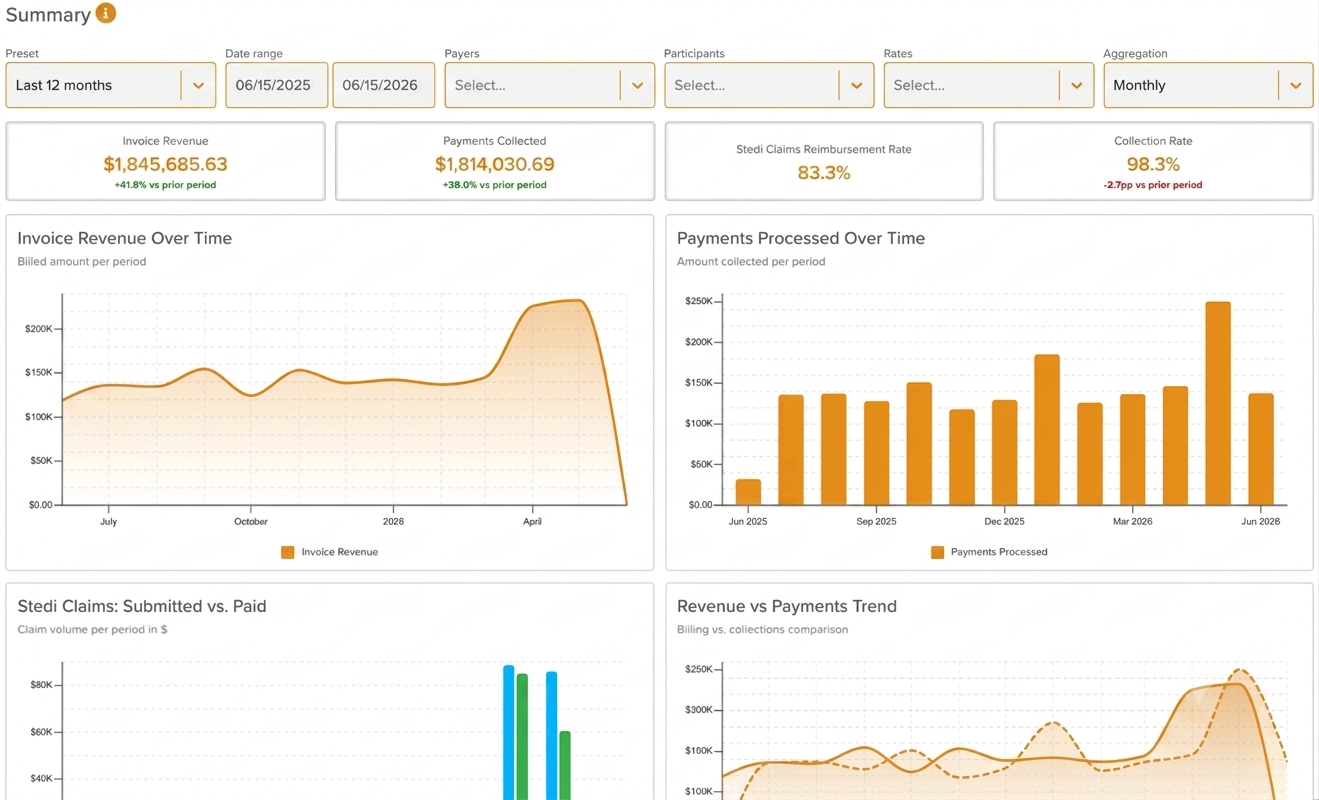
The Summary tab is a financial dashboard that shows how your program’s billing is performing over any time period you choose.
At the top of the dashboard you’ll see:
Total Invoice Revenue: the total amount billed in the selected period.
Payments Collected: payments received in the same period.
Claims Reimbursement Rate: shown for programs submitting electronic claims.
Collection Rate: the percentage of invoiced amounts collected.
Each metric is compared with the previous period, so you can see whether performance is improving.
The dashboard also includes charts for Invoice Revenue Over Time, Payments Processed Over Time, Claims Submitted vs. Paid, and Revenue vs. Payments Trend. It also shows Invoices Owed to You as of Today, including amounts awaiting payment and overdue balances, and a Recent Activity log of billing actions.
The dashboard shows the last 30 days by default. You can choose a date range preset or enter a custom range. Use the filters to narrow results by Payer, Participant, Rate, Currency, and Aggregation (daily, weekly, or monthly).
Invoices
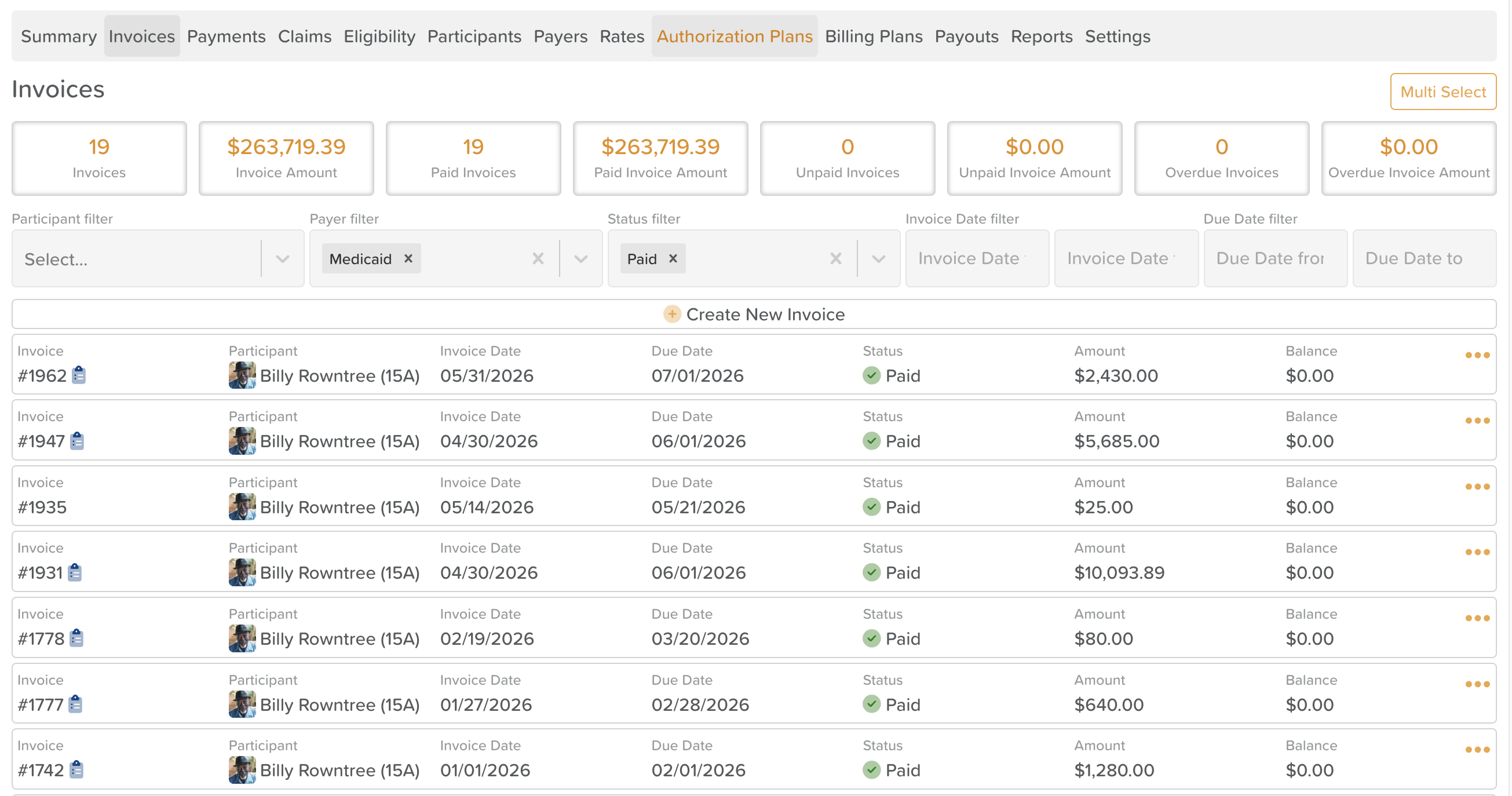
The Invoices tab lists every invoice in StoriiCare, so you can quickly see which are paid, unpaid, or voided.
From this tab you can:
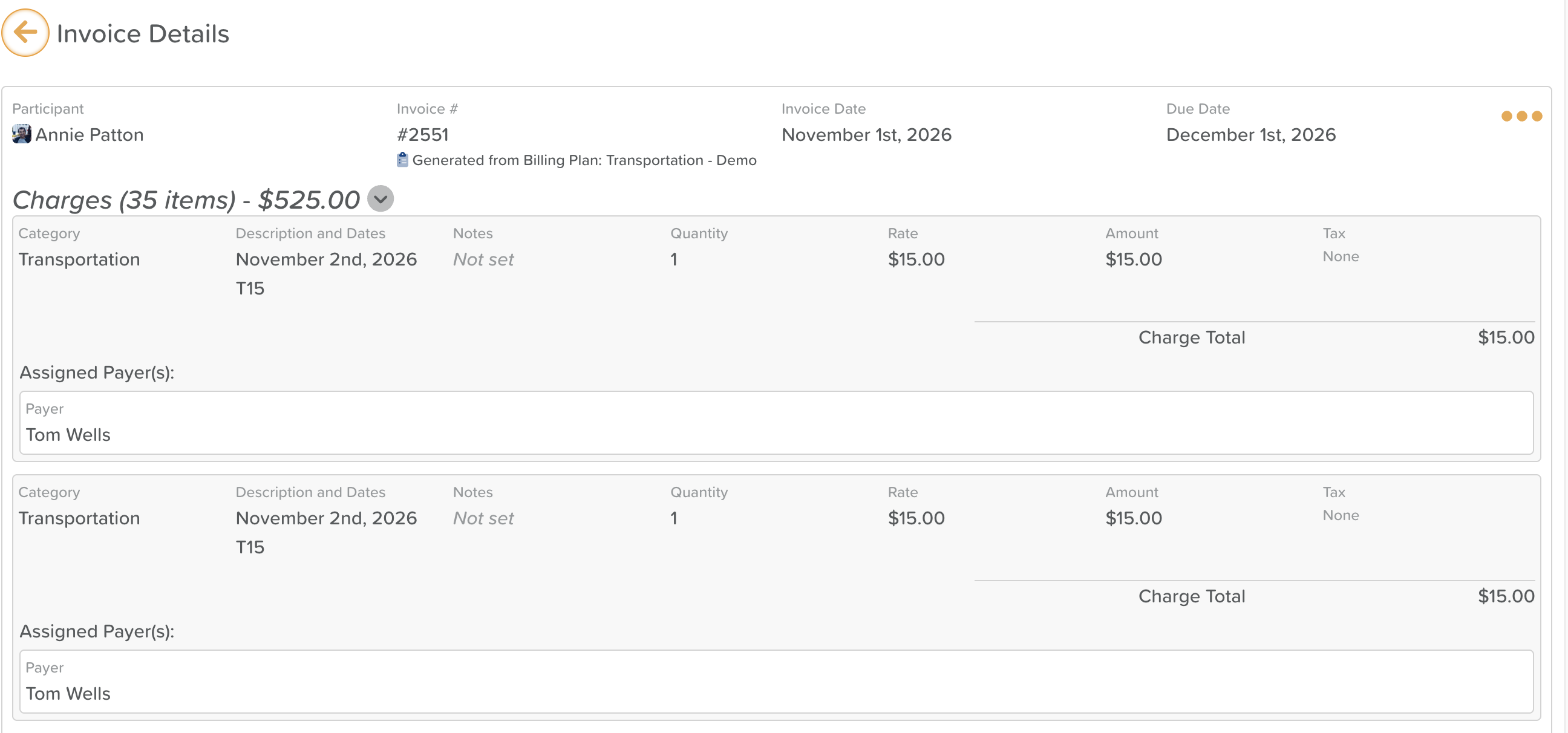
Generate invoices from a billing plan, or create a manual invoice.
Edit an invoice before or after it’s generated. Invoices can’t be edited once a payment has been applied.
Add custom categories, descriptions, tax rates, quantities, and discounts to each charge.
Add multiple charges or split charges between payers on a single invoice.
Download an invoice PDF with your logo, contact details, payment details, and a remittance slip.
Email invoices and payment links to payers, one at a time or in bulk using Multi Select and Bulk Actions.
Void an invoice that was created in error, while keeping a record of it.
Select invoices to submit as electronic claims.
Learn more:
Payments
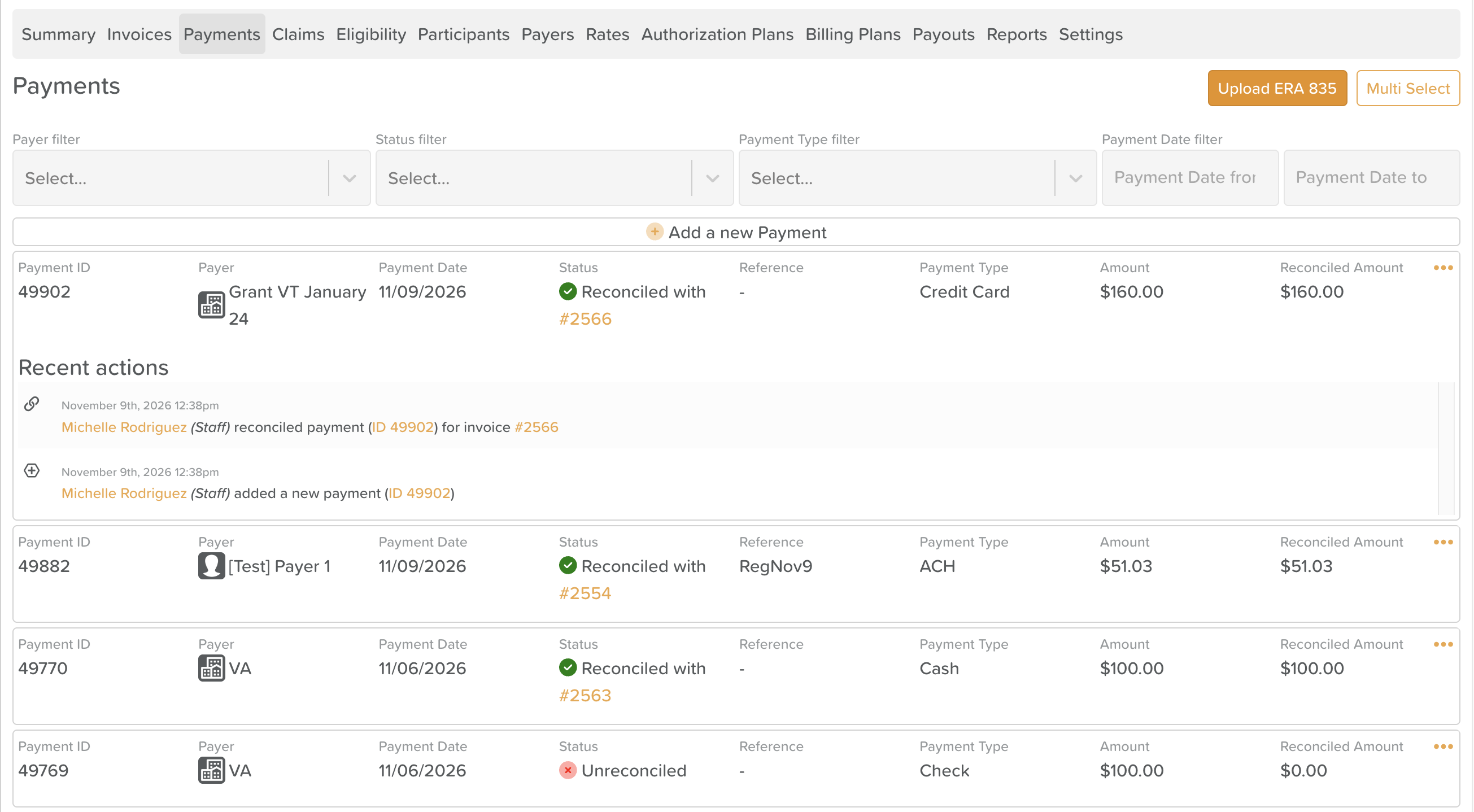
The Payments tab lists every payment recorded in StoriiCare, both online and manual. Each payment is matched to its invoice, so participant and payer balances stay up to date.
From this tab you can:
See each payment’s payer, date, status, payment type, amount, and reconciled amount.
Record manual payments received outside StoriiCare, such as checks, cash, or agency ACH payments.
Reconcile a payment with one or more invoices, or unreconcile it if it was applied to the wrong invoice.
Void a payment that hasn’t been reconciled.
View the history of changes made to a payment.
Upload an 835 ERA file to match insurance payments to your claims.
Payers can also pay online by card, bank account, or Google Pay through a secure payment link. Online payments are recorded automatically and payers receive a receipt by email.
Learn more:
Claims
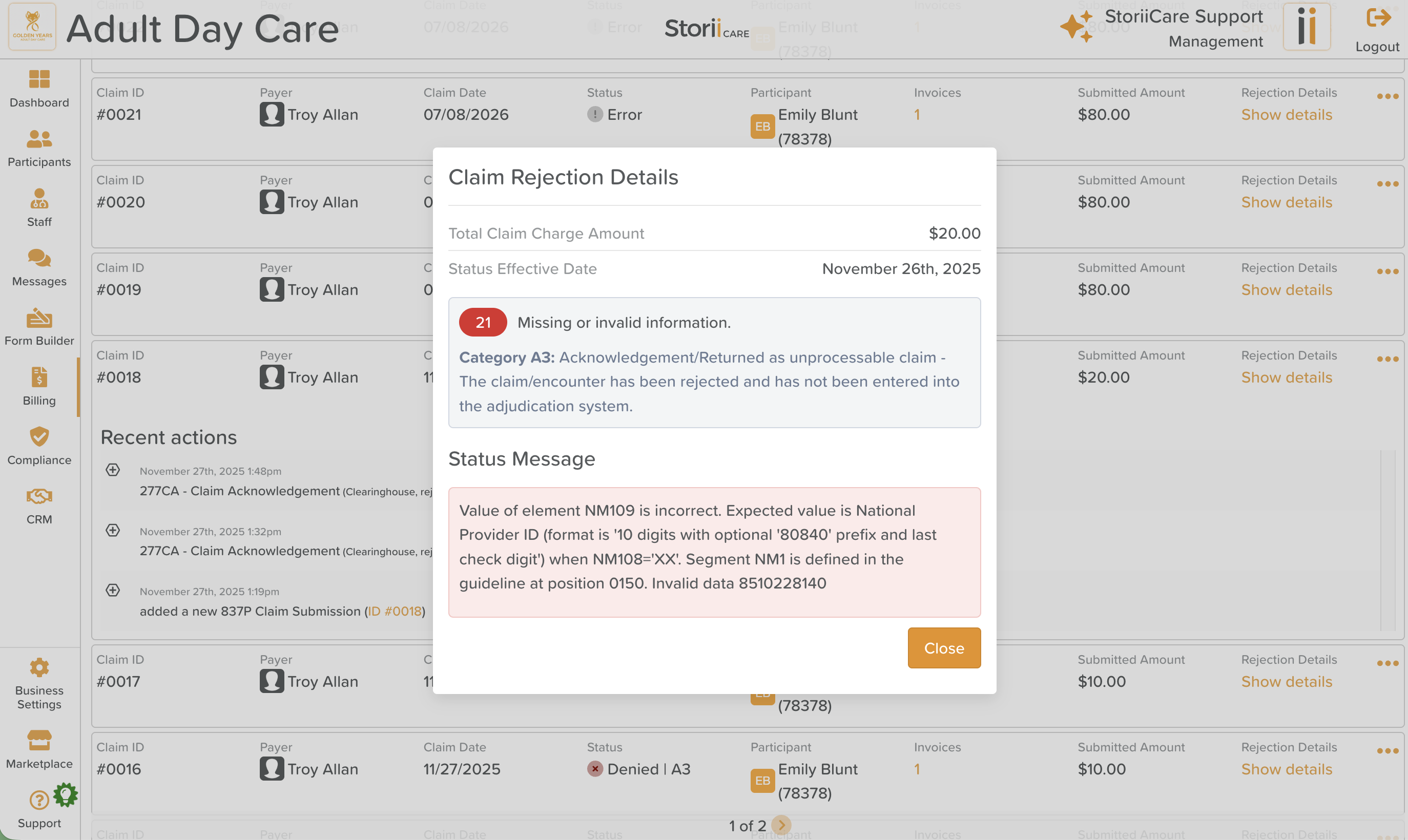
The Claims tab is where you track electronic claims submitted to insurers through StoriiCare’s clearinghouse partner, Stedi.
Claims are submitted from the Invoices tab. Select the invoices you want to claim using Multi Select, then choose Bulk Actions and Submit 837P or Submit 837I. Submitted claims then appear on the Claims tab.
From this tab you can:
Track the status of each claim, such as Accepted, Processing, Paid, or Denied.
See which invoices are attached to each claim.
View denial details and resubmit denied or rejected claims.
Void a claim that was sent by mistake.
Email Stedi support about a specific claim, with the claim details filled in for you.
Learn more:
Eligibility
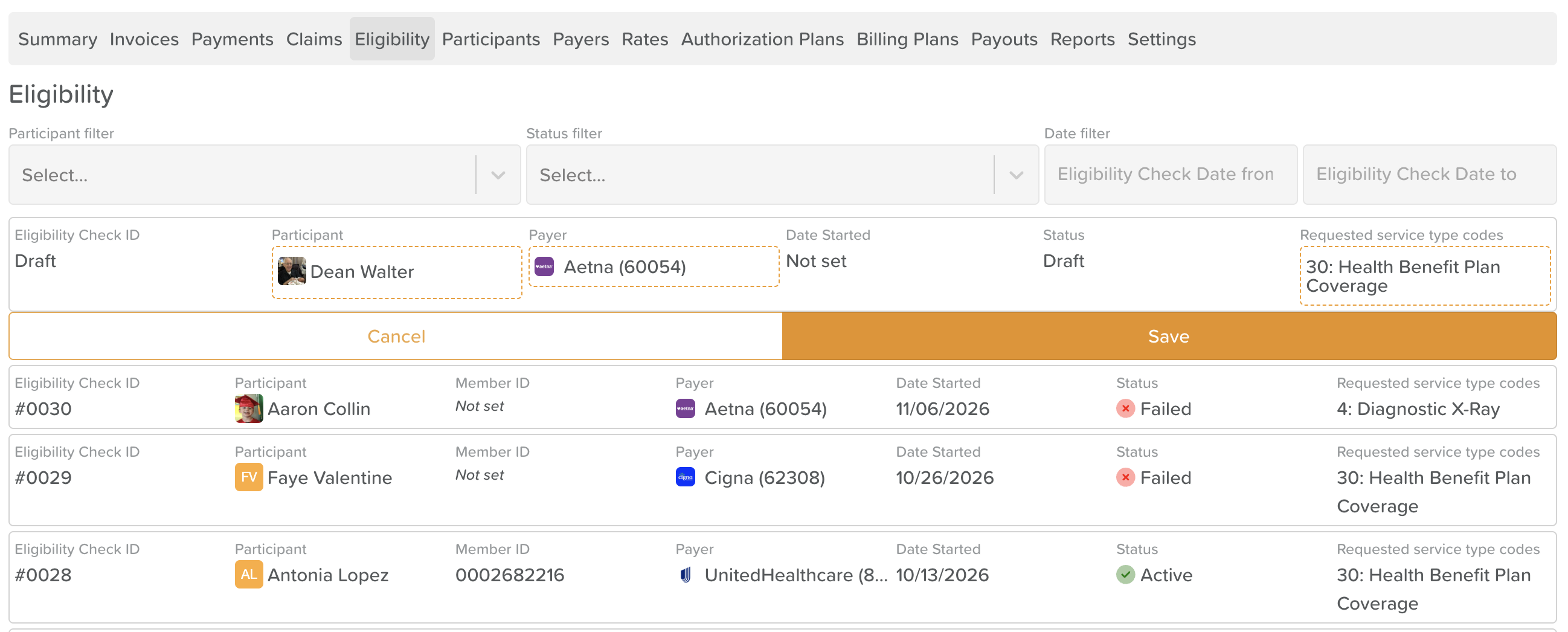
The Eligibility tab lets you check a participant’s insurance coverage, benefits, and service eligibility before you bill.
To run a check, select the participant, enter their Member ID, choose the payer, and select the service type codes you want to verify. Each check shows a status of Active or Failed. Click a check to see the participant’s plan, coverage status, and benefits.
Please note: The Eligibility tab is only available to programs submitting claims through StoriiCare via Stedi. To turn it on for your account, contact support@storii.com.
Learn more:
Participants

The Participants tab lists every participant set up in Billing, along with their current balance and the payers linked to them.
From this tab you can:
See each participant’s current balance at a glance.
See which payers are linked to each participant.
Edit a participant’s payers directly, without leaving the tab.
Please note: A participant needs at least one payer linked to them before an invoice can be generated for them.
Learn more:
Payers
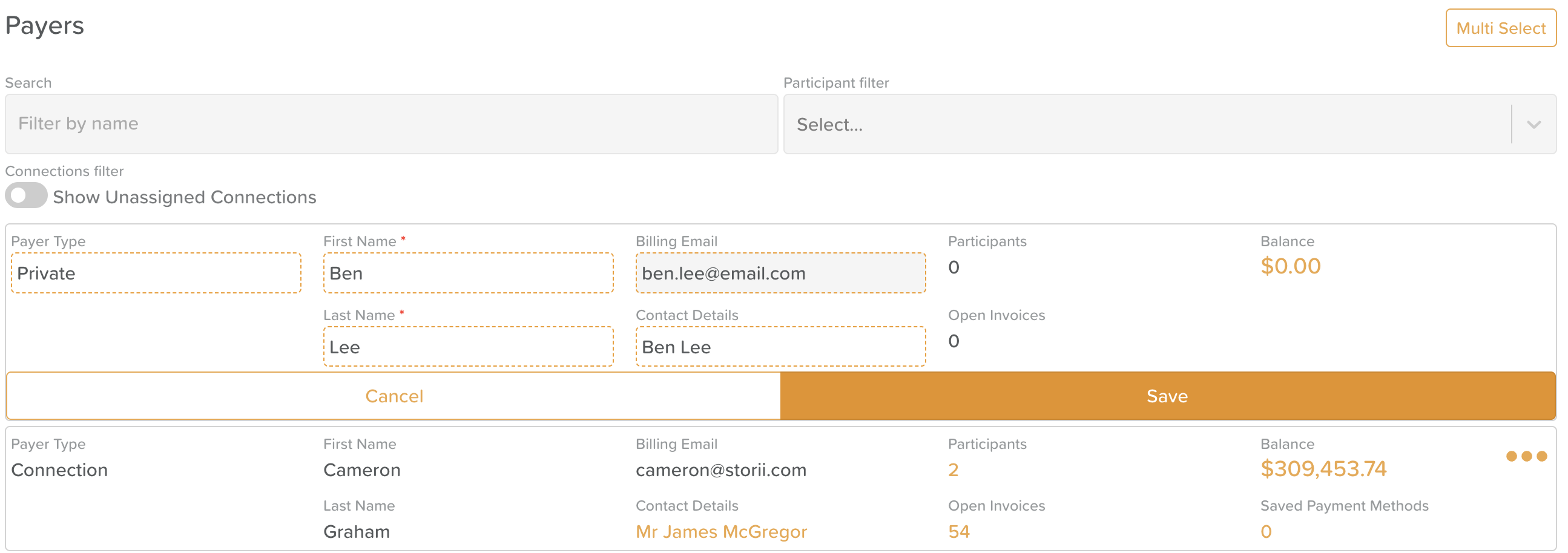
The Payers tab lists everyone who pays for care, such as family members, insurers, Medicaid, and agencies.
From this tab you can:
Create new payers.
See how many participants each payer is linked to.
See each payer’s balance and how many open invoices they have.
View a Balance Summary with a detailed breakdown of a payer’s balance.
Add saved payment methods to a payer’s profile.
Learn more:
Rates
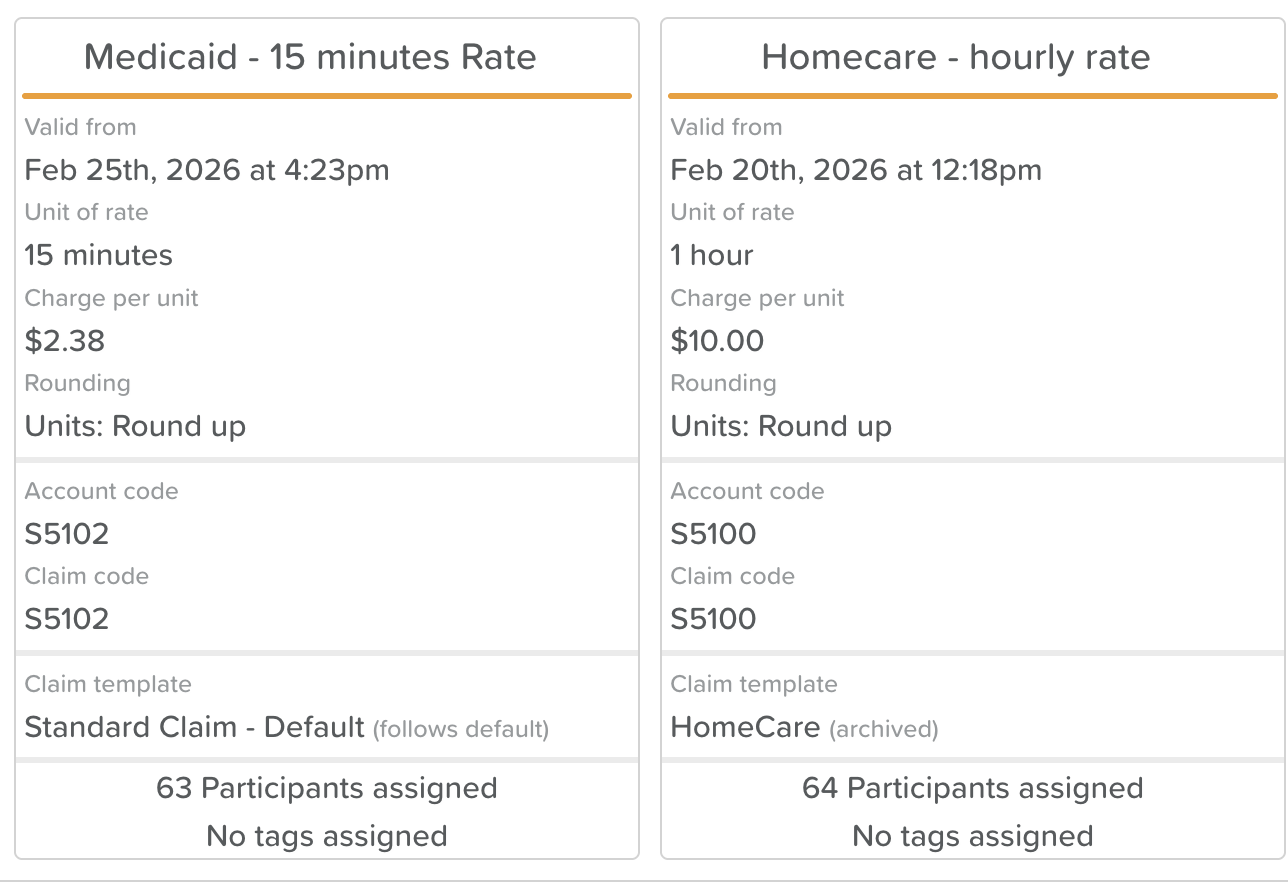
The Rates tab is where you set up what you charge for. Each rate defines what is billed, how much is charged, and when the charge applies. Rates are used by billing plans to calculate invoices.
Please note: Rates were previously called Services. You may still see the old name in some older articles.
From this tab you can:
Create rates billed by time unit, such as 15-minute units, full or half days, or monthly fees.
Set the dates a rate is valid and the conditions it applies under, such as attendance of under 5 hours.
Set rounding rules so time-based charges are calculated the way your payer requires.
Assign rates to participants, and limit a rate to specific dates, days, or times for each participant.
Choose which claim template each rate uses for 837 claims.
Duplicate a rate to save setup time.
Learn more:
Authorization Plans
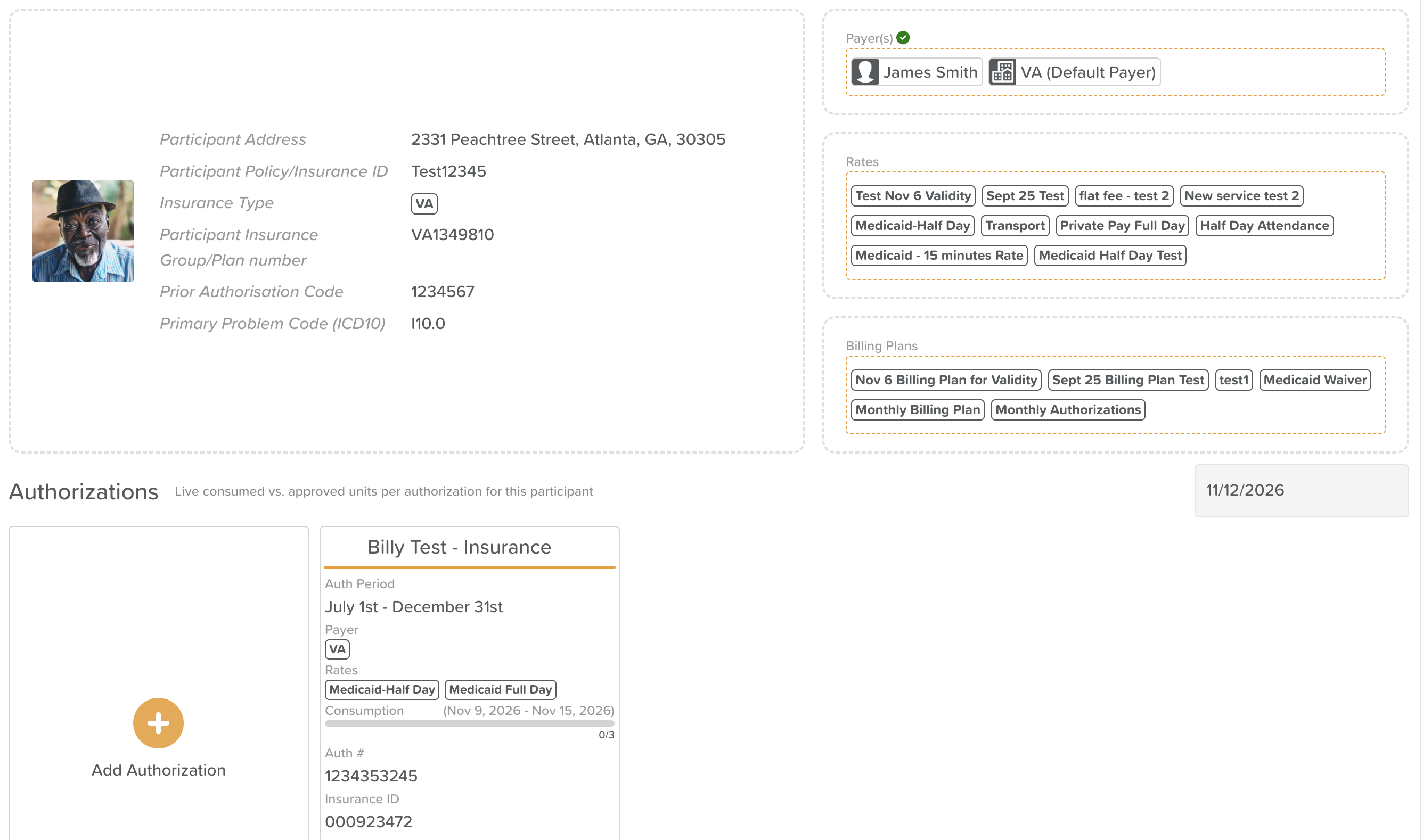
The Authorization Plans tab lets you track a participant’s approved units, such as Medicaid-covered days, and bill against them automatically.
You create an Authorization Drawdown with the participant’s approved amount, period, and authorization number. You then build an Authorization Plan that charges against that authorization first. Once the approved units are used up, further attendances can be charged to a fallback service and payer, such as private pay. Units reset at the start of each period.
From this tab you can:
Create Authorization Drawdowns and Authorization Plans for each participant.
Preview the charges your plans will create in the Log History before you invoice.
Copy an existing plan to another participant with a similar arrangement.
To invoice from Authorization Plans, use a billing plan set to the Authorization Plans option.
Learn more:
Billing Plans
The Billing Plans tab lets you generate invoices quickly using rules you set once. Each plan pulls data from across StoriiCare, such as attendance and schedules, and applies your rates for each participant.
From this tab you can:
Create as many billing plans as you need, with your own billing period and billing day.
Charge in arrears using the Participant Register, or in advance using the Attendance Schedule.
Apply several rates in one plan, such as full day, half day, and late fees.
Split invoices between payers by a fixed amount, a percentage, or “pays the rest.”
Preview, edit, and generate invoices for each participant.
Duplicate a billing plan to save setup time.
Please note: Rates must be set up before you can use billing plans, and each participant needs a payer assigned before an invoice can be generated for them.
Learn more:
Payouts
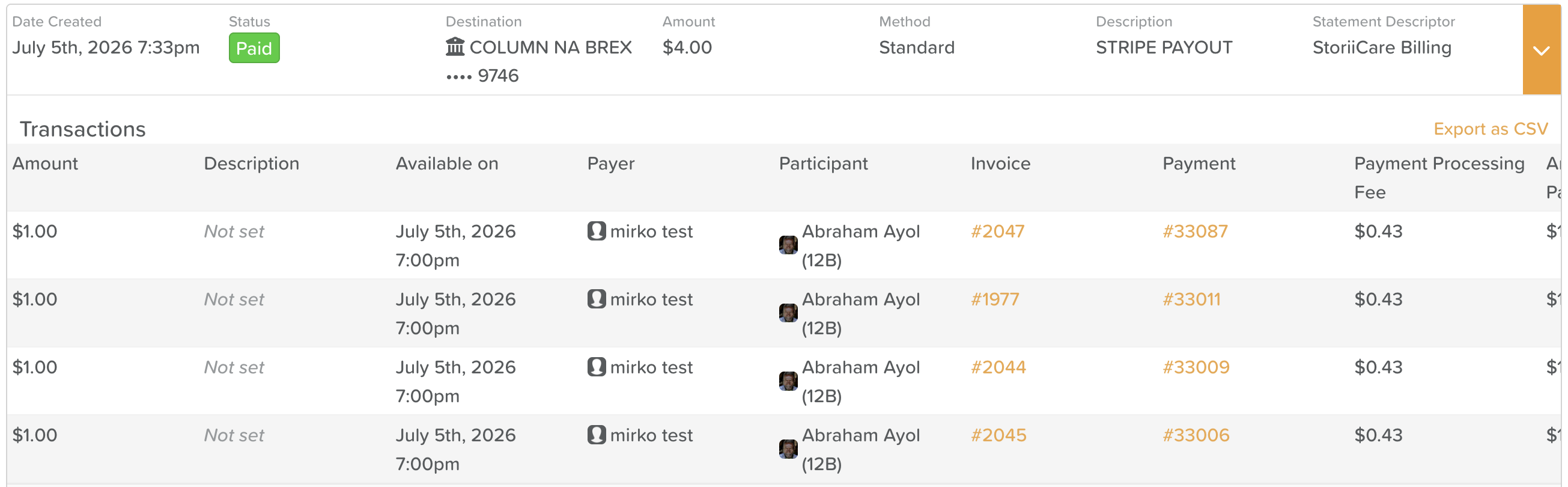
The Payouts tab shows every payout from online payments processed through StoriiCare, so you can see when funds were deposited into your bank account.
From this tab you can:
View your Available balance, Total pending, and In transit amounts.
Open a payout to see its transactions and the invoices linked to it.
Export payout details as a CSV file, one at a time or in bulk.
Please note: Payouts only include payments made online through StoriiCare. Manual payments, such as checks and cash, are not included.
Learn more:
Reports
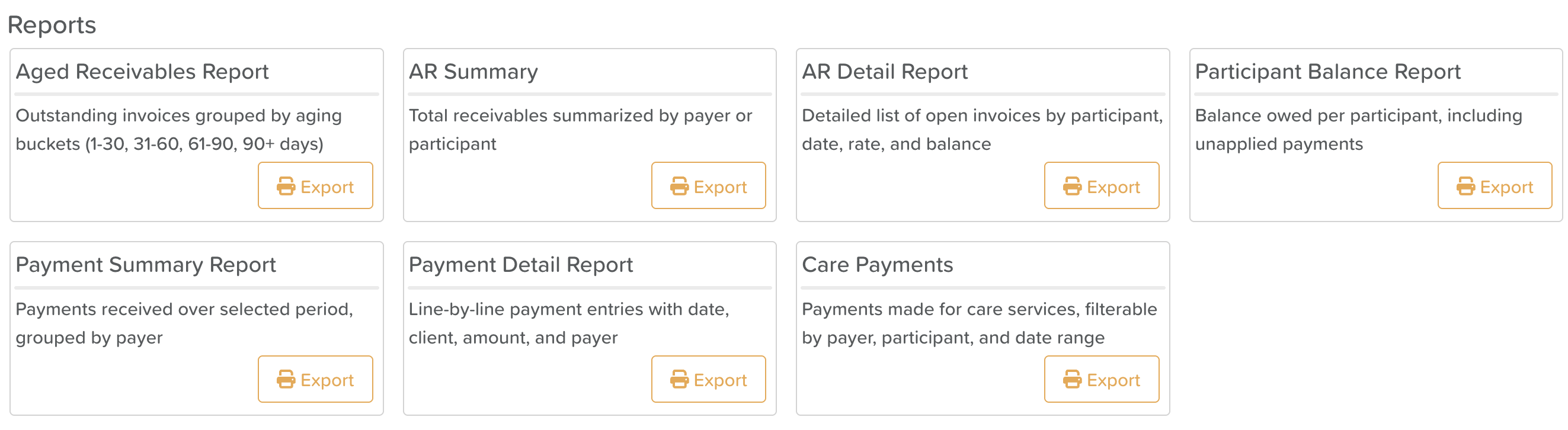
The Reports tab helps you track what’s owed, who owes it, and what’s been paid, without opening individual invoices or participant profiles. Most reports can be filtered by date range, payer, or participant.
Available reports include:
Aged Receivables Report: outstanding invoices grouped into 1–30, 31–60, 61–90, and 90+ day buckets.
AR Summary: total receivables summarized by payer or by participant.
AR Detail Report: a line-by-line list of open invoices with aging, balances, and due dates.
Participant Balance Report: the total balance owed by each participant, including unapplied payments.
Payment Summary Report: payments received over a period, grouped by payer.
Payment Detail Report: a detailed ledger of every payment.
Learn more:
Settings

The Settings tab is where you configure how Billing works for your program.
From this tab you can:
Complete payment processing onboarding with Stripe, under Payments.
Choose which online payment methods to offer and who covers processing fees.
Set up your 837 claim details and Claim Templates, under Exports.
Customize your invoice, discount, and tax rate categories.
Learn more:
Getting Started with Billing
If you’re new to Billing, these articles walk you through setup:
Need More Help?
Please contact us at support@storii.com