
A Guide to the CRM Feature
The CRM feature in StoriiCare helps you track leads, manage your enrollment pipeline, and monitor conversion performance from first contact through to enrollment. This article walks through the Summary, Leads, Sources, and Reports tabs within the CRM.
Accessing the CRM
Navigate to the CRM feature from the side panel of the StoriiCare Dashboard. When you open the CRM, you'll land on the Summary page by default.
Summary
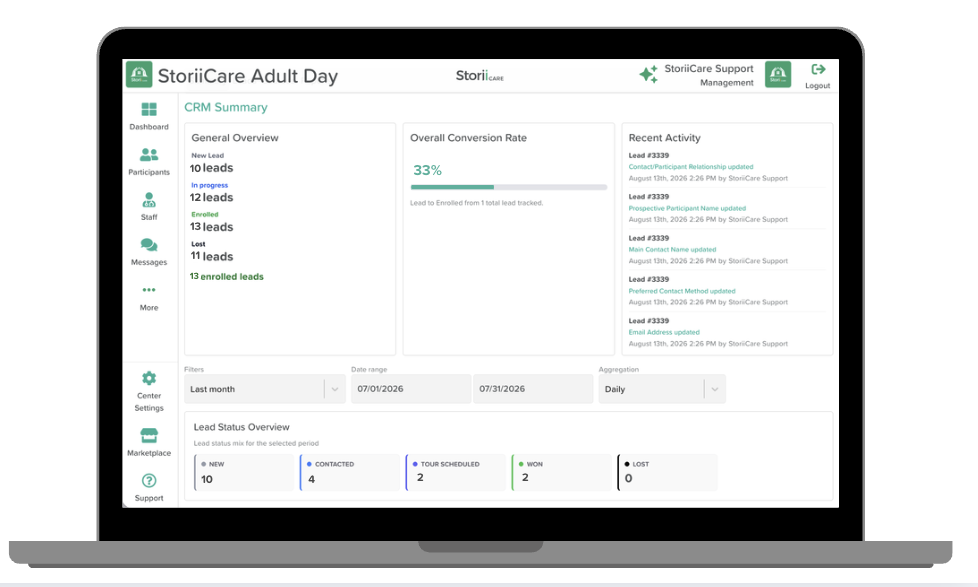
The Summary tab gives you a general overview of your leads and their statuses, along with the following:
Conversion Rate – the percentage of leads enrolled out of your total leads tracked
Recent Activities – an audit trail of updates made within the CRM
Lead Status Overview – a breakdown of leads by status (for example, Started, Contacted, Enrolled, or Lost); statuses are fully customizable
Most Successful Sources – tracks which sources have produced the most enrolled leads
Leads vs. Enrolled Trends
Conversion Rate Trends
Pipeline Activity
Total Leads Over Time
Leads
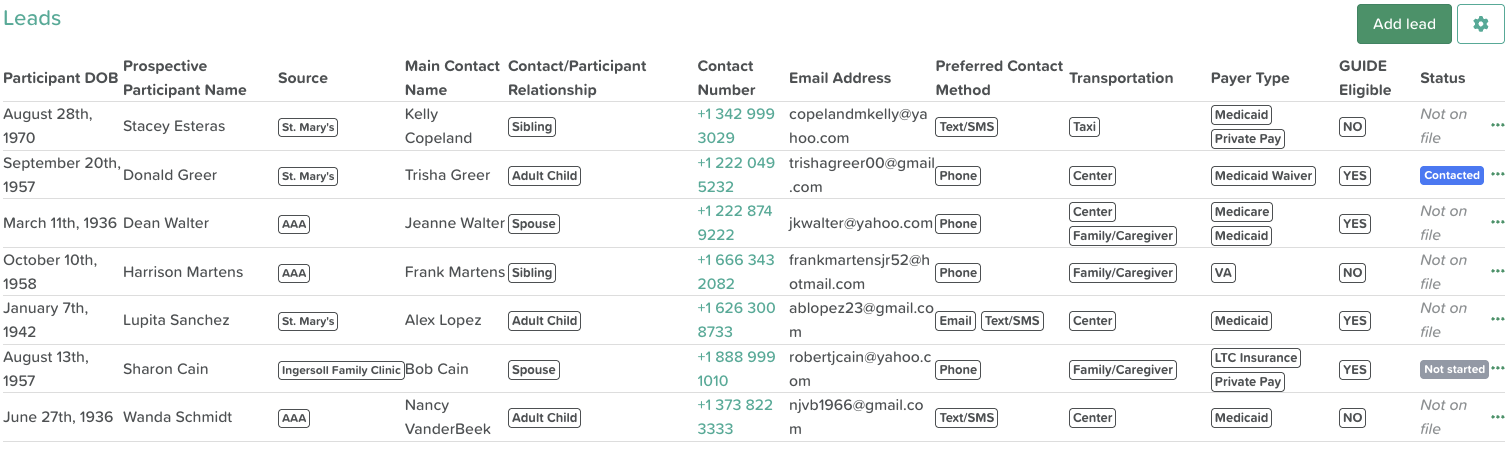
⚠️ By default, the Leads table shows All ongoing leads, meaning new and in-progress leads. Leads that have already been enrolled are hidden. To see them, change the Status filter.
The Leads tab is where you manage individual leads.
How to Add a New Lead
Click the Add Lead button in the upper right corner to create a new lead
Click the pencil icon to enter information into the data field
Click the Save button
How to Customize the Leads Page
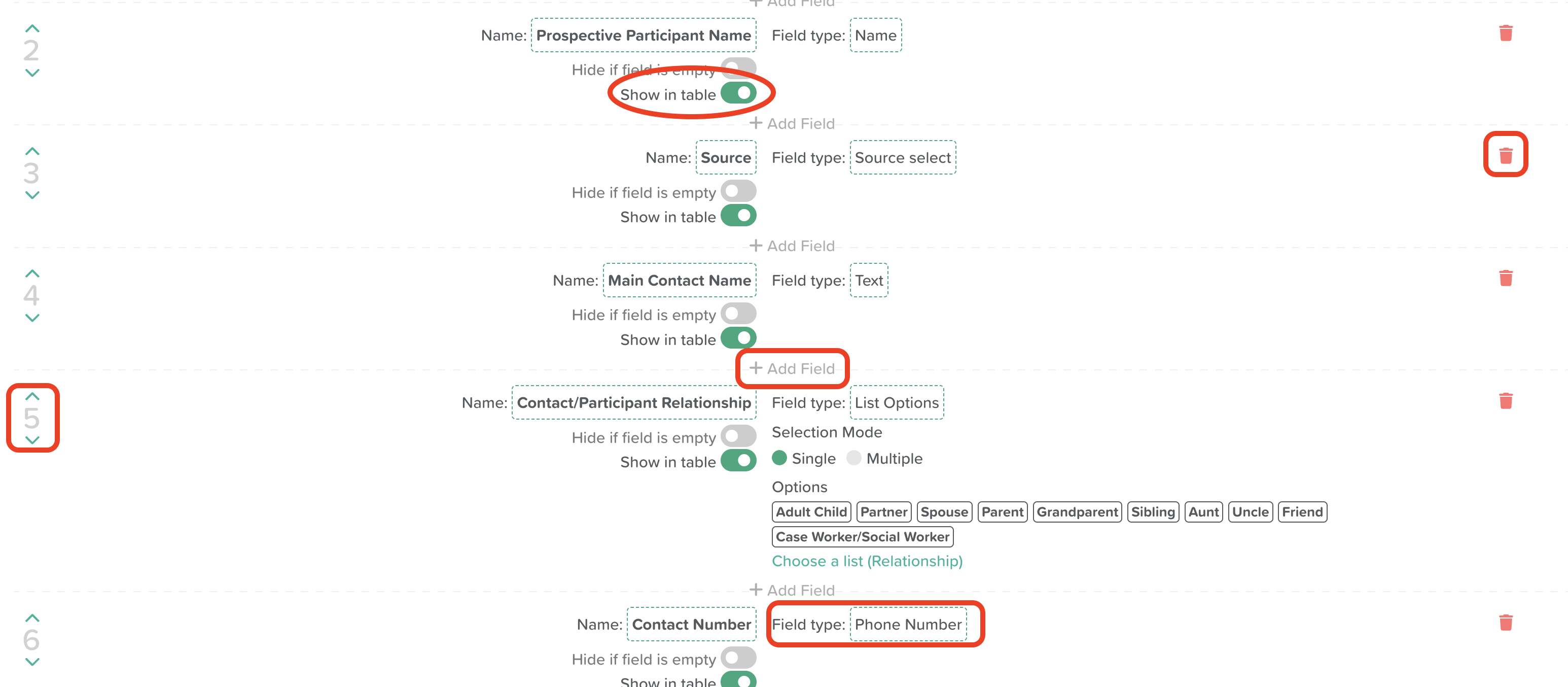
Click the settings wheel icon to access the Leads page settings.
This setup works the same way as the Face Sheet and Staff Records features: you can add and update data fields using a fully customizable template, allowing you to create and track any data point you'd like.
Within these settings, use the Show in Table toggle to designate which fields display in the leads table. Fields not selected will still be available when you click into an individual lead.
Select the relevant Field type
Use the arrows on the side to reorder the fields
Click the trash can icon to delete a field
Click +Add Field anywhere you'd like to create a new field
Search, Sorting & Filter Fields
Choose up to 15 fields to use on the Leads table for Search/Sort. Filter selections do not count towards this limit. For each field, check Sortable to let staff sort and search by it, and Filterable to show it as a filter. Only dropdown (list) fields can be used as filters.
Lead Reference Field
From the dropdown meny, choose which field represents this lead by name (instead of an ID) across history, logs, and notifications.
Customizing Lead States & Statuses
At the bottom of the Lead Settings page you'll find:
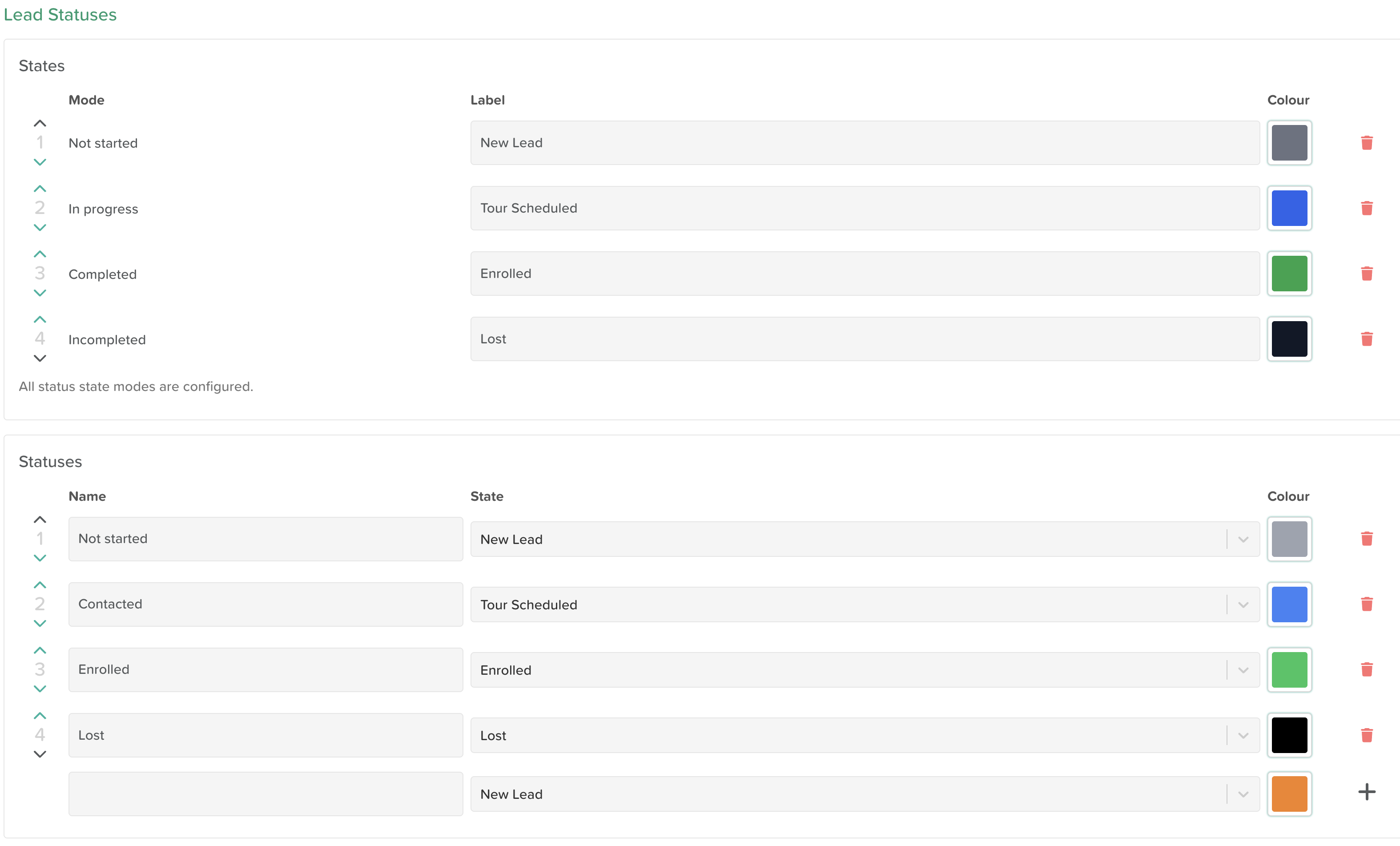
States:
States are the four fixed stages every status must roll up to: Not started, In progress, Completed, and Incomplete. You can rename the label shown to your team for each state (e.g. rename "Completed" to "Enrolled" or "Incomplete" to "Lost") and set a color for it. Use the arrows to reorder, or the trash icon to remove a state.
Statuses:
Statuses are the specific pipeline steps your leads move through (e.g. Inquiry, Assessment Scheduled, Pending Authorization, Admitted). Each status must be mapped to one of the four states above, and can have its own color. Click + Add Status to create a new one, use the arrows to reorder, and the trash icon to delete.
Lead Enrollment
Map which lead fields populate the new participant's Name and Date of Birth when a lead is enrolled and converted into a participant.
Viewing a Lead
When you click on a lead, you'll see all of the information stored for that lead, along with a note box at the bottom where you can log updates and communications.
History tab – shows all updates made to the lead
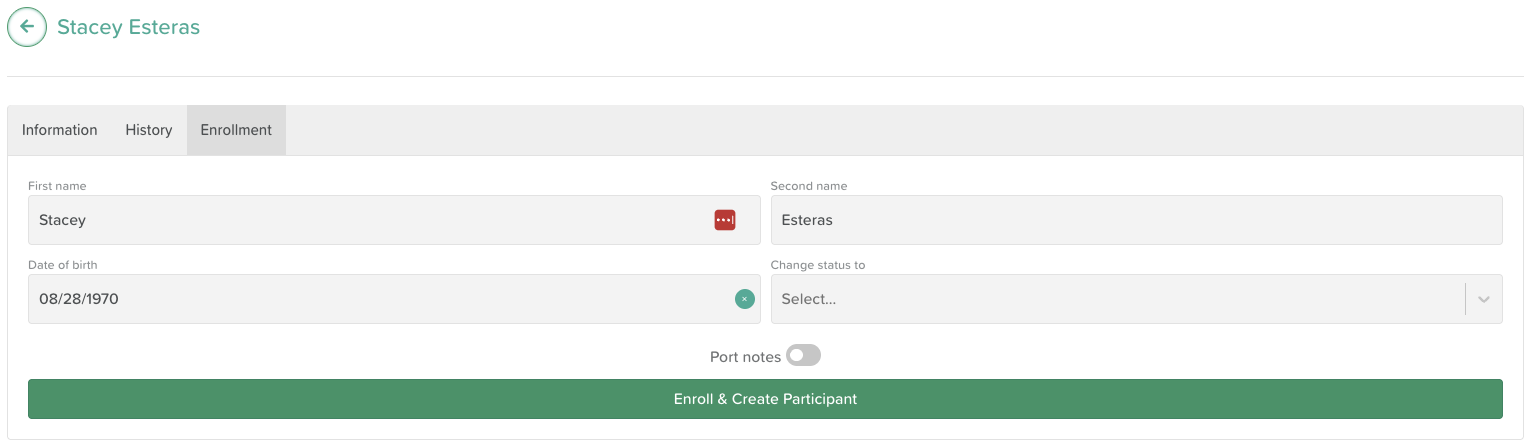
Enrollment tab – allows you to update the lead's name and date of birth, and change their status
Toggle Port Notes on if you want the lead's CRM notes to carry over to their StoriiCare participant profile
Click Enroll and Create Participant to create the participant's profile in StoriiCare
Fields such as Referral Packet support file attachments - click into the field to upload a document, which will appear alongside the lead's notes.
Sources
The Sources tab works similarly to the Leads tab.
How to Add a New Source
Click Add Source to create a new source
Click the pencil icon to enter information into the data field
Click the Save button

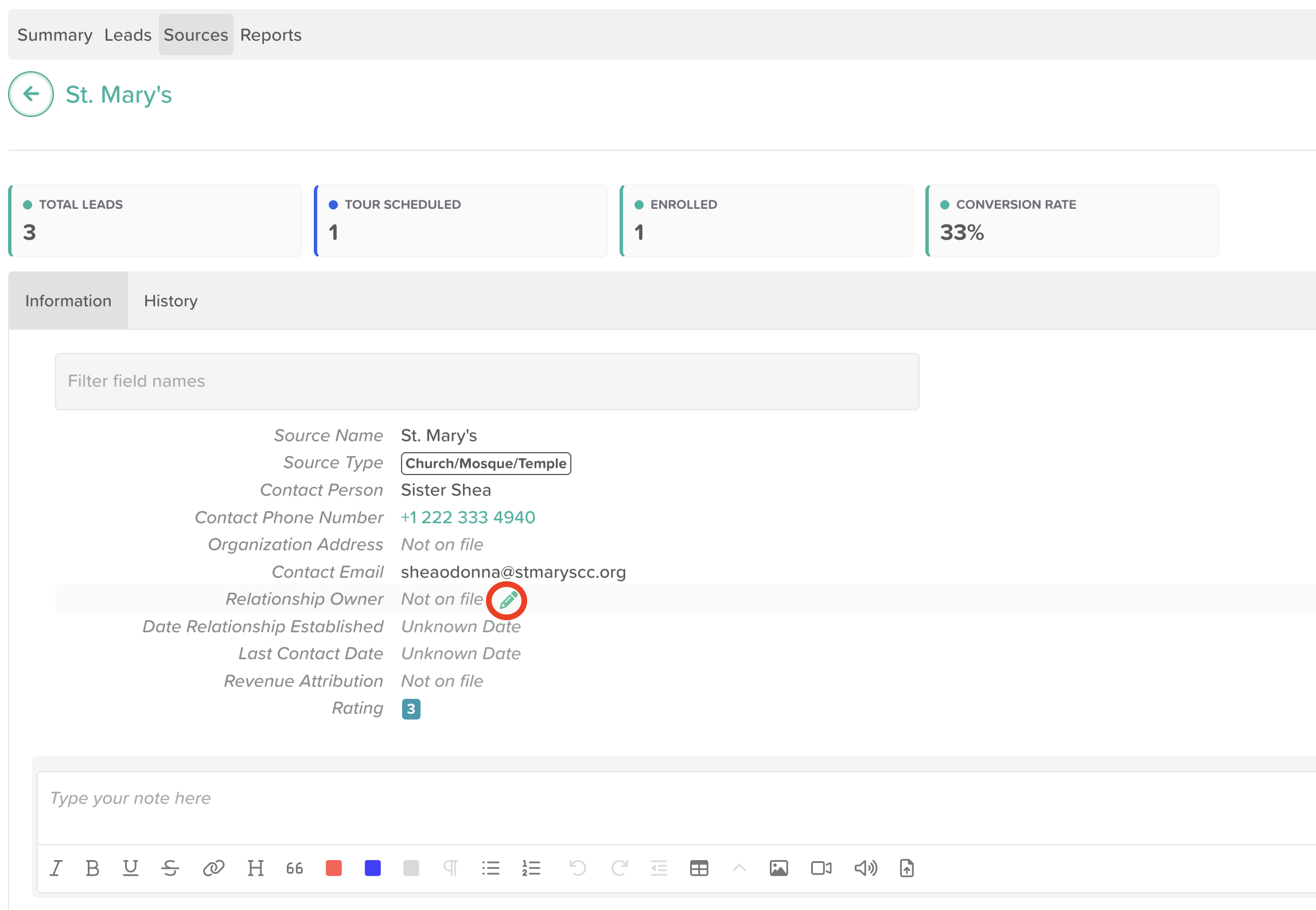
How to Customize the Sources Page
Click the settings wheel icon to access source settings, where you can create and set up your template. As with leads, use the Show in Table toggle to choose which fields appear in the sources table; remaining fields will be available when you click into an individual source.
Viewing a Source
When you click into a source, you'll see:
At the top of the source, you'll see Total Leads, Enrolled, and Conversion Rate for that source.
History tab – shows all updates made for that source
Notes box - for keeping notes on that source
Click on the pencil icon next to any data field to update or add information to a field.
Reports
The Reports tab provides the following reports:
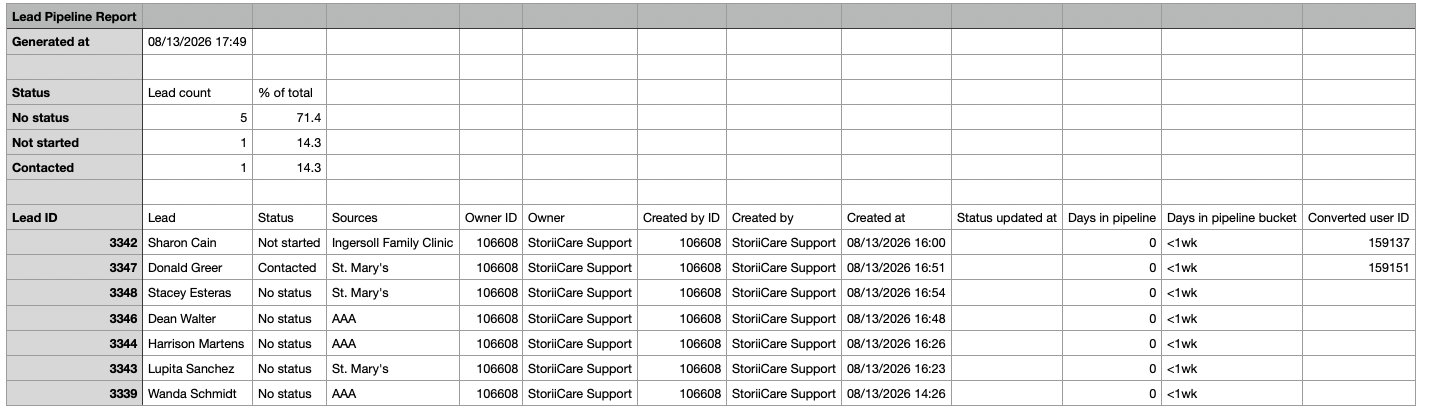
Lead Pipeline - Export lead counts by CRM status plus lead-level rows for pivoting, pipeline aging, and source analysis.
Conversion Rate - Export creation-cohort conversion rates by source and staff, with recent cohorts flagged as still maturing.

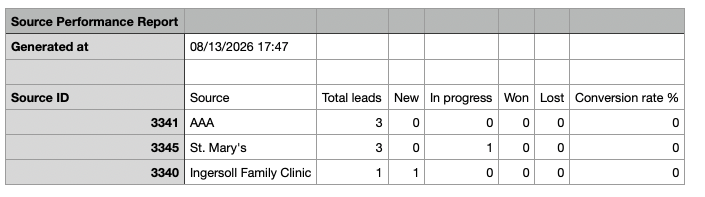
Source Performance - Export source-level lead volume by CRM state mode, with conversion rate for source comparison.
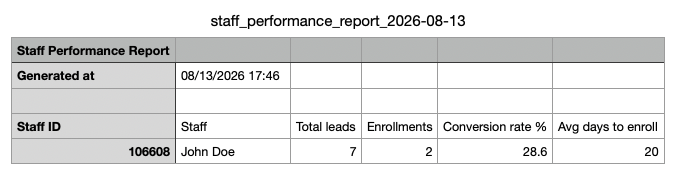
Staff Performance - Export staff lead volume, converted enrollments, conversion rate, and average days to enroll for leaderboard analysis.
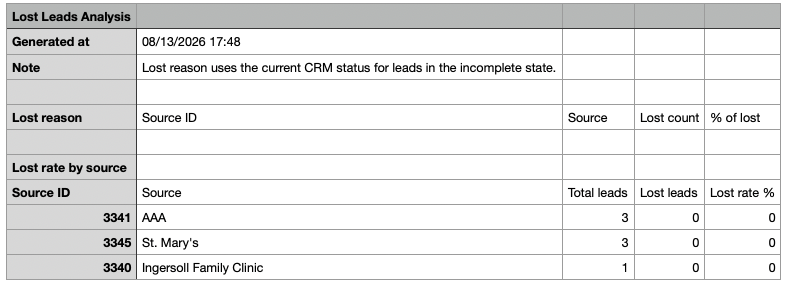
Lost Leads Analysis - Export lost lead reasons by source plus lost-rate by source for Pareto and source risk analysis.
Enrolling a New Participant / Lead Status
When you click on a lead, select the Enrollment tab to make updates to their status.
Change lead status to the relevant status for that participant (e.g. admitted or enrolled)
Toggle Port Notes on if you want the lead's CRM notes to carry over to their StoriiCare participant profile
If you have 'Care Fields' configured, you will be able to identify all the CRM care field datapoints that will be ported into the participant profile.
Click Enroll and Create Participant to create the participant's profile in StoriiCare
The participant profile will automatically be created, porting all relevant CRM data, viewable on the participants tab.
Need More Help?
Please contact us at support@storii.com