
How to Export a Driver's Manifest (Transport Schedule)
The Driver Manifest export generates a printable PDF that drivers can use to track pickups and drop-offs for scheduled transportation. This article explains how to access the export, configure which fields appear on the manifest, and what to expect in the final PDF.
Accessing the Driver Manifest Export
There are two ways to find this export:
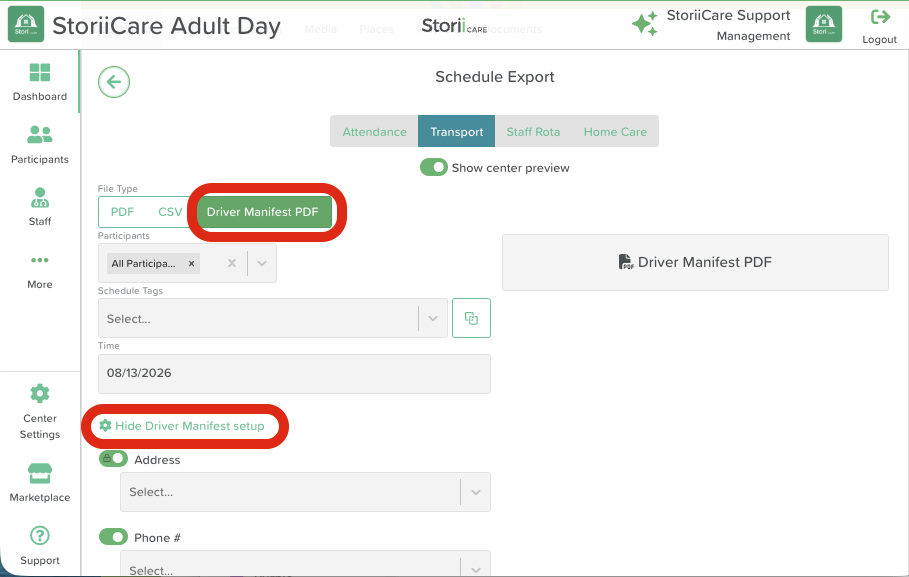
From the Schedule feature: Click the Export button, select Schedule Export, click the Transport tab, and select Driver Manifest PDF as the File Type.
From the Dashboard: Click the Exports feature, select the Schedule export, click the Transport tab, and select Driver Manifest PDF as the File Type.
Configuring the Export
Once you have selected Driver Manifest PDF as the File Type, you can configure the following fields:
Participants: Choose All Participants or select specific participants to include on the manifest.
Schedule Tags: Filter the export by specific schedule tags, if applicable.
Time: Select the date for which you want to generate the manifest.
Show Center Preview: Toggle this on to include your business information at the top of the export.
Driver Manifest Setup
Click Show Driver Manifest Setup to configure which Face Sheet fields pull through to the PDF export. You may want to consider adding additional fields to your Face Sheet if it doesn't include these already.
You can toggle the following fields on or off:
Address
Phone #
Pickup Instructions: Information on preferences, pets on premises, parking instructions, etc.
Accessibility: Information such as mobility or equipment needs.
Shift: Pulls through the pickup and drop-off windows from the Transport Schedule.
Toggling on Shift will pull through the scheduled pickup and drop-off windows from the Transport Schedule. This is different from the actual pickup and drop-off times, which are recorded manually.
Once you have selected your settings, click Save to generate the export.
Using the Driver Manifest PDF
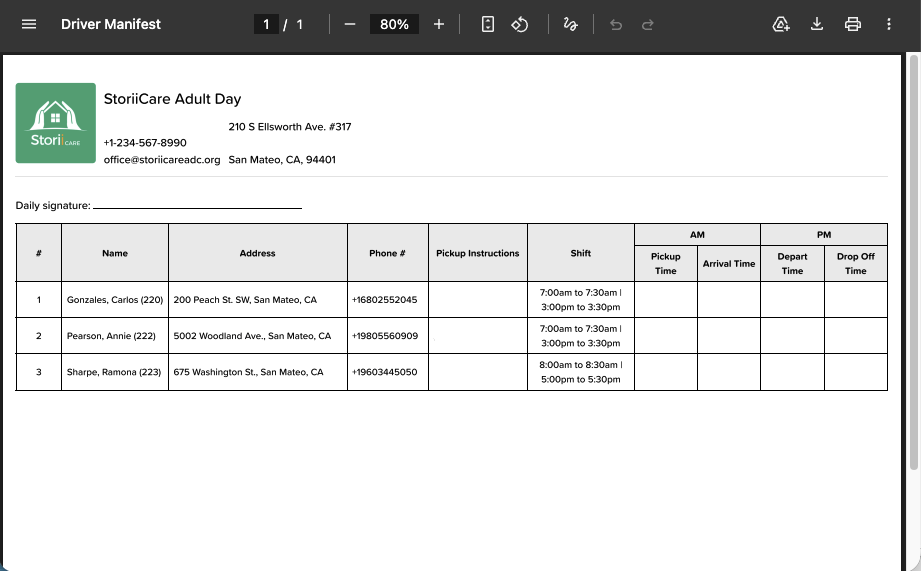
The completed Driver Manifest PDF lists each participant along with the fields you selected during setup, including Name, Address, Phone #, Pickup Instructions, and Shift.
The AM and PM columns (Pickup Time, Arrival Time, Depart Time, and Drop Off Time) are intentionally left blank in the export. These are meant to be filled in manually by the driver as each pickup and drop-off occurs, providing a record of actual transportation times alongside the scheduled windows.
Need More Help?
Please contact us at support@storii.com