
How to Make Bulk Edits to a Schedule
There are times when you need to update multiple schedule entries at once, such as when a public holiday or center closure affects an entire day, or when a group of participants will not be attending on a specific date. Rather than editing each entry individually, StoriiCare allows users to bulk cancel or delete schedule entries directly from any Schedule tab.
This article walks through how to use the Multi Select feature to make bulk edits to your schedule.
When to Use Bulk Edits
Bulk editing is useful in situations such as:
A public holiday or center closure that affects all scheduled entries for a given day
A need to remove a group of participants who are not attending on a specific day
Any other situation where multiple schedule entries need to be canceled or deleted at once
This functionality is available on the Attendance, Staff Rota, Transportation, and Home Care Schedule tabs.
How to Bulk Cancel or Delete Schedule Entries
To make bulk edits to a schedule:
Open the Schedule feature from the Dashboard.
Select the Schedule tab you want to edit (Attendance, Staff Rota, Transportation, or Home Care).
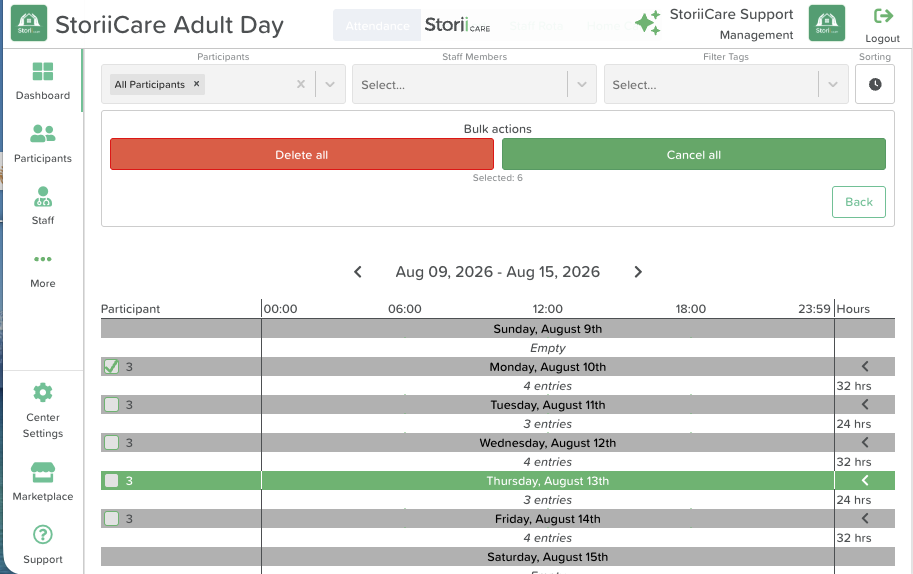
Click the Multi Select button.
Check the box at the top of a day to select all entries for that day, or expand the day view to select individual participant entries.

Once your entries are selected, choose either:
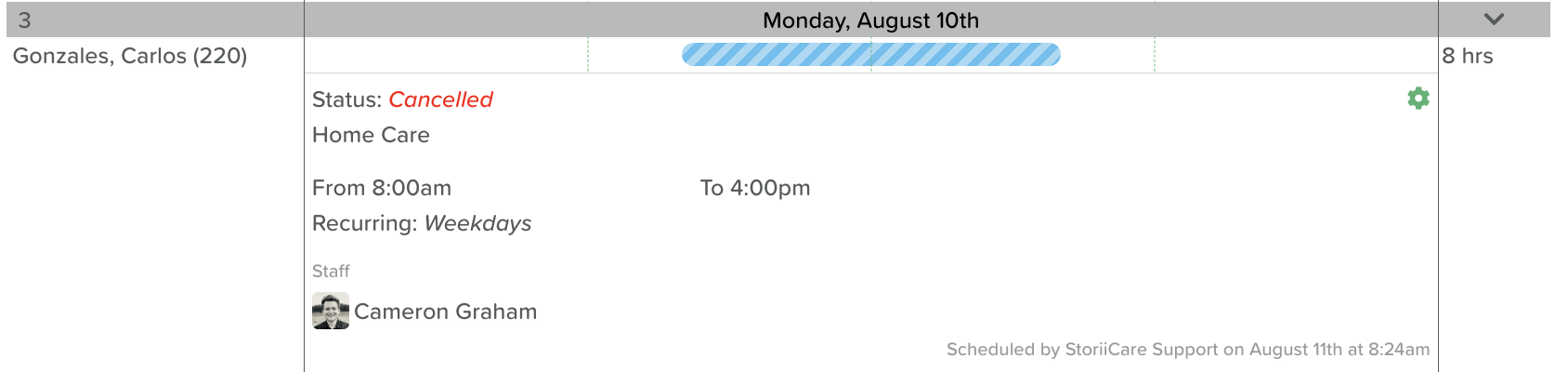
Cancel All – Canceled entries remain visible on the schedule but appear with a dashed line through the schedule bar and red text indicating the cancellation.
Delete All – Removes the selected entries from the schedule entirely.
Confirming Your Changes
After selecting Cancel All or Delete All, a confirmation pop-up will appear:
Are you sure you want to cancel these Scheduled entries? This will cancel the corresponding Arrival and Leaving windows as well. This action cannot be undone.
Recurring Schedule Entries
If any of the selected entries are part of a recurring schedule, the pop-up will also display the following message:
There are some recurring Scheduled entries!
You will have the option to check a box to cancel all future recurrences of the schedule as well. In most cases, you will not want to check this box, since it will cancel the schedule going forward rather than for the selected day only.
Need More Help?
Please contact us at support@storii.com