
How to Use the eMAR Dashboard
StoriiCare's eMAR Dashboard gives staff a business-level view of daily medication activity. It helps teams see which participants have medication scheduled, what's coming next, what's overdue, and how much of the day's medication work has been completed — all from one screen, without opening each profile individually.
The eMAR feature is currently in Beta, so there will be ongoing updates and improvements. Your feedback is encouraged.
Before You Begin
Confirm eMAR is enabled for your organization.
Ask an administrator to confirm your staff permission level has at least Add/Save access to eMAR.
If you need to export from the Dashboard, you will need at least Read access to Exports.
You cannot add, edit, or delete medication, or mark tasks complete, from the eMAR Dashboard itself. It's a live view of current, upcoming, and overdue tasks. To take any action, click into a participant's card, which opens their personal eMAR.
eMAR Dashboard Layout
From the main StoriiCare Dashboard, find the eMAR tile.
Click eMAR.
The eMAR Dashboard will open, showing today's summary cards and the service-user list.
Header
Use the back arrow to return to the main Dashboard.
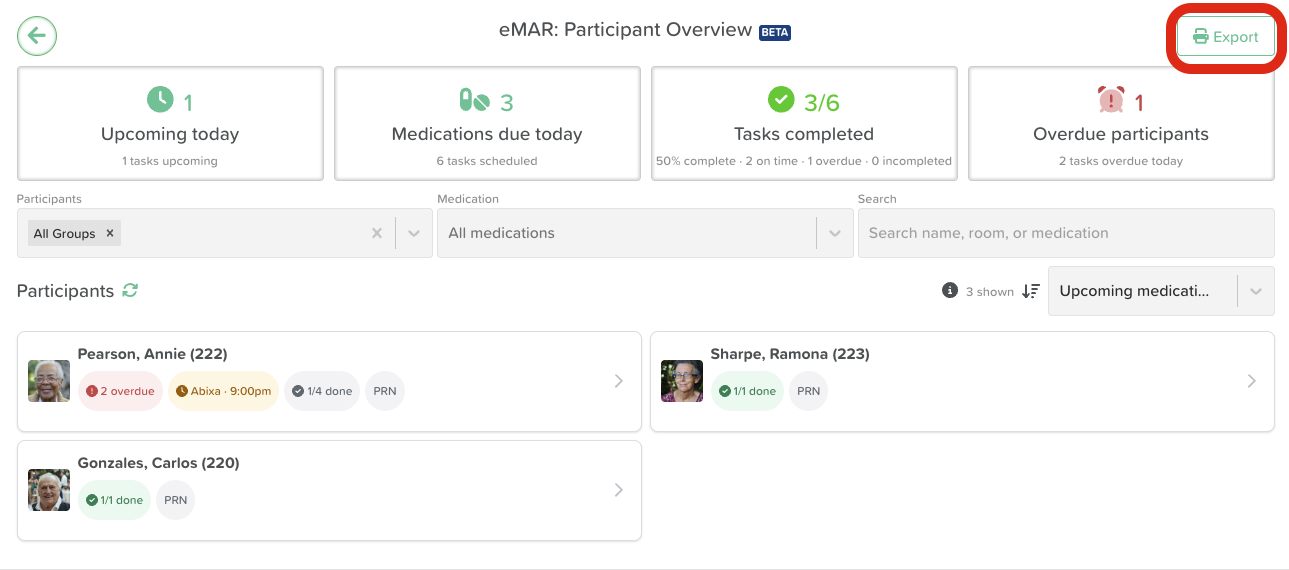
Select Export (top right) to open the eMAR Overview Export setup. This is hidden if you don't have Exports Read access.
Summary cards

Four cards summarize today's activity:
Upcoming today — number of participants with at least one future medication task today, and how many tasks are still upcoming.
Medications due today — number of participants with one or more medication tasks scheduled today, and the total number of today's scheduled tasks.
Tasks completed — completed tasks as a share of all scheduled tasks, with a breakdown of on-time, overdue, and incomplete tasks.
Overdue residents — number of participants with overdue, incomplete medication today, and the total number of overdue tasks.
Selecting a summary card filters the participant list to match. Select it again to clear the filter and return to the full list.
Filters

Residents — select one or more individual participants or groups. Clearing the selection returns to All Groups.
Medication — select one or more medications to narrow the list to participants with matching tasks.
Search — search by name, room, or medication. Search works alongside the other filters.
Ordering
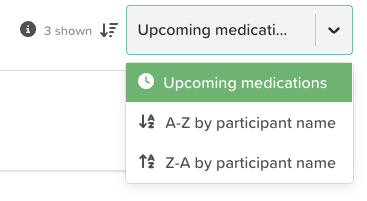
Use the sort dropdown beside the participant count to choose:
Upcoming medications (default) — overdue tasks first, then upcoming, then completed.
A–Z by name
Z–A by name
What a Participant-User Card Shows

Each card can display:
Profile picture and name. Room number also displays here if Show room after name is enabled in Center Settings > Account.
Overdue badge — number of today's medication tasks that are overdue and incomplete.
Next medication badge — the medication name and its scheduled time (for example, "Abixa · 9:00pm"). Dosage is not shown on the badge; click into the card to see full medication details.
Completed/total badge — how many of today's scheduled tasks are completed out of the total due today. Turns green when all scheduled tasks are complete.
PRN badge — shown when the participant has an active PRN ("as needed") medication.
Selecting anywhere on a card opens that participant's personal eMAR, where standard medications can be marked complete or incomplete and PRN medications can be added.
Use the back arrow from an individual eMAR to return to the general Dashboard overview.
eMAR Overview Export
The eMAR Overview Export is separate from the existing MAR Bulk Export (Dashboard > Exports > MAR Export). It produces a Daily Medication Administration Record report for a chosen date and participant group, directly from the eMAR Dashboard.
How to export
Select Export from the eMAR Dashboard header.
Choose the Date for the report.
Select one or more Residents or groups.
Choose the Ordering: Upcoming medications, A–Z, or Z–A.
Select the eMAR Overview tile. A loading tab opens while the PDF is prepared, then redirects to the completed report.
What the export contains
The report is titled "Daily Medication Administration Record," with the selected date and business name, followed by a summary (residents, tasks scheduled, tasks overdue, tasks completed) and a medication table:
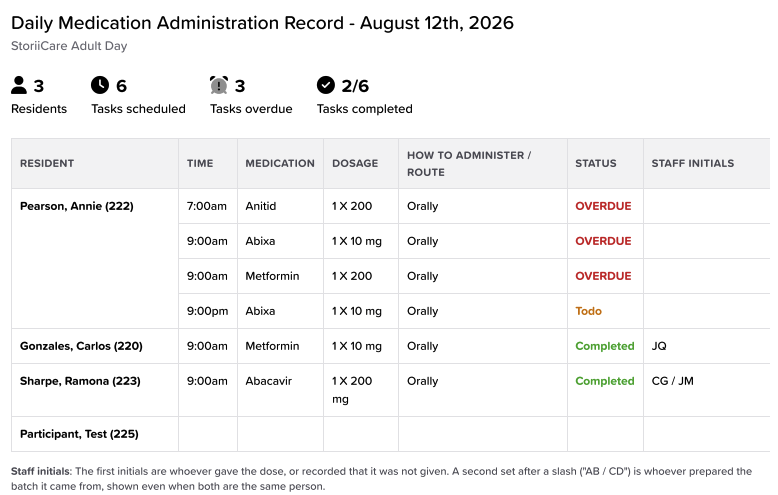
A legend at the bottom explains the Staff Initials format: the first set of initials belongs to whoever gave the dose (or recorded it as not given); a second set after a slash (for example, "AB / CD") shows who prepared the batch, if inventory tracking is used.
Protect confidential information: this export contains participant and medication data. Save, print, share, and dispose of it only through your organisation's approved secure processes.
Need More Help?
Please contact us at support@storii.com