
How to Use Visit Note Templates
Visit Note templates help streamline documentation, improve consistency across staff, and ensure that every visit from a third-party health professional is recorded in a complete, comparable way. Because Visit Notes cover many different practitioner types (Social Worker, Podiatrist, Physical Therapist, Dentist, Dietician, etc.) templates are especially valuable here: each category has its own clinical focus, and a single generic note format won't capture what matters for a wound check the same way it captures what matters for a dental visit.
Templates can include structured fields, prompts, headings, or pre-formatted content using StoriiCare's rich text editor.
This guide explains how to enable templates, build category-specific templates for third-party practitioners, and use them when recording a Visit Note.
Step 1: Make Sure Templates Are Enabled
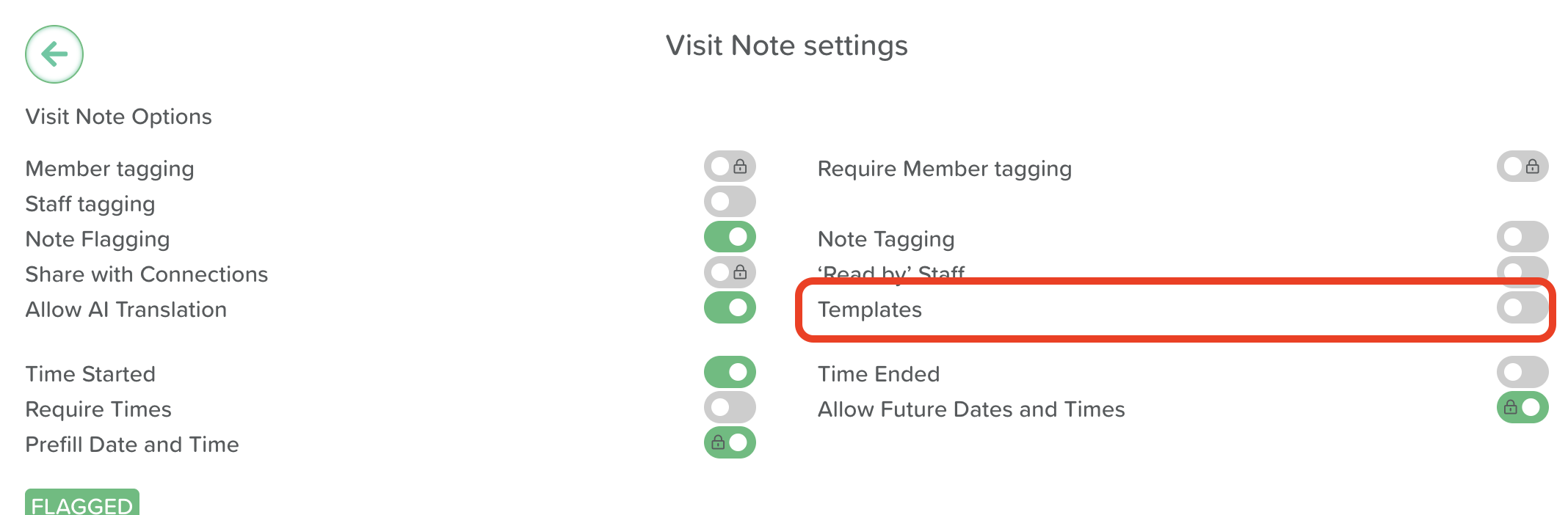
Before using templates, confirm that the Templates option is switched on in Visit Notes settings.
How to check:
Go to Visit Notes (accessible from the StoriiCare Dashboard or a Participant Profile).
Click the settings wheel/cog icon to open Visit Notes Settings (only visible to users with permissions).
Toggle on the Templates setting.
If this setting is off, staff will not see the template icon when writing notes.
Step 2: Create or Edit a Template for Each Practitioner Category
To use templates, at least one must be created. Administrators or permitted users can set these up from the same settings menu. Because Visit Notes serve many different professional categories, it's best practice to build a separate template for each category of third-party practitioner, rather than one generic template for all visits.
How to create a new template:
Open Visit Notes Settings.
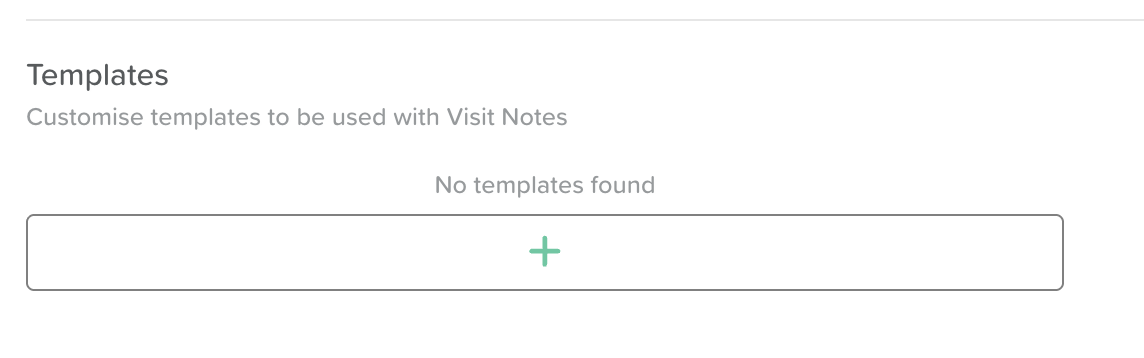
Scroll to the Templates section.
Click + Add Template.
Enter a title that matches the practitioner category (e.g., District Nurse Visit, Podiatry Assessment, Dental Visit, Social Worker Check-In).
(Optional) Add a description so staff know exactly when to use it (e.g., "Use for all scheduled and unscheduled nursing visits, including wound care and medication review").
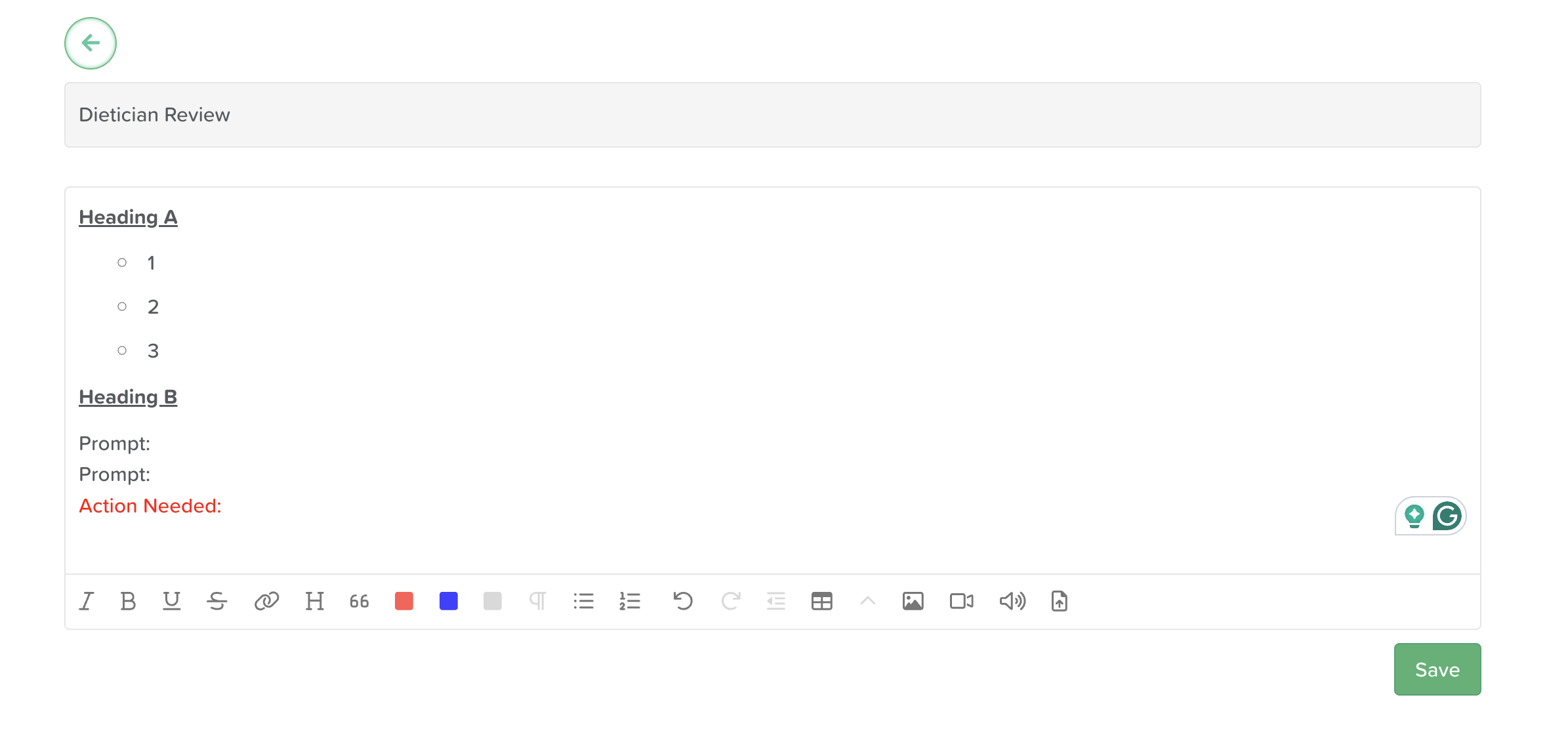
Use the rich text editor to build your template structure. You can include:
Prompts or questions specific to that practitioner type
Headings that mirror the professional's typical assessment flow
Checklists or bullet lists
Color-coded sections to flag urgent follow-up items
Embedded images, links, or files (e.g., a wound photo or referral form)
When finished, click Save.
Your template will now be available for staff to select when composing a new Visit Note for that practitioner category.
Setting Up Category-Specific Prompts and Headings
The value of Visit Note templates comes from tailoring the prompts to what each practitioner actually assesses. A few examples to guide template design:
Social Worker Visit
Reason for referral / presenting concern
Psychosocial observations (mood, family involvement, housing/financial concerns)
Safeguarding flag (Yes/No — with detail field if Yes)
Referrals made to outside agencies
Recommended follow-up timeline
Podiatrist Visit
Foot assessment (skin condition, circulation, sensation)
Treatment performed (nail care, callus removal, orthotics)
Footwear recommendations
Diabetic foot risk rating (if applicable)
Recommended interval to next visit
Physical/Occupational Therapist Visit
Functional assessment (mobility, transfers, ADLs)
Interventions/exercises performed
Equipment recommended
Progress toward existing goals
Fall risk reassessment
Dentist Visit
Oral exam findings
Procedures performed
Denture fit/condition
Dietary implications (e.g., soft food required)
Follow-up treatment plan
Nutritionist/Dietitian Visit
Weight trend review
Nutritional risk screening result
Dietary modifications recommended
Staff instructions for meal prep or monitoring
Every category template should end with a consistent closing section, regardless of practitioner type:
Action for care staff (required field, even if "None") — what staff need to do differently as a result of this visit
Next visit — scheduled date, or criteria for "as needed"
Standardizing this closing section across all categories makes it far easier to scan a participant's record and quickly see what follow-up is outstanding, no matter which practitioner the note came from.
Step 3: Load a Template When Writing a Note
Templates do not appear automatically when you start writing a Visit Note. Staff must manually choose to load the correct one for the practitioner category involved.
How to load a template:
Go to Visit Notes.
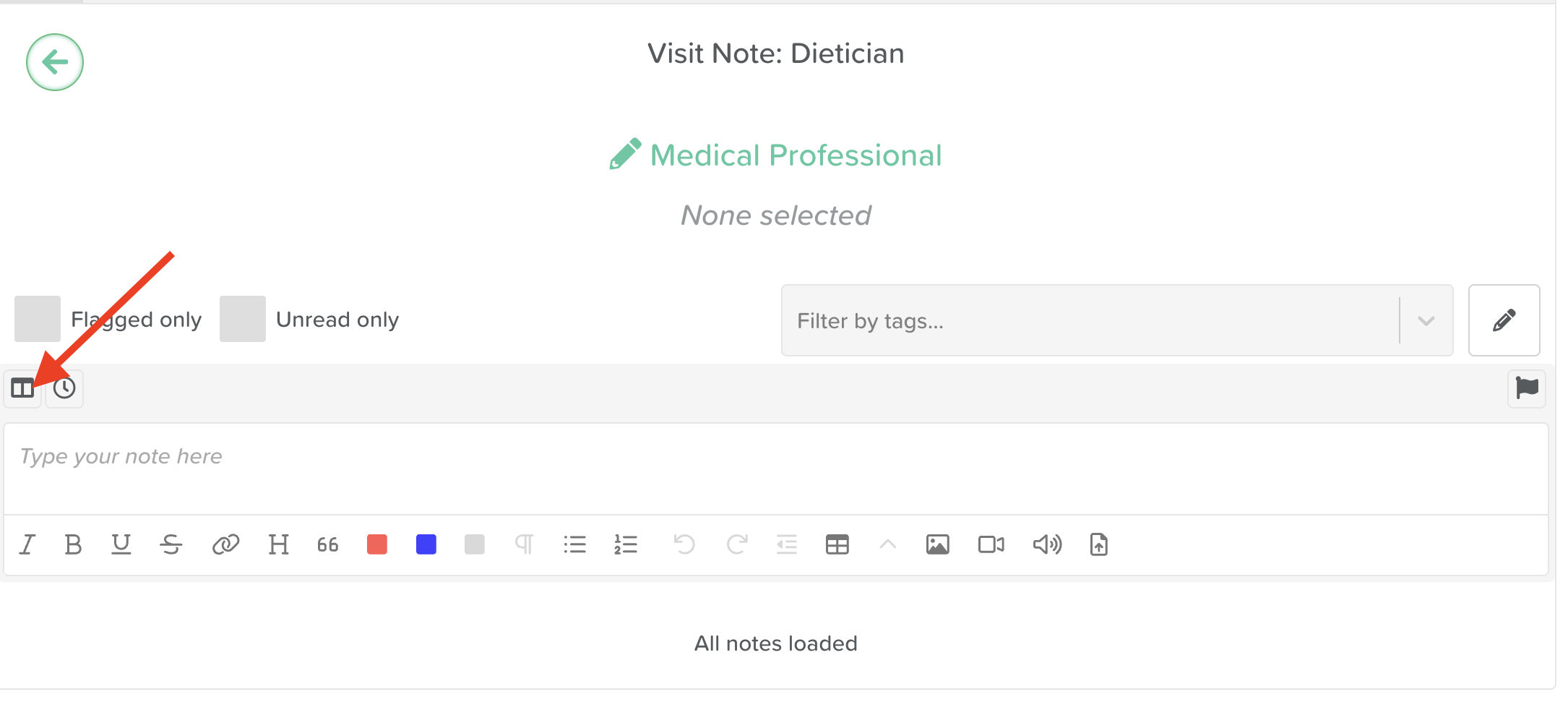
Look for the template icon (located next to the participant-tagging profile icon).
Click the icon to open the list of available templates.
Select the template matching the visiting practitioner's category (e.g., Podiatry Assessment for a podiatrist visit).
The template will appear in the note editor, ready for staff to complete or expand upon.
Step 4: Complete and Save the Note
Once the template has loaded:
Fill in the necessary information under each prompt or heading.
Tag the relevant participant(s).
Add files, images, or formatting as needed (e.g., a wound photo, a signed referral).
Click Save.
Your completed Visit Note will now be saved to the participant's record, organized under the correct practitioner category.
Best Practices for Using Visit Note Templates
Build one template per practitioner category rather than a single generic template — this ensures staff capture what's actually clinically relevant for each type of visit.
Keep prompts clear and concise—they should guide staff through what to document, not overwhelm them.
Align terminology with your care plan structure, so a recommendation made during a visit (e.g., a mobility change from a PT) maps cleanly to the categories already used in the participant's care plan.
Review and update templates periodically to reflect new policies, regulatory requirements, or documentation standards for each practitioner type.
Train new staff on which template to load for which visit type, to ensure uniform documentation across the whole team.
Need More Help?
If you need further assistance, you can reach out to our support team by emailing support@storii.com. Our support team is ready to help you with any questions or issues you may have.