
How to Edit a List in a Form
Dropdown menus in forms pull from Lists. Lists can be updated and edited through the Form Builder.
Updating a List in a Form
If you need to add or edit the list that appears in a dropdown menu:
Go to Form Builder and open the relevant form template
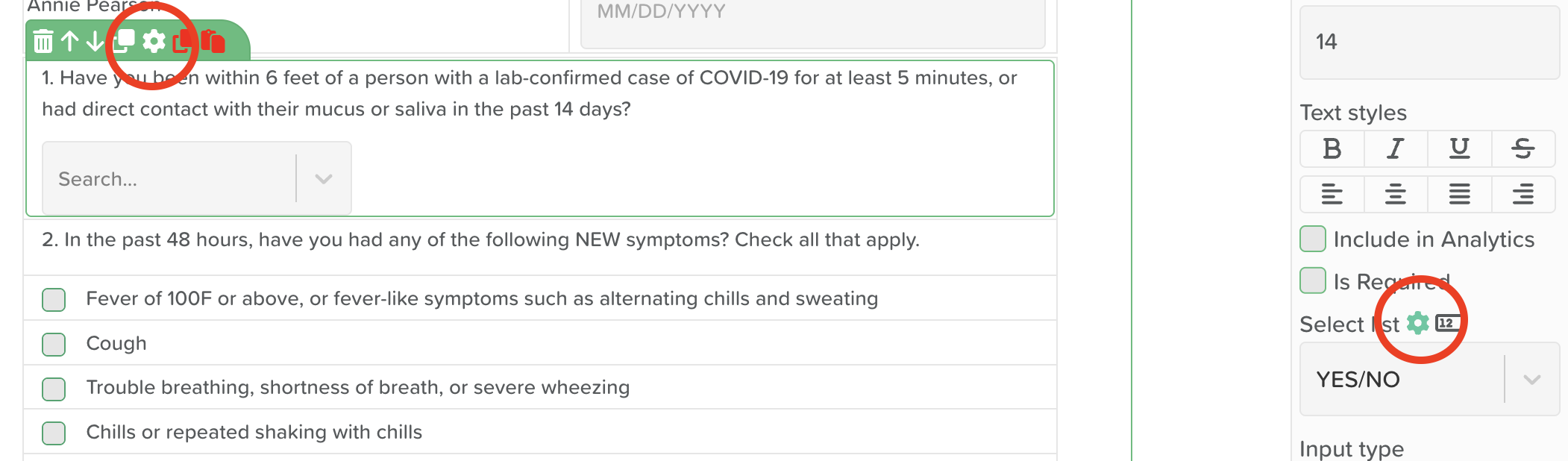
Locate the dropdown field whose list you want to update
Click the settings wheel icon to open the side panel
Click the settings wheel icon next to Select List to bring up the list of lists (the currently selected list will be highlighted at the top)
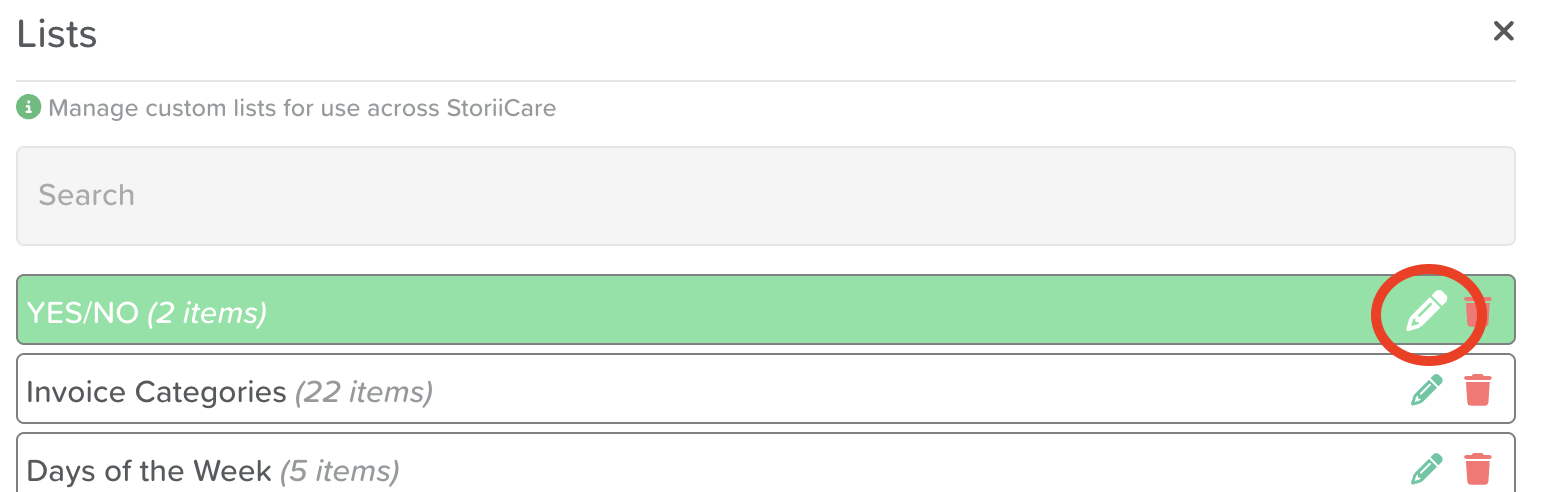
Click the pencil icon to edit it
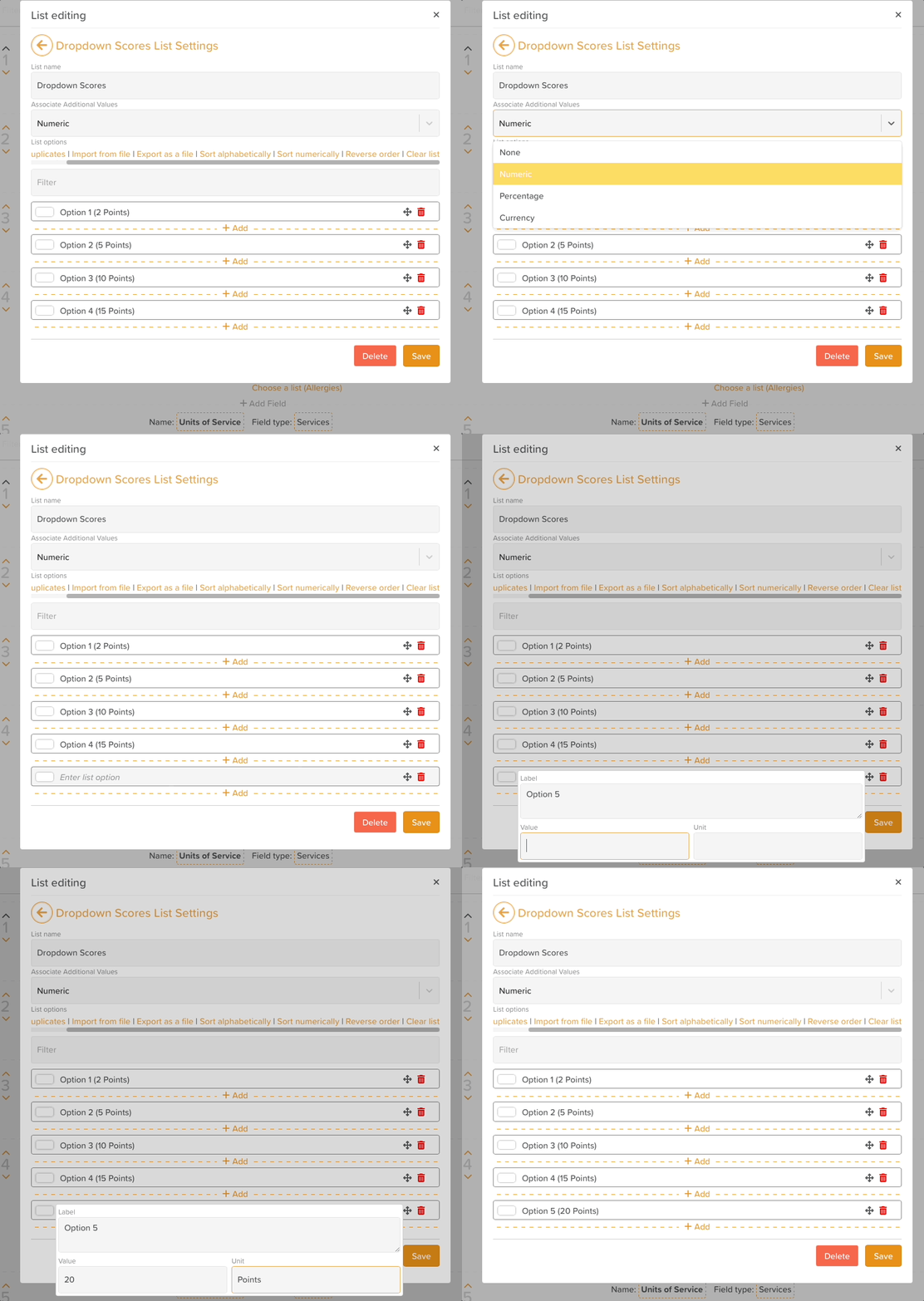
Click Add to add a new option, repeating as needed
Click Save once you're finished to update the list
List Editing Options
Once in the List editing view, users can use the List options menu to:
Remove duplicates from the list
Import from file: This allows you to import a spreadsheet of list options
Export as a file: This allows you to export a CSV file of the current list
Sort alphabetically
Sort numerically (if numbers are present)
Reverse order: If you want the list to be sorted in reverse alphabetical or numeric order
Clear list: Removes all list options
To remove an option from the list, click on the trash bin icon.
To re-order the list using the drag and drop method, click on the cross arrows to move the list item up and down.
Point Values in Lists
Users have the ability to assign values to any list on StoriiCare. These values can be Numeric, Percentage, or Currency based. This makes lists more useful across many of StoriiCare's features, allowing you to save any datapoint that has a secondary value or unit alongside the list option itself.
Key use cases include:
Saving multiple tax rates or fee rates as a list (e.g. Service Fee ($100), Sales Tax (9.25%), or VAT (20%))
Assigning points to dropdown lists in Form Builder, for use with the Matrix Calculator (detailed below)
When choosing Currency as a list value type, the currency will default to the currency set in your StoriiCare business settings.
Adding Point Values to a List
Open the list you want to edit
Under Associate Additional Values, select the value type you want to use: Numeric, Percentage, or Currency
Click Add below any existing option to create a new list item
Enter a Label for the option (this is what users will see in the dropdown)
Enter the corresponding Value
If applicable, enter a Unit (e.g. "Points") to display alongside the value
Repeat for each option you want to add
Click Save once you're finished
Using Point Values with the Matrix Calculator
Previously, calculating a score with the Form Builder Matrix Calculator required using checkboxes or radio buttons to tally points. Dropdowns can now be used for matrix calculations as well, which often saves significant screen space on forms.
To set this up:
Create or edit a dropdown list and associate additional values with it (Numeric, Percentage, or Currency), as described above
Add this dropdown list to your form in Form Builder
Drag a Matrix Calculator component into the Form Canvas
The Matrix Calculator will automatically tally the values associated with the selected dropdown options
Need More Help?
If you need further assistance, you can reach out to our support team by emailing support@storii.com