
How to Edit a List in the Face Sheet
Face Sheet fields configured as dropdown menus pull from Lists, which can be edited and updated through the Face Sheet template settings.
Updating a List in the Face Sheet
If you need to add or edit the list that appears in a dropdown menu:
Navigate to a participant's profile and select the Face Sheet
Click the settings wheel icon at the top of the page to open Face Sheet Settings
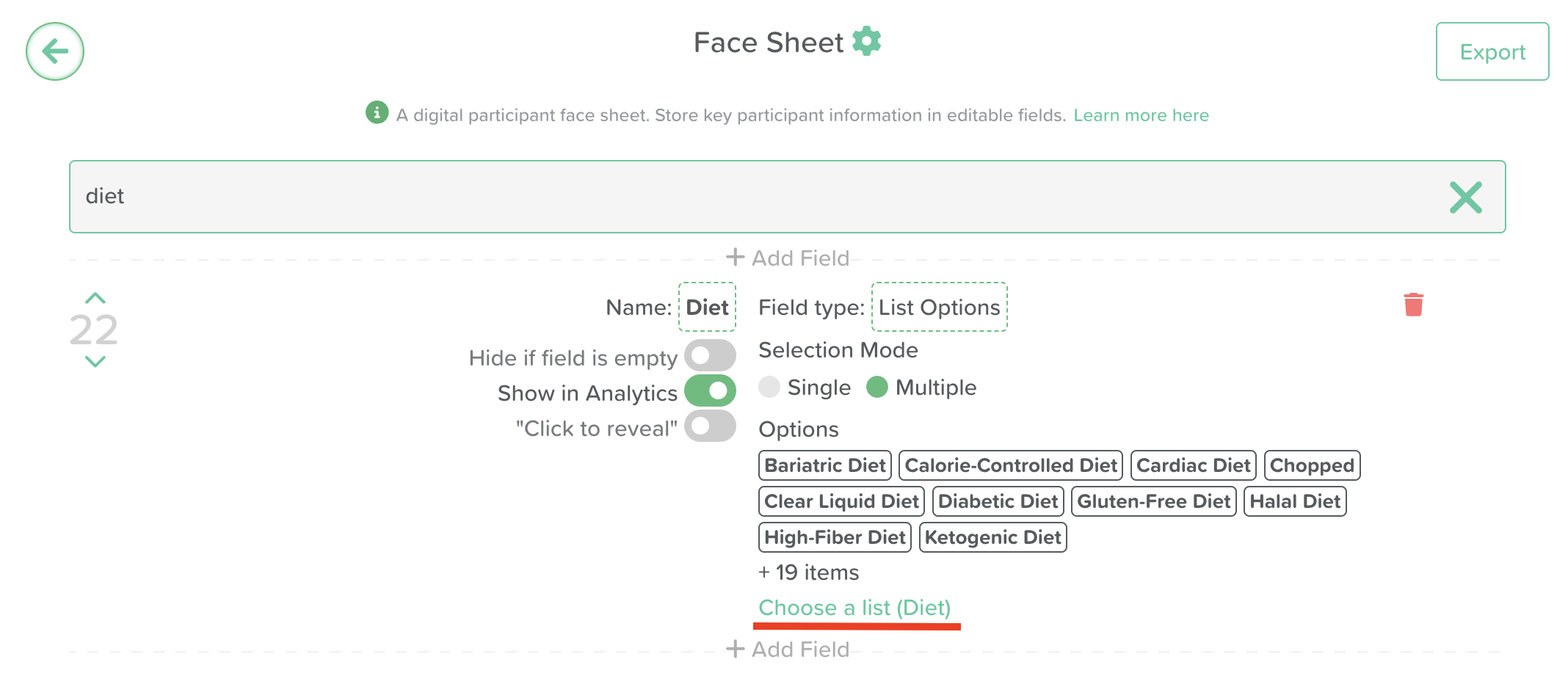
Search for the field containing the list you want to update
Click Choose a List to open the list of lists
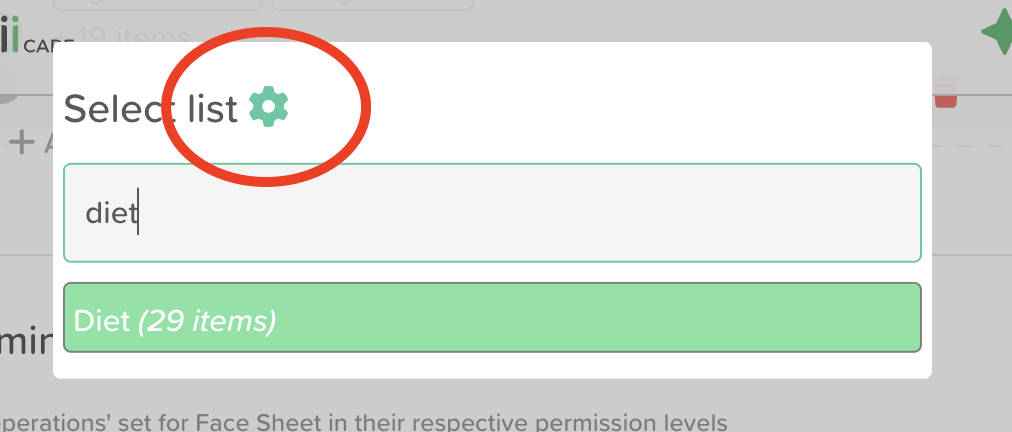
Click the settings wheel icon next to Select List
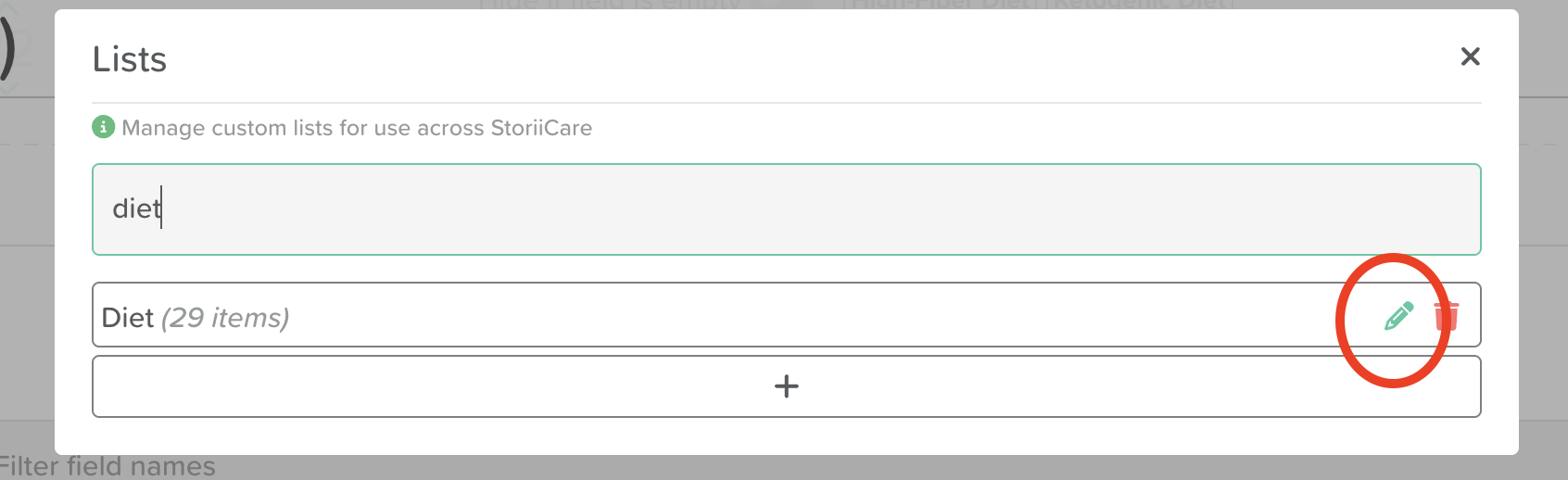
Search for the specific list you want to edit, then click the pencil icon to open it
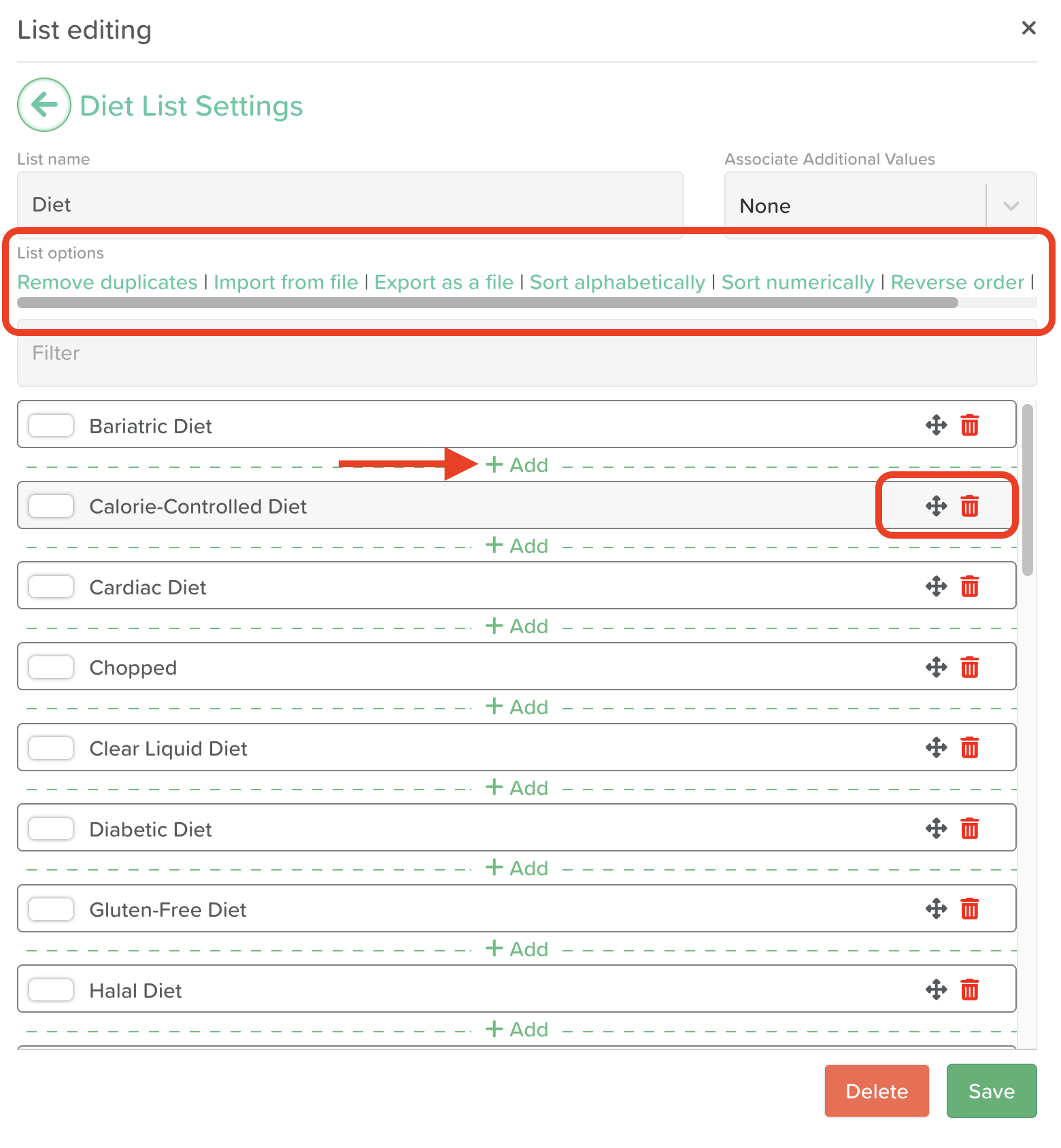
Click Add to add a new option, repeating as needed
Click Save once you're finished to update the list
List Editing Options
Once in the List editing view, users can use the List options menu to:
Remove duplicates from the list
Import from file: This allows you to import a spreadsheet of list options
Export as a file: This allows you to export a CSV file of the current list
Sort alphabetically
Sort numerically (if numbers are present)
Reverse order: If you want the list to be sorted in reverse alphabetical or numeric order
Clear list: Removes all list options
To remove an option from the list, click on the trash bin icon.
To re-order the list using the drag and drop method, click on the cross arrows to move the list item up and down.
Need More Help?
If you need further assistance, you can reach out to our support team by emailing support@storii.com.