
How to Use Care Plan Linked Properties in Forms
StoriiCare's Form Builder allows you to pull Care Plan fields directly into a form template using the Linked Property component. This means staff can view and update Care Plan entries without leaving a form, and any changes made during form completion will sync back to the resident's Care Plan automatically.
Setting Up a Care Plan Linked Property
Open Form Builder from the main navigation
Create a new form template or click on an existing one to edit it
From the left-hand toolbar, drag the Linked Property component onto the form canvas
Click the settings wheel icon that appears when the component is selected
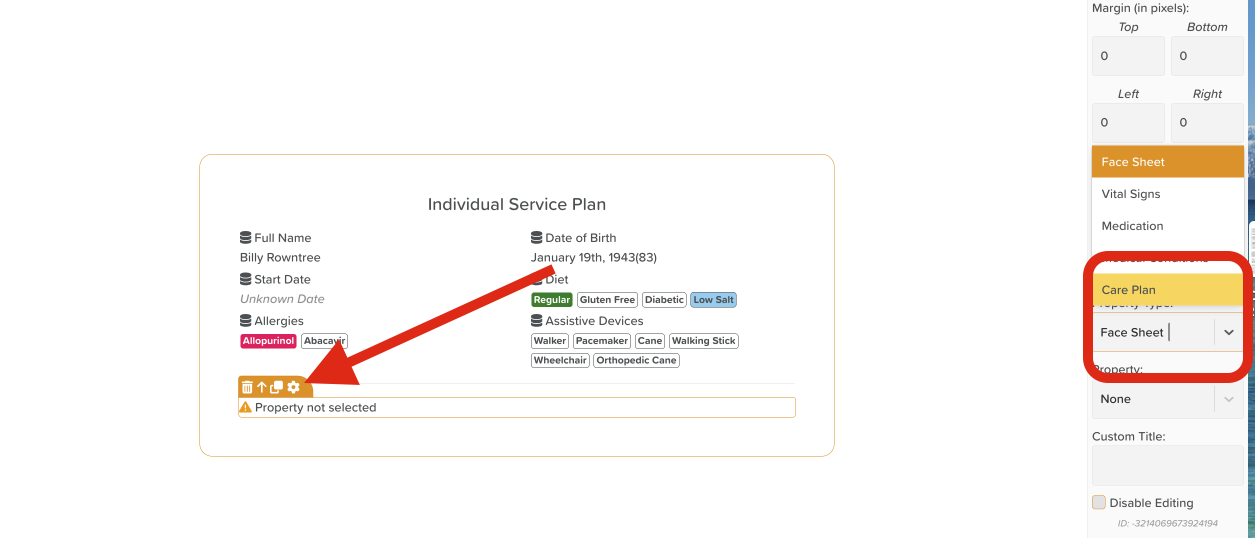
In the settings panel on the right, set the Property Type to Care Plan
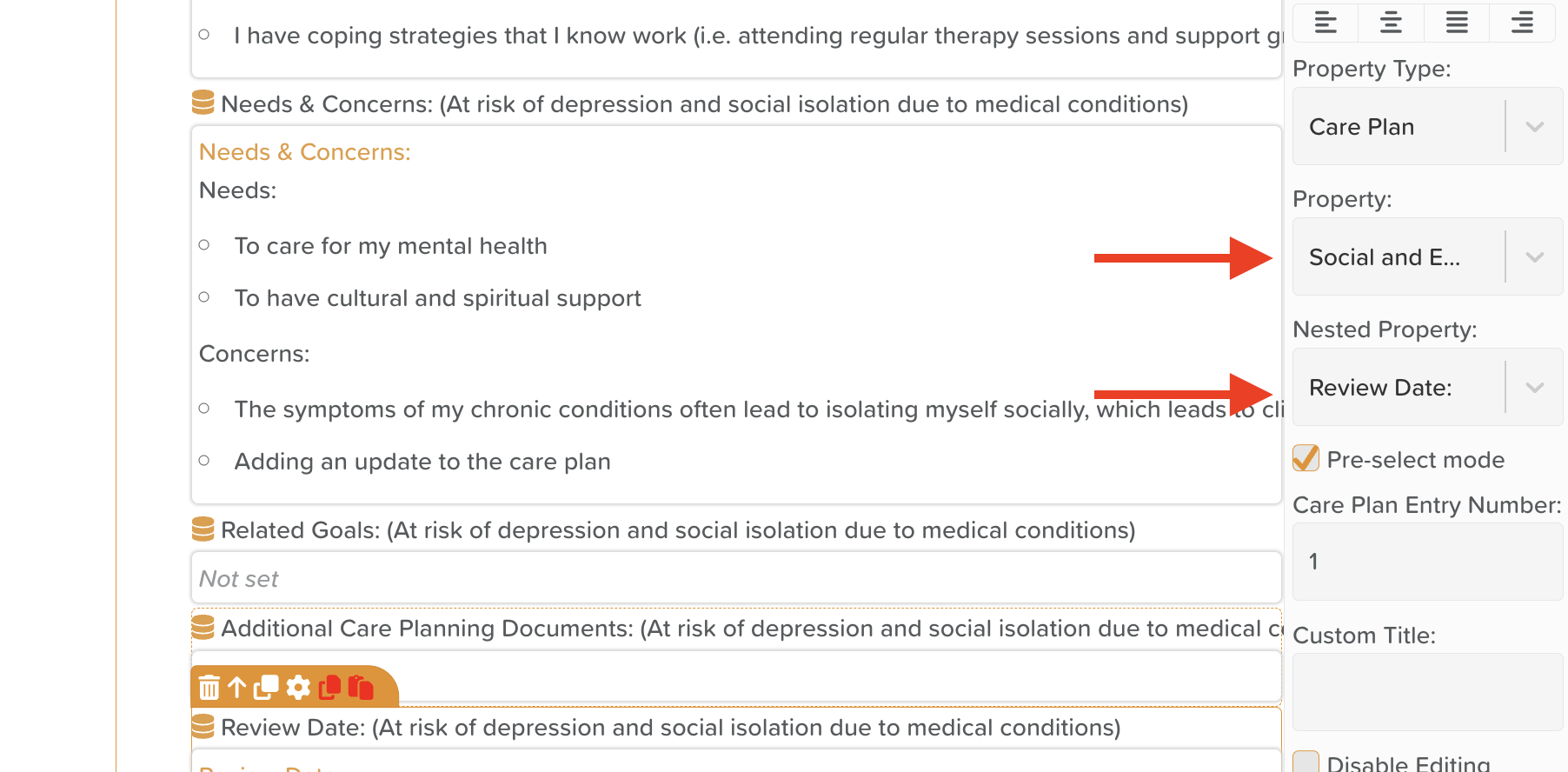
Use the Property dropdown to select a Care Plan category
Once a category is selected, the Nested Property dropdown will appear — use this to choose a specific heading within that Care Plan category
Note: In Form Builder view, Care Plan content is truncated. When staff complete the form, the full text will be visible.
Adding Multiple Care Plan Entries
If your form includes more than one Care Plan linked property, you have two options for how those entries are presented during form completion.
Pre-select Mode (Pre-set entries)
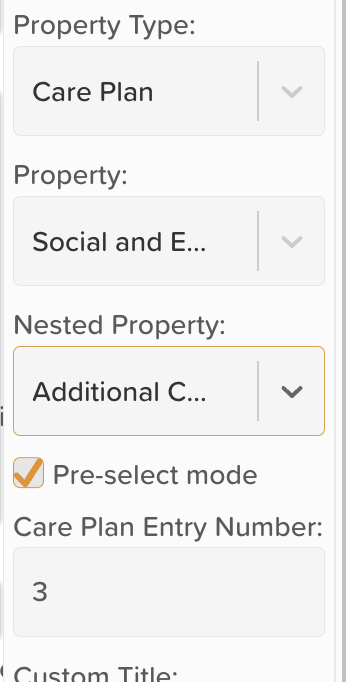
Check the Pre-select mode box in the component settings
Assign a number to each Care Plan entry to set the display order
With Pre-select mode enabled, the specified Care Plans are fixed and will appear in the configured order when a staff member completes the form — no selection is required at that point
Default Mode (Staff selection at completion)
Leave Pre-select mode unchecked
When completing the form, staff will be presented with a dropdown to select the relevant Care Plan entry at the time of completion
This option is useful when the appropriate Care Plan may vary depending on the resident or context
Completing and Syncing a Form with Care Plan Entries
When completing a form containing Care Plan linked properties, the full Care Plan text will be displayed
Staff can click directly into any Care Plan entry within the form to update its content
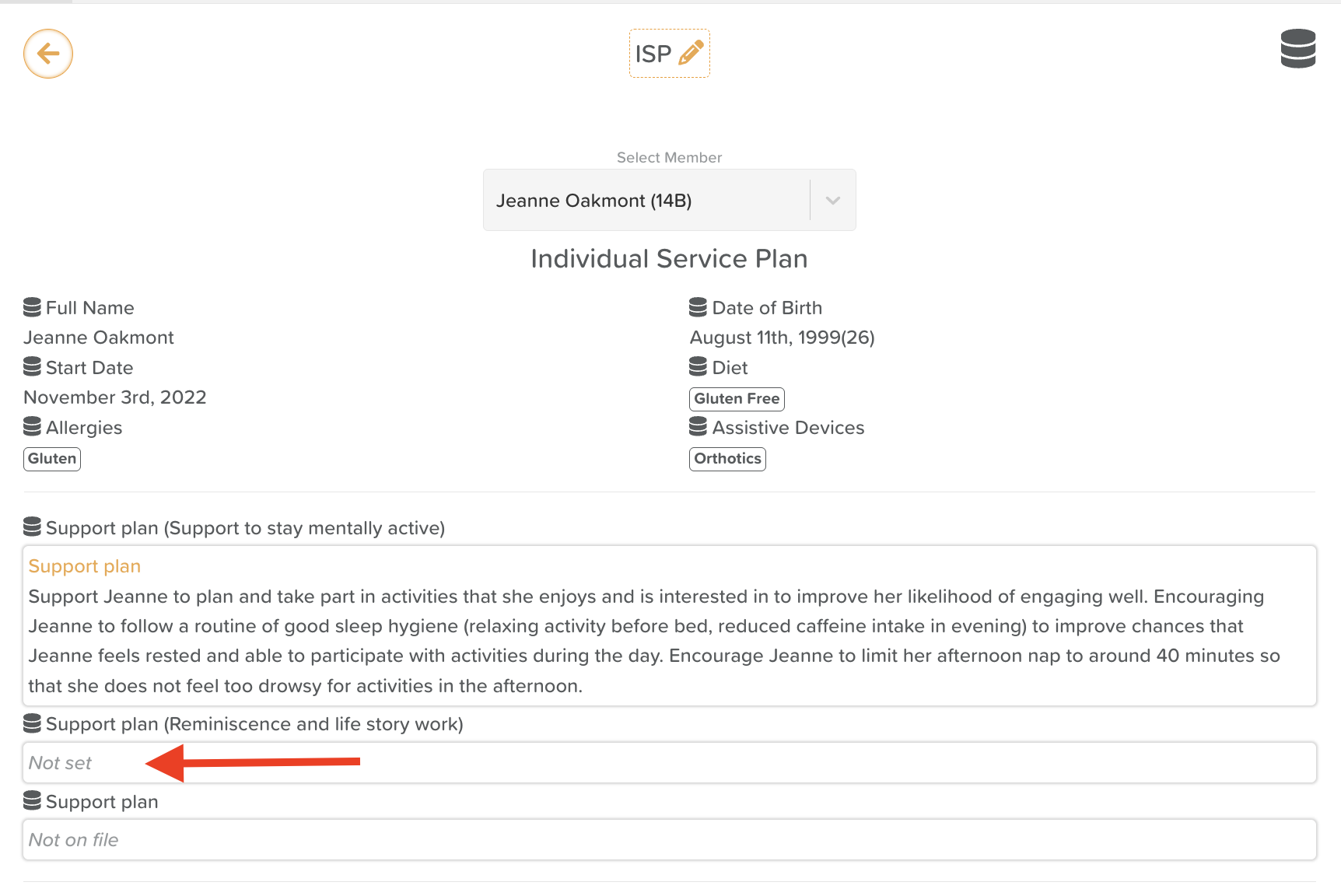
Once the form is submitted, changes will sync back to the Care Plan feature automatically
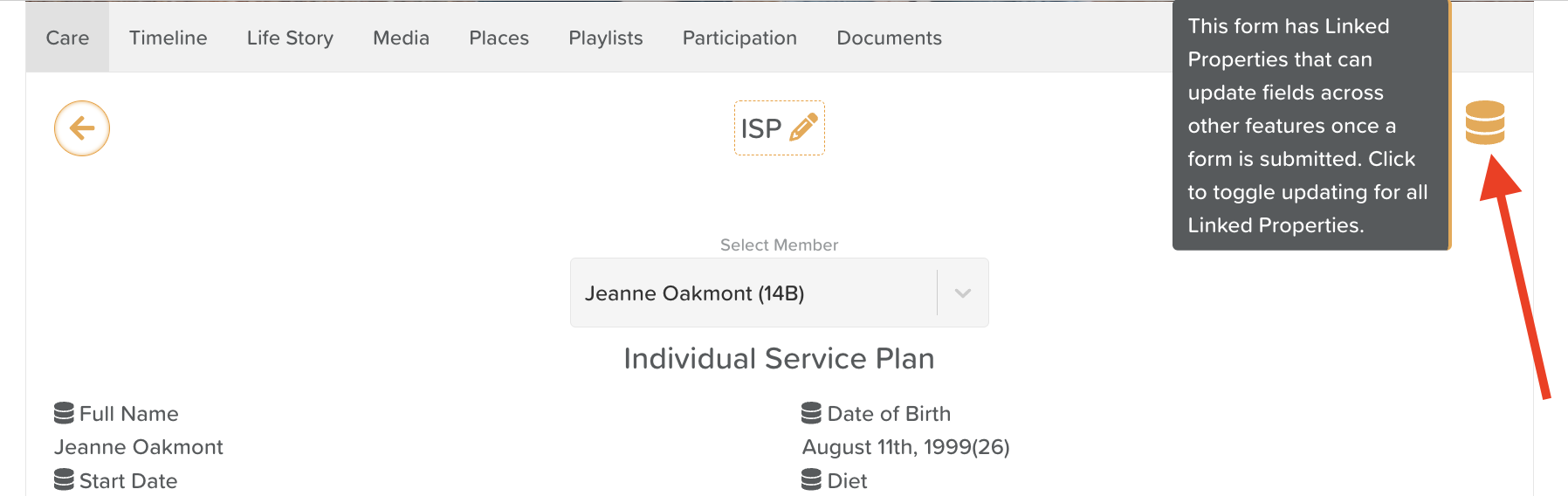
Important: If Care Plan entries do not appear to be syncing after form submission, click the hamburger icon (☰) at the top right of the form and ensure syncing is turned on before saving.
Need More Help?
If you have any questions or need further assistance, please contact our support team at support@storii.com.