
How to Set Up Email Notifications for Alerts
Selected staff can receive email notifications any time an alert is triggered in StoriiCare. This is configured through the Workflows feature and can be set up to notify one or multiple staff members.
How to Set Up the Workflow
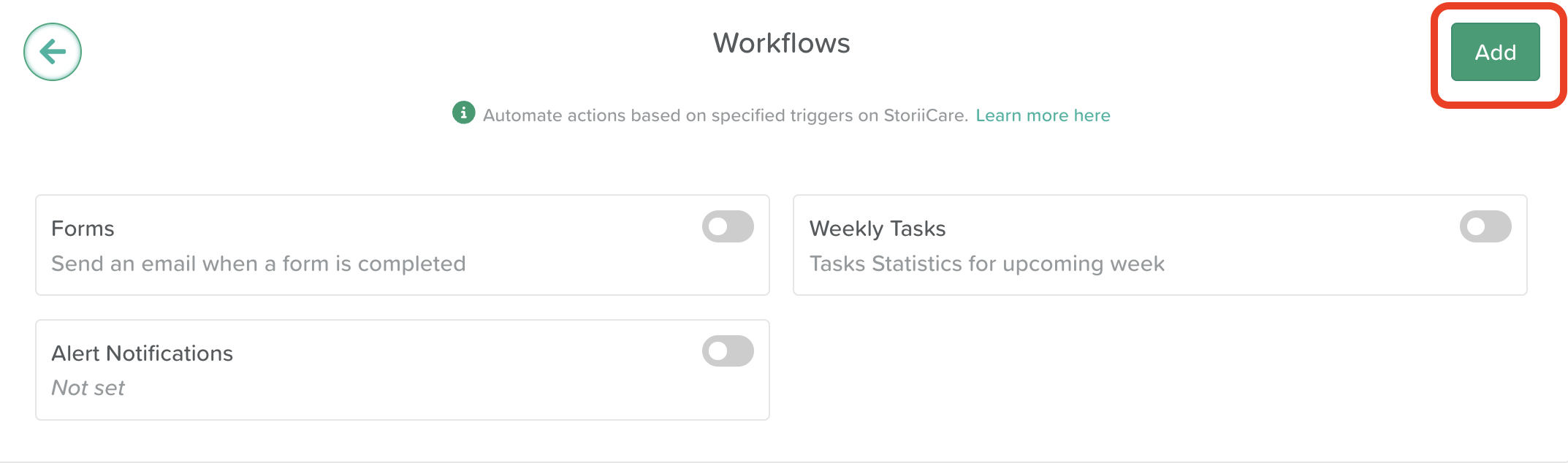
Open the Workflows feature from the Dashboard
Click the Add button
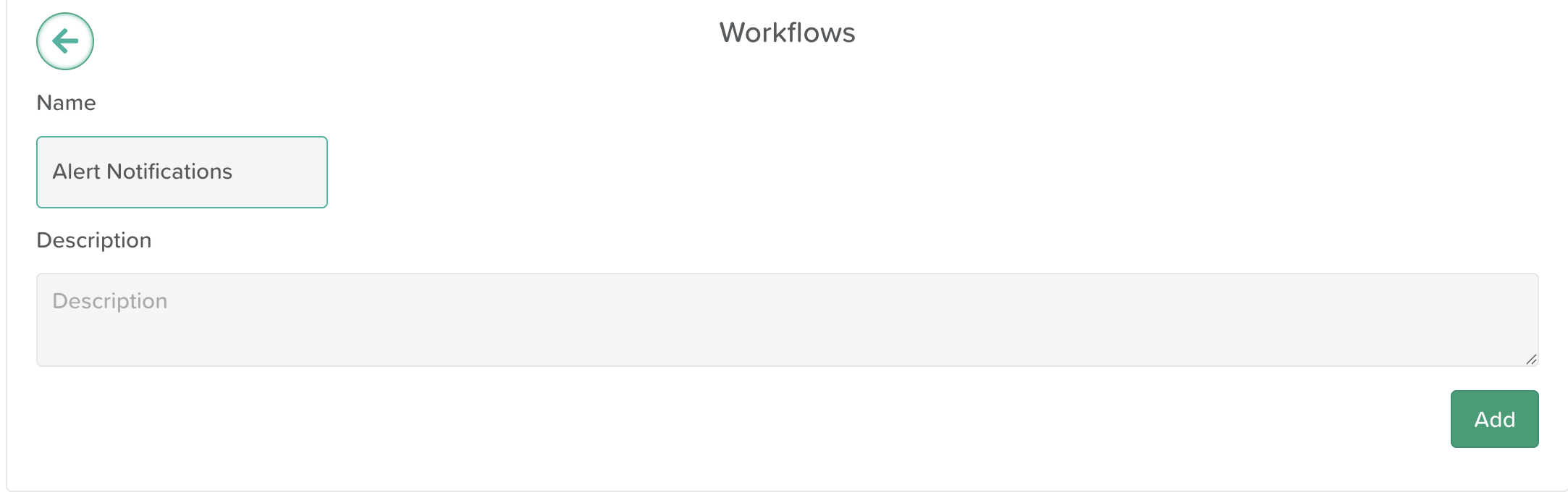
Give the workflow a Name (e.g. Alert Notifications)
Click the Add button to confirm
Click on your new workflow to open it
How to Configure the Trigger
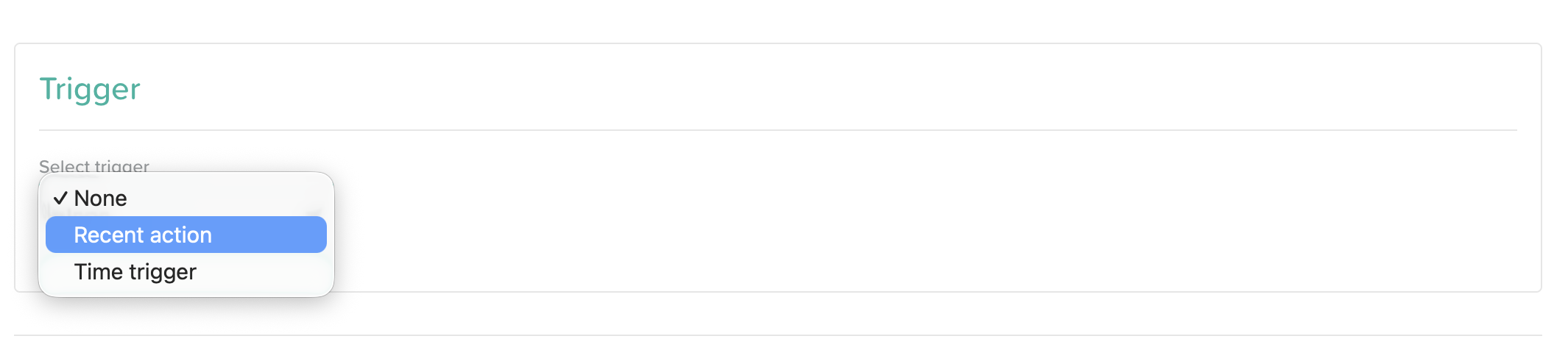
Click on the Select Trigger dropdown menu and choose Recent Action
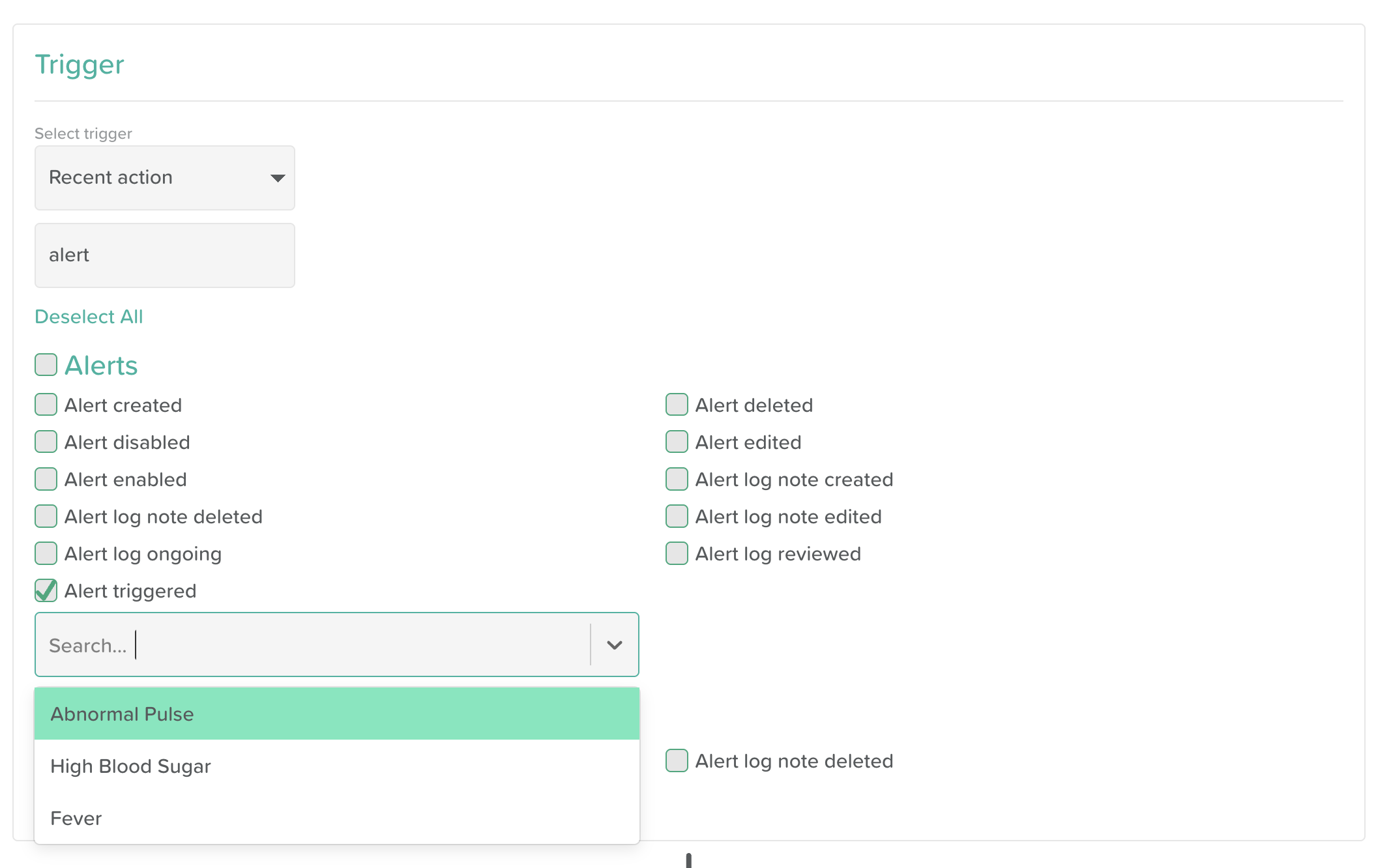
Scroll to the Alerts section
Check the box that says Alert triggered
From the dropdown menu, select which Alert(s) you want to receive email notifications for
How to Configure the Action
Scroll to the bottom of the page to the Action section
From the Select Action dropdown menu, choose Send Email
Enter the email address of the staff member who should be notified
Click + to add their email address
Repeat to add multiple email addresses if needed
Click Save
Activating the Workflow
Return to the Workflows screen
Toggle the workflow on to activate it
Note: The workflow will not send notifications until it has been toggled on. Make sure this step is not missed after saving.

Need More Help?
If you need further assistance, you can reach out to our support team by emailing support@storii.com. Our support team is ready to help you with any questions or issues you may have.