
How to Customize Vital Signs
The Vital Signs feature can be customized to better reflect your organization's needs. Administrators can create custom Vital Sign Types to capture specific health data, and group multiple types together so staff can record them in a single workflow. This guide walks through both.
How to Create a Custom Vital Sign Type
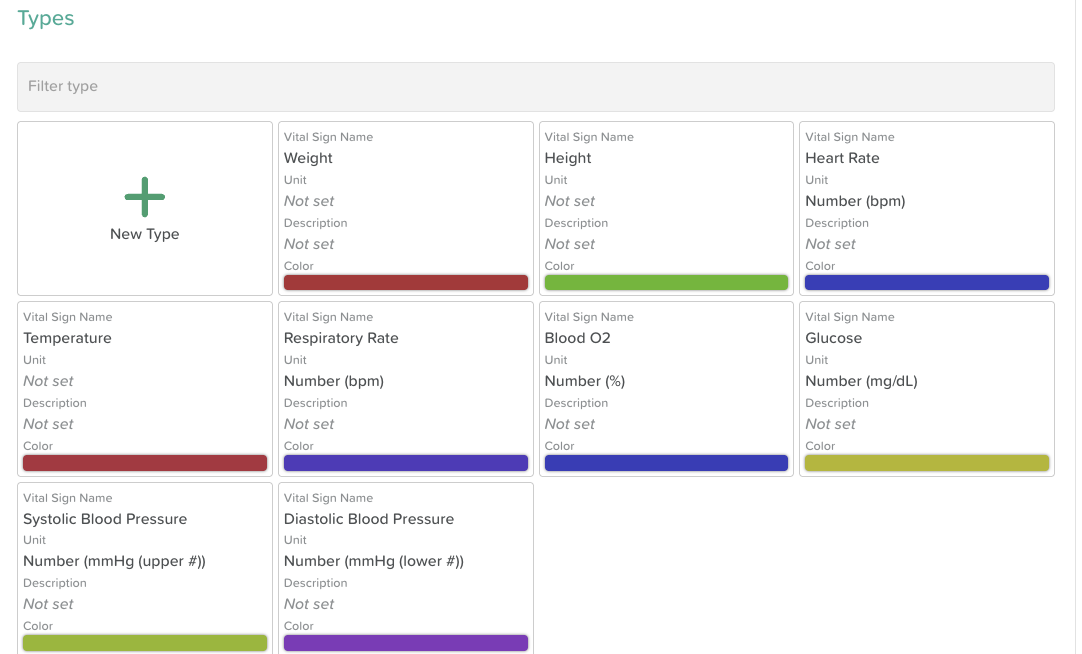
Custom Vital Sign Types allow you to track health data beyond the default options — for example, Fluid Intake or Pain Score.
Navigate to the Vital Signs feature (terminology may differ on your account)
Click the Settings wheel icon at the top of the page
Click New Type
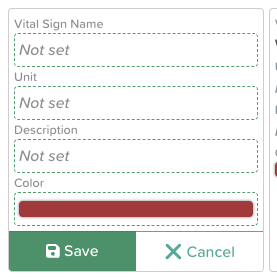
Enter a Name for the type (e.g. Fluid Intake)
Enter the Units of measure (e.g. ml)
Optionally, click Select to create or attach a List for the Description field (e.g. Fluids — Water, Juice, Milk, Coffee, Tea)
Optional - Select a Color for the Chart
Click Save
Your new Vital Sign Type will now be available to record and chart alongside standard vitals.
Note: Custom Vital Sign Types must be created before they can be added to a Vital Signs Group.
How to Create a Custom Vital Signs Group
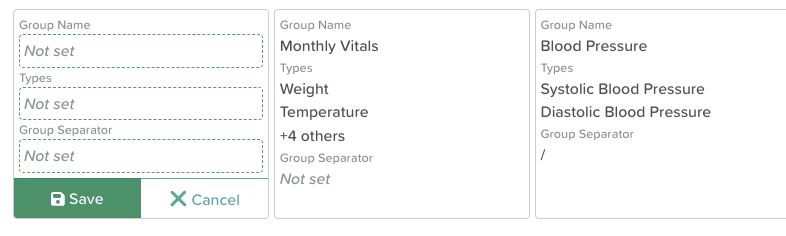
Vital Signs Groups allow staff to record multiple Vital Sign Types at the same time, rather than navigating between individual charts.
Navigate to the Vital Signs feature (terminology may differ on your account)
Click the Settings wheel icon at the top of the page
Scroll down to the Groups section
Click New Group
Enter a Group Name (e.g. Morning Vitals)
Select the Vital Sign Types to include — the order you select them is the order they will appear when recording
Click Save
Your new Group will now appear in the Vital Sign Type dropdown when recording. Scroll to the top of the dropdown to find it — Groups are listed above individual Vital Sign types.
Need More Help?
If you need further assistance, you can reach out to our support team by emailing support@storii.com. Our support team is ready to help you with any questions or issues you may have.