
A Guide to Meal Tracking
StoriiCare's Meal Tracking feature allows staff to record daily meal and snack service for participants. Designed for services participating in the Child and Adult Care Food Program (CACFP), it's flexible enough to support any program that needs to log meals for compliance or reimbursement purposes.
Meal Tracking supports five meal types: Breakfast, AM Snack, Lunch, PM Snack, and Dinner.
Accessing Meal Tracking
Navigate to the Meal Tracking section from your StoriiCare dashboard.
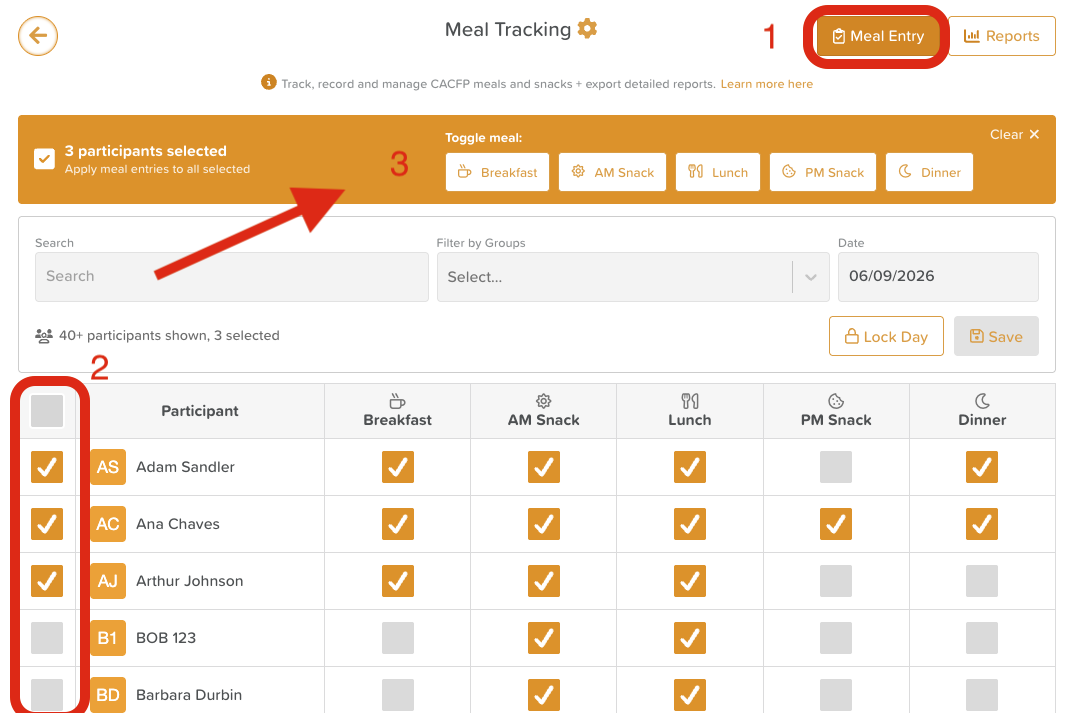
From here, you can switch between two views using the buttons in the top-right corner: Meal Entry and Reports.
Recording Meal Entries
Opening the Meal Entry view
Select Meal Entry from the top-right corner of the Meal Tracking screen.
Use the Date field to navigate to the day you want to record entries for.
Optionally, use the Search field or Filter by Groups dropdown to narrow the participant list.
Entering meals for individual participants
Use the search bar to type in a participant's name or locate them on the list.
Select the checkbox under each meal type (Breakfast, AM Snack, Lunch, PM Snack, Dinner) to mark that meal as served.
Deselect a checkbox to remove a meal entry.
Entering meals for multiple participants at once
Use the Filter by Groups dropdown to select a specific group or simply select the checkbox to the left of each participant you want to update.
A banner will appear at the top of the screen showing the number of participants selected.
Use the Toggle meal buttons in the banner — Breakfast, AM Snack, Lunch, PM Snack, or Dinner — to apply or remove that meal for all selected participants at once.
To clear your selection, select Clear in the top-right corner of the banner.
Entering meal consumption
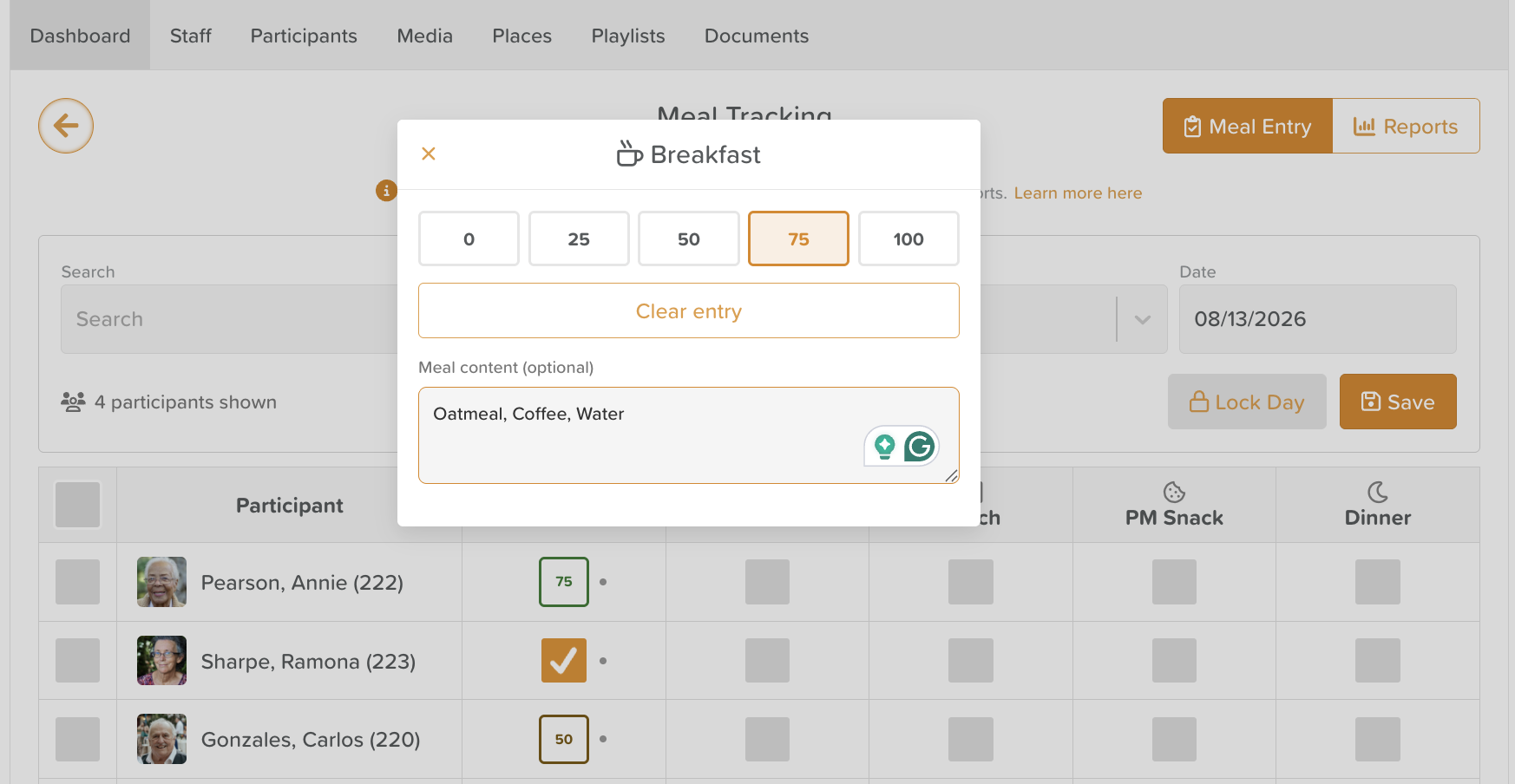
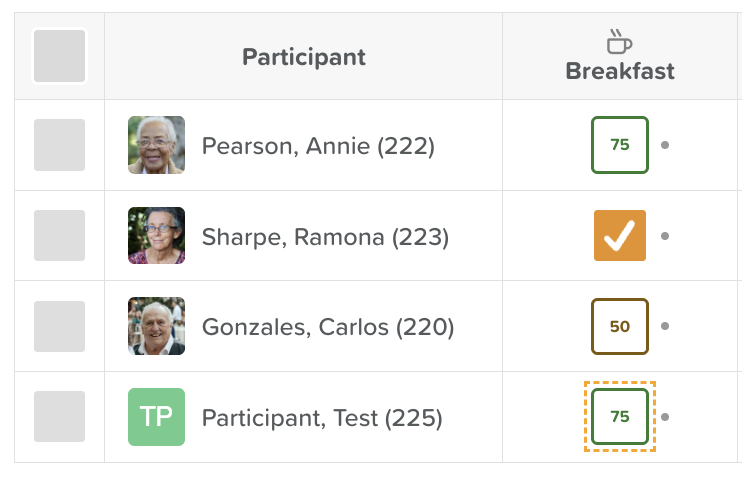
Clicking on the snack or meal checkbox a second time will open up window for recording the percentage of the meal consumed (0, 25, 50, 75, 100).
Users can also enter what was eaten in the text box provided.
Reviewing meal totals
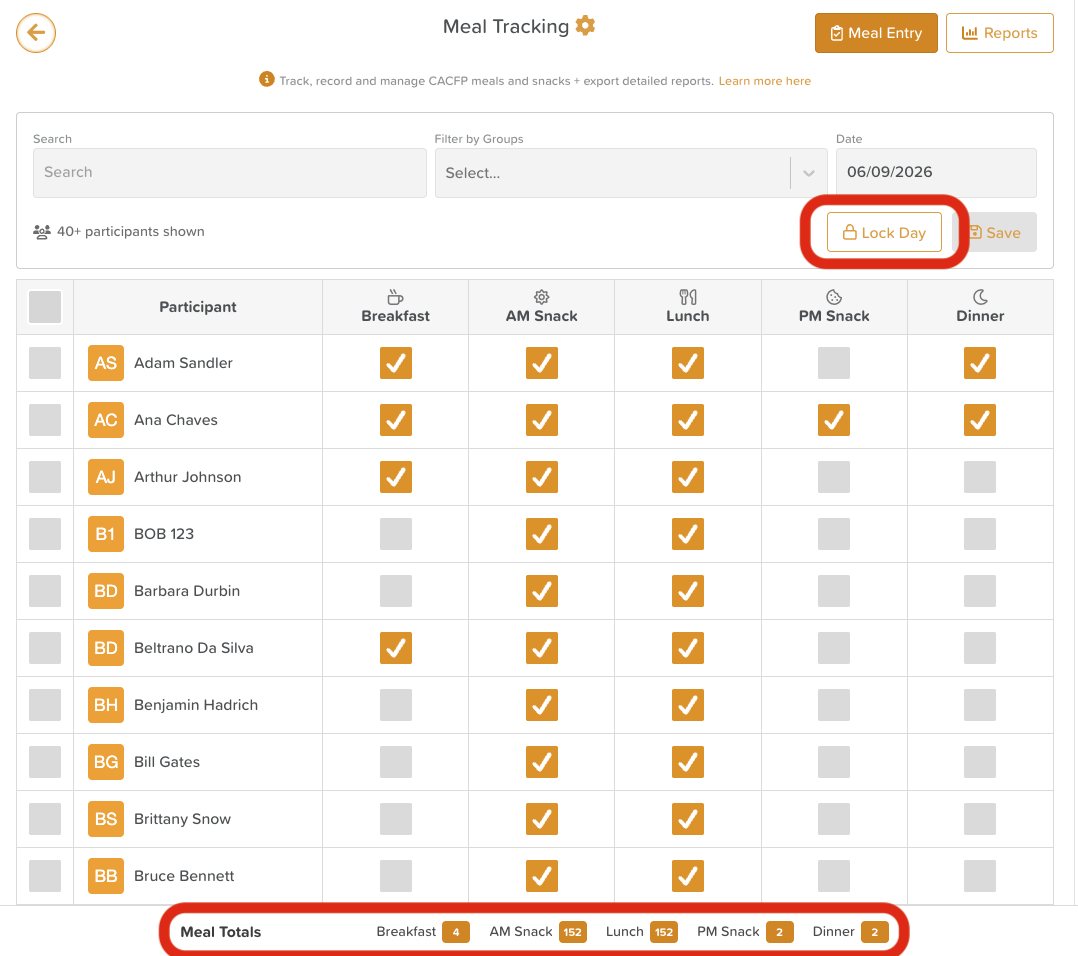
The Meal Totals bar at the bottom of the screen displays a running count for each meal type for the selected day.
Saving and locking entries
Select Save to save your entries for the day.
Once entries are finalised, select Lock Day to prevent accidental changes. Locked days cannot be edited without unlocking.
Generating and Exporting Reports
Viewing the Meal Count Report
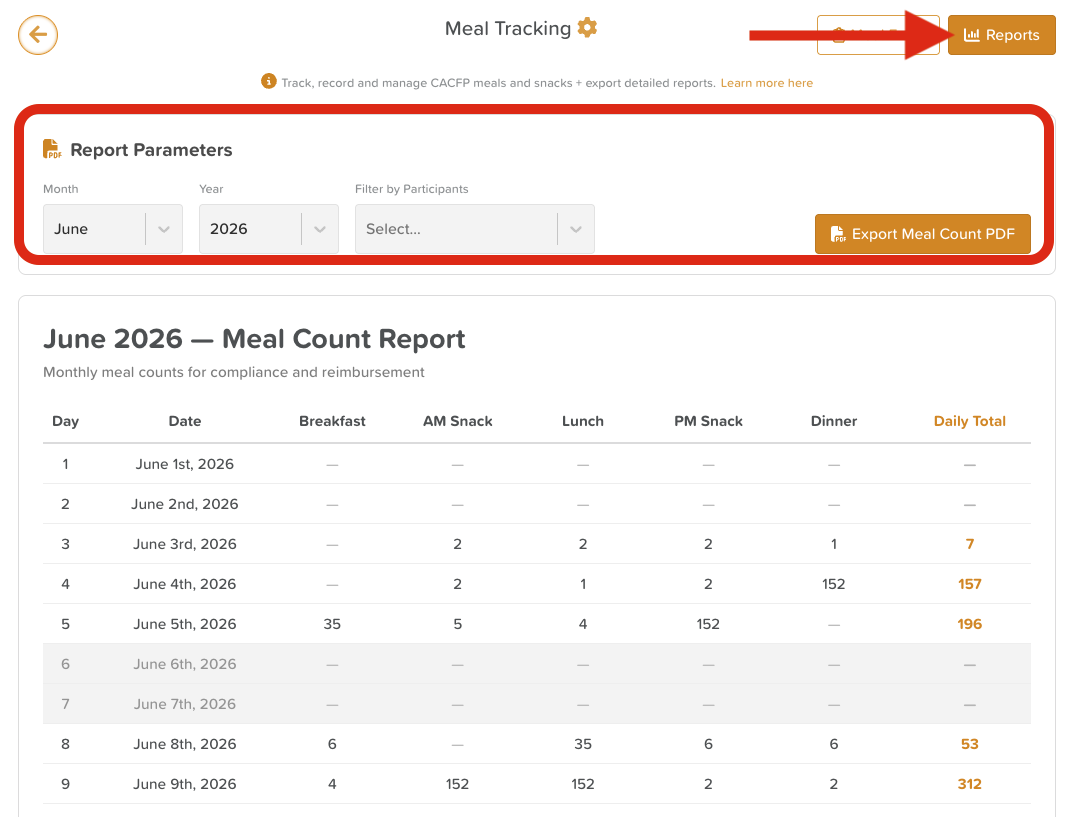
Select Reports from the top-right corner of the Meal Tracking screen.
Under Report Parameters, use the Month and Year dropdowns to select the reporting period.
Optionally, use the Filter by Participants dropdown to view data for specific participants or groups.
The Meal Count Report table will display daily totals for each meal type across the selected month. Weekend and non-service days are visually distinguished in the table.
Exporting as a PDF
Once you have set your report parameters, select Export Meal Count PDF.
The exported PDF is formatted for CACFP compliance and reimbursement submission, and includes a full daily and summary breakdown for the selected period.
Need More Help?
Contact our support team at support@storii.com.