
How to Resubmit a Claim
If a claim has been denied or rejected, you can quickly resubmit it from the Claims section in Billing. This allows you to correct issues and send the claim again without needing to recreate it from scratch.
Follow the steps below to resubmit a claim.
How to Resubmit a Claim
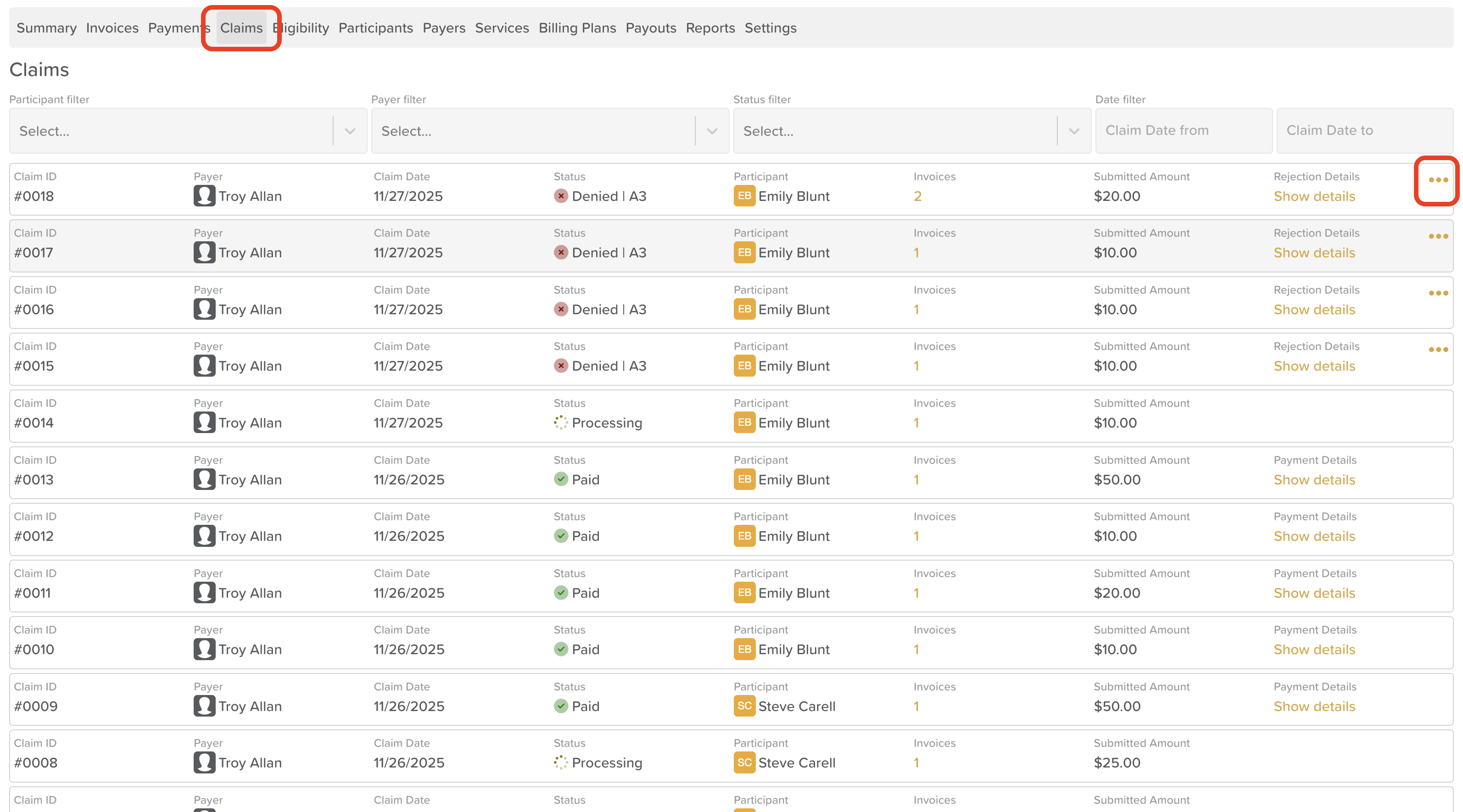
From the Dashboard, go to Billing.
Click the Claims tab.
Locate the claim that was denied or rejected.
Click the three dots (ellipsis) on the right-hand side of the claim.
Select Resubmit from the menu.
A pop-up window will appear asking you to confirm your intent to resubmit the claim.
Click Confirm to proceed.
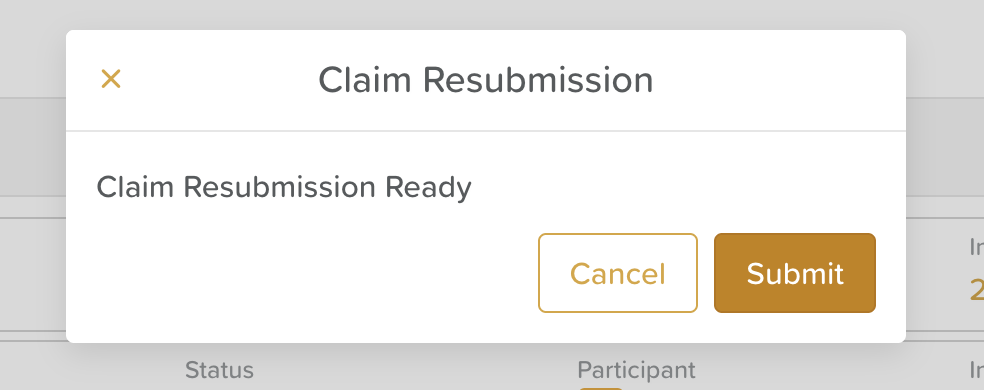
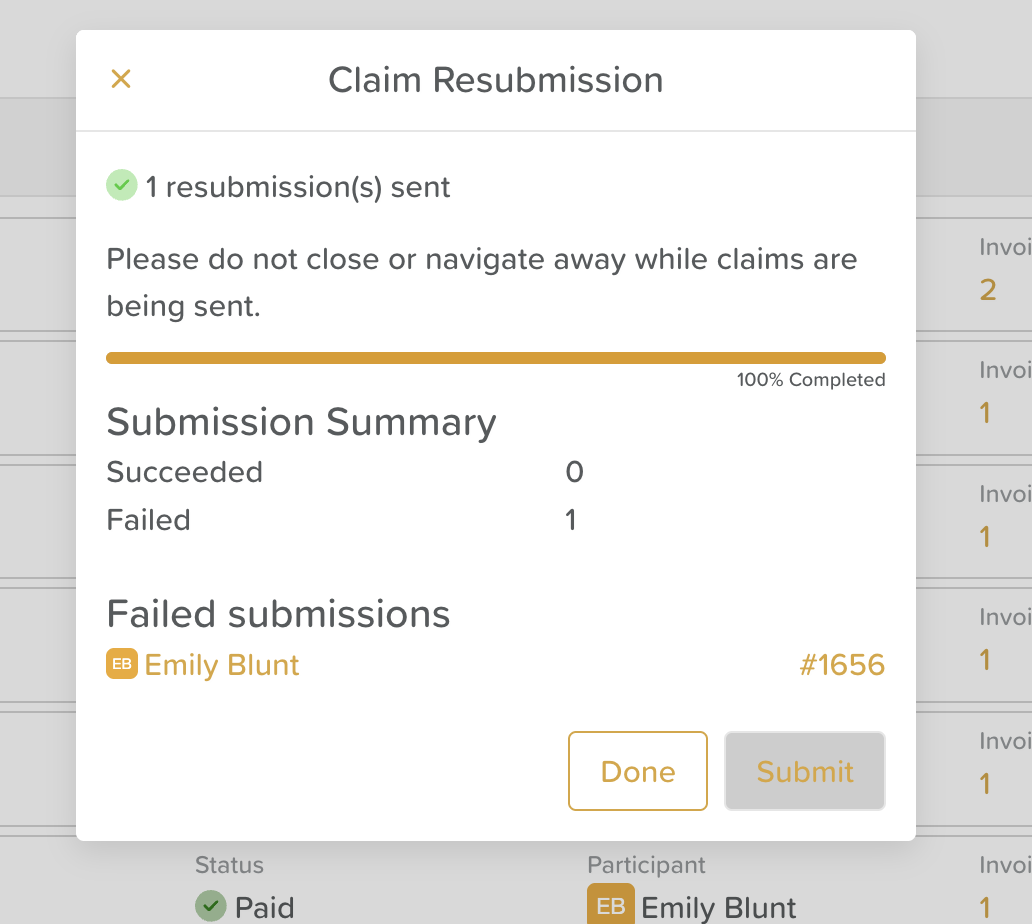
Once the claim has been successfully resubmitted, you will receive a confirmation message.
When to Resubmit a Claim
Resubmitting a claim may be necessary if:
A claim was rejected due to missing or incorrect information
A payer denied the claim and corrections have been made
The claim needs to be reprocessed after updates
Before resubmitting, review the claim details and ensure any required corrections have been made to improve the likelihood of approval.
Need More Help?
If you need further assistance, you can reach out to our support team by emailing support@storii.com. Our support team is ready to help you with any questions or issues you may have.