
How to Download Payouts in Bulk
StoriiCare allows you to export multiple payout transactions at once into a CSV file. This is useful for financial reconciliation, accounting reviews, and reporting across multiple payments.
Follow the steps below to download payouts in bulk.
How to Download Payouts in Bulk
From the Dashboard, go to Billing.
Click the Payments tab.
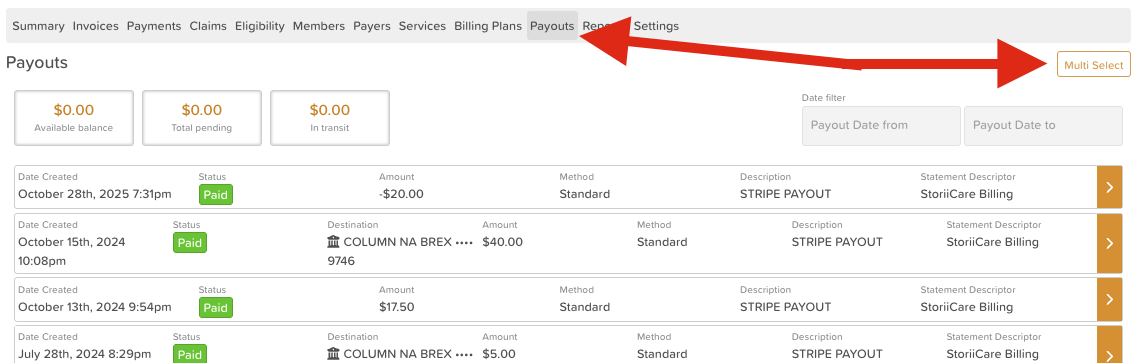
Click the Multi-Select button in the top-right corner of the page.
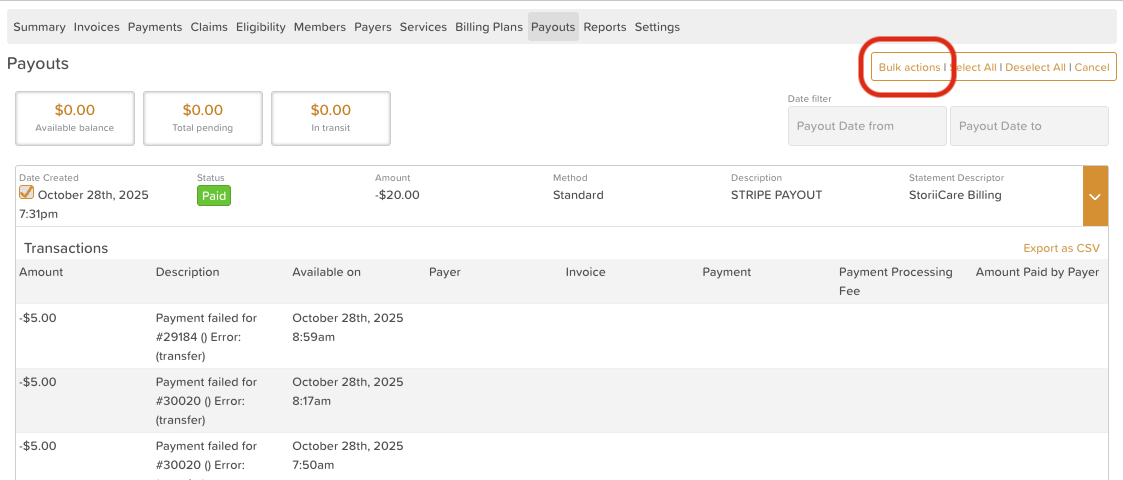
Check the boxes next to each payout you wish to include in your report.
Click Bulk Actions in the top-right corner.
From the dropdown menu, select Export Transactions CSV.
Click Submit.
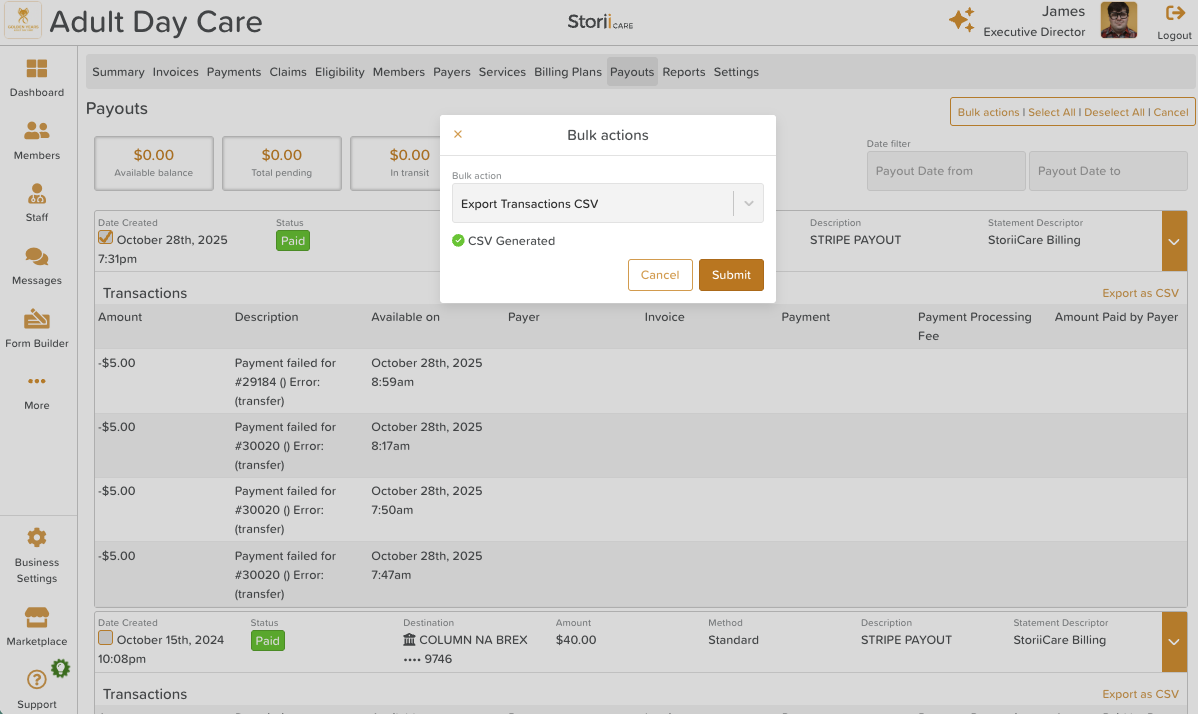
The selected payout transactions will download as a CSV file, which can be opened in Excel, Google Sheets, or other spreadsheet software.
What’s Included in the CSV?
The exported file includes the following transaction details:
Amount – Total payout amount
Currency – Currency used for the transaction
Invoice ID – Unique identifier for the related invoice
Payer – Name of the individual or organization who made the payment
Payment ID – Unique payment transaction reference
Available On – Date the payout became available
Created – Date the payment transaction was created
Category – Transaction category
Status – Current payout status
Type – Type of payment transaction
Payment Processing Fee – Fee charged for processing the payment
Amount Paid by Payer – Total amount the payer submitted
Best Practices
Export payouts regularly to keep your financial records up to date.
Use consistent date ranges when reconciling payouts with accounting systems.
Store exported files securely to protect financial and participant data.
Need More Help?
If you need further assistance, you can reach out to our support team by emailing support@storii.com. Our support team is ready to help you with any questions or issues you may have.