
How to Export a Services Report
The Services Report provides a detailed overview of your service configurations, including service settings, billing conditions, and assigned participants. This report is useful for financial reviews, audits, and internal compliance checks.
Follow the steps below to export a Services report in CSV format.
How to Export a Services Report
From the StoriiCare Dashboard, go to Billing.
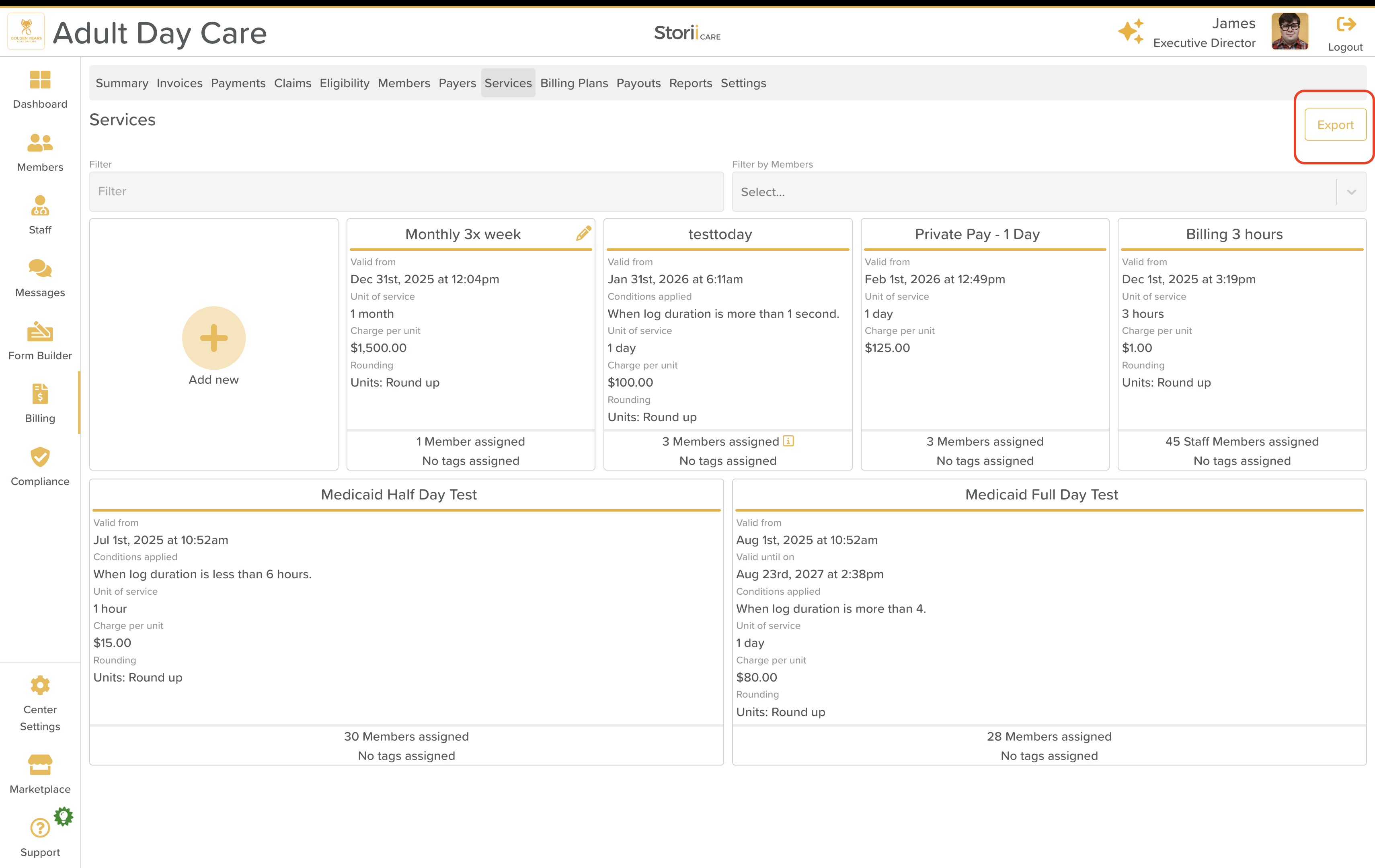
Click on the Services tab.
Click the Export button in the top-right corner.
Select the Group or specific Participant(s) you would like to include in the report.
Click Services CSV to download the report.
The file will download in CSV format and can be opened in Excel, Google Sheets, or other spreadsheet software.

What’s Included in the Services Report?
The exported CSV includes the following information:
Name of Service – The title of the service
Valid From Date – When the service became active
Expired On Date – When the service ends (if applicable)
Time Applied – How the service timing is configured (always, certain days, etc.)
Conditions Applied – Any billing or application conditions set
Unit of Service – The billing unit (e.g., hourly, per visit, daily)
Charge per Unit – Cost per unit of service
Pre-Rounding Conditions – Rules applied before rounding
Rounding Conditions – Rules applied to rounding service time
Account Code – Associated accounting or ledger code
Participants Assigned – Individuals currently linked to the service
Tags – Any tags associated with the service
This report gives a clear snapshot of how services are structured and who they apply to.
Need More Help?
If you need further assistance, you can reach out to our support team by emailing support@storii.com. Our support team is ready to help you with any questions or issues you may have.